...
Supported Webhook Events:
Event | Trigger | Payload Example |
Product feed generated | Product feed generation is completed |
|
Size chart exported | Size chart data is exported via CLI |
|
Webhook requests use:
Method: POST
...
The webhook secret key is used to authenticate the request.
Webhook Troubleshooting:
Issue | Possible Cause | Solution |
Webhook not sent | Webhook is disabled | Enable Feed Webhook in Admin |
Webhook rejected | Secret key mismatch | Check Webhook Secret Key |
AI service receives outdated data | Size chart export not run | Run size chart export command again |
Webhook URL unreachable | Incorrect URL or network issue | Verify endpoint and server connectivity |
No response from AI service | AI service unavailable | Check AI service status and logs |
Size Chart Dependency
AI Size Recommender depends on Size Chart data to generate accurate recommendations. The Size Chart module allows admins to create size chart categories, map them to Magento catalog categories, and enter measurement values for each size. The same data is used by AI Size Recommender on the frontend.
...
The General Information section contains the basic information of the Size Chart Category.
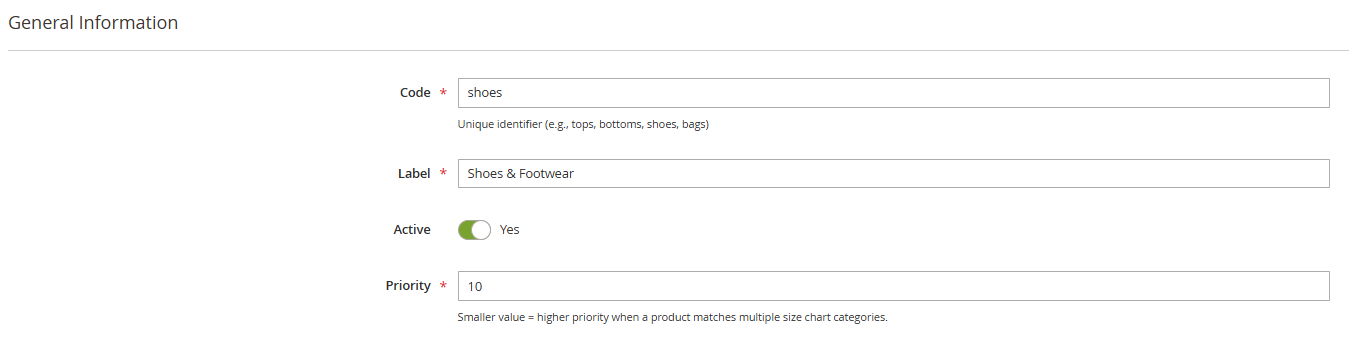
Field | Description | Required |
Code | Unique identifier. Use lowercase letters and no spaces. Example: tops, bottoms, shoes. | Yes |
Label | Display name. Example: Tops & T-Shirts. | Yes |
Is Active | Enable or disable this Size Chart Category. | Yes |
Priority | Defines priority when a product matches multiple Size Chart Categories. The category with the smaller Priority value will be selected. | Yes |
 Catalog Mapping:
The Catalog Mapping section defines which Magento catalog categories are linked to this Size Chart Category.
...
Click Add Measurement to add a new measurement field.
Field | Description | Example |
Key | Internal identifier. Use lowercase letters and underscores. | chest, waist, hip |
Label | Label displayed to users. | Chest, Waist, Hip |
Required | Defines whether this field is required for AI recommendation. | Yes / No |
Unit Type | Type of measurement unit. | length (cm / inch), weight (kg / lbs), age (years) |
Section | Position of the field in the form. | before, body, after |
Common Measurement Keys by Category:
Category | Common Keys |
Tops | height, weight, chest, waist, shoulder, sleeve, length |
Bottoms | height, weight, waist, hip, inseam, outseam, thigh |
Dresses | height, weight, chest, waist, hip, length, shoulder |
Shoes | foot_length, foot_width |
Underwear | chest, underbust, waist, hip |
Kids Tops | child_age, height, weight, chest, waist, shoulder, length |
Kids Bottoms | child_age, height, weight, waist, hip, inseam |
Additional Fields:
The Additional Fields (Selectors) section defines non-measurement options displayed as selectable chips on the frontend.
...
Click Add Selector to add a new selector field.
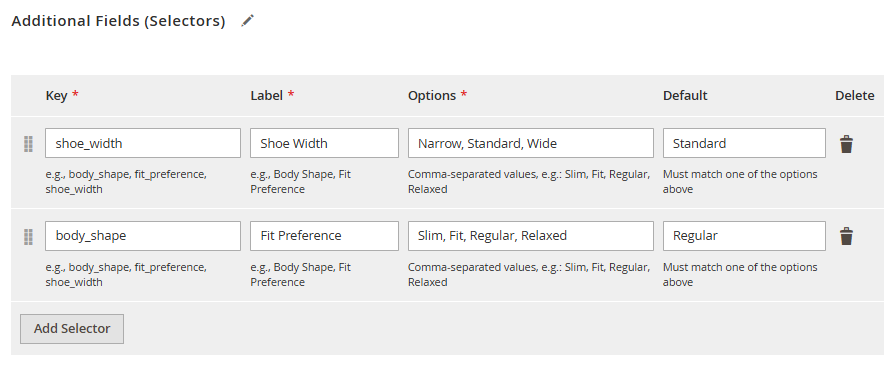
| Field | Description | Example |
|---|---|---|
Key | Internal identifier | body_shape, fit_preference, shoe_width |
Label | Label displayed to users | Body Shape, Fit Preference, Shoe Width |
Options | Comma-separated list of selectable options | slim, average, athletic, plus |
Default | Default selected option | average |
Charts
Size Charts fields
Go to: Magenest > Size Charts > Charts
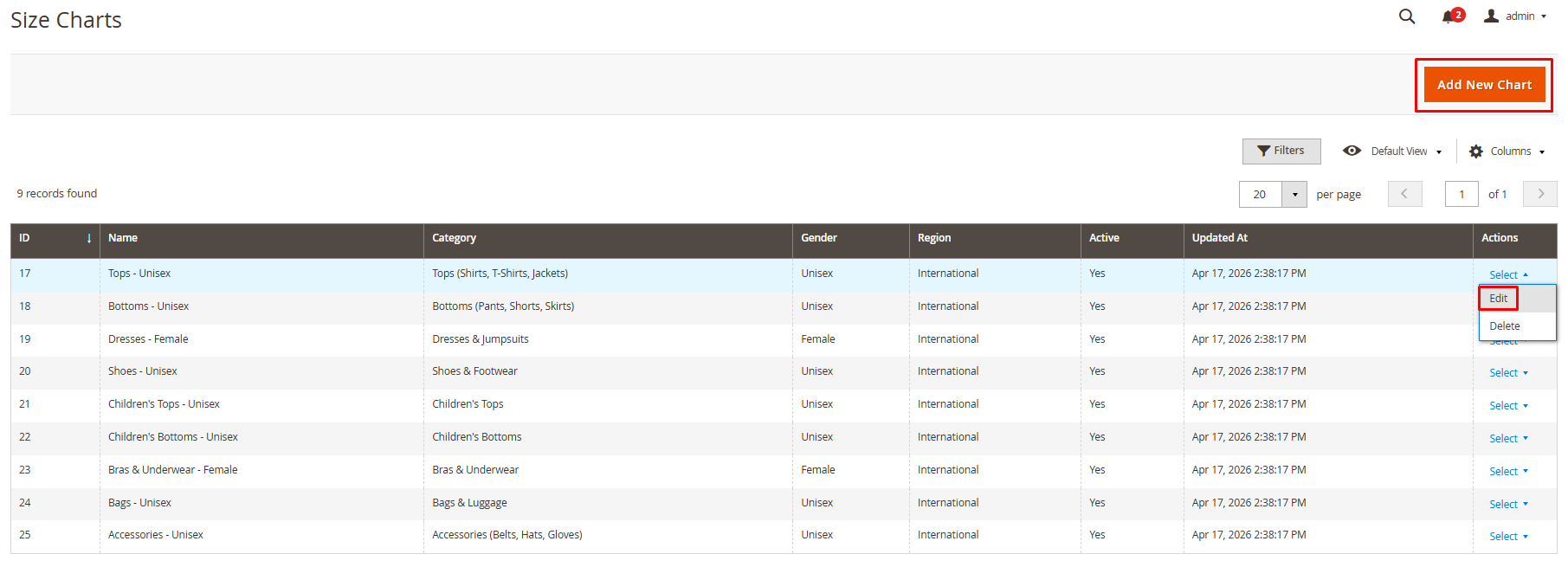
The Charts grid displays all existing size charts.
Field | Description |
ID | Auto-generated identifier |
Name | Name of the size chart |
Category | Parent Size Chart Category |
Gender | male, female, or unisex |
Region | asia, eu, us, uk, or international |
Active | Shows whether the chart is active |
Updated At | Last updated date |
Actions | Edit or delete the chart |
Add New/Edit Chart
Click Add New Chart to create a new chart, or click Edit on an existing row.
General Information:
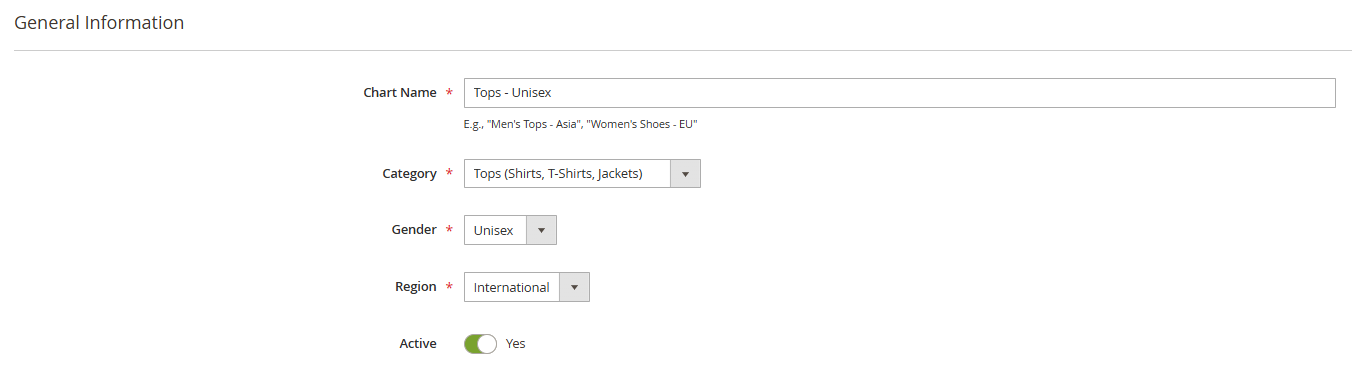
Field | Description | Required |
Name | Descriptive chart name. Example: Women Tops - Asia | Yes |
Category | Select the parent Size Chart Category | Yes |
Gender | Target gender: male, female, or unisex | Yes |
Region | Target region: asia, eu, us, uk, or international | Yes |
Is Active | Enable or disable this chart | Yes |
Each combination of Category + Gender + Region must be unique. You cannot create two charts with the same Category, Gender, and Region combination.
...
Each row represents one size.
Field | Description | Example |
Size Label | Size name | XS, S, M, L, XL, 38, 40, 8.5 |
Measurement Columns | Numeric values for each measurement key | chest = 88, waist = 72 |
Sort Order | Display order in ascending order | 0, 1, 2, 3 |
Notes:
- Measurement values should be entered in centimeters for length and kilograms for weight.
- The system automatically converts these values to inches or lbs on the frontend.
- The measurement values from the first row are used as placeholder suggestions in the size recommendation form.
- Admins can add as many size rows as needed.
...
The form supports unit switching.
Measurement Type | Supported Units | Default |
Length | cm / inch | cm |
Weight | kg / lbs | kg |
When the customer changes units, placeholder values are converted automatically. The entered values are sent to the AI service together with the selected unit.
...
Some product categories may show selectable chip fields.
Example:
Product Type | Additional Fields |
Tops / Bottoms | Body Shape (slim, average, athletic, plus), Fit Preference (tight, regular, loose) |
Shoes | Shoe Width (narrow, standard, wide) |
Underwear | Cup Size (A, B, C, D, DD, E+) |
Each additional field allows one selected option.
...
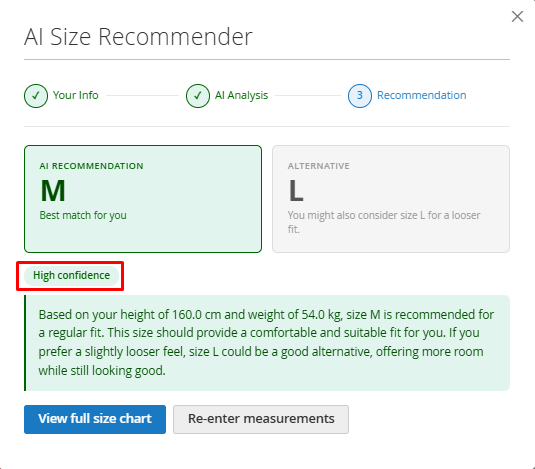
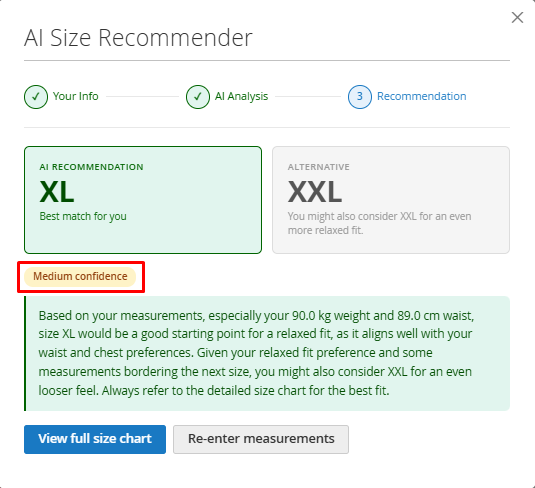
When the AI returns a result, the modal displays the recommended size.
The result may include:
Component | Description |
AI Recommendation Card | Best-fit size recommended by AI |
Alternative Card | Alternative size option when applicable |
Confidence Badge | High confidence (green) or Medium confidence (orange) |
Explanation | Reason why the size is recommended |
Tip | Short fit-related advice |
Re-enter Measurements | Returns to the input step |
View full size chart:
The customer can click View full size chart to see all available sizes and their corresponding measurements.
...