Thank you for purchasing our extension. If you have any questions that are beyond the scope of this document, please feel free to contact us via [email protected]
By: Magenest | Support Portal: http://servicedesk.izysync.com/servicedesk/customer/portal/7
AI Size Recommender for Magento 2 is an AI-powered extension developed by Magenest to help shoppers choose the right product size directly on the Product Detail Page. When shoppers click this button, they can enter their body measurements and receive an AI-powered size recommendation based on the product’s size chart data.
For Admin:
For Customer:
Before installing and configuring AI Size Recommender, make sure the Magento environment meets the following requirements.
The Recommend Size button only appears when all required product conditions are met:
If one of these conditions is missing, the Recommend Size button will not appear on the product page.
To connect Magento with the AI recommendation engine, you need:
The API Base URL and API Key are provided by the AI service provider. If you do not have these details yet, contact Magenest for guidance on how to obtain them from the provider.
On the admin sidebar, go to: Stores > Configuration > Magenest > AI Size Recommender
 General Settings:
If you do not have API Base URL and API Key yet, contact Magenest for guidance on how to obtain them from the provider.
After completing the configuration, click Save Config.
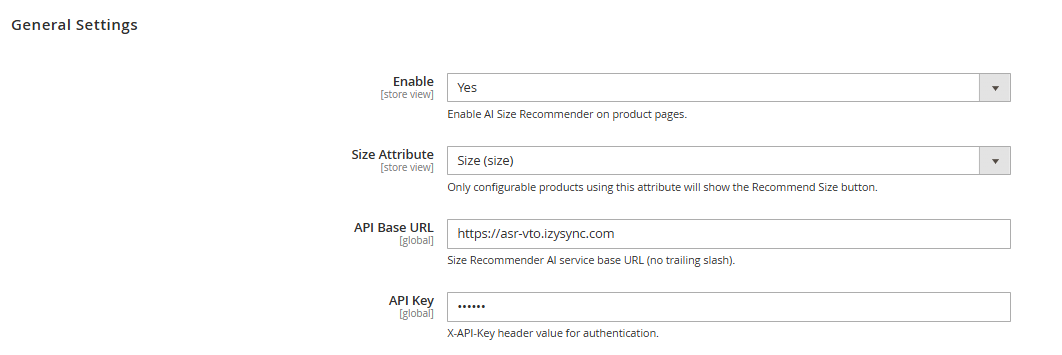
Developer note: The selected Size Attribute must be used as a configurable option on eligible configurable products. If the product does not use this attribute, the Recommend Size button will not appear.
Webhook Settings (optional):Webhook settings are optional. Use them when the AI service needs to be notified automatically whenever product feed or size chart data changes.
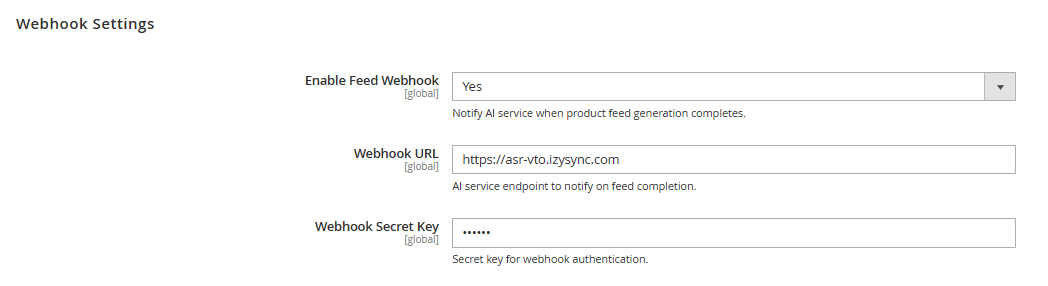
If you are not sure whether webhook sync is required, keep the default setting and confirm with the technical implementation team.
When webhook is enabled, Magento sends notifications to the AI service when relevant data is updated.
Supported Webhook Events:
Event | Trigger | Payload Example |
Product feed generated | Product feed generation is completed |
|
Size chart exported | Size chart data is exported via CLI |
|
Webhook requests use:
Method: POST
Content-Type: application/json
Authentication Header: X-Webhook-Secret
The webhook secret key is used to authenticate the request.
Webhook Troubleshooting:
Issue | Possible Cause | Solution |
Webhook not sent | Webhook is disabled | Enable Feed Webhook in Admin |
Webhook rejected | Secret key mismatch | Check Webhook Secret Key |
AI service receives outdated data | Size chart export not run | Run size chart export command again |
Webhook URL unreachable | Incorrect URL or network issue | Verify endpoint and server connectivity |
No response from AI service | AI service unavailable | Check AI service status and logs |
AI Size Recommender depends on Size Chart data to generate accurate recommendations. The Size Chart module allows admins to create size chart categories, map them to Magento catalog categories, and enter measurement values for each size. The same data is used by AI Size Recommender on the frontend.
On the admin sidebar, go to: Magenest > Size Charts
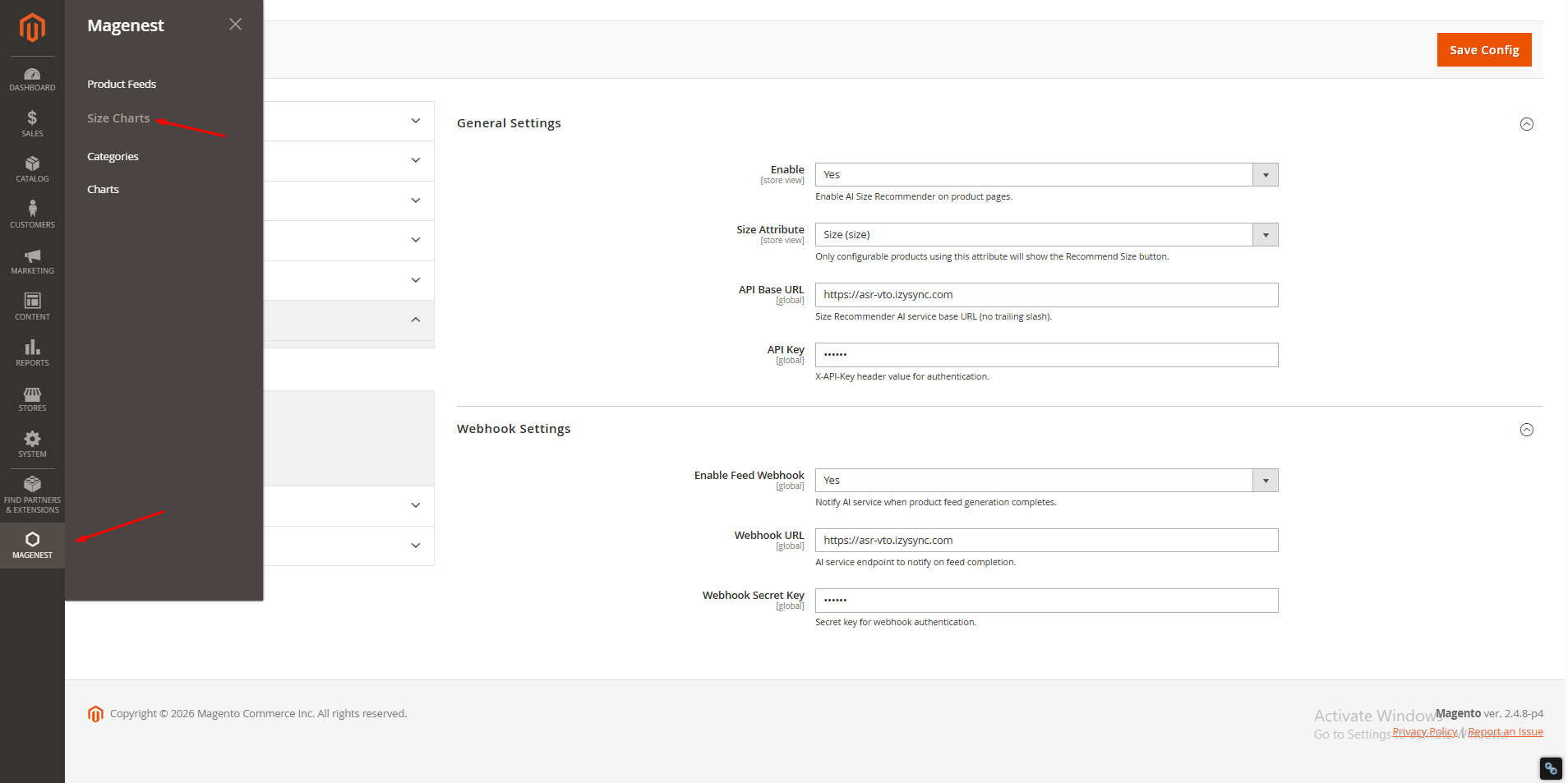
There are two main menu items:
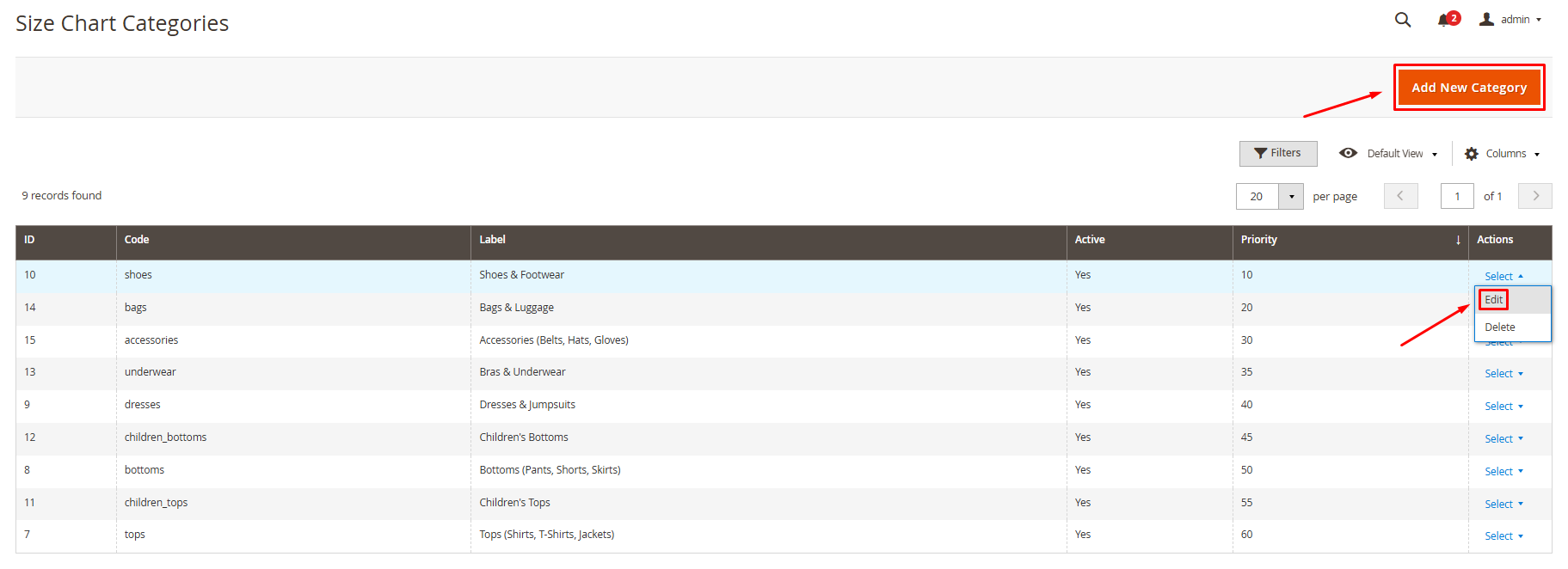
Go to: Magenest > Size Charts > Categories
A Size Chart Category defines the product group and the measurement fields used for recommendation.
Example categories:
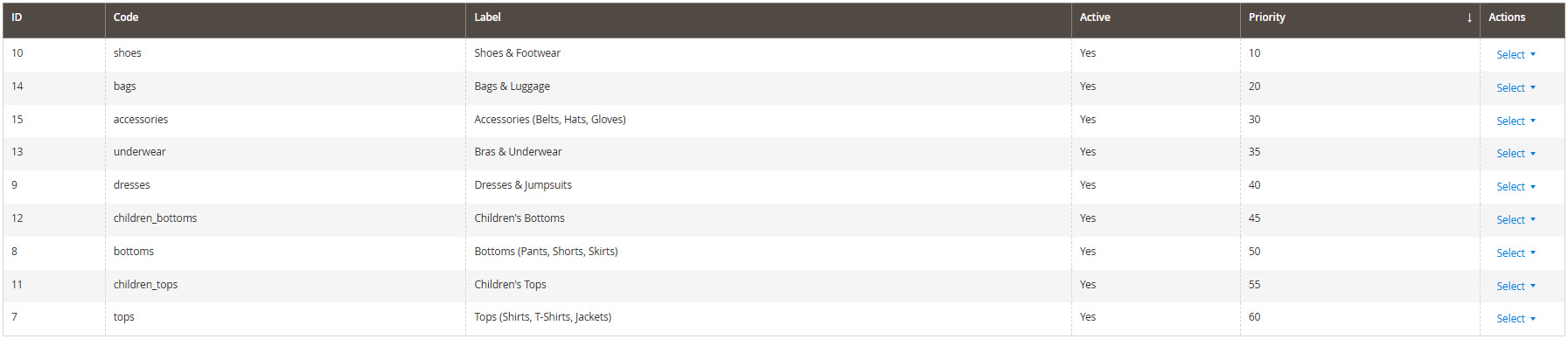
Add New Category or Edit existing row.
General Information:
The General Information section contains the basic information of the Size Chart Category.
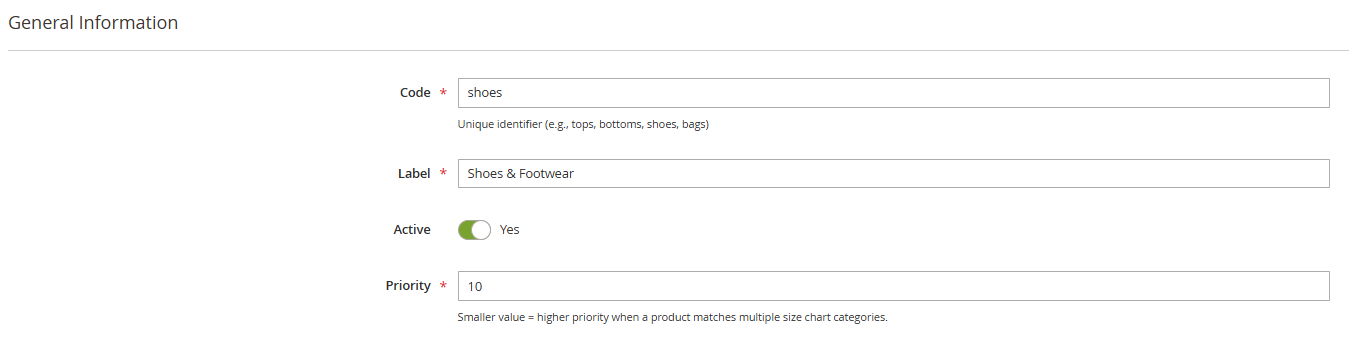
Field | Description | Required |
Code | Unique identifier. Use lowercase letters and no spaces. Example: tops, bottoms, shoes. | Yes |
Label | Display name. Example: Tops & T-Shirts. | Yes |
Is Active | Enable or disable this Size Chart Category. | Yes |
Priority | Defines priority when a product matches multiple Size Chart Categories. The category with the smaller Priority value will be selected. | Yes |
Catalog Mapping:
The Catalog Mapping section defines which Magento catalog categories are linked to this Size Chart Category.
Catalog Categories: Select one or more Magento catalog categories. Products under these categories, including their child categories, will be mapped to this Size Chart Category.
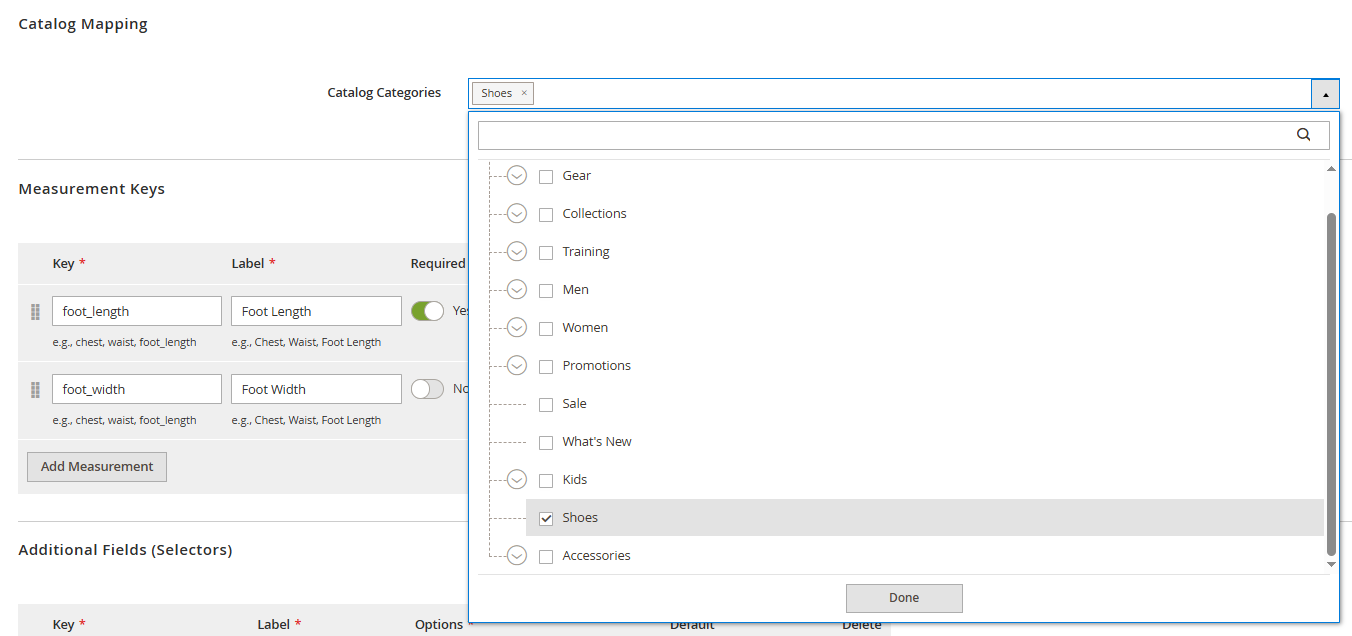
How Catalog Mapping Works:
Measurement Keys:
The Measurement Keys section defines the body measurements that the size chart will collect and use.
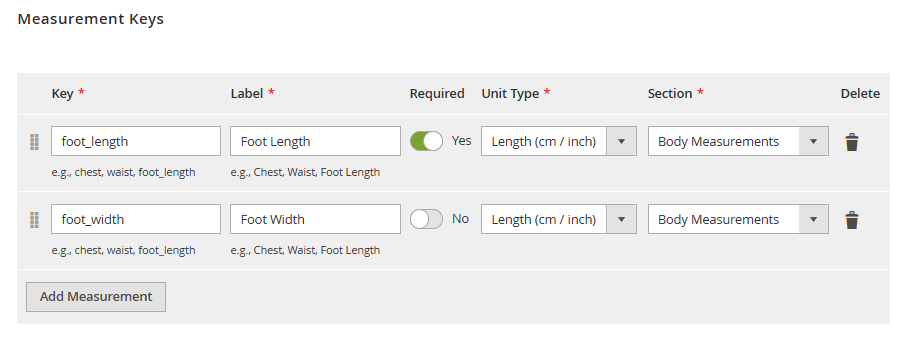
Click Add Measurement to add a new measurement field.
Field | Description | Example |
Key | Internal identifier. Use lowercase letters and underscores. | chest, waist, hip |
Label | Label displayed to users. | Chest, Waist, Hip |
Required | Defines whether this field is required for AI recommendation. | Yes / No |
Unit Type | Type of measurement unit. | length (cm / inch), weight (kg / lbs), age (years) |
Section | Position of the field in the form. | before, body, after |
Common Measurement Keys by Category:
Category | Common Keys |
Tops | height, weight, chest, waist, shoulder, sleeve, length |
Bottoms | height, weight, waist, hip, inseam, outseam, thigh |
Dresses | height, weight, chest, waist, hip, length, shoulder |
Shoes | foot_length, foot_width |
Underwear | chest, underbust, waist, hip |
Kids Tops | child_age, height, weight, chest, waist, shoulder, length |
Kids Bottoms | child_age, height, weight, waist, hip, inseam |
Additional Fields:
The Additional Fields (Selectors) section defines non-measurement options displayed as selectable chips on the frontend.
These fields can be used for additional customer preferences such as body shape, fit preference, shoe width, or cup size.
Click Add Selector to add a new selector field.
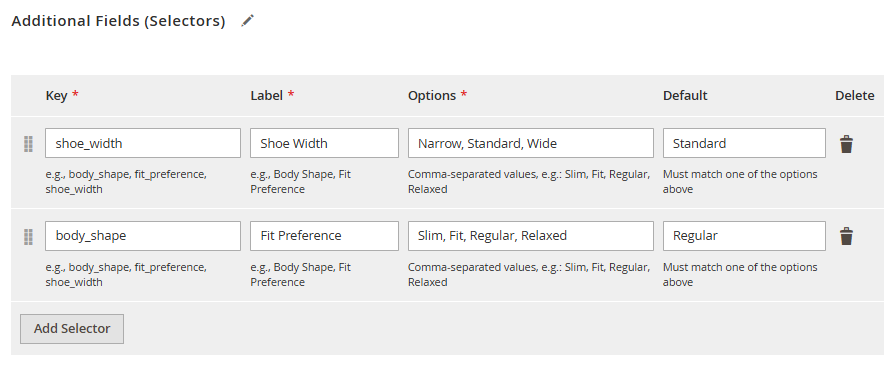
| Field | Description | Example |
|---|---|---|
Key | Internal identifier | body_shape, fit_preference, shoe_width |
Label | Label displayed to users | Body Shape, Fit Preference, Shoe Width |
Options | Comma-separated list of selectable options | slim, average, athletic, plus |
Default | Default selected option | average |
Go to: Magenest > Size Charts > Charts
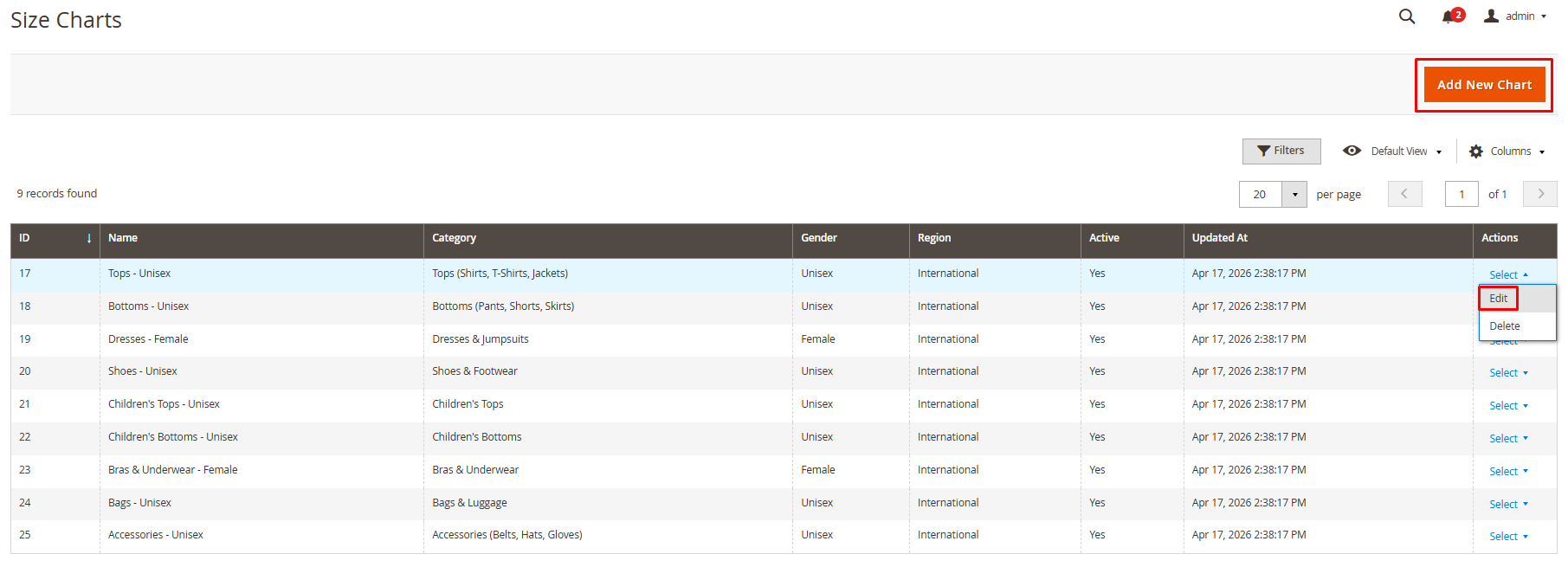
The Charts grid displays all existing size charts.
Field | Description |
ID | Auto-generated identifier |
Name | Name of the size chart |
Category | Parent Size Chart Category |
Gender | male, female, or unisex |
Region | asia, eu, us, uk, or international |
Active | Shows whether the chart is active |
Updated At | Last updated date |
Actions | Edit or delete the chart |
Click Add New Chart to create a new chart, or click Edit on an existing row.
General Information:
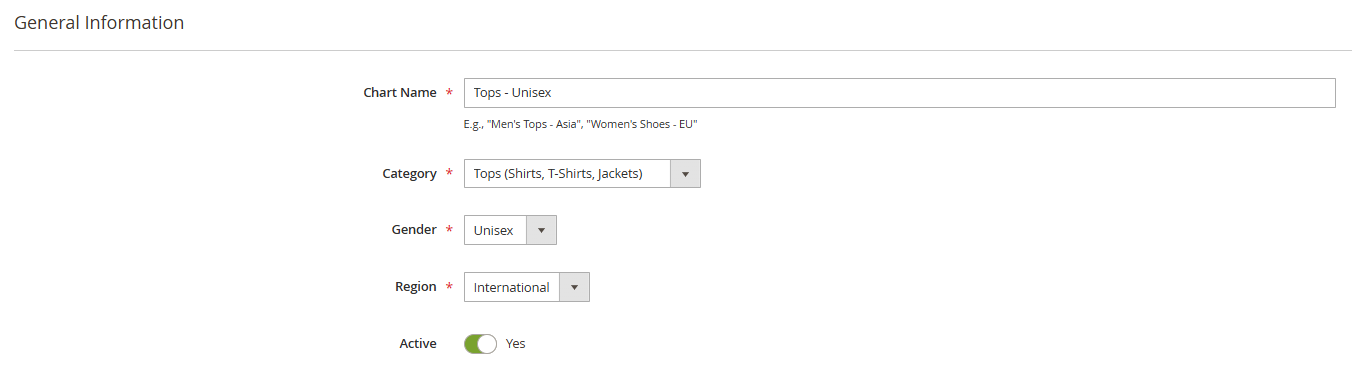
Field | Description | Required |
Name | Descriptive chart name. Example: Women Tops - Asia | Yes |
Category | Select the parent Size Chart Category | Yes |
Gender | Target gender: male, female, or unisex | Yes |
Region | Target region: asia, eu, us, uk, or international | Yes |
Is Active | Enable or disable this chart | Yes |
Each combination of Category + Gender + Region must be unique. You cannot create two charts with the same Category, Gender, and Region combination.
Size Entries:
After selecting a Size Chart Category, the measurement columns are automatically generated based on the Measurement Keys configured for that category.
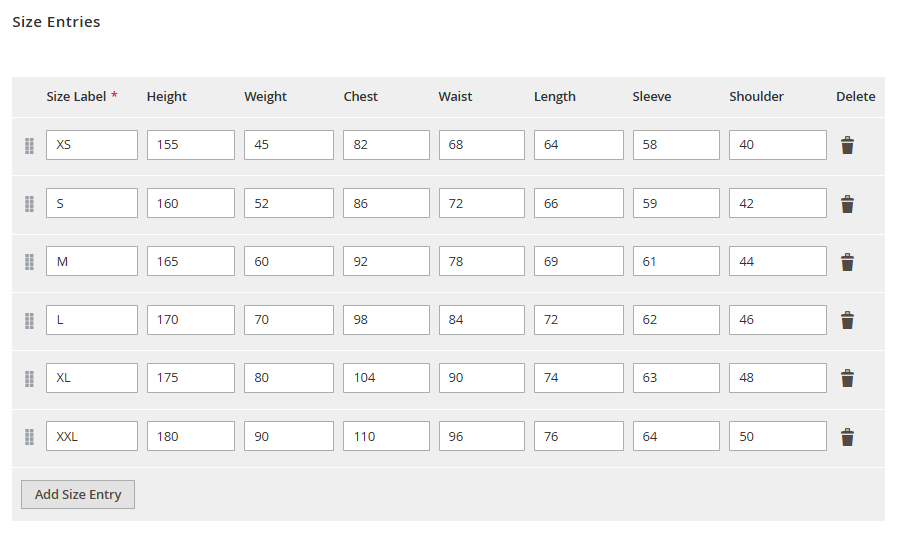
Each row represents one size.
Field | Description | Example |
Size Label | Size name | XS, S, M, L, XL, 38, 40, 8.5 |
Measurement Columns | Numeric values for each measurement key | chest = 88, waist = 72 |
Sort Order | Display order in ascending order | 0, 1, 2, 3 |
Notes:
When a customer views a product page, the system determines the applicable Size Chart Category through the following process:
On eligible product pages, the Recommend Size button appears near the product options or below the price, depending on the theme implementation.
Click the button to open the AI Size Recommender modal.
In the first step, the customer enters measurement data.
The form fields are based on the product’s Size Chart Category. For example:
Required fields are marked with a red asterisk. Optional fields are labeled as optional. Placeholder values may be generated from the size chart data.
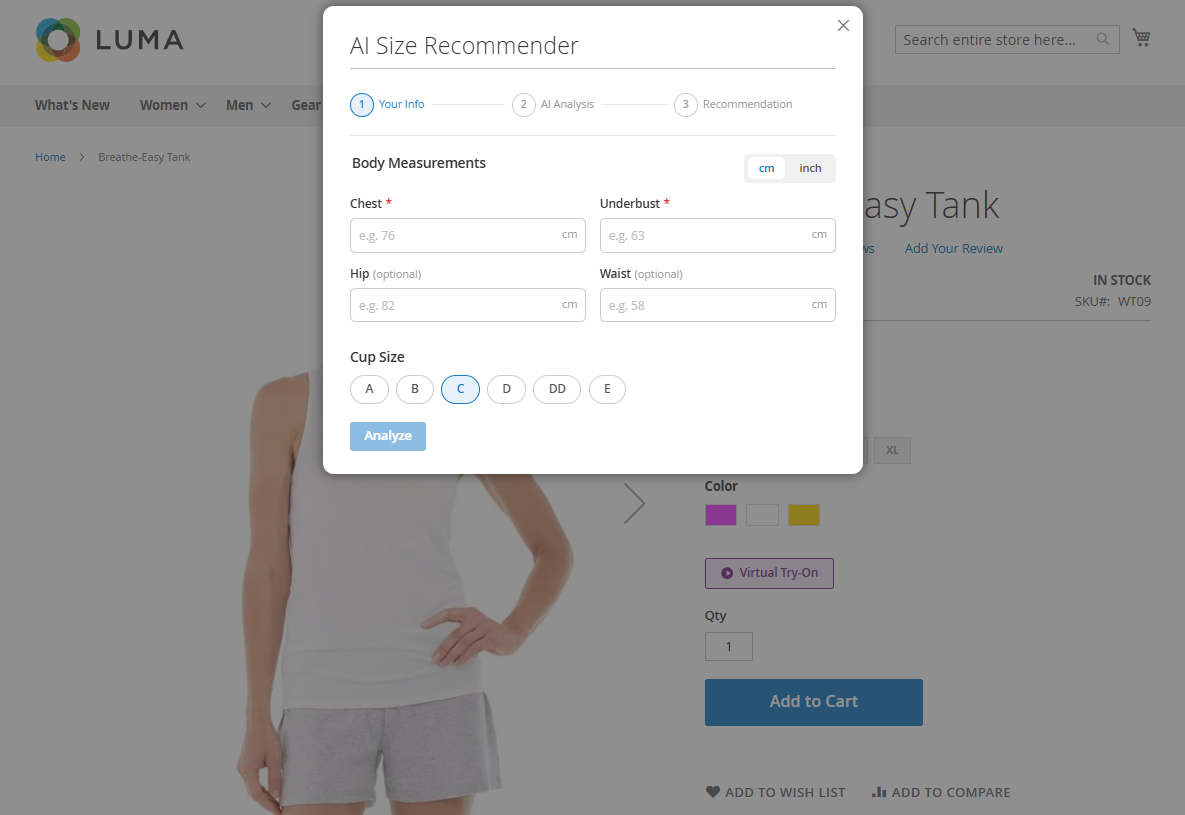
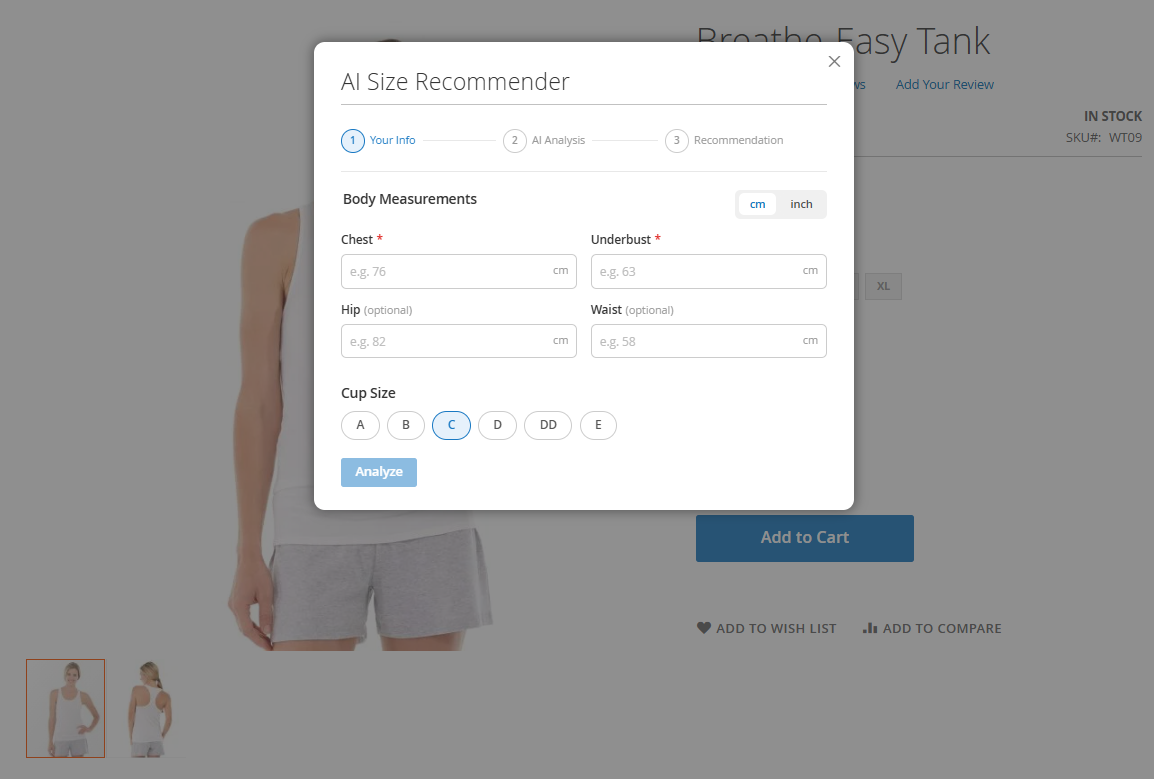
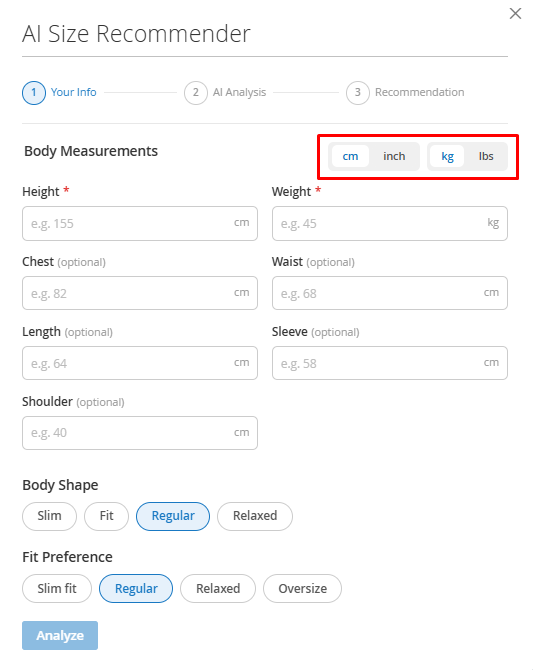
The form supports unit switching.
Measurement Type | Supported Units | Default |
Length | cm / inch | cm |
Weight | kg / lbs | kg |
When the customer changes units, placeholder values are converted automatically. The entered values are sent to the AI service together with the selected unit.
Some product categories may show selectable chip fields.
Example:
Product Type | Additional Fields |
Tops / Bottoms | Body Shape (slim, average, athletic, plus), Fit Preference (tight, regular, loose) |
Shoes | Shoe Width (narrow, standard, wide) |
Underwear | Cup Size (A, B, C, D, DD, E+) |
Each additional field allows one selected option.
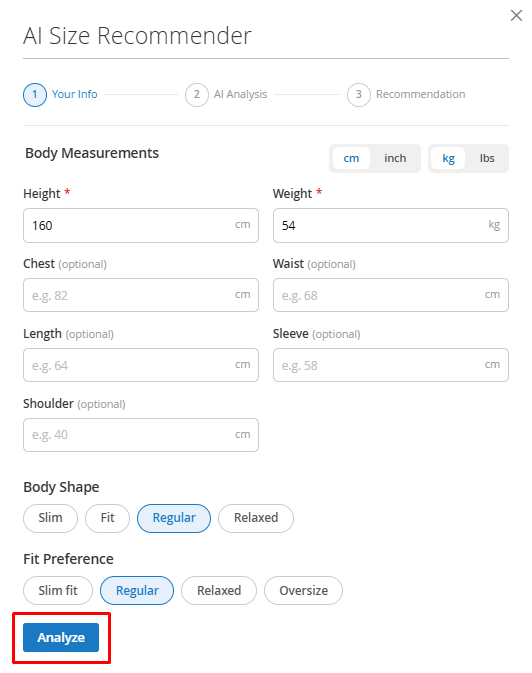
The Analyze button is disabled until all required measurement fields are completed with valid positive numbers.
When the form is valid, the customer can click Analyze to send the data for AI processing.
During the AI analysis step, the modal shows a loading state.
The process includes three stages:
Each stage is highlighted as the AI processes the customer’s data.
The analysis usually takes 2–5 seconds.
When the AI returns a result, the modal displays the recommended size.
The result may include:
Component | Description |
AI Recommendation Card | Best-fit size recommended by AI |
Alternative Card | Alternative size option when applicable |
Confidence Badge | High confidence (green) or Medium confidence (orange) |
Explanation | Reason why the size is recommended |
Tip | Short fit-related advice |
Re-enter Measurements | Returns to the input step |
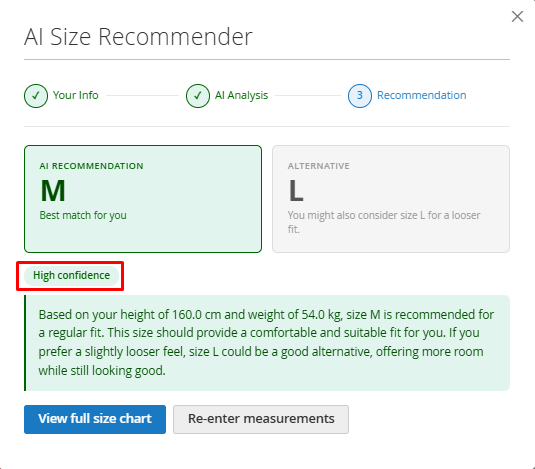
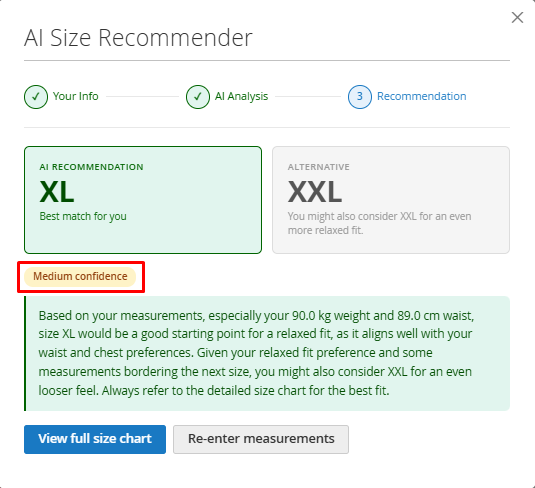
The customer can click View full size chart to see all available sizes and their corresponding measurements.
The recommended size is highlighted in the chart. Unit labels in the chart match the unit selected by the customer, such as Chest (cm) or Chest (inch).
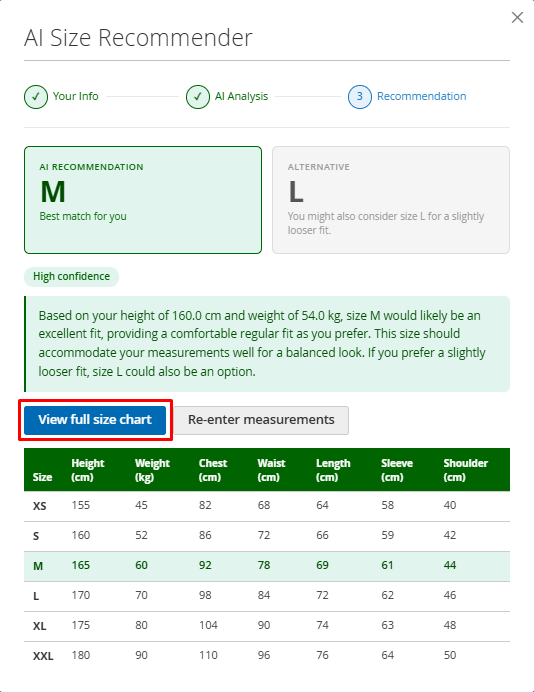
Customer can click Re-enter Measurements to return to the input step.
If AI cannot provide a reliable recommendation, the system displays a fallback state.
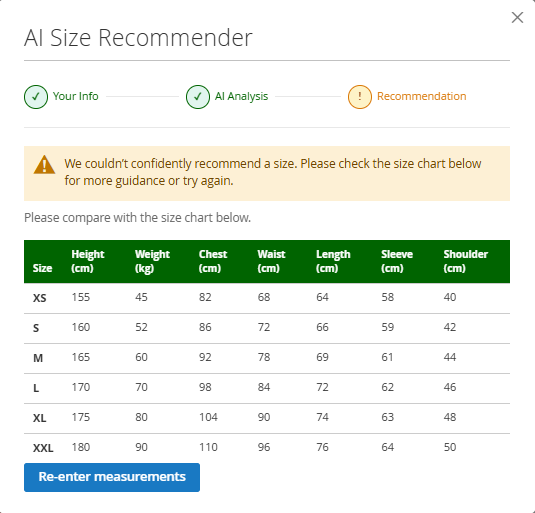
Fallback may include:
This ensures the customer still has useful sizing information even when AI confidence is low.
AI Size Recommender can sync product data and size chart data with the AI engine.
Product feed data helps the AI engine understand the product catalog, including configurable product data, size options, category mapping, and related product context.
When product feed generation is completed, the system can notify the AI service through webhook if webhook is enabled.
Size chart data can be exported through Magento CLI:
bin/magento magenest:sizechart:export |
This command creates a CSV file containing all active charts and their entries.
Run the export command after:
When a bug fix or new feature is released, we will provide you with the module's new package.
All you need to do is repeating the above installing steps and uploading the package onto your store. The code will automatically override.
Flush the config cache. Your store and newly installed module should be working as expected.
Once again, thank you for purchasing our extension. If you have any questions relating to this extension, please do not hesitate to contact us for support.