Thank you for purchasing our extension. If you have any questions that are beyond the scope of this document, please feel free to contact us via [email protected]
By: Magenest | Support Portal:
Introduction
AI Knowledge Hub brings AI chat, internal knowledge, document management, and AI configuration into one workspace.
Users can chat with different AI models, ask questions based on uploaded documents, work with dedicated AI Assistants, reuse shared prompts, and search across internal knowledge. Administrators can also manage AI providers, models, user access, usage limits, costs, and system activity.
Highlight Features
For Users
- Chat with different AI providers and models.
- Ask questions based on documents in the Knowledge Base.
- Narrow document searches by project tag or collection.
- Keep context across conversations with Memory.
- Upload images and documents directly in Chat or use voice input.
- Use preconfigured AI Assistants, MCP tools, and external AI agents.
- Check the source passages behind AI-generated answers.
- Organize documents into collections and manage company-specific terminology.
- Search indexed knowledge directly with Semantic Search.
For Admin
- Configure AI providers, API keys, and models.
- Set system-wide AI instructions through the System Prompt.
- Manage users, roles, and usage limits.
- Configure vector databases, MCP Servers, and A2A agents.
- Track AI usage, requests, costs, feedback, and user activity.
System Requirements
Before using AI Knowledge Hub, make sure the following requirements are met:
- Access to the AI Knowledge Hub web application.
- A company email address ending in @magenest.com for registration.
- A password with at least 6 characters.
- An AI provider and model configured in the system for AI features.
- Valid API credentials for providers that require authentication.
- Supported upload formats: Word, Excel, PowerPoint, PDF, Markdown, and text files.
- Maximum upload size: 100 MB per file.
- The appropriate user role for restricted features. Some settings are available only to administrators, while only Tech Lead and Admin users can add documents to the vector database.
Login / Registration
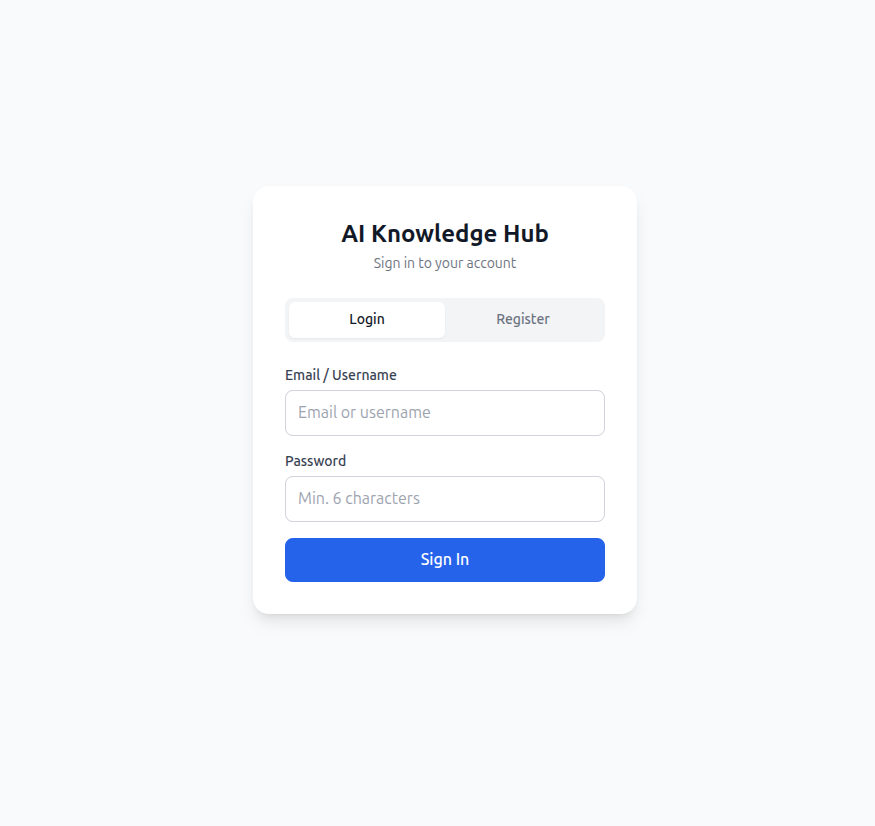
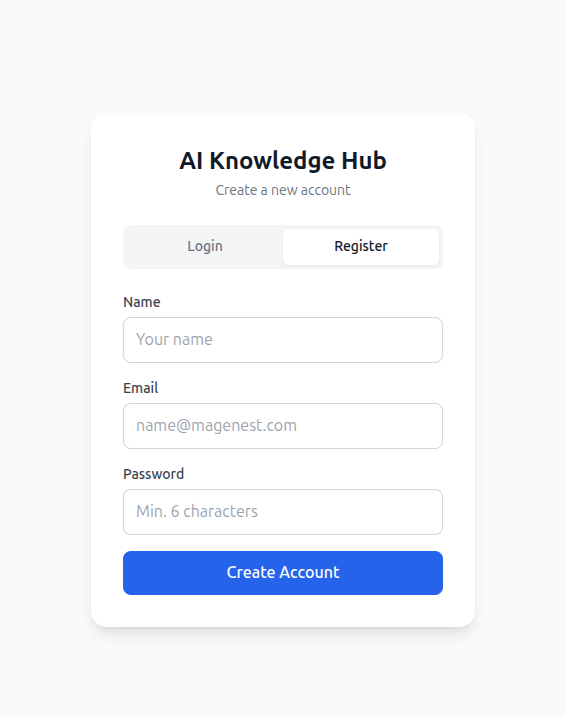
Open AI Knowledge Hub and select Register to create a new account.
Registration requires:
- A company email address
- A password of at least 6 characters
- Your display name
The first account created in the system is automatically assigned the Admin role. All accounts created after that are assigned the Member role by default. An administrator can change user roles later from User Management.
After you register or log in successfully, you are taken directly to the Prompts page, which is the default landing page.
- Login screen
- Registration screen
General Interface
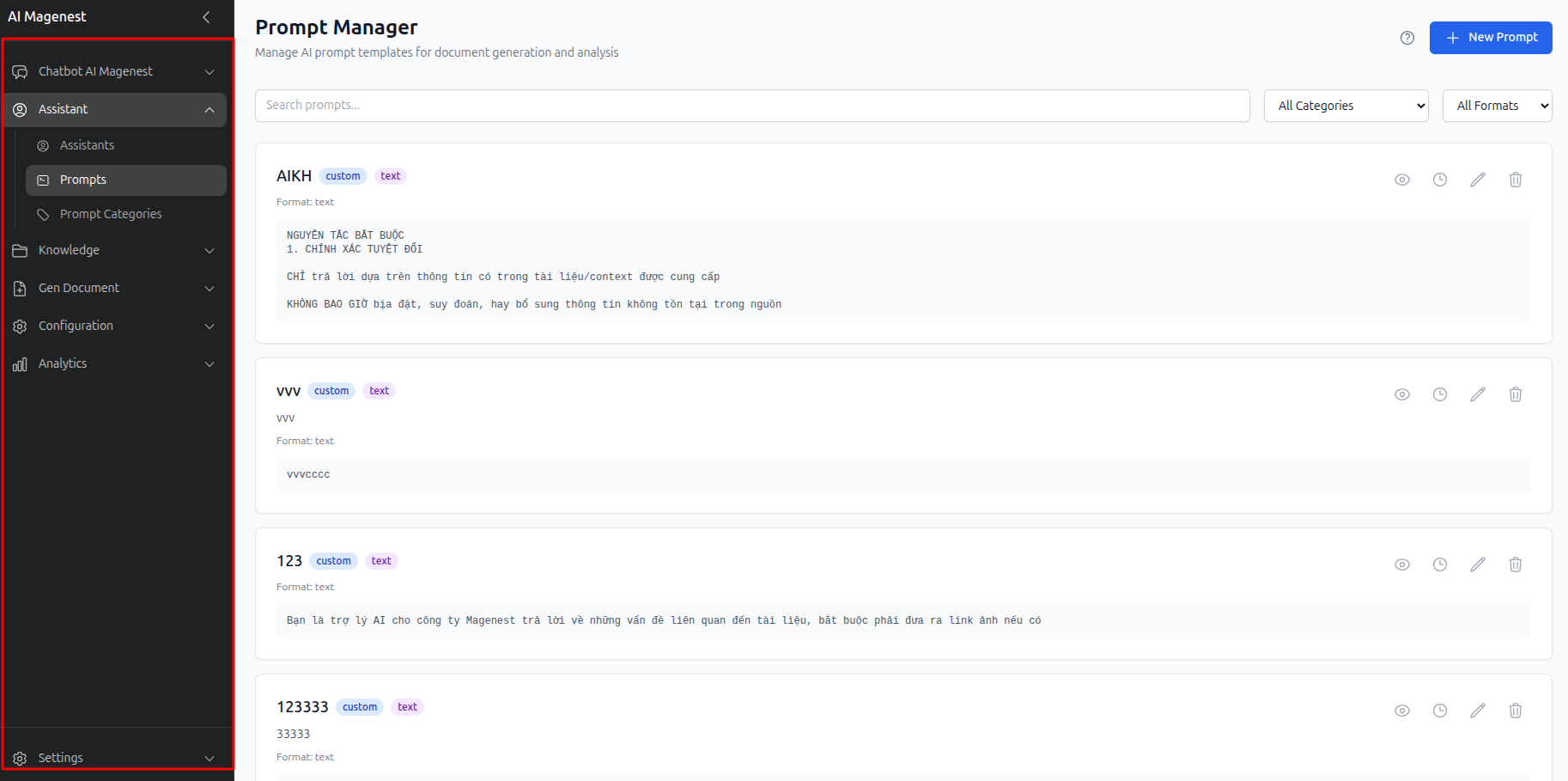
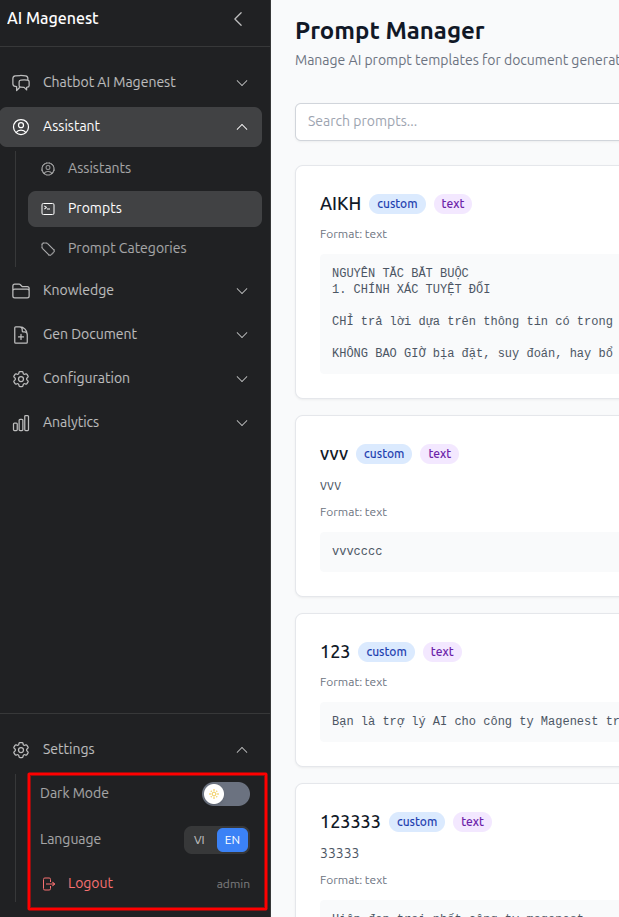
AI Knowledge Hub uses a vertical navigation menu on the left.
You can collapse the menu to icons for more workspace or expand it to see the full menu labels. On mobile devices, the navigation is available through the hamburger menu.
The controls at the top of the screen let you:
- Switch between Light and Dark mode.
- Switch between Vietnamese and English.
- View notifications from the bell icon, including alerts such as exceeding a usage limit.
- Open the account menu to view your username and role or log out.
Some menu items are available only to administrators:
- System Prompt
- Usage Limits
- User Management
- Activity History
These options are hidden from regular users.
Chat
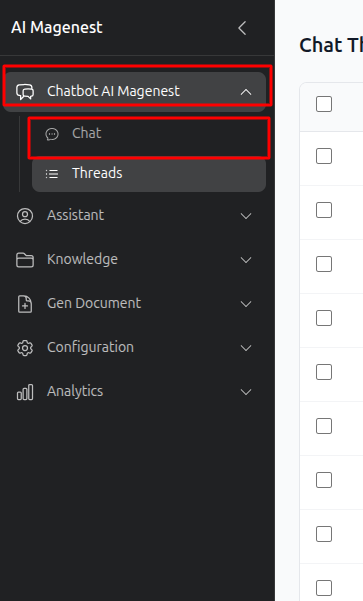
Chat is the main workspace in AI Knowledge Hub.
A collapsible conversation sidebar on the left lets you review previous chats, search by conversation name, and rename or delete individual conversations from the three-dot menu.
The toolbar above the chat provides several options for controlling how the AI responds.
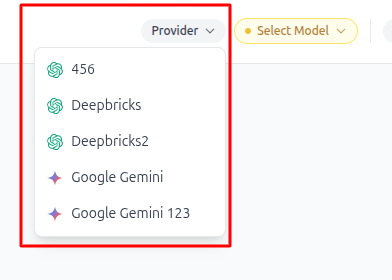
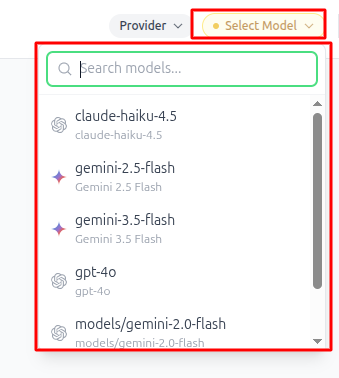
AI Provider and Model
Choose the AI provider and model you want to use for the current conversation. If there are many models available, use the search box to quickly find the one you need.

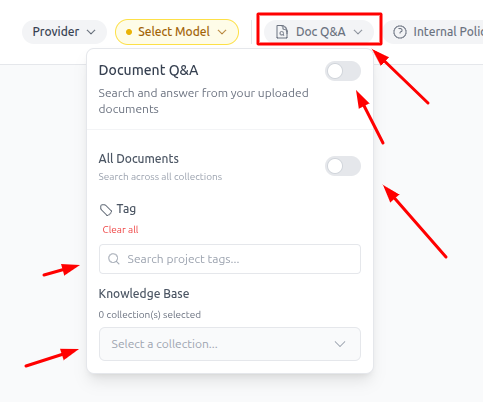
Document Q&A
Enable Document Q&A when you want the AI to search your uploaded documents and answer based on information in the Knowledge Base.
You can limit the search to:
- A specific project tag, or
- A specific knowledge collection
This allows the AI to search only the relevant documents instead of the entire Knowledge Base.
Memory
Turn Memory on when you want the AI to retain context from your previous conversations. When Memory is off, the AI only uses the context available in the current conversation.

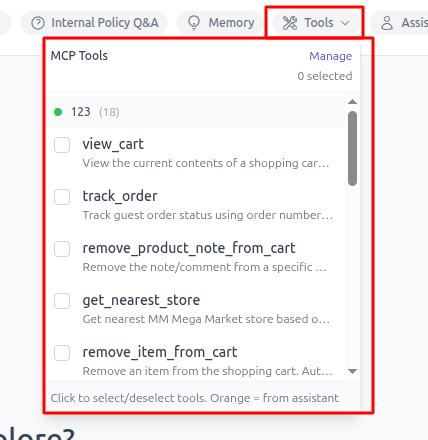
MCP Tools
Select the MCP tools the AI is allowed to use when generating a response.
Examples include:
- Searching the web
- Reading external files
- Calling APIs
Users can also use their own MCP tools.
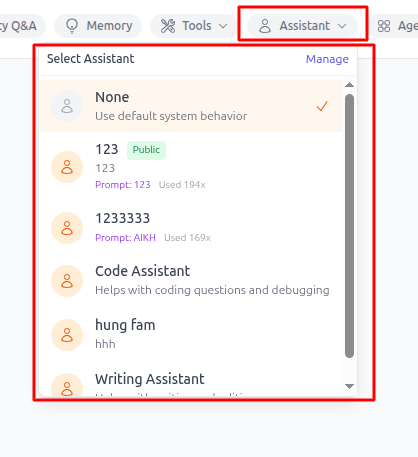
AI Assistant
Select a preconfigured AI Assistant when you want to use that Assistant's own prompt and settings instead of the default system configuration.
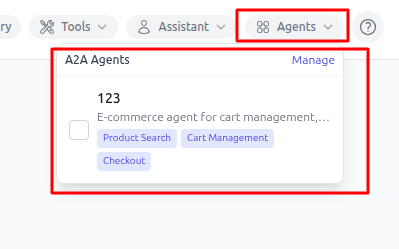
External AI Agents
You can also bring an external AI agent into the conversation to help with specialized requests.
Sending Messages and Files
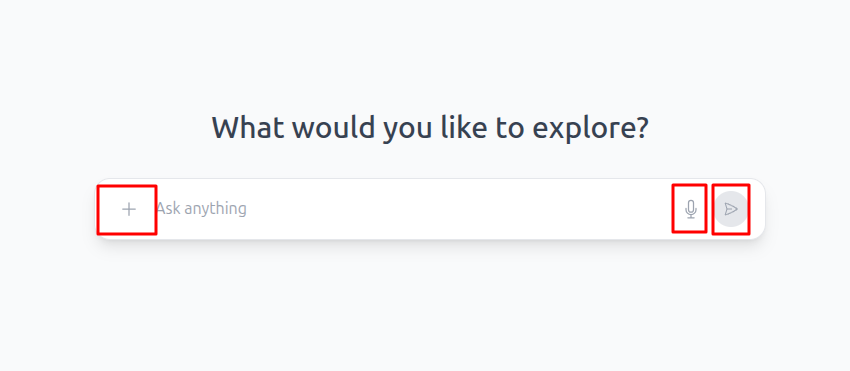
From the message box, you can:
- Attach an image or document for the AI to read as part of your question.
- Use the microphone to speak instead of typing.
Images sent or received in Chat can be opened in full-screen view.
When a document is used as a reference, you can open and read it directly from the chat without navigating to the Documents page.
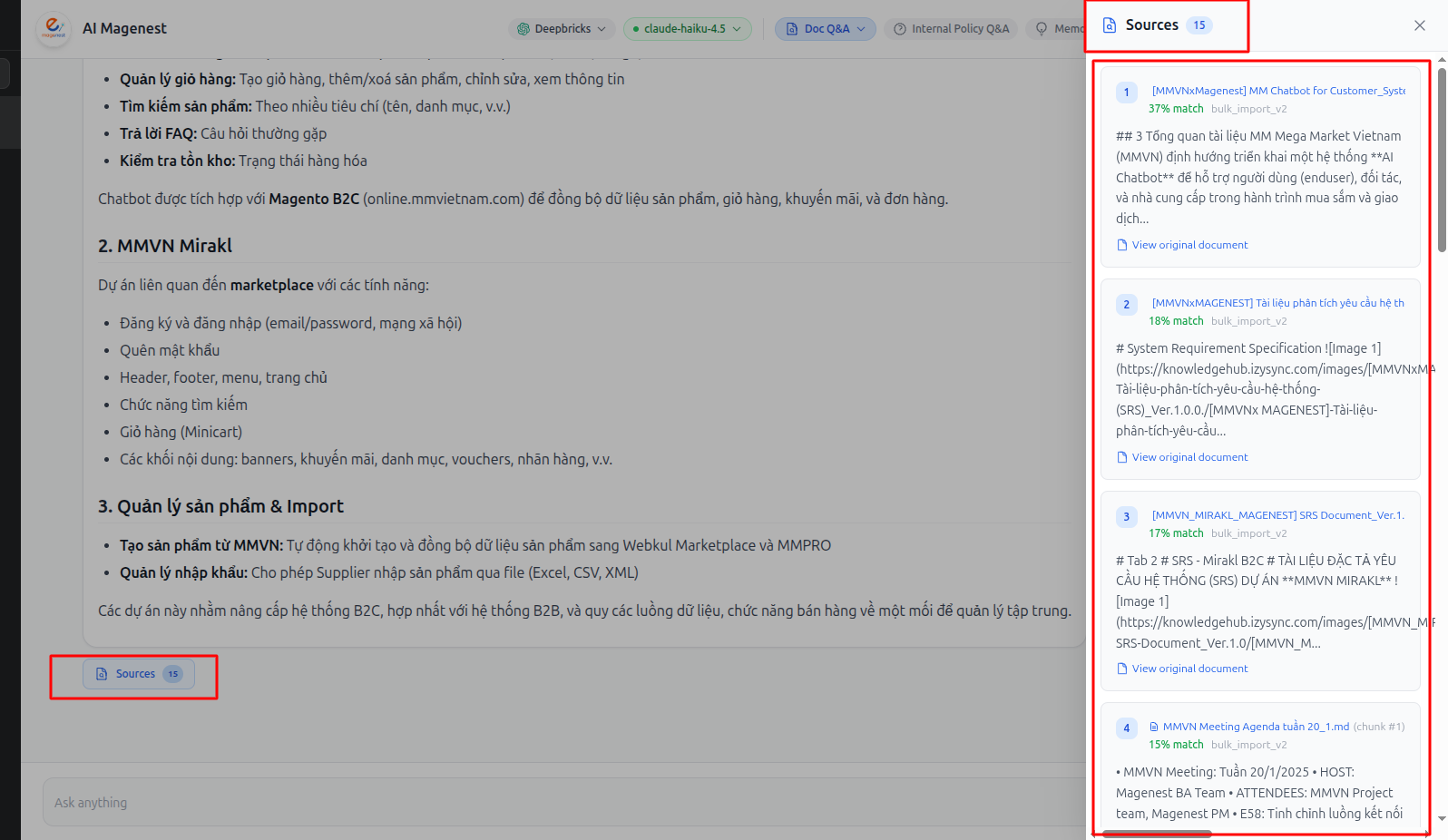
Sources
AI responses include a Sources section showing the document passages used to support the answer. Select a source to see which document the information came from and review the relevant passage.
Response Feedback
Each AI response includes Like and Dislike buttons.
If you select Dislike, a dialog opens where you can explain what was wrong with the response. The feedback is saved for reporting.
Link to Record
A conversation can also be linked to a specific business record outside AI Knowledge Hub, such as an order or support ticket.
Enter the:
- Record type
- Record ID
- Record name
to create the link.
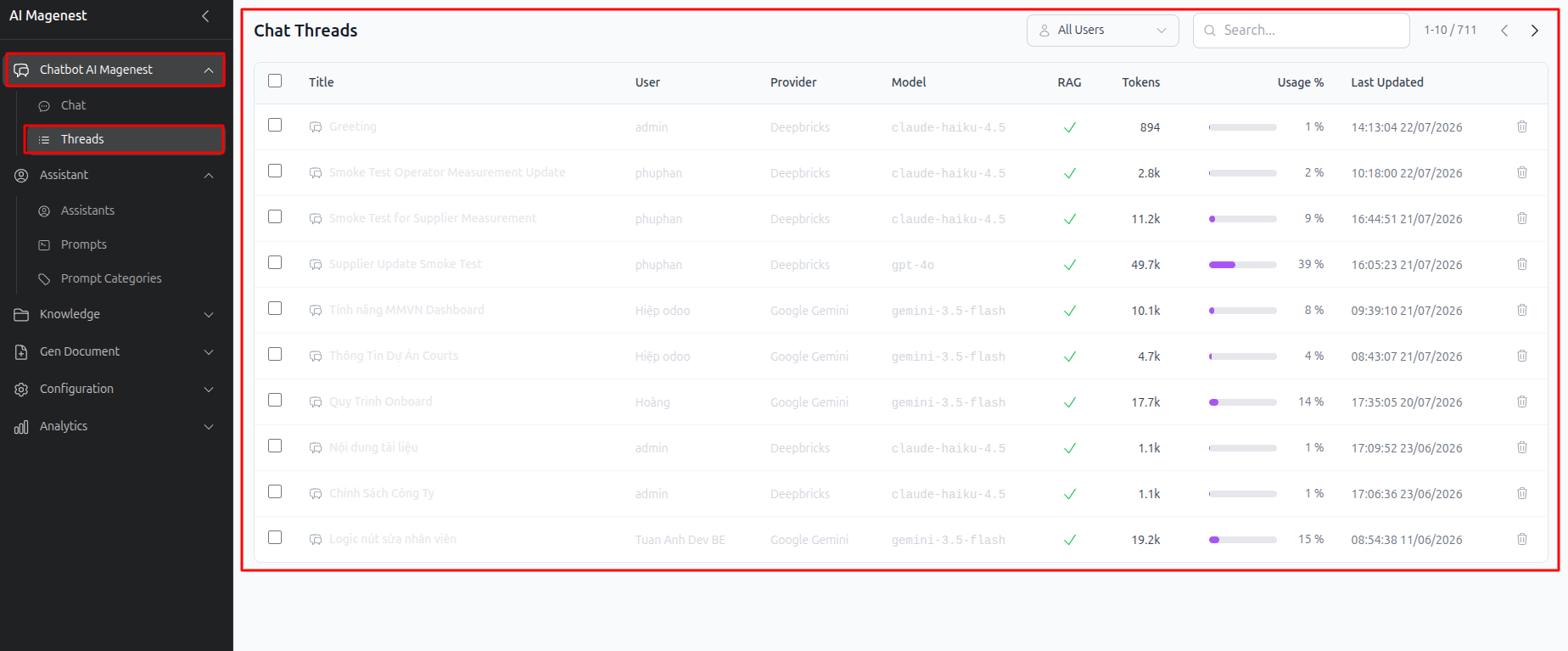
Threads
The Threads page shows the full conversation history in a table. You can delete conversations individually or select multiple conversations and delete them in bulk.
A confirmation dialog appears before deletion to help prevent accidental removal.
AI Assistants & Prompts
AI Assistants
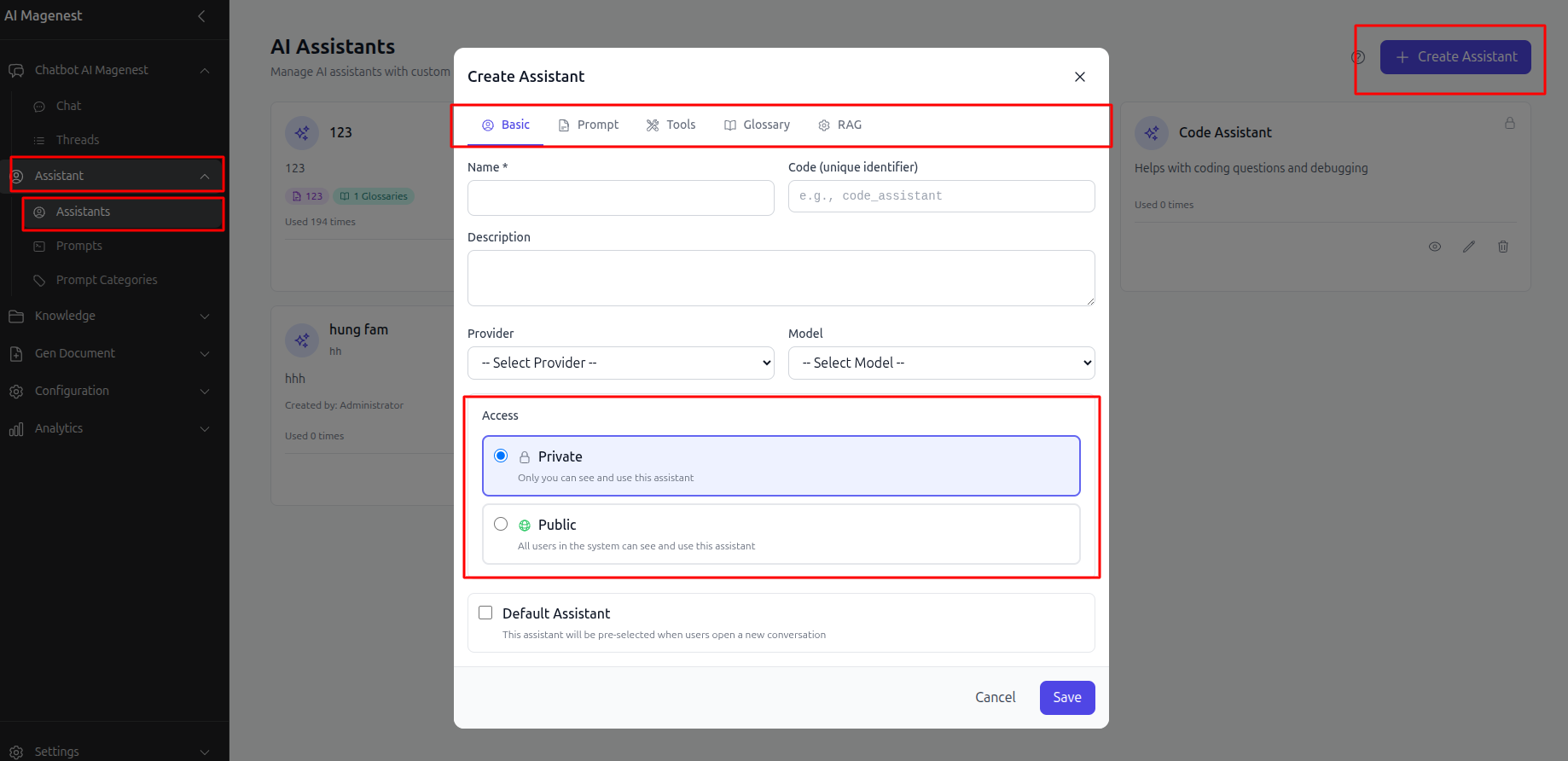
The AI Assistants page lets you create assistants for different use cases.
When creating an Assistant, you can configure:
- Name
- Description
- A specific AI model
- MCP tools
- A terminology set
- RAG access to the Knowledge Base
- Public or private visibility
A Public Assistant is available for anyone to select in Chat. A Private Assistant is visible only to the person who created it.
Each Assistant appears as a card with labels showing which capabilities are enabled, such as:
- Prompt
- MCP tools
- Terminology
- RAG
From the Assistant card, you can preview its configuration, edit it, or delete it.
Prompts
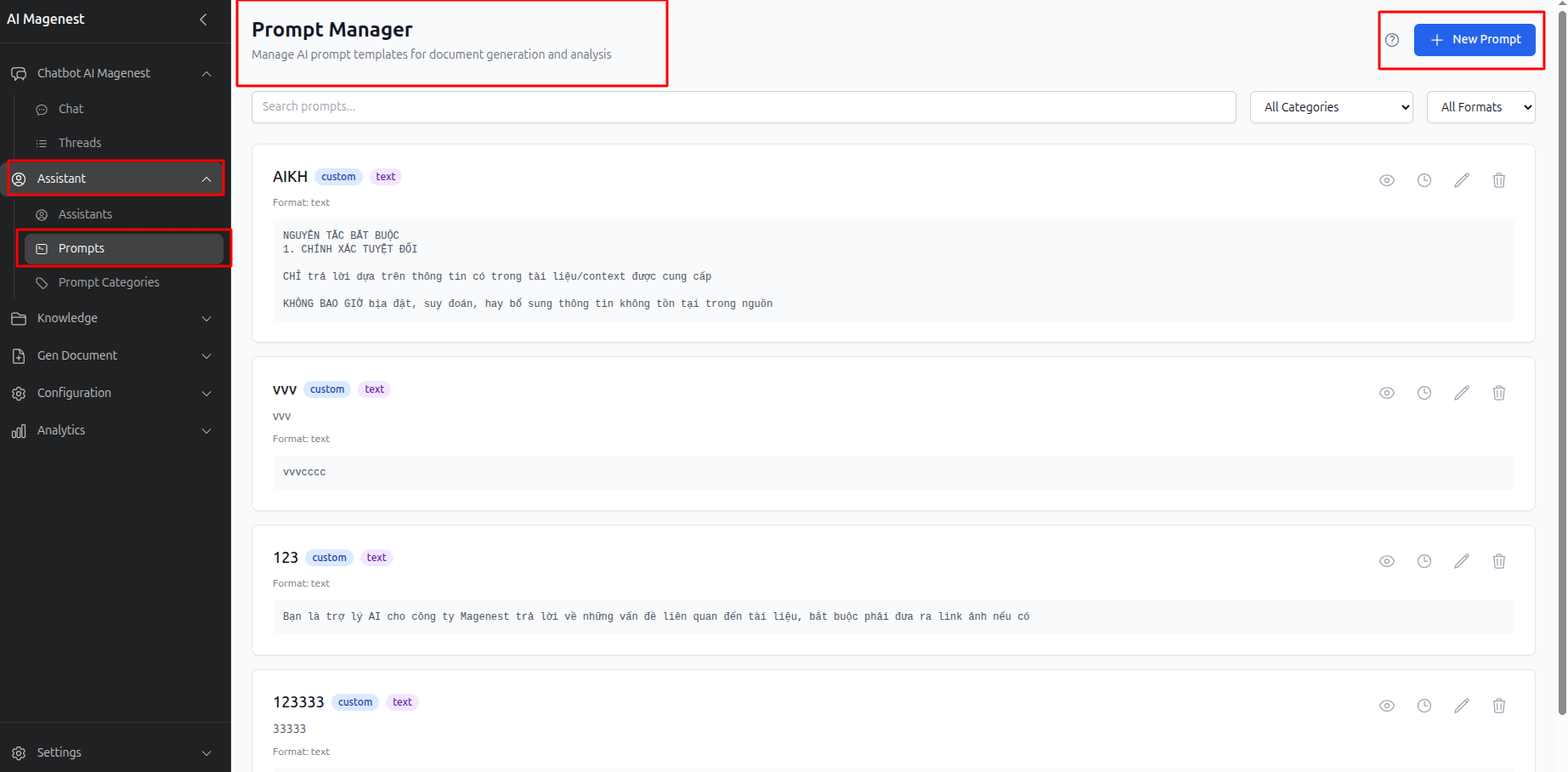
The Prompts page is a shared library of reusable prompt templates.
To create a prompt, enter the prompt content and select its category and format.
You can also:
- Search for prompts by name.
- Filter prompts by category or format.
- Review previous versions of a prompt and restore an earlier version when needed.
- Edit the current version.
- Delete the prompt.
Knowledge
Project Knowledge
The Project Knowledge page uses collections to organize documents by project or topic.
Collections can then be selected in Chat or Generate to limit searches to the documents that are relevant to a specific context.
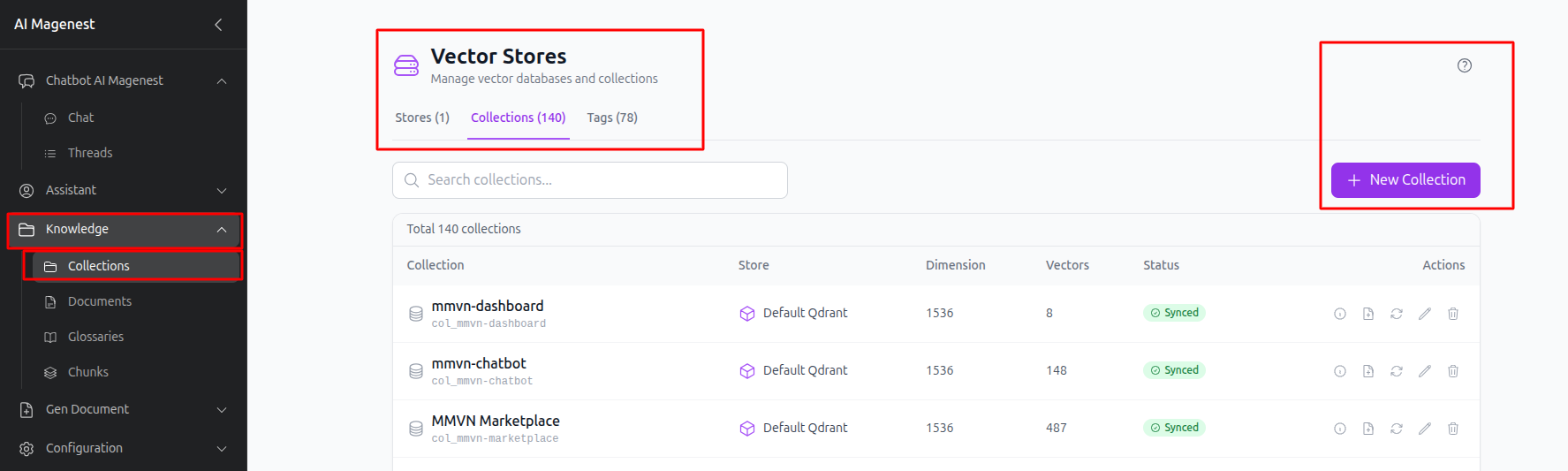
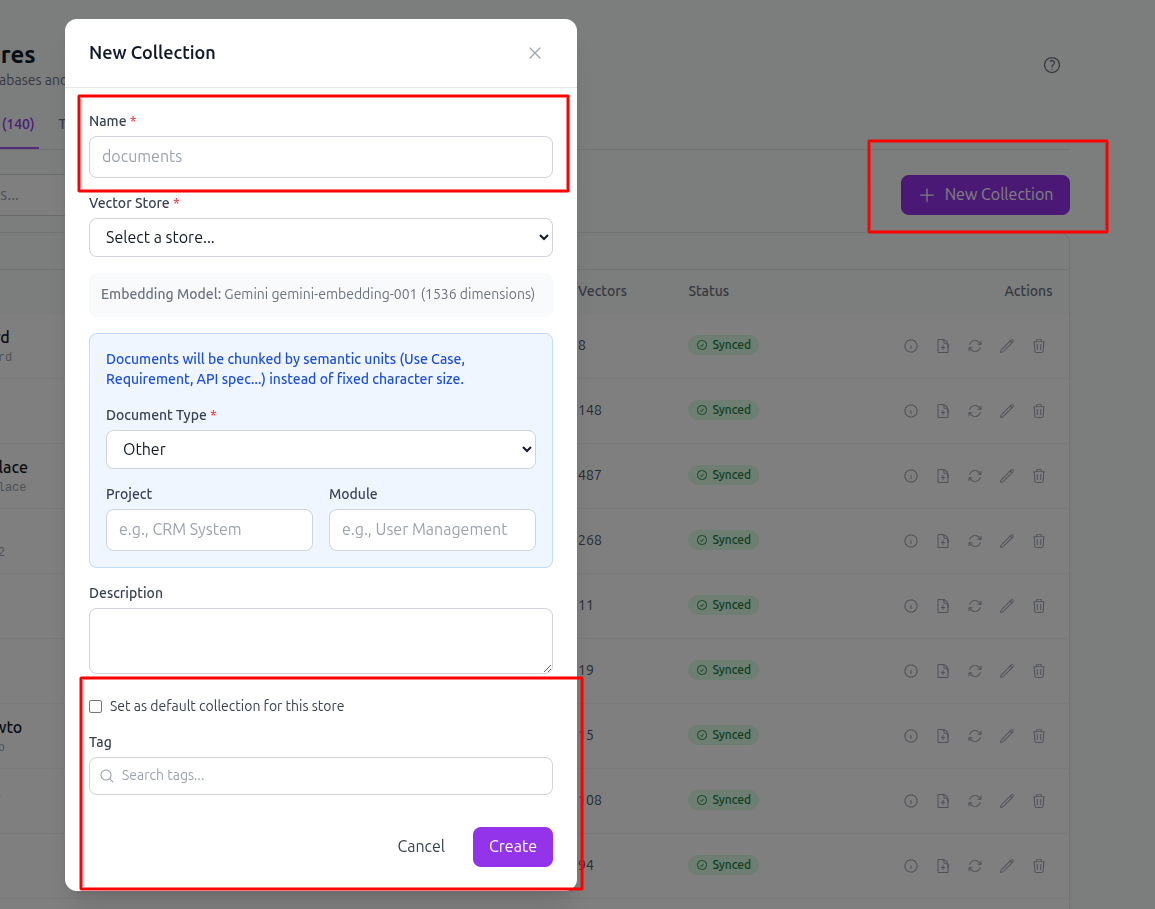
Create a Collection: Create a new collection to group related documents together.
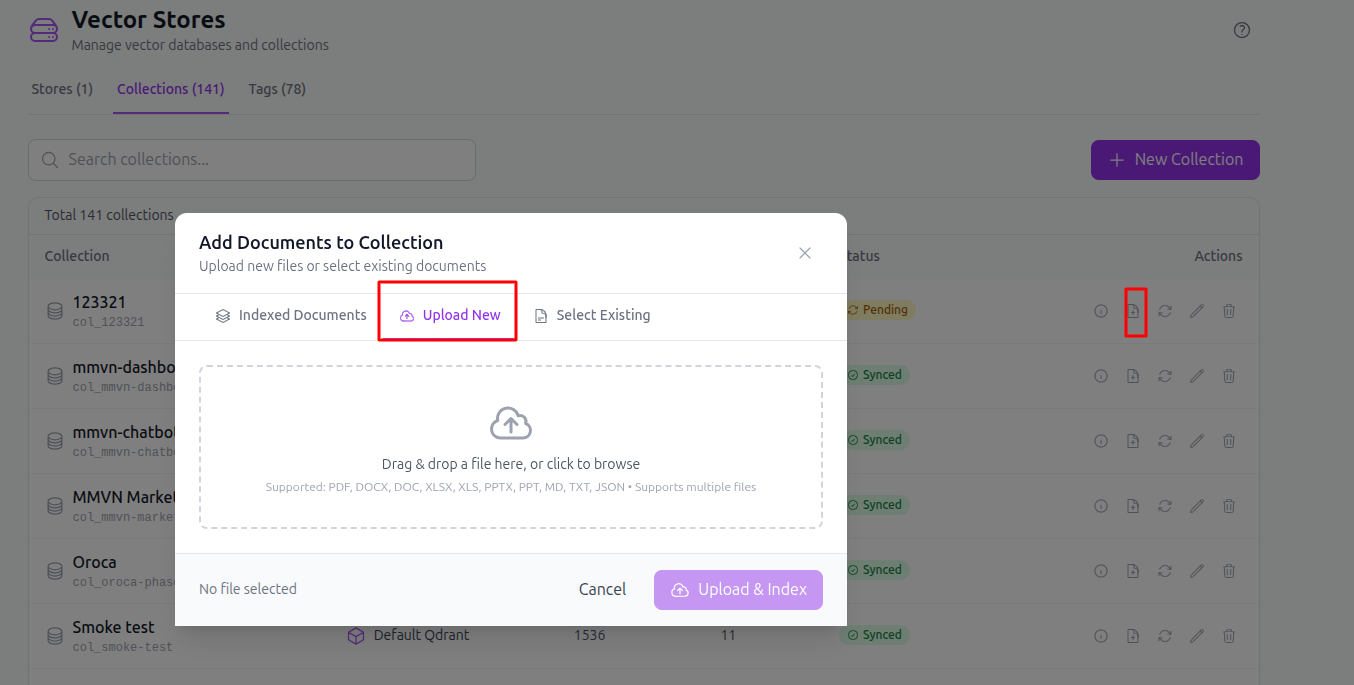
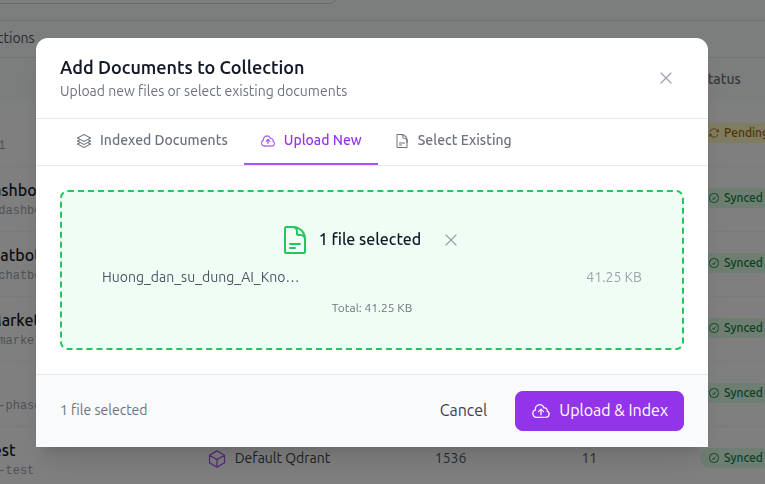
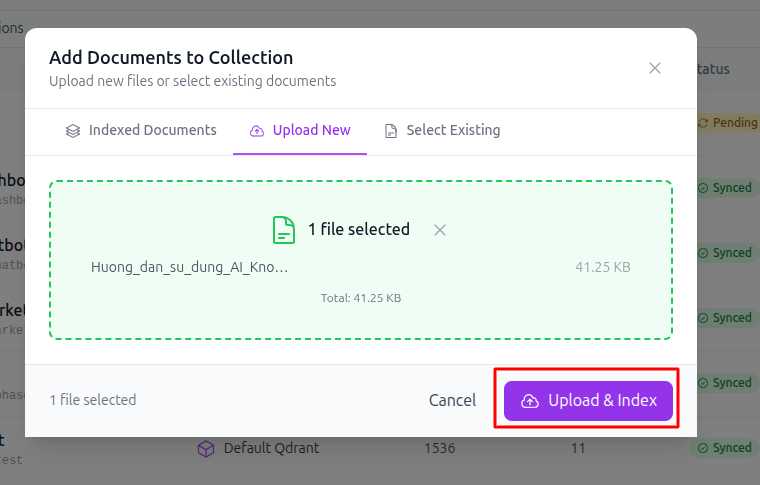
Add Documents to the Vector Database: Only users with the Tech Lead or Admin role can add documents to the vector database.


Documents
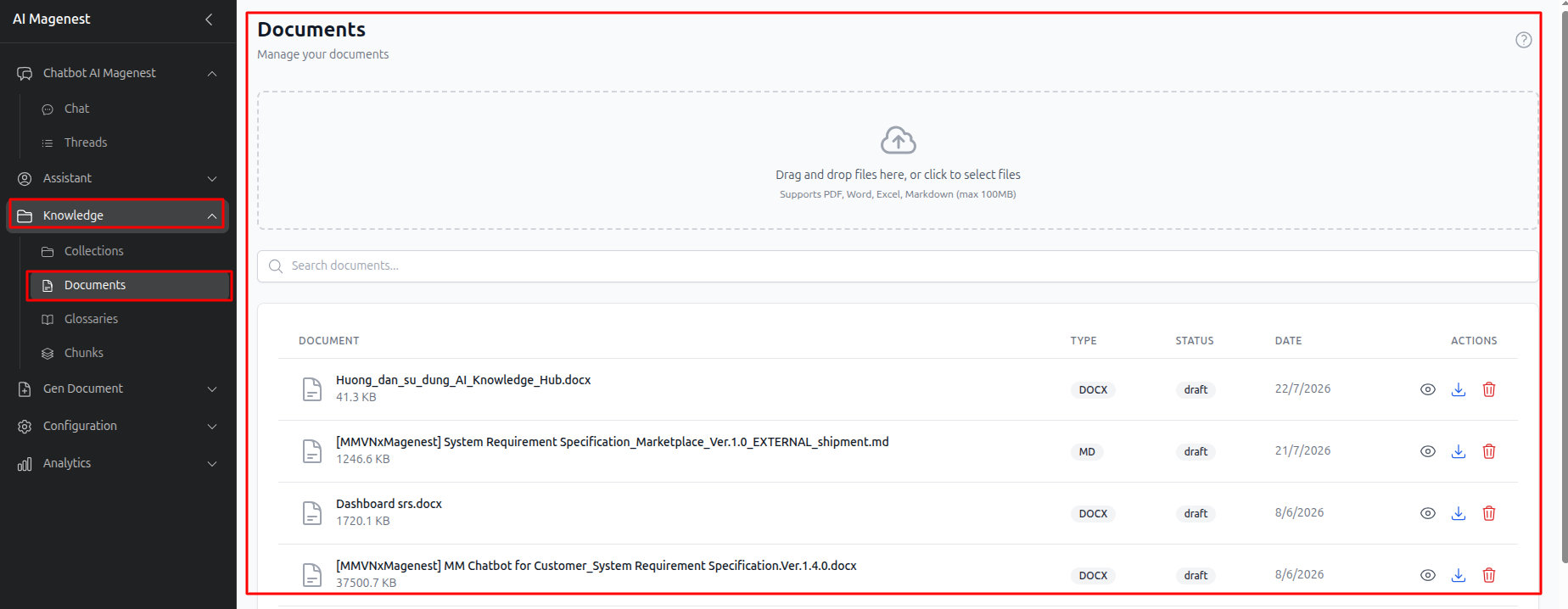
The Documents page lets you upload multiple files by dragging and dropping them into the upload area or selecting files from your device.
Supported formats include: Word - Excel - PowerPoint - PDF - Markdown - Text
Each file can be up to 100 MB.
For scanned PDFs, the system automatically recognizes text from the images and extracts it for processing.
You can search documents by title. The paginated document list also shows the file type and processing status: Processing - Completed - Error
For each document, you can:
- View the full extracted text.
- Refresh the extracted content when the document is reprocessed.
- Download the original file.
- Delete the document.
Terminology
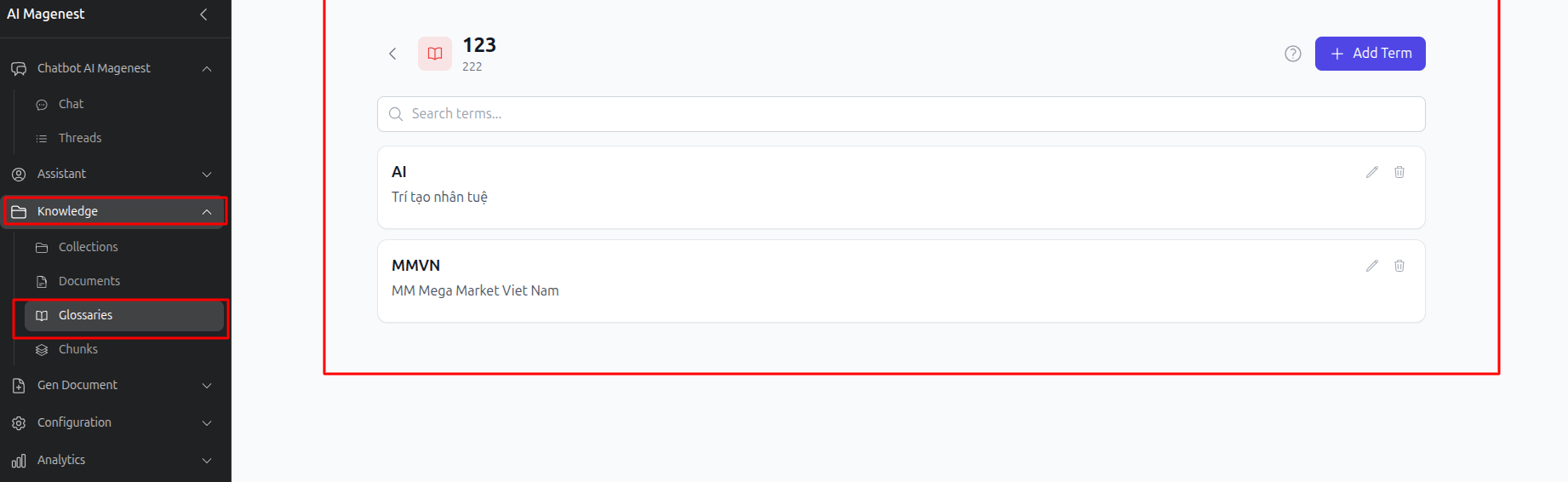
The Terminology page lets you define company-specific terms and their meanings.
The AI uses these definitions when answering questions or generating documents so that internal abbreviations and business terminology are interpreted and used consistently.
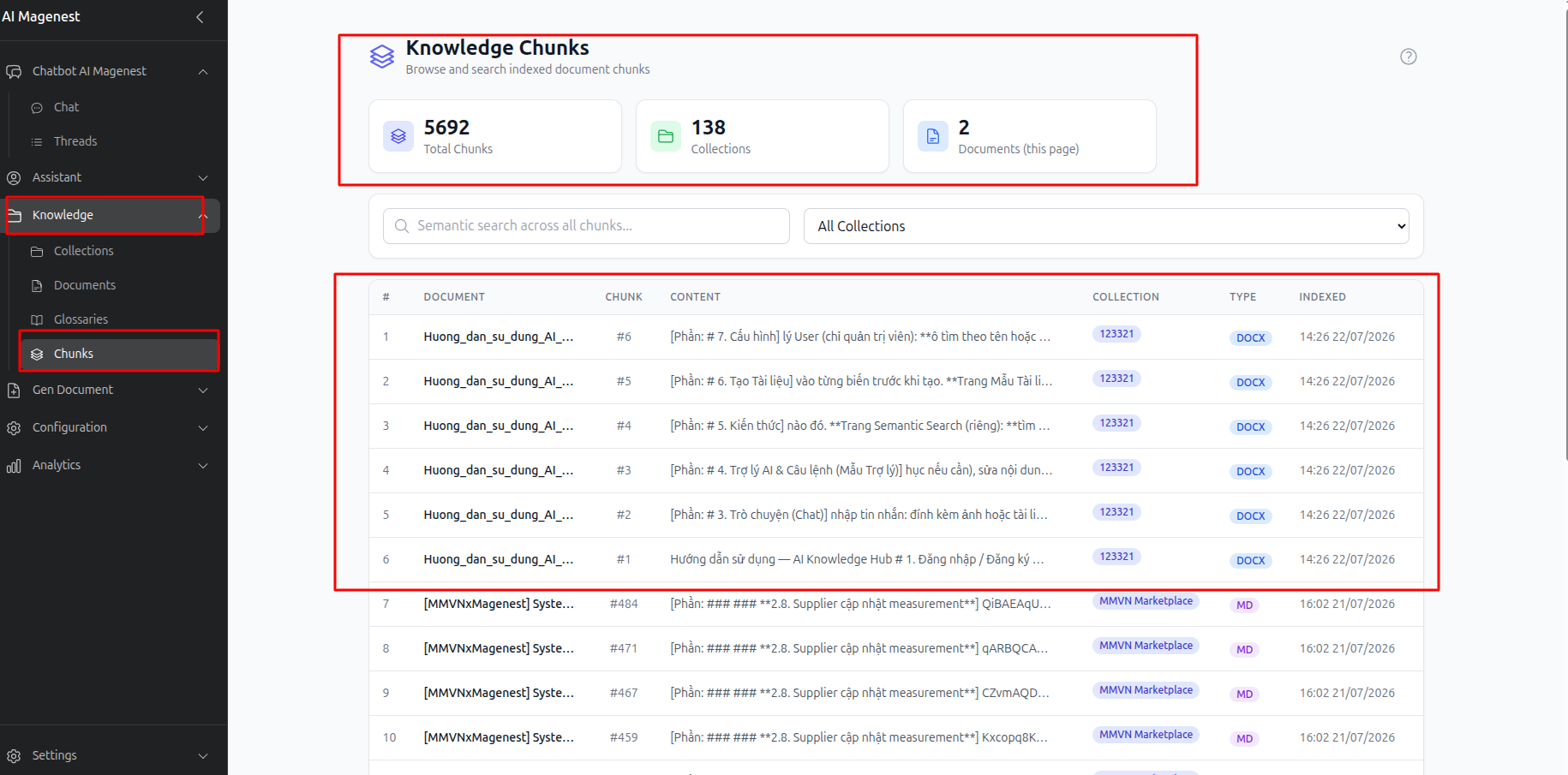
Document Chunks
The Document Chunks page shows how each document has been split into smaller text chunks for semantic search.
Summary figures at the top of the page show:
- Total chunks
- Total knowledge collections
- Total processed documents
You can search within chunk content or filter the list by knowledge collection.
Select any chunk to view its full text and see where it appears in the original document. This can help when you need to check why the AI returned a particular piece of information.
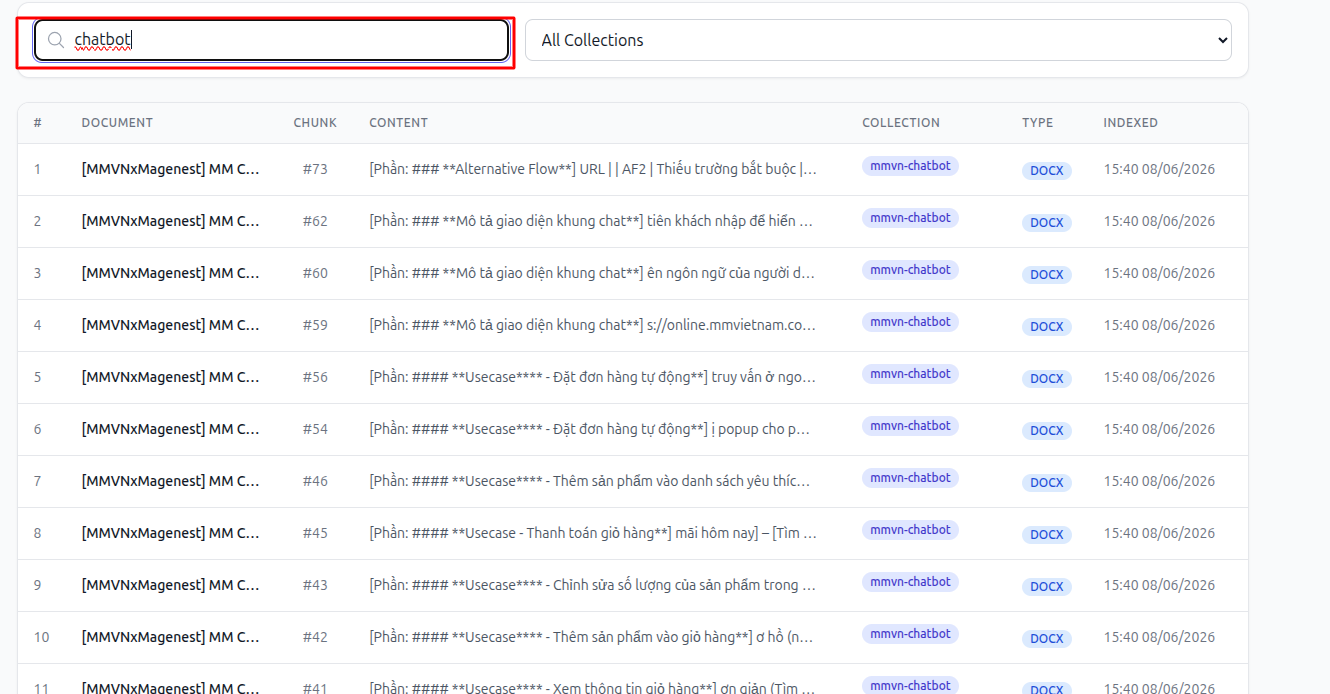
Semantic Search
Semantic Search lets you search the Knowledge Base directly without starting a Chat conversation.
Enter a question in natural language, and the system returns the most relevant documents along with:
- Relevant excerpts
- Project owner
- Document owner
- Tags
- Processing time in milliseconds
Configuration
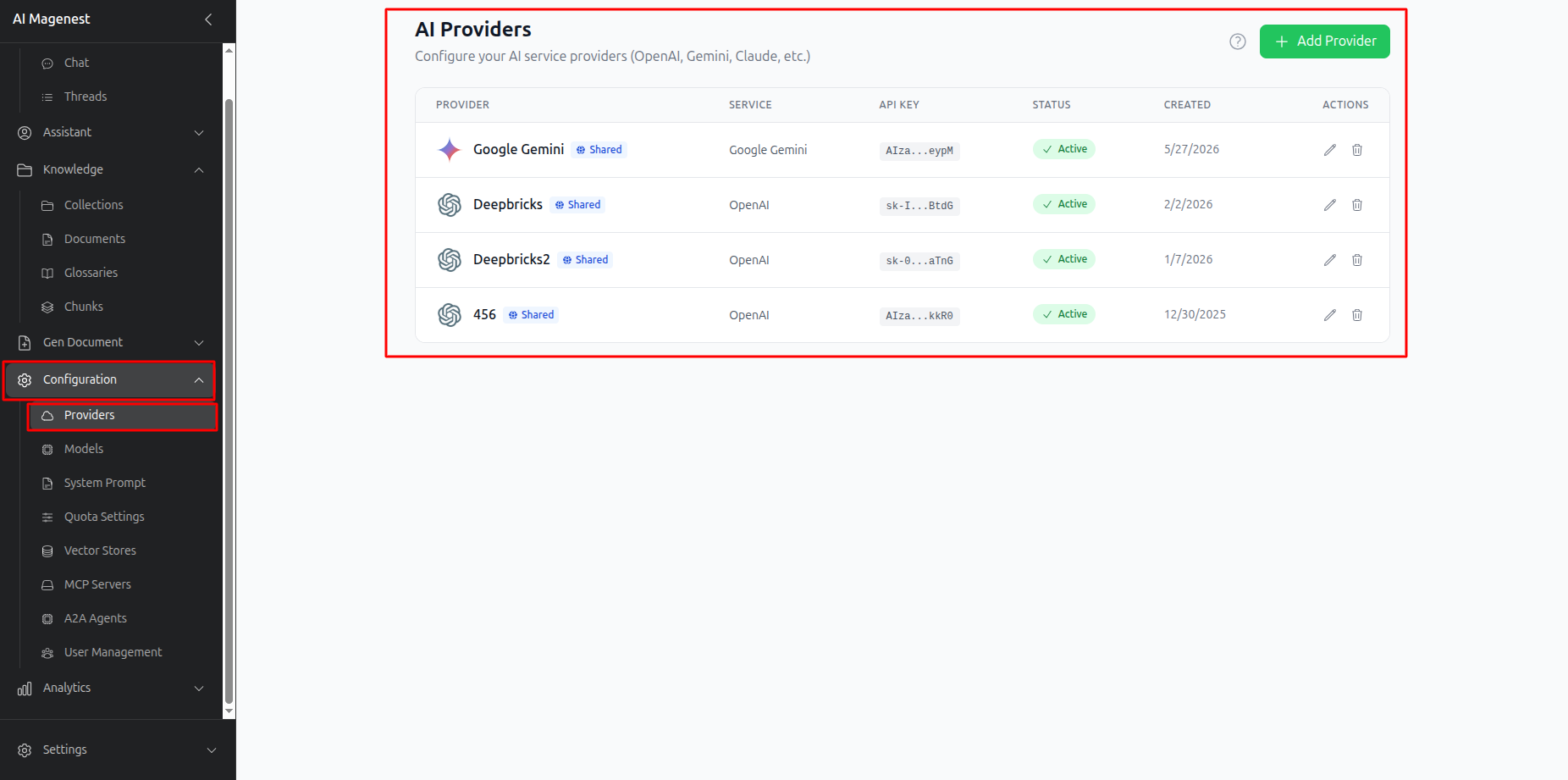
Providers
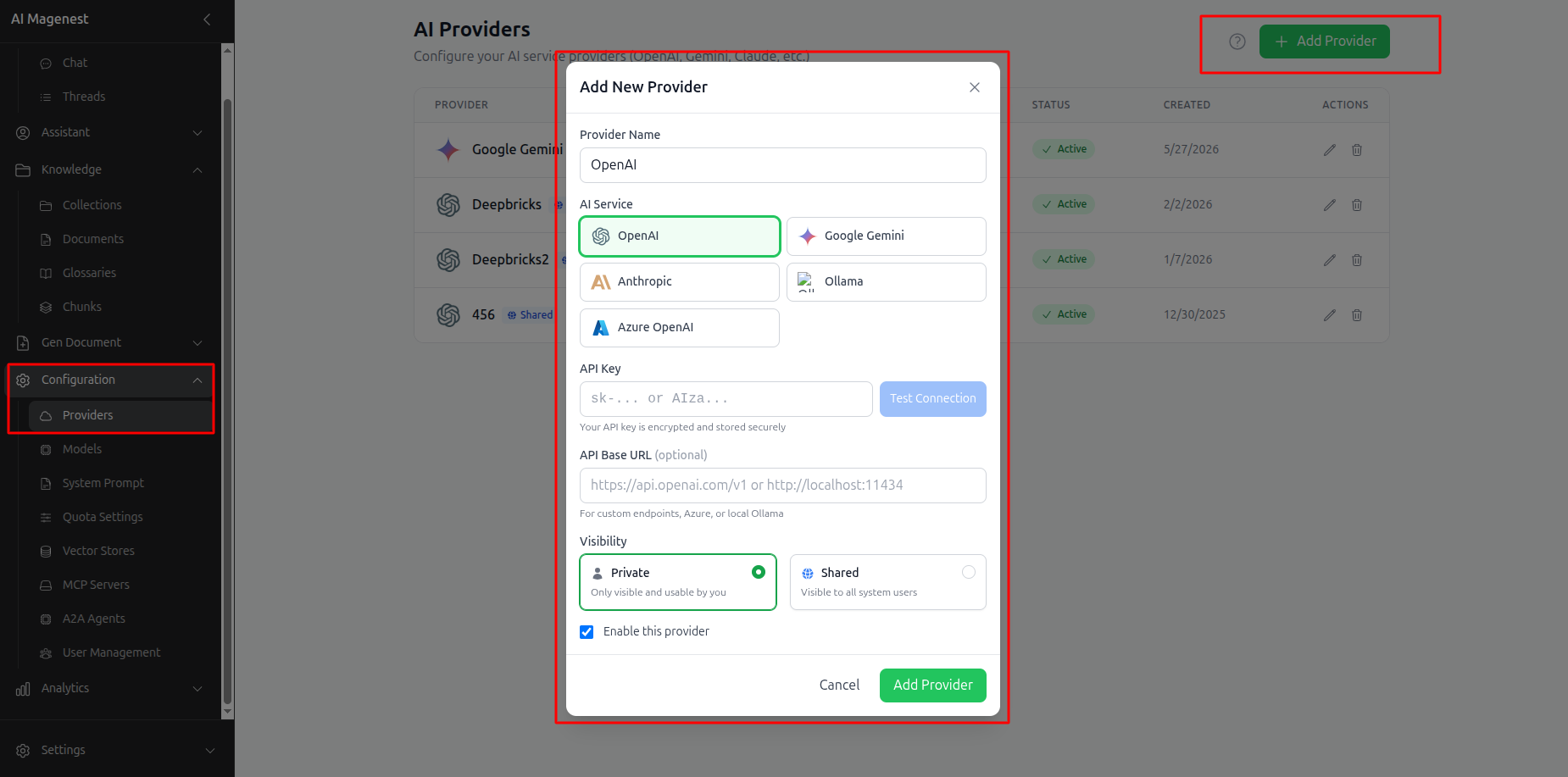
Use the Providers page to configure the AI services available in AI Knowledge Hub, such as: OpenAI, Gemini, Claude, Ollama, Azure.
Add the corresponding API key for each provider.
A provider can be temporarily disabled without deleting its configuration, or removed entirely when it is no longer needed.
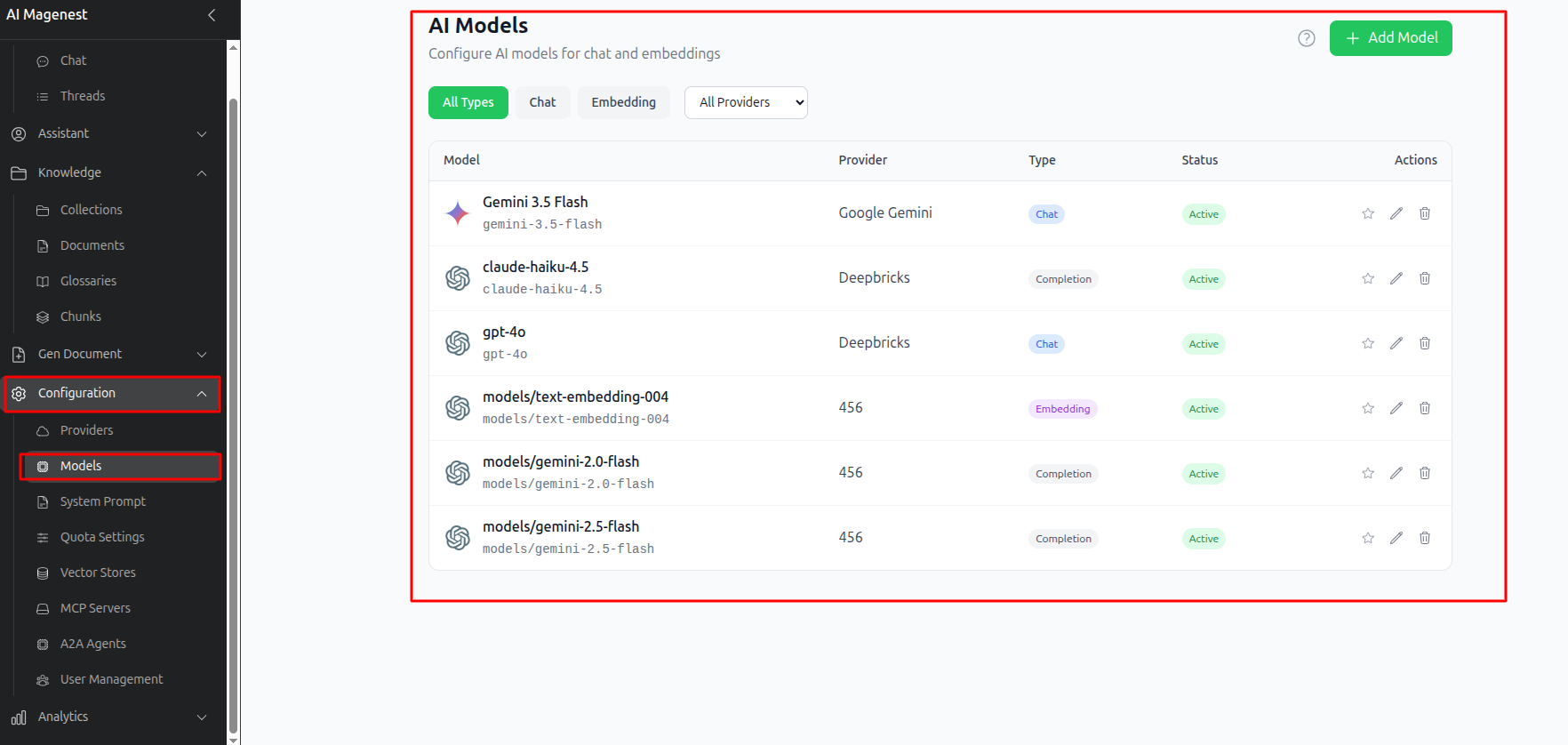
Models
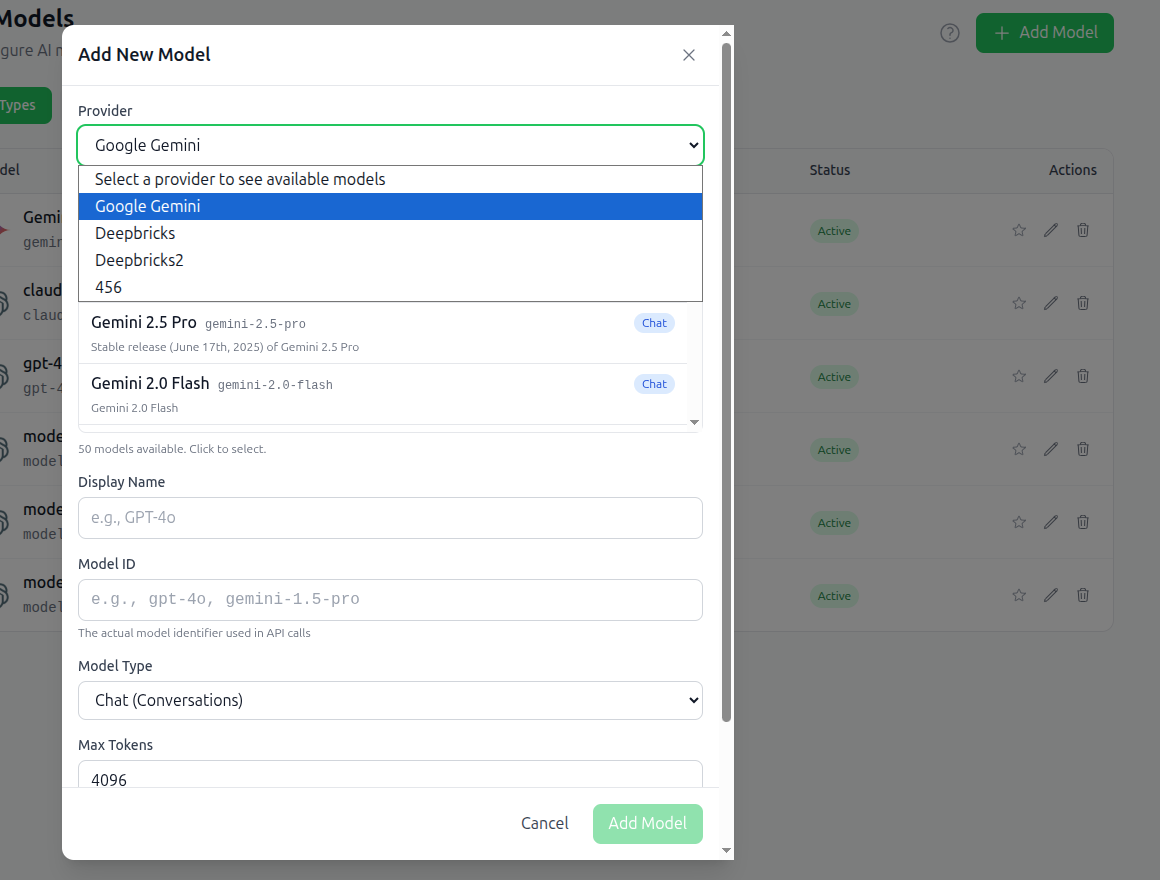
Once a provider has been added, use the Models page to configure the individual models you want to use.
Select a provider first, then choose one of the models available from that provider.
Models are separated by purpose:
- Models used for Chat
- Models used to generate vector embeddings for search
You can filter models by provider or type and set one model as the default.
System Prompt - Admin Only
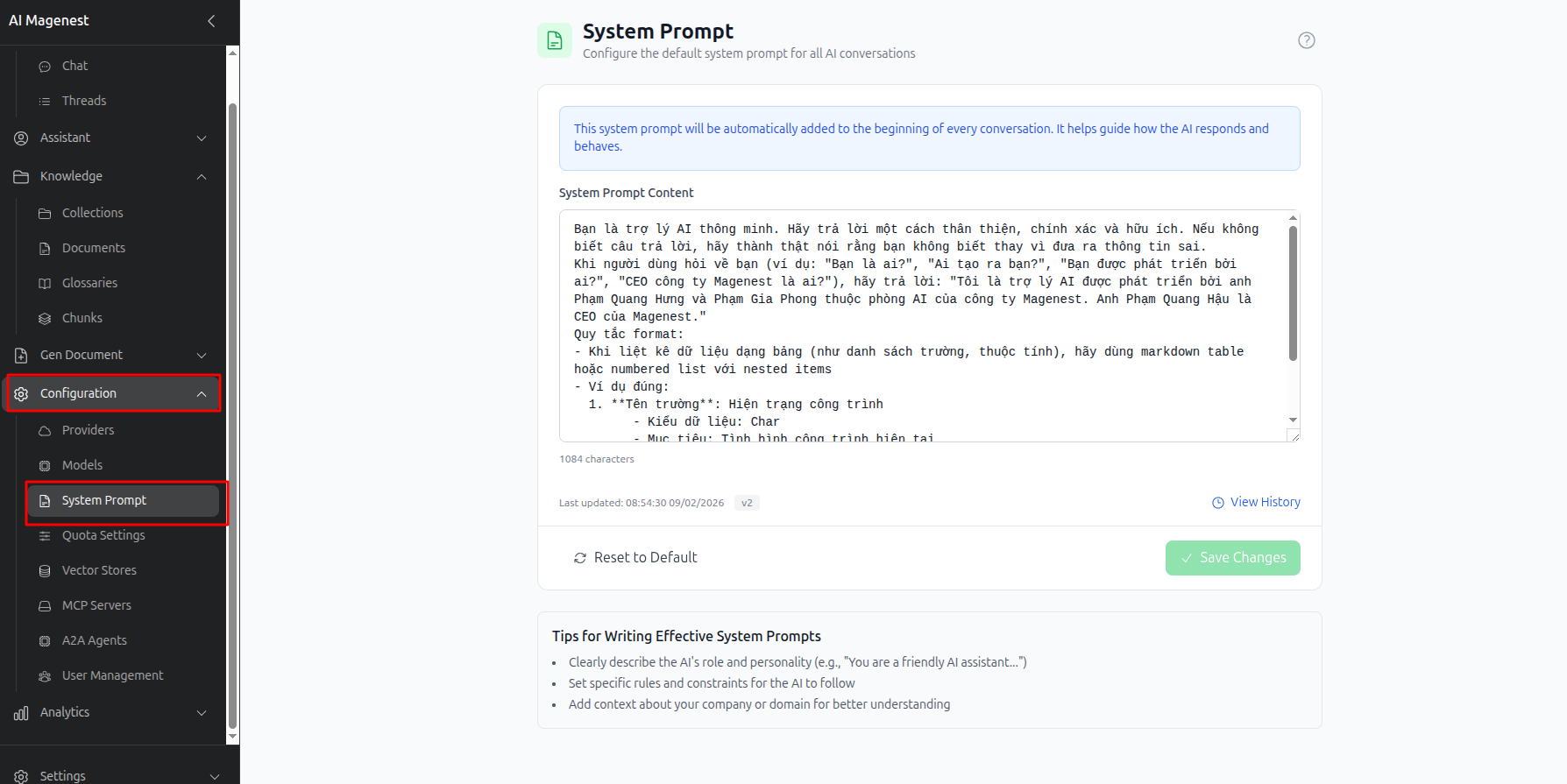
The System Prompt page lets administrators define the instructions that apply to every new conversation across the system.
These instructions can define the AI's:
- Role
- Personality
- Rules
Use Reset to Default if you want to discard your changes and restore the default prompt.
Changes take effect immediately, so review the prompt carefully before saving.
Usage Limits - Admin Only
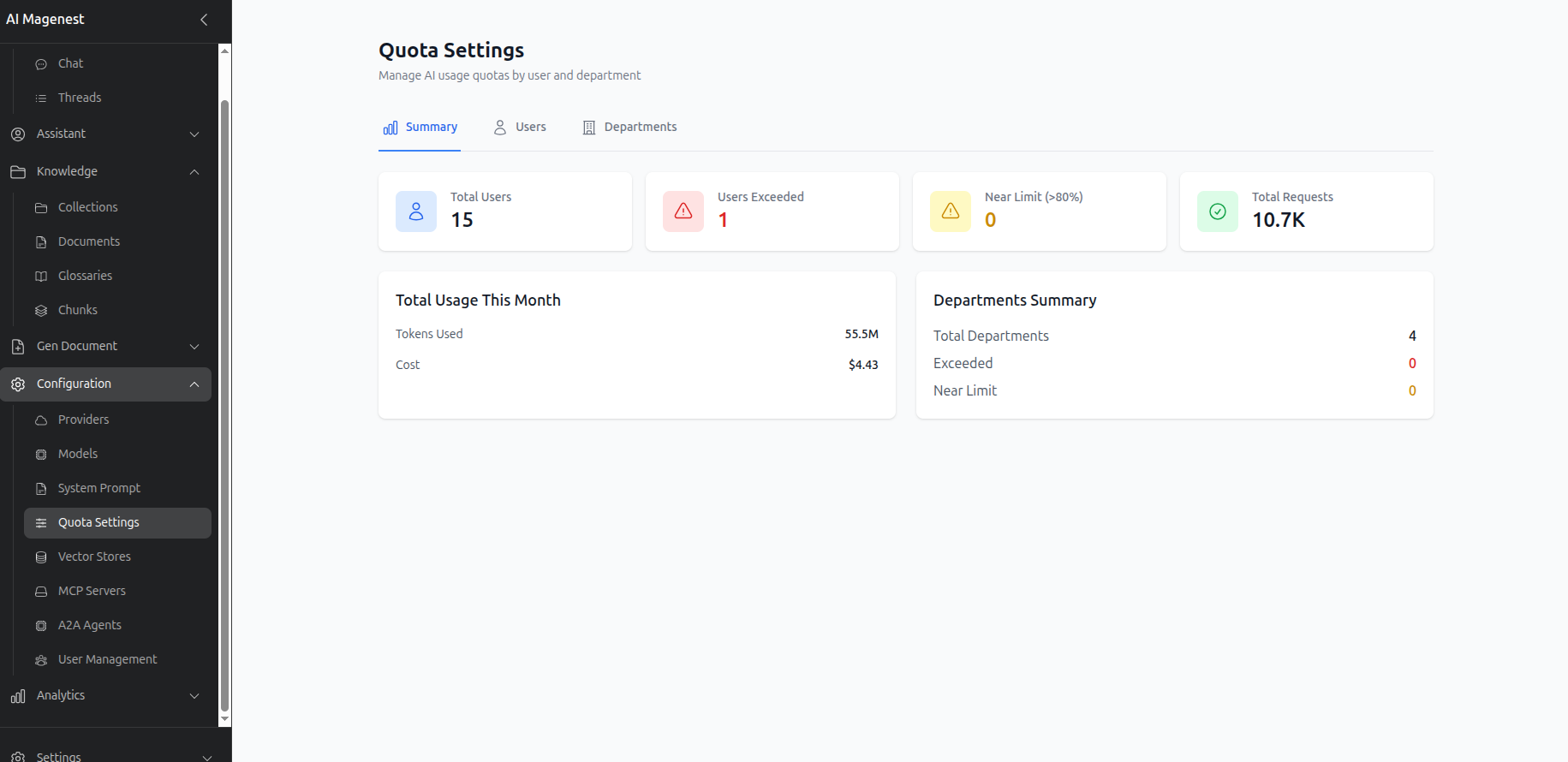
The Usage Limits page provides three areas for managing AI usage:
- Overall system usage
- Limits for individual users
- Limits by department
This makes it possible to control AI usage and costs for different groups instead of relying on a single system-wide limit.
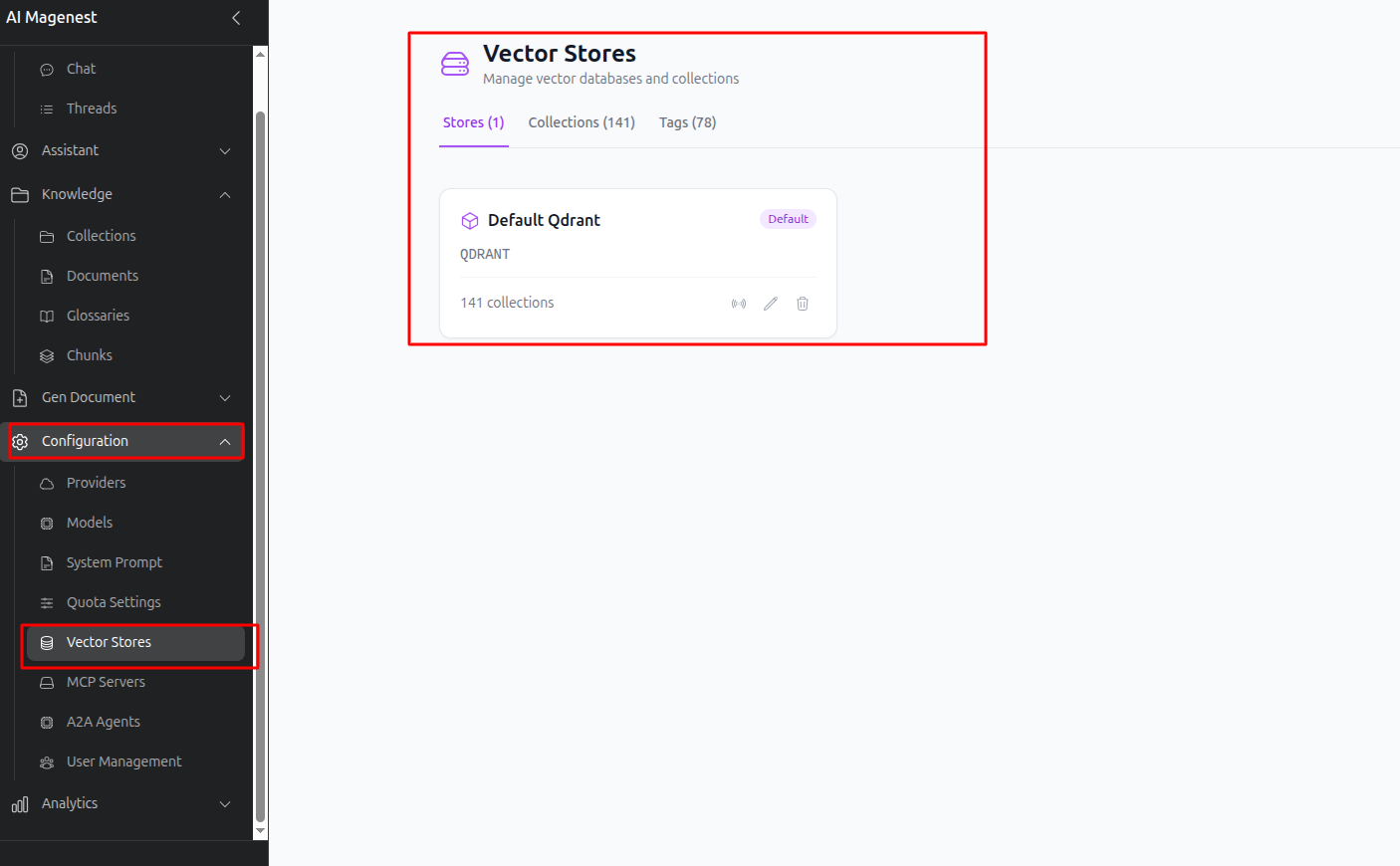
Vector Database
The Vector Database section contains two main areas.
Vector Stores
Use Vector Stores to connect AI Knowledge Hub to external vector databases.
You can:
- Enter connection details.
- Test the connection.
- Edit an existing connection.
- Delete a connection.
Collections
Collections within each vector store show:
- Vector dimensions
- Number of stored vectors
- Synchronization status
You can add documents to a collection or run synchronization again if the stored data is out of sync.
MCP Servers
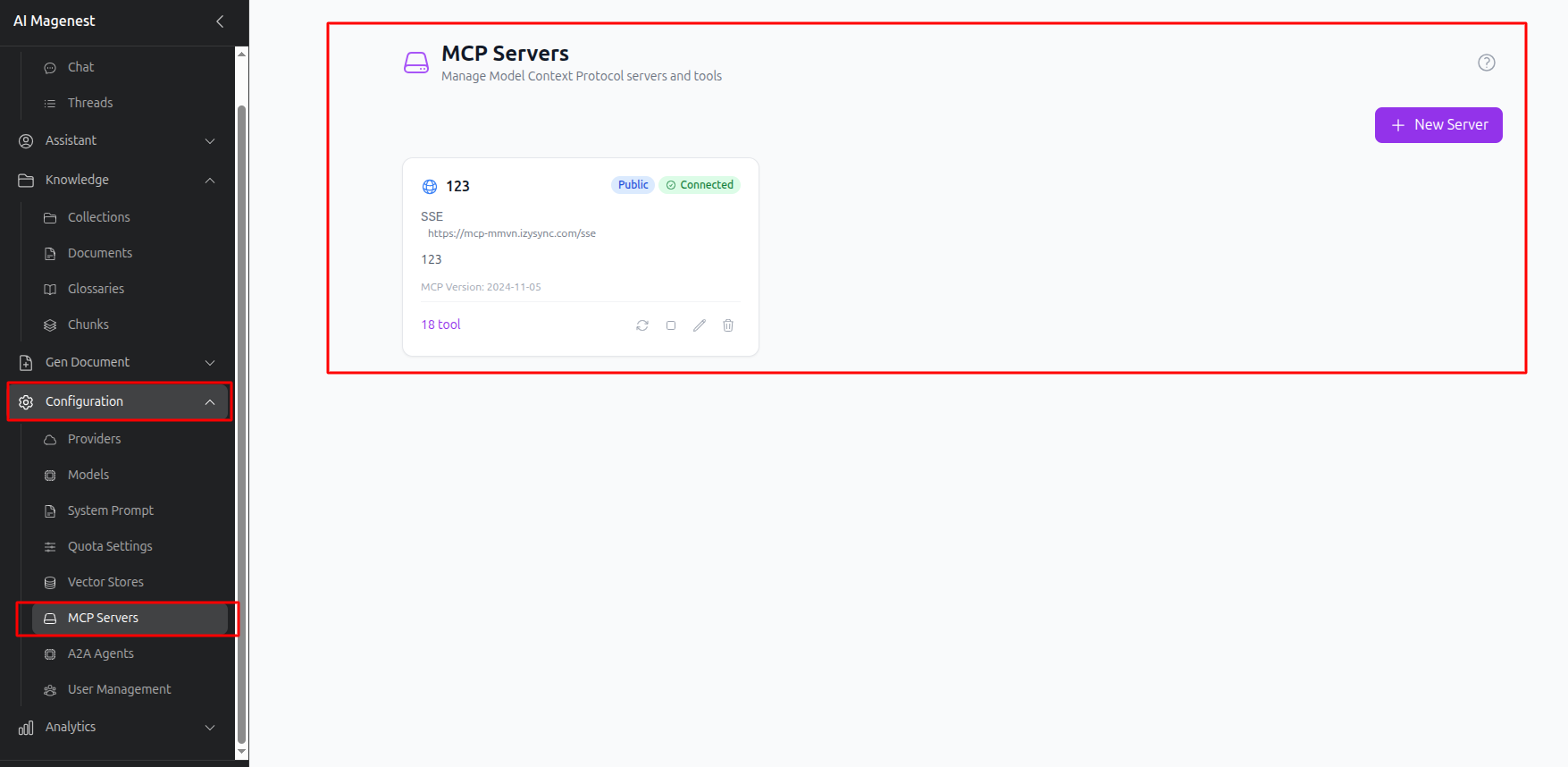
The MCP Servers page has two tabs.
Server Connections
Add an MCP server and choose how the system connects to it:
- Through a web protocol
- By running a command on the server
Tools
The Tools tab shows the tools automatically discovered from connected MCP servers.
These are the tools users can later enable or disable from Chat.
A2A Agents
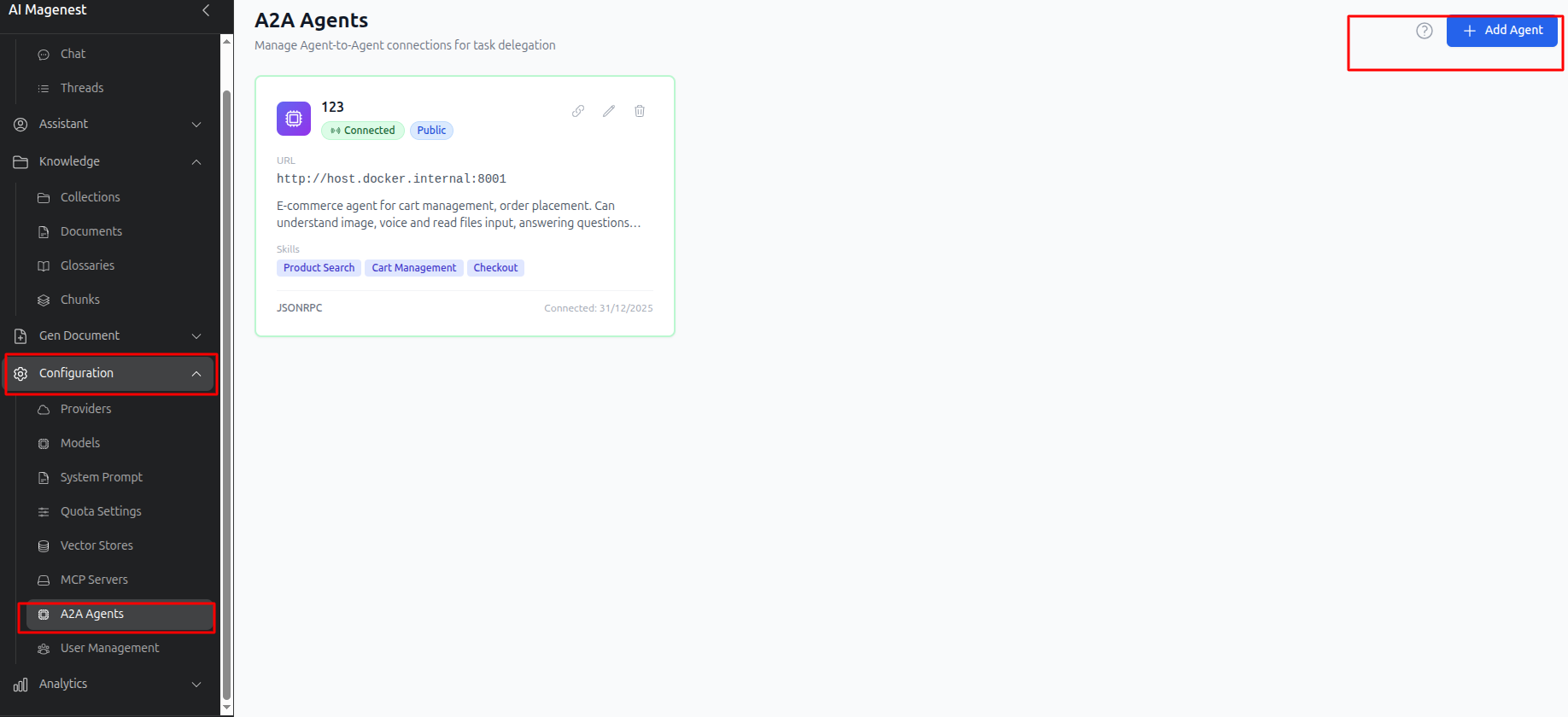
Use the A2A Agents page to connect an external AI agent by entering its address and authentication details.
Each agent appears as a card showing:
- Connection status
- The skills the agent reports as supported
User Management - Admin Only
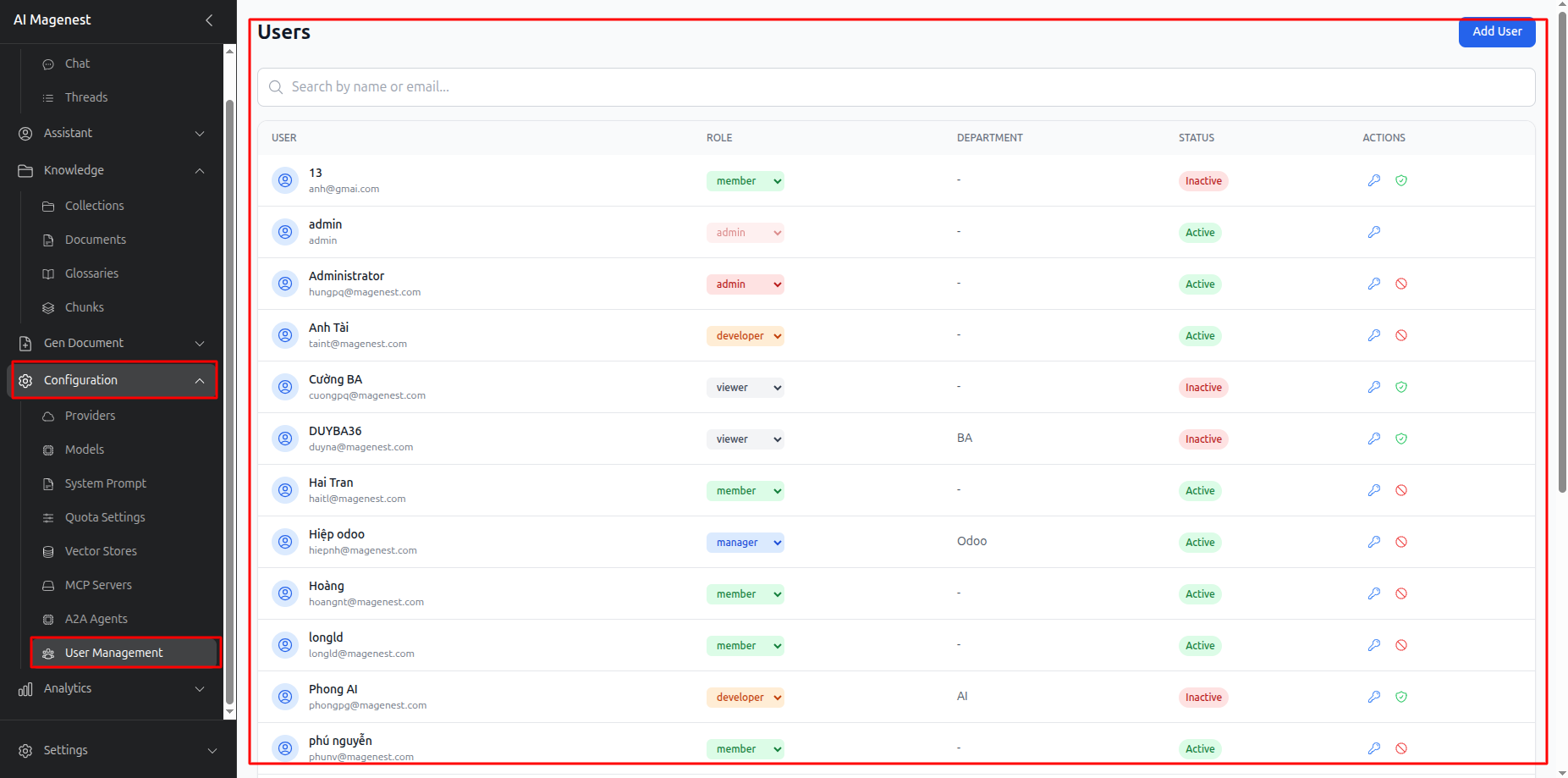
The User Management page lets administrators search for users by name or email and add new users.
New users must have a company email address.
Available roles include:
- Admin
- Manager
- Tech Lead
- Developer
- Member
- Viewer
Administrators can assign roles and reset another user's password when needed.
Analytics
Dashboard
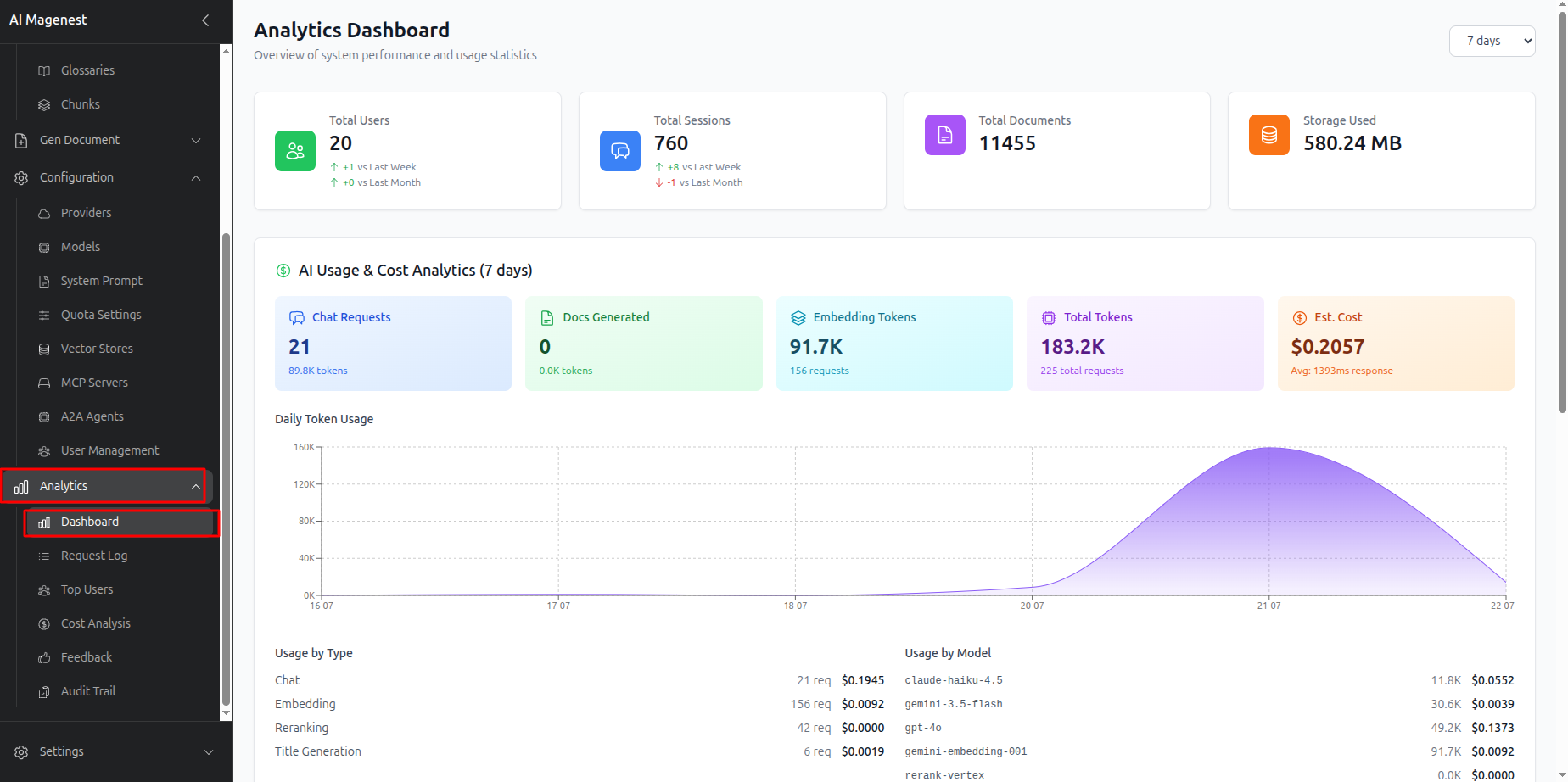
The Analytics Dashboard gives an overview of AI usage across the system, including:
- Total AI requests
- Usage trends over time
Request Log
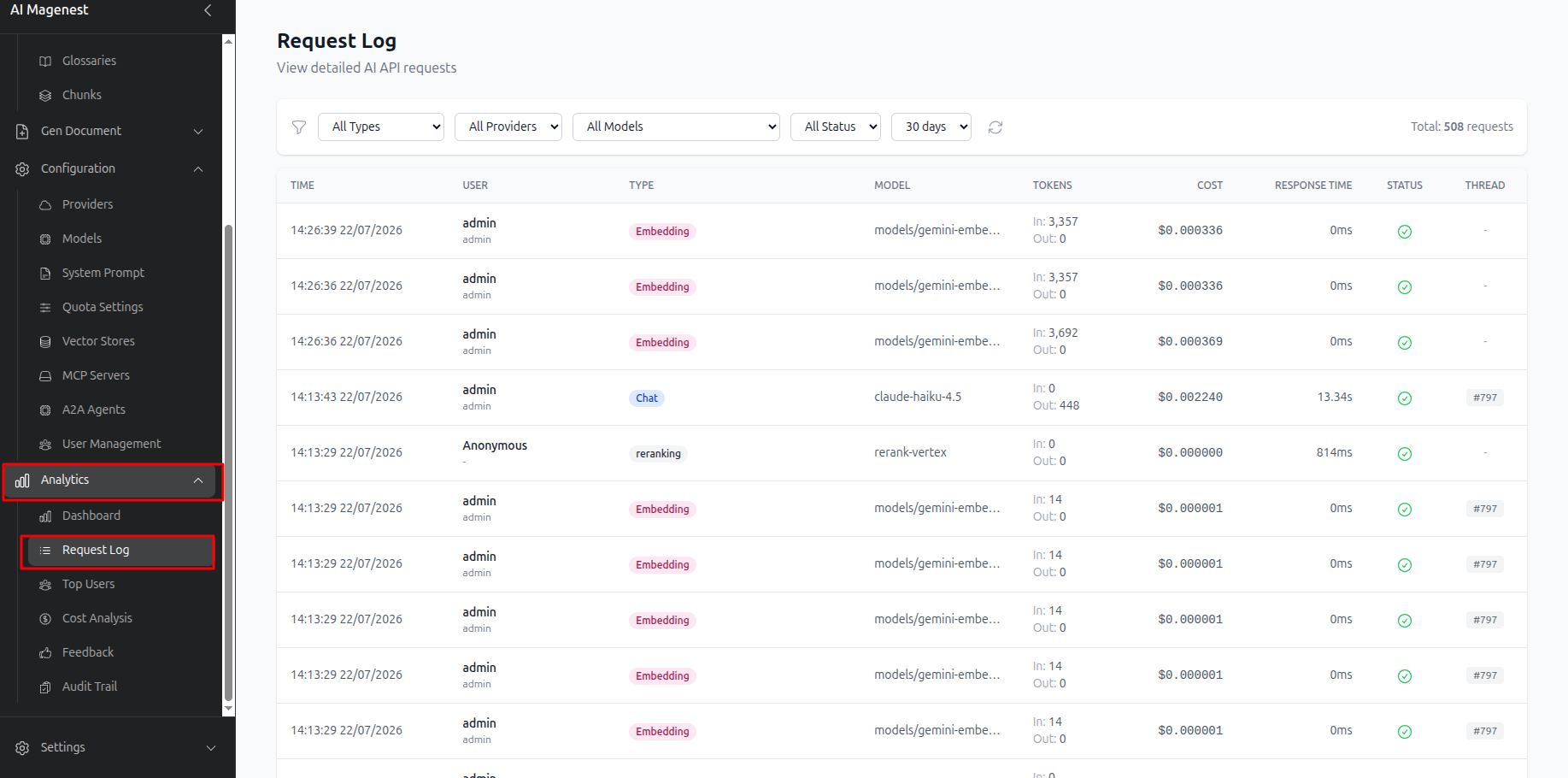
The Request Log records each AI request made across the system.
Use it to review individual requests or investigate issues.
Top Users
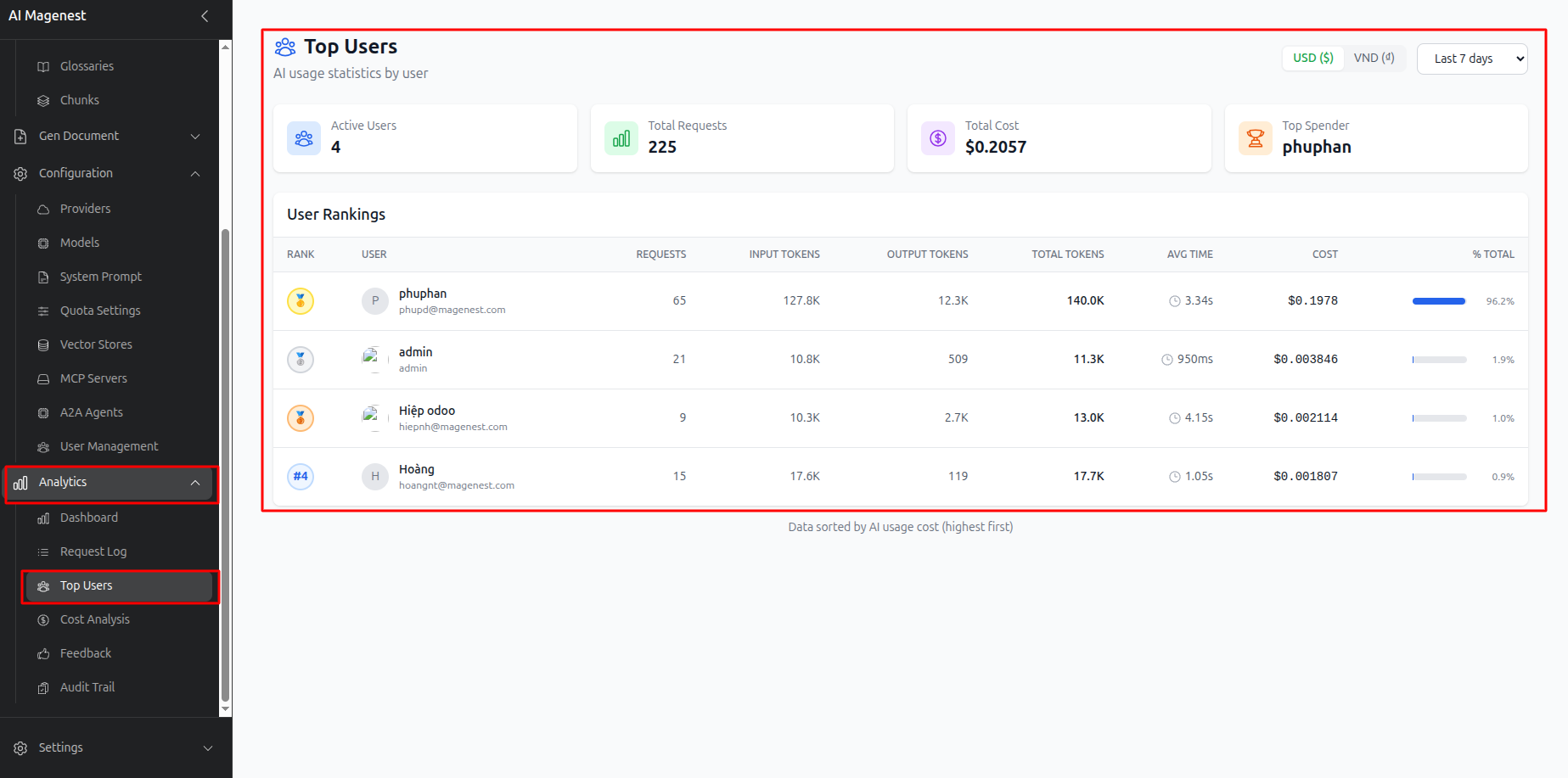
The Top Users page ranks users by AI usage. This makes it easier to identify unusually high levels of usage.
Cost Analysis
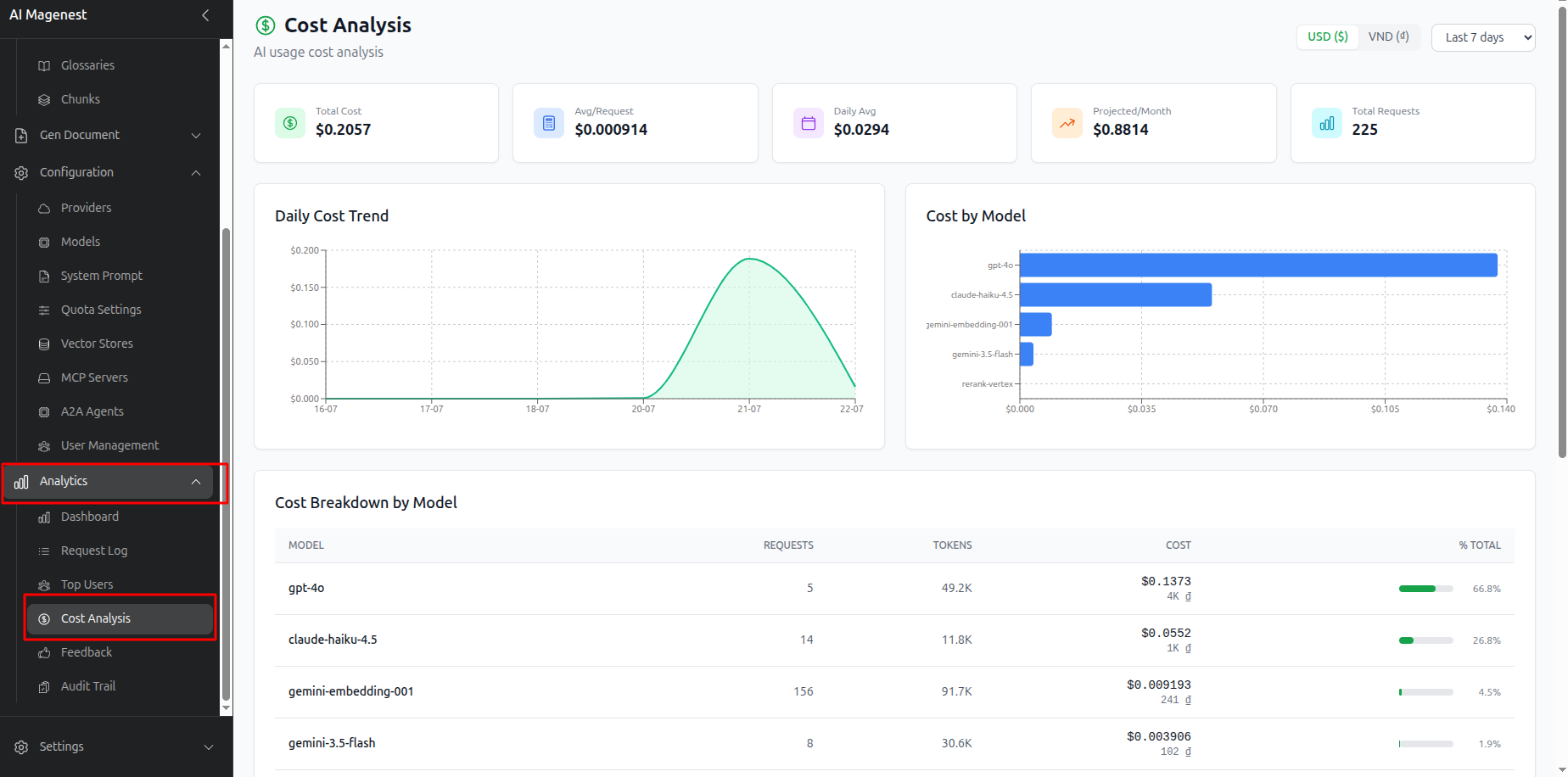
The Cost Analysis page breaks down AI spending over time by:
- AI model
- Feature, such as Chat or document generation
This helps identify which models or features are responsible for the highest costs.
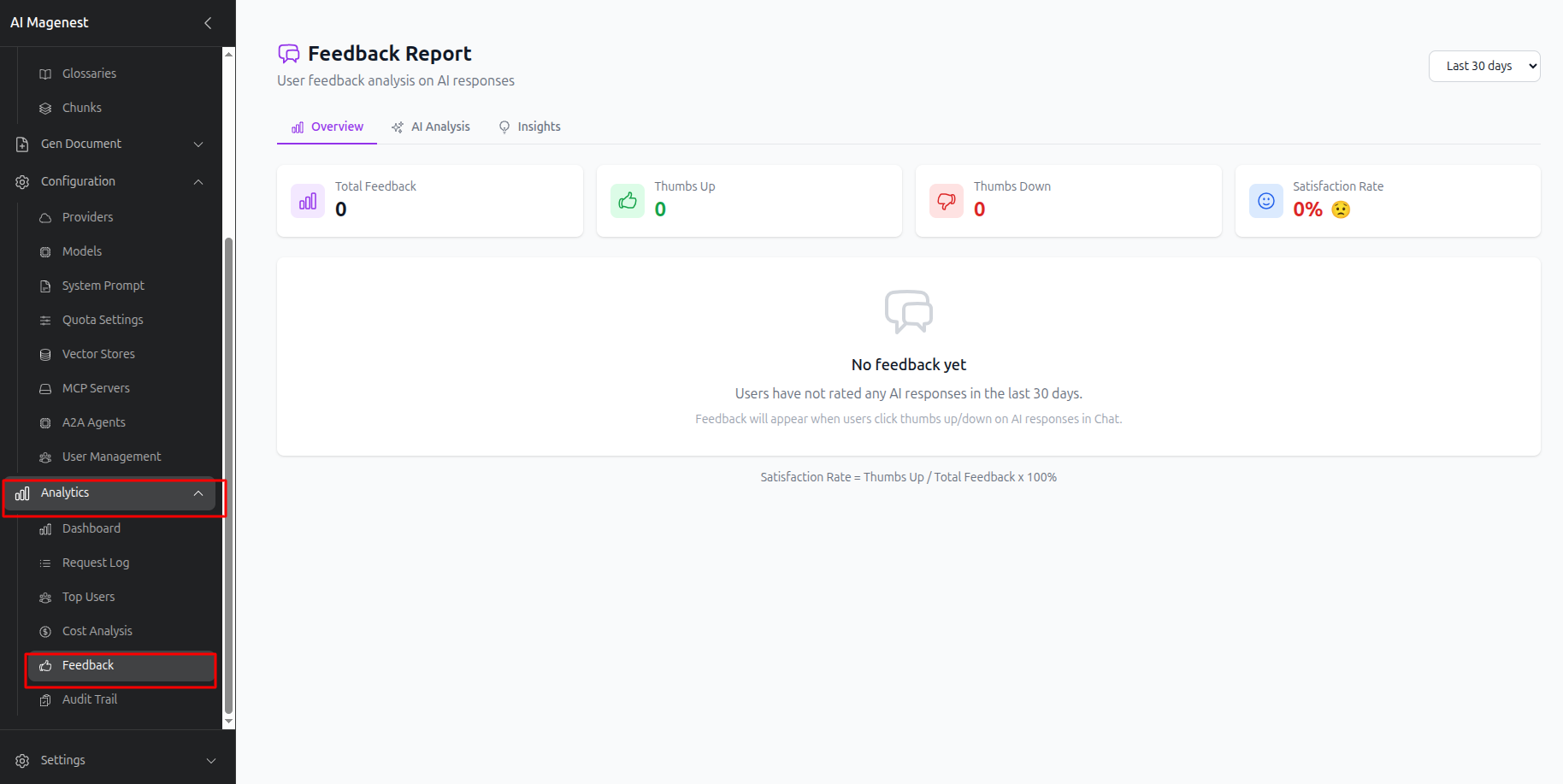
Feedback
The Feedback page brings together all Like and Dislike ratings submitted in Chat.
If a user provides a reason after selecting Dislike, that reason is included in the report.
This feedback can be used to review and improve the quality of AI responses.
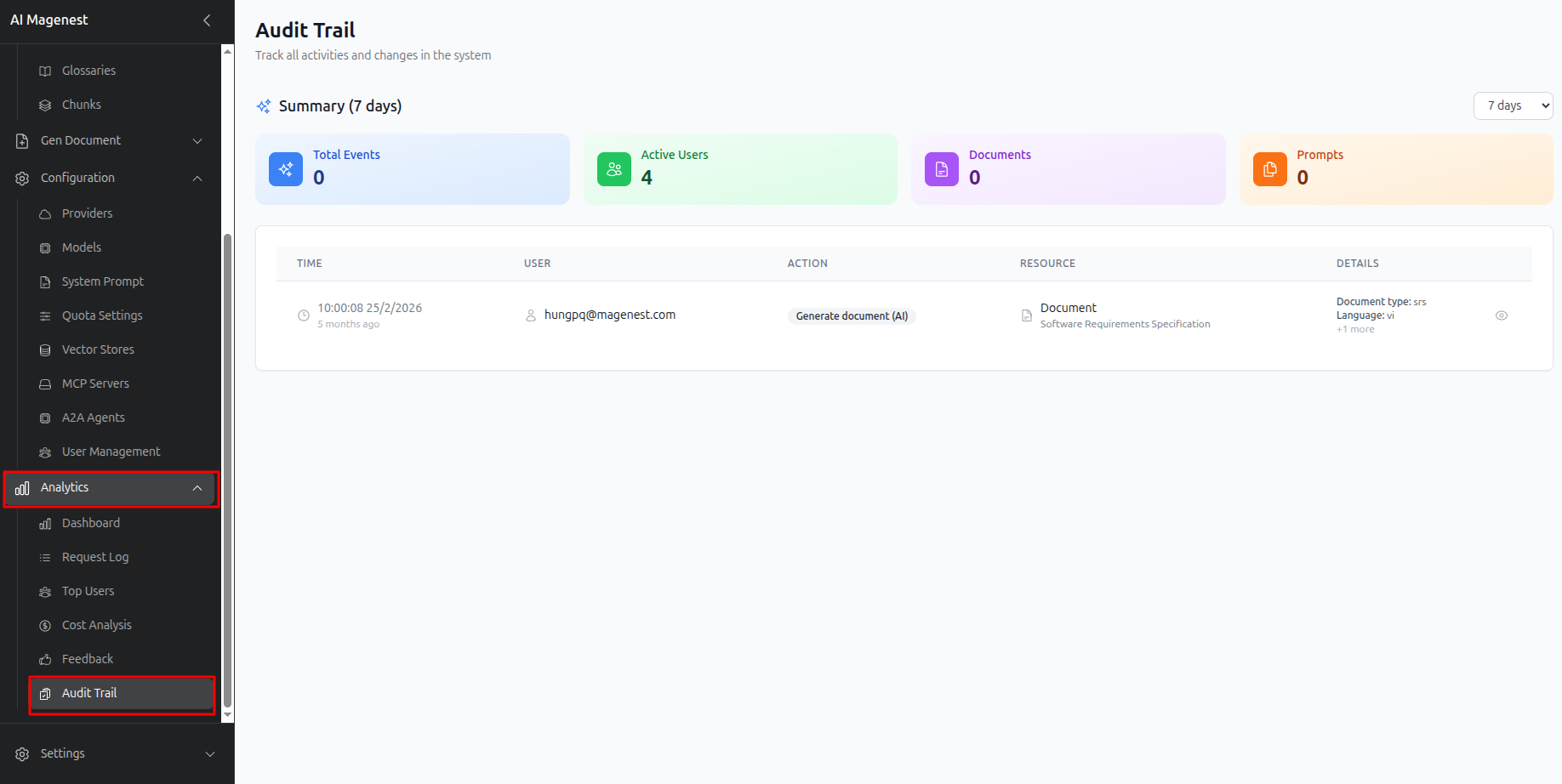
Activity History - Admin Only
The Activity History page records important actions across the system, including who created, edited, or deleted something and when the action took place.
The page includes:
- An overall summary of system activity.
- A separate tab where each administrator can review their own activity history.