Thank you for purchasing our extension. If you have any questions that are beyond the scope of this document, please feel free to contact us via [email protected]
By: Magenest | Support Portal: http://servicedesk.izysync.com/servicedesk/customer/portal/7
Introduction
Smart Feedback Analyzer is an AI-powered system for analyzing customer feedback/reviews. The system helps businesses:
- Automatically classify sentiment (positive / neutral / negative) for each feedback item
- Identify mentioned topics (product quality, delivery service, ambience, etc.)
- Generate overview reports with insights and specific recommendations
- Store analysis history to track trends
- Quickly filter and search by topic and review type
Target users: Customer service department, store managers, marketing department.
System Requirements
To use the system, you need:
- Web browser: Chrome, Firefox, Edge (latest version)
- Internet connection (to call the AI API)
- Feedback data file in CSV or Excel format (.xlsx, .xls)
- Maximum file size: 10MB
System access: https://sfa.izysync.com/
Data Preparation
File Format
The system accepts the following file formats:
Format | Extension | Notes |
CSV | .csv | UTF-8 encoding (with or without BOM) |
Excel | .xlsx | Excel 2007 or later |
Legacy Excel | .xls | Excel 97-2003 |
Data Column Structure
The system automatically detects data columns. Below is the list of supported columns:
Column | Required | Accepted Column Names | Description |
Feedback content | Yes | feedback_content, text, content, review, comment, feedback, message, body, noi_dung | Customer review content |
Star rating | No | rating, star, stars, score, diem, sao, so_sao | Rating score from 1-5 stars |
Reviewer name | No | reviewer_name, reviewer, name, author, customer, khach_hang | Customer name |
Time | No | time, date, timestamp, created_at, thoi_gian, ngay, review_date, datetime | Review time (text or datetime) |
Product name | No | product_name, product, san_pham, item, sku | Product/service name |
Platform | No | platform, source, san, kenh, channel | Sales channel (Shopee, Lazada, etc.) |
ID | No | feedback_id, id, review_id, stt | Identifier (automatically generated if unavailable) |
Note: Only the feedback content column is required. Other columns, if available, will be detected automatically. If there is no rating column, the system can still run the analysis, but it will rely only on the text content.
Time Column (time)
The time column supports both data types:
Data Type | Example | Processing |
Relative text | "2 weeks ago", "one month ago" | Kept unchanged |
Datetime | 2024-01-15 14:30:00 | Automatically formatted as dd/mm/yyyy HH:MM |
Date | 15/01/2024 | Automatically formatted as dd/mm/yyyy |
Sample Data Example
Below are the first five rows from the sample file (reviews_Jollibee_Trung_Hòa.csv):
Name | Rating | Time | Text | Owner_response |
Bình Nguyễn | 5 | one month ago | I received a voucher, so I invited my friends to eat there. We went near the evening; the restaurant was quite crowded... | Owner response one month ago Tha... |
Trầm | 5 | 2 months ago | A friend invited me to eat there because there was a voucher. It was my first time trying fried chicken, and it was a bit... | Owner response 2 months ago Joll... |
Hà Thu | 5 | one month ago | I went at 1 PM on Saturday and the restaurant was super crowded. I had a voucher, so the food was served quickly, not too late... | Owner response one month ago Tha... |
Như Phương Trần | 5 | one month ago | The restaurant is on a nice street. Although it was crowded, it was still clean. Compared with KFC, I prefer Jo... | Owner response one month ago Tha... |
Đoàn Vu | 1 | 2 months ago | The staff behaved poorly. While customers were eating, a staff member pulled the umbrella away for later customers, like... | Owner response one month ago Tha... |
The system provides 4 sample data files for testing:
File | Source | Number of Rows |
reviews_GoGi_House_Trung_Hòa.csv | GoGi House - Trung Hòa | 842 |
reviews_Jollibee_Trung_Hòa.csv | Jollibee - Trung Hòa | 200 |
reviews_KFC.csv | KFC - Láng Hạ | 1,045 |
reviews_Pizza_4Ps_Lotte_Center.csv | Pizza 4P's - Lotte Center | 1,439 |
User Guide
Upload File
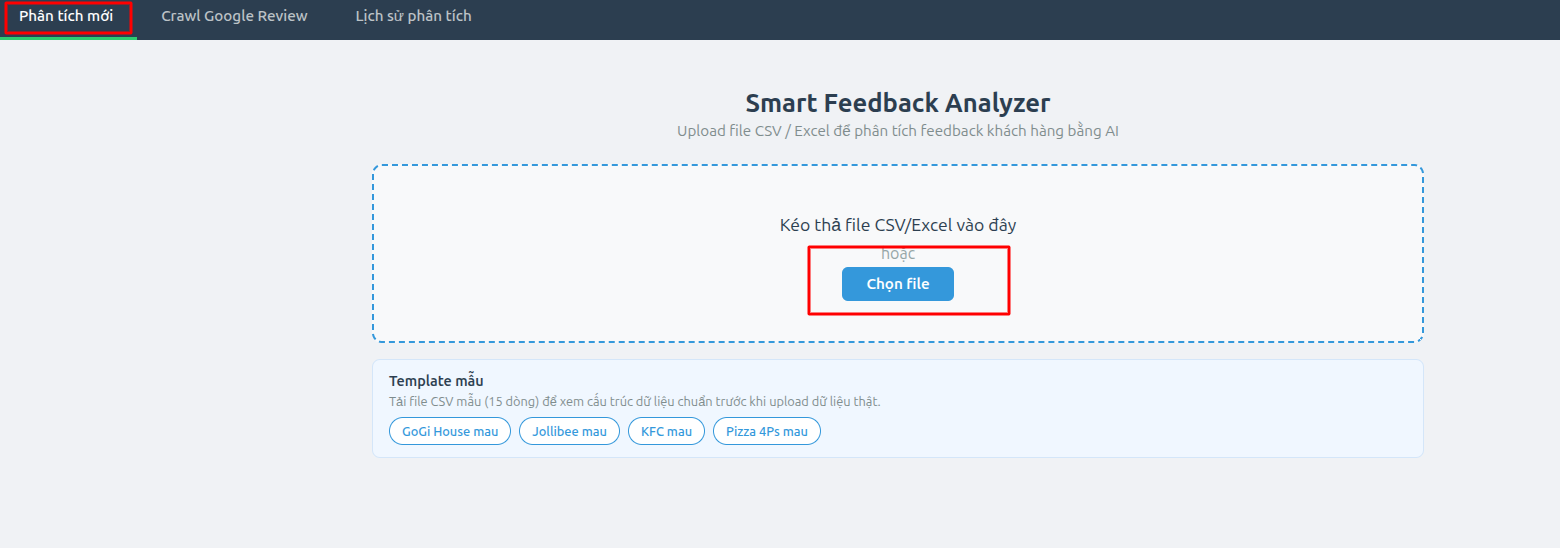
Step 1: Access the system from the home page (the "New Analysis" tab).
Step 2: Upload file:
- Click the "Choose file" button to select a file from your computer
Step 3: The system automatically parses the file, detects columns, and displays a data preview table. The preview table is paginated with 20 rows per page for easier viewing.
Step 4: Check the data in the preview table. Double-click a cell to view its full content.
Manage Analysis Topics
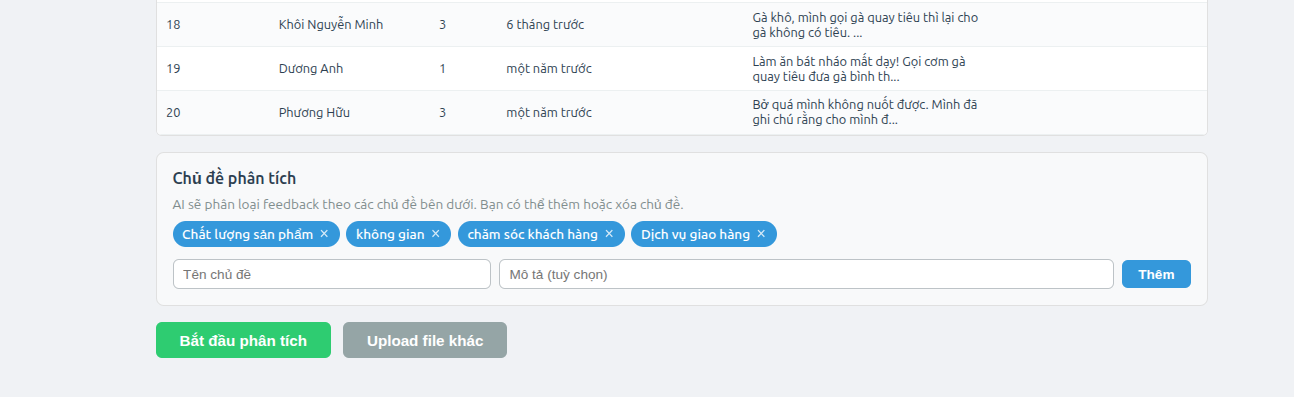
After the file is uploaded successfully, the "Analysis Topics" section appears. AI will classify feedback according to these topics.
- Add a new topic:
Enter the topic name (for example: "Ambience") and description (optional), then click "Add".
- Delete a topic:
Click the X button on the topic chip you want to remove.
Default: The system includes two default topics: "Product Quality" and "Delivery Service". You can add topics suitable for your industry.
Example topics by industry:
Industry | Suggested Topics |
F&B (Restaurants) | Product Quality, Delivery Service, Ambience, Staff Attitude, Price |
E-commerce | Product Quality, Delivery Service, Packaging, Price, Product Description |
Hotels | Rooms, Service, Location, Food & Beverage, Price |
IT Services | Software Quality, Technical Support, Price, Implementation Time |
Start Analysis
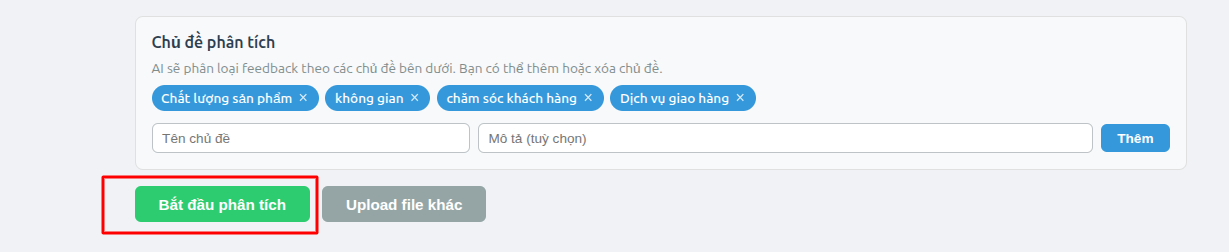
Click the "Start Analysis" button for AI to classify the feedback.
The analysis process includes 3 stages:
Stage | Description | Estimated Time |
1. Preparation | Split the data into small chunks (20 feedback items/chunk) | 1-2 seconds |
2. Classification | AI analyzes sentiment + topics for each chunk (3 chunks in parallel) | Depends on the number of feedback items |
3. Report Generation | AI summarizes and writes an insights report | 10-30 seconds |
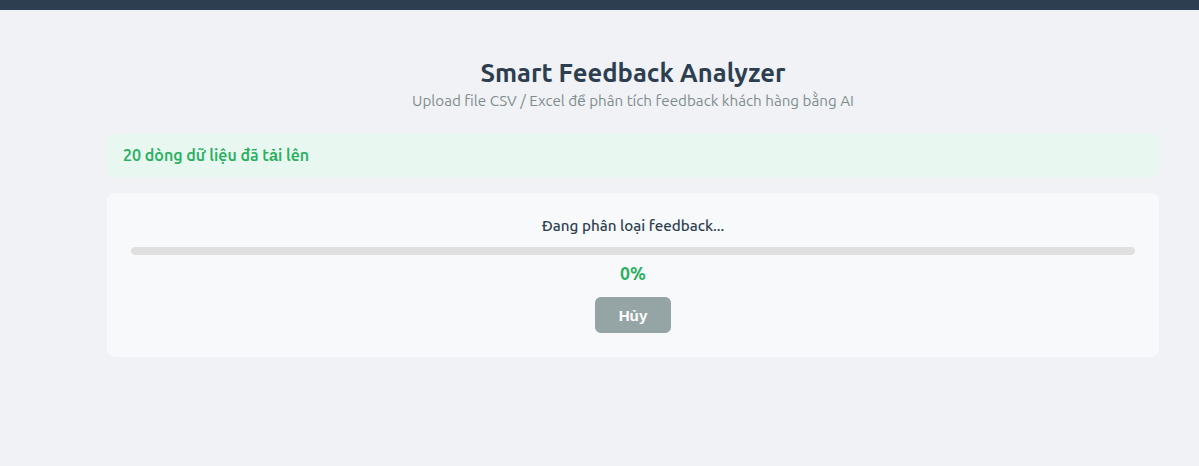
The progress bar displays the completion percentage. You can click "Cancel" to stop the process at any time.
View Analysis Results
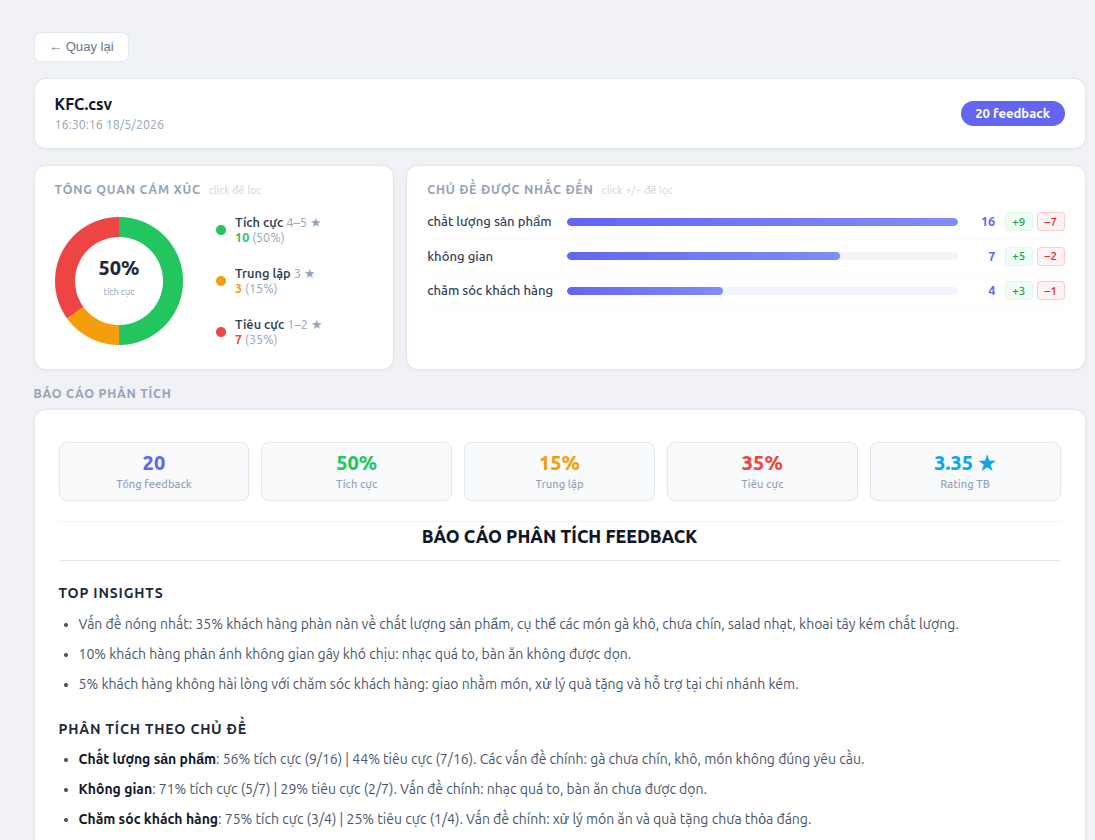
After the analysis is complete, the system automatically redirects to the results page. The results page includes the following sections:
- Overview statistics: 4 cards are displayed: Total Feedback, Positive (4-5 stars), Neutral (3 stars), Negative (1-2 stars). Click each card to filter the table below.
- Mentioned topics: Each topic is displayed as a card with the number of positive/neutral/negative reviews. Click the positive/negative number to filter the table by topic + review type.
- Analysis report: An AI-generated markdown report, including: Overview, Top Insights, Topic-Based Analysis, and Actionable Recommendations.
- Detailed feedback table: A paginated table (20 rows/page) displaying each feedback item with: Rating, Sentiment, Topic, Summary, Original Content.
Filter and Search
The system supports 2 filter types:
- Filter by overall rating: Click the "Positive", "Neutral", or "Negative" card in the statistics section. The table will show only feedback with the corresponding rating (4-5 stars, 3 stars, or 1-2 stars).
- Filter by topic: Click the positive/neutral/negative number in a topic card. The table will show only feedback belonging to that topic with the corresponding sentiment classified by AI.

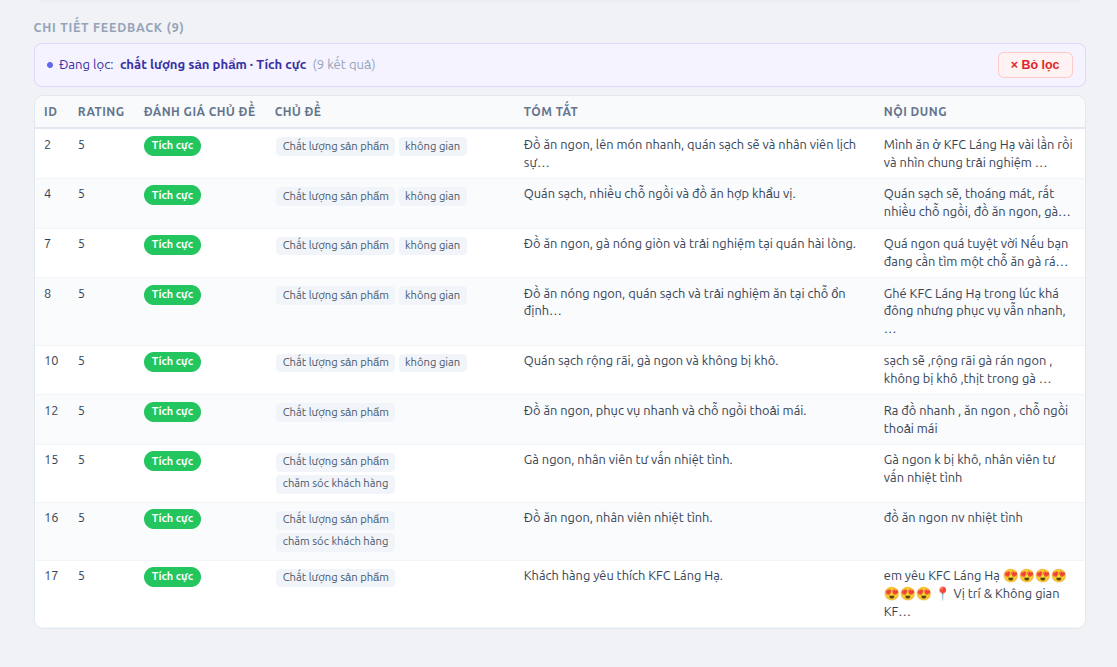
Clear filters: Click the "Clear filters" button or click the active card again.
Analysis History
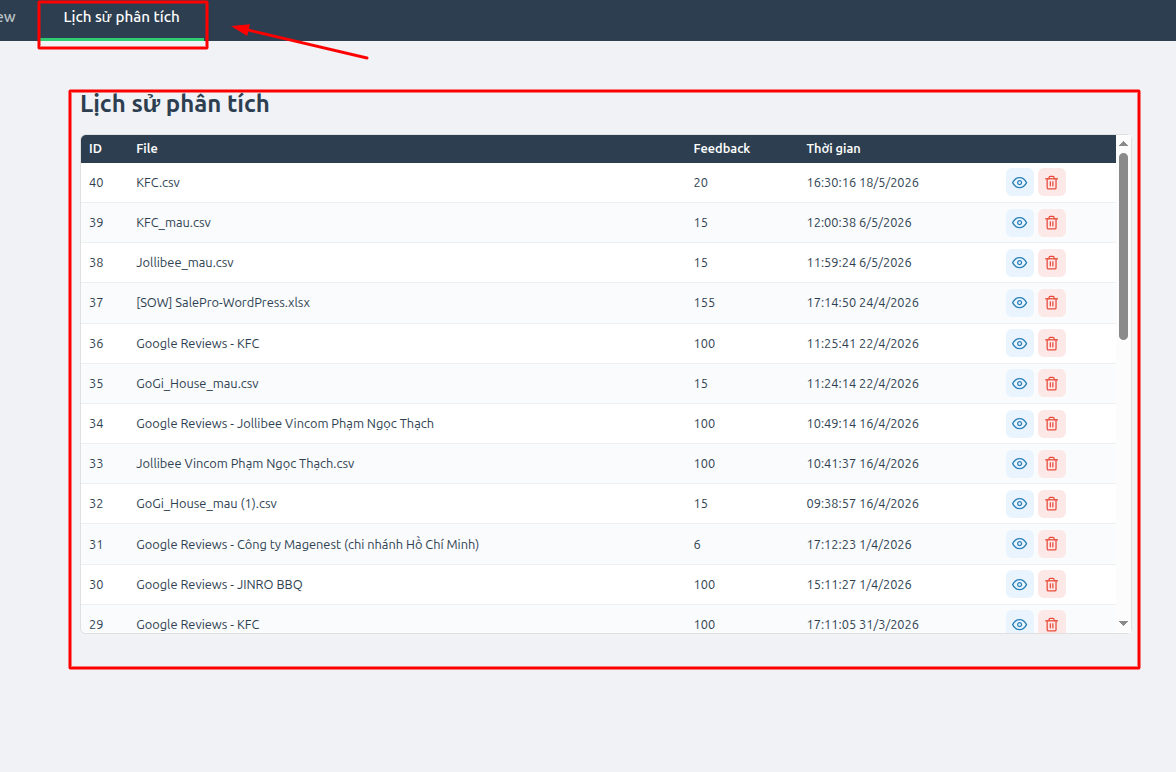
Go to the "Analysis History" tab to view all analyses performed.
- View details: Click the "View" button to reopen the analysis results.
- Delete: Click the "Delete" button to delete an analysis (confirmation is required before deletion).
Crawl Google Reviews
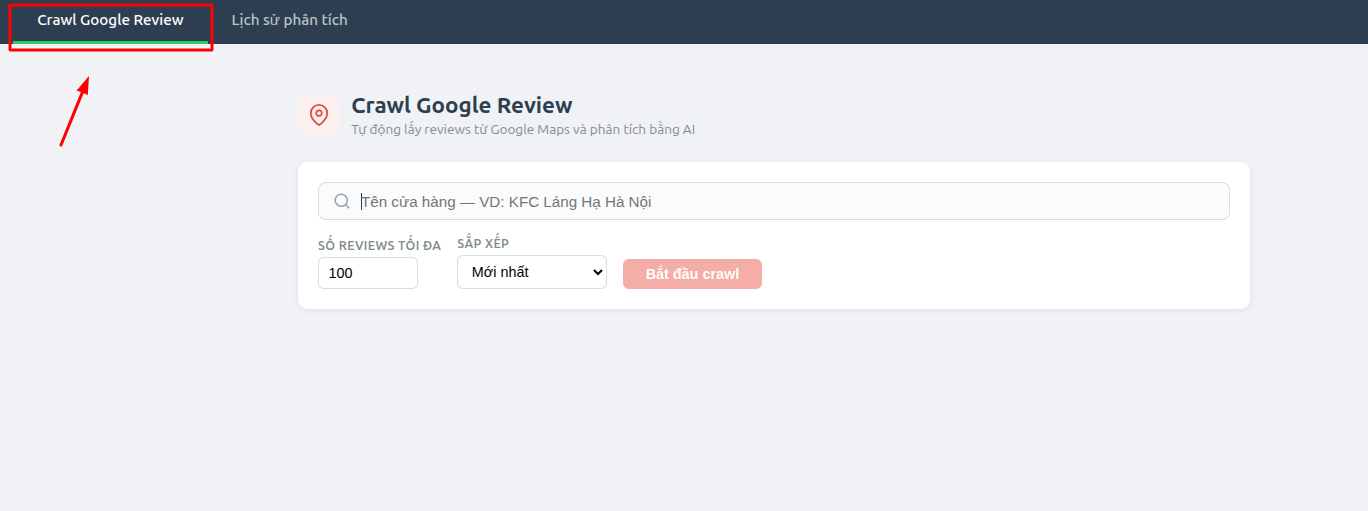
The Crawl Google Reviews feature allows you to automatically collect reviews from Google Maps without preparing a file. Access the "Crawl Google Review" tab from the navigation bar.
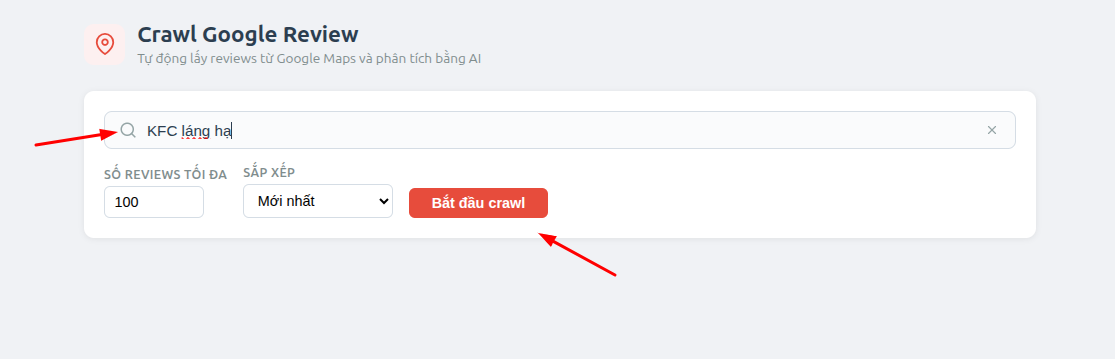
Step 1: Enter the store name in the search box (for example: "KFC Láng Hạ Hà Nội"), then press Enter or click the "Start crawl" button.
Step 2: Configure optional parameters before crawling:
- Maximum number of reviews: from 10 to 5,000 (default 100)
- Sort by: Newest / Most Relevant / Highest Rating / Lowest Rating
Step 3: The screen displays real-time logs and a progress bar (%). Click "Cancel" to stop at any time.
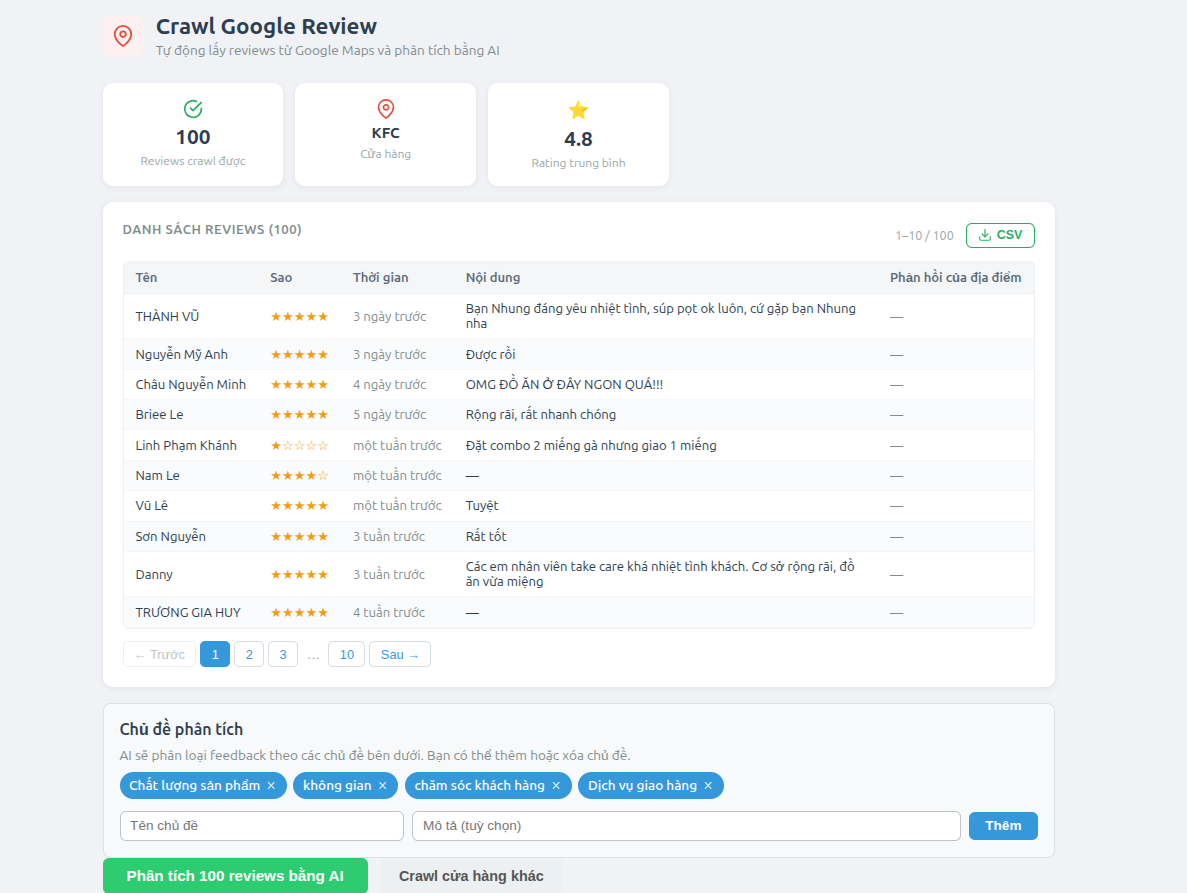
Step 4: Once crawling is complete, the system displays quick statistics: number of reviews collected, store name found, and average rating.
Step 5: The preview table displays the list of reviews (paginated with 10 rows/page). Click "CSV" to download all data to your computer.
Step 6: Manage topics and click "Analyze X reviews with AI" to start (same flow as Upload in sections 4.2-4.4). Or click "Crawl another store" to return to search.
Note: The more specific the store name is (including the address), the more accurate Google Maps results will be. Example: "KFC Láng Hạ Hà Nội" instead of just "KFC"
Understanding the Results
Overall Evaluation
Classification is based on the customer's star rating:
Type | Rating | Meaning |
Positive | 4-5 stars | Customers are satisfied with the product/service |
Neutral | 3 stars | Customers had an average experience, with nothing particularly outstanding |
Negative | 1-2 stars | Customers are dissatisfied and have complaints |
Mentioned Topics
AI reads feedback content and identifies relevant topics. Each topic has its own sentiment (which can be different from the overall evaluation).
Example:
Feedback | Rating | Overall | Topic 1 | Topic 2 |
"The food was good, but delivery was too slow" | 3 stars | Neutral | Product Quality: Positive | Delivery Service: Negative |
"The restaurant is beautiful, the staff are enthusiastic, and the chicken is delicious" | 5 sao | Positive | Product Quality: Positive | Ambience: Positive |
"The food was cold, shipping took too long, disappointing" | 1 sao | Negative | Product Quality: Negative | Delivery Service: Negative |
Detailed Report
The AI-generated report includes:
Overview: Total number of feedback items, positive/neutral/negative percentages, and average rating.
Top Insights: 3-5 most significant issues, sorted by severity, with specific data.
Topic-Based Analysis: For each topic: positive/negative ratio and a short summary.
Recommendations: 3-5 specific, practical actions, prioritized by urgency.
Update
When a bug fix or new feature is released, we will provide you with the module's new package.
All you need to do is repeating the above installing steps and uploading the package onto your store. The code will automatically override.
Flush the config cache. Your store and newly installed module should be working as expected.
Support
- We will reply to support requests within 2 business days.
- We will offer lifetime free update and 6 months of free support for all of our paid products. Support includes answering questions related to our products, bug/error fixing to make sure our products fit well in your site exactly like our demo.
- Support DOES NOT include other services such as customizing our products, installation, and uninstallation service.
Once again, thank you for purchasing our extension. If you have any questions relating to this extension, please do not hesitate to contact us for support.