...
General System Operations
...
Views, Search, and Filters
From any screen, users can switch between the available views by clicking the corresponding view icon in the upper-right corner (1).
...
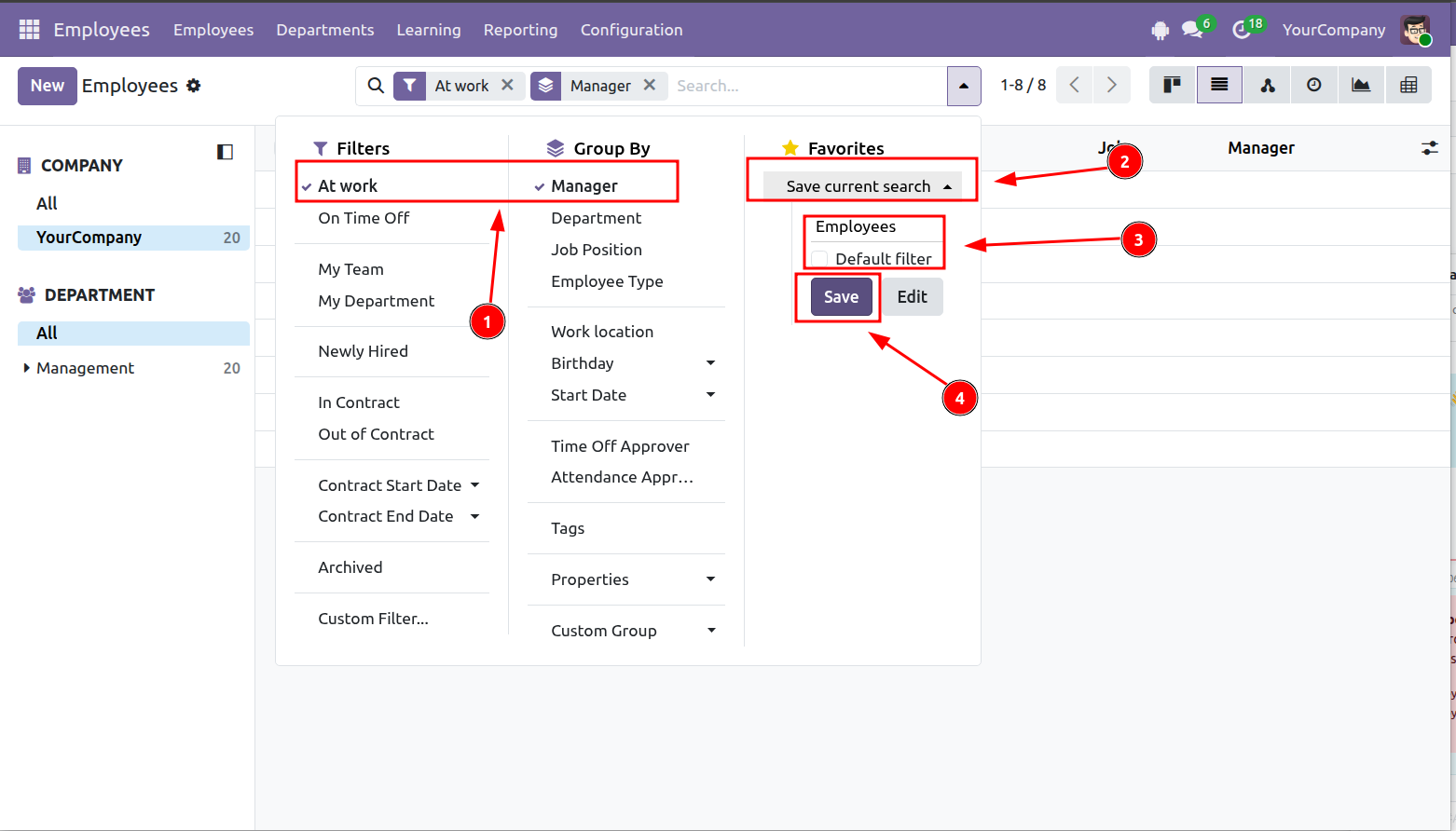
- Select Default Filter if you want it to be applied automatically whenever you open the view.
- Select Shared if you want other users in the system to be able to use it.
 Step 4: Click Save (4).
...
Create a New Record
...
Create a Record Manually
Step 1: Open the section where you want to create a new record, for example Employees, then click New.
...
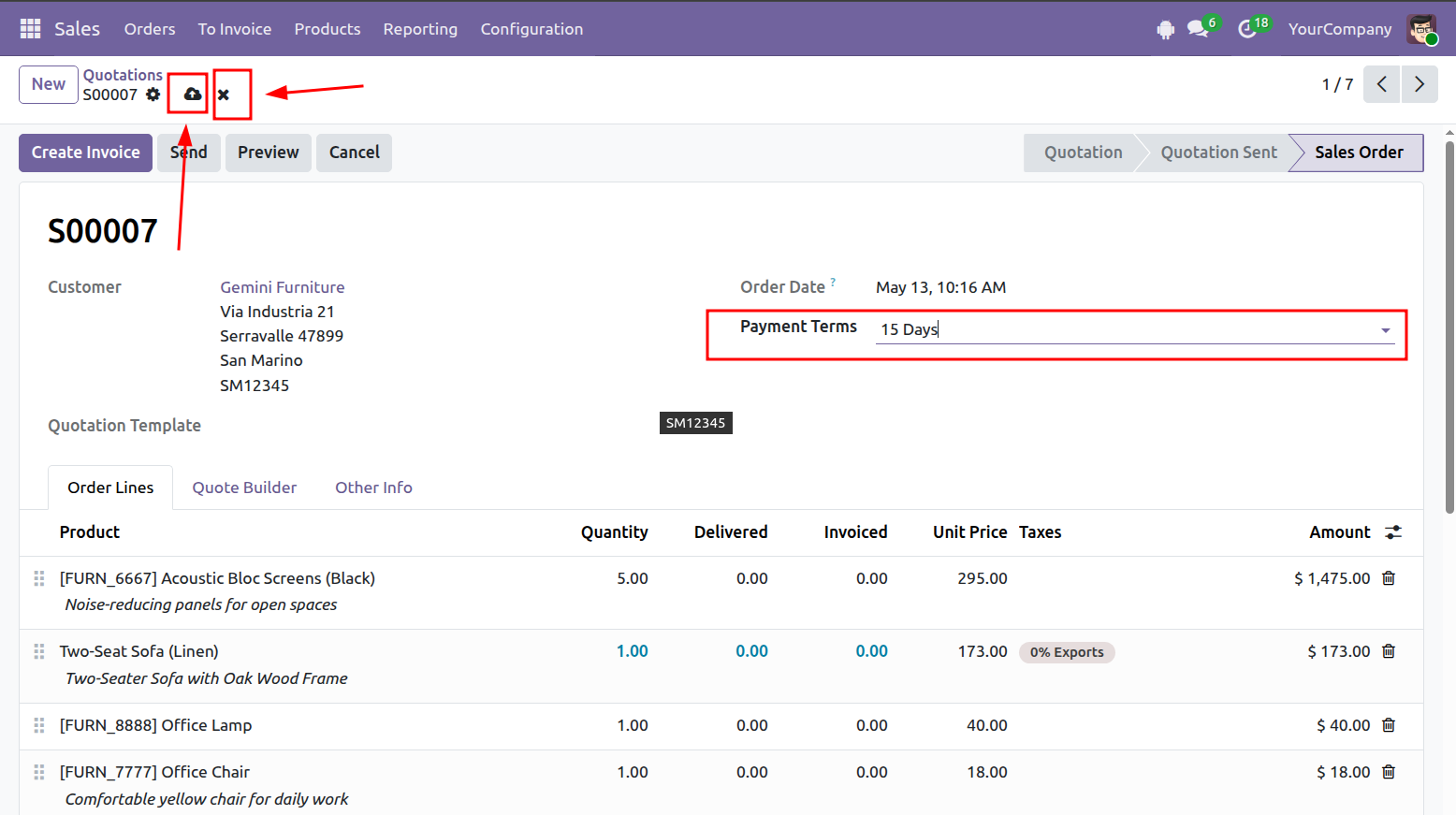
- Click Discard (2) to cancel and return to the previous view.
- If any required fields are missing, Odoo will display a warning and prevent the record from being saved (3).
...
Duplicate a Record
You can also create a new record by duplicating an existing one.
...
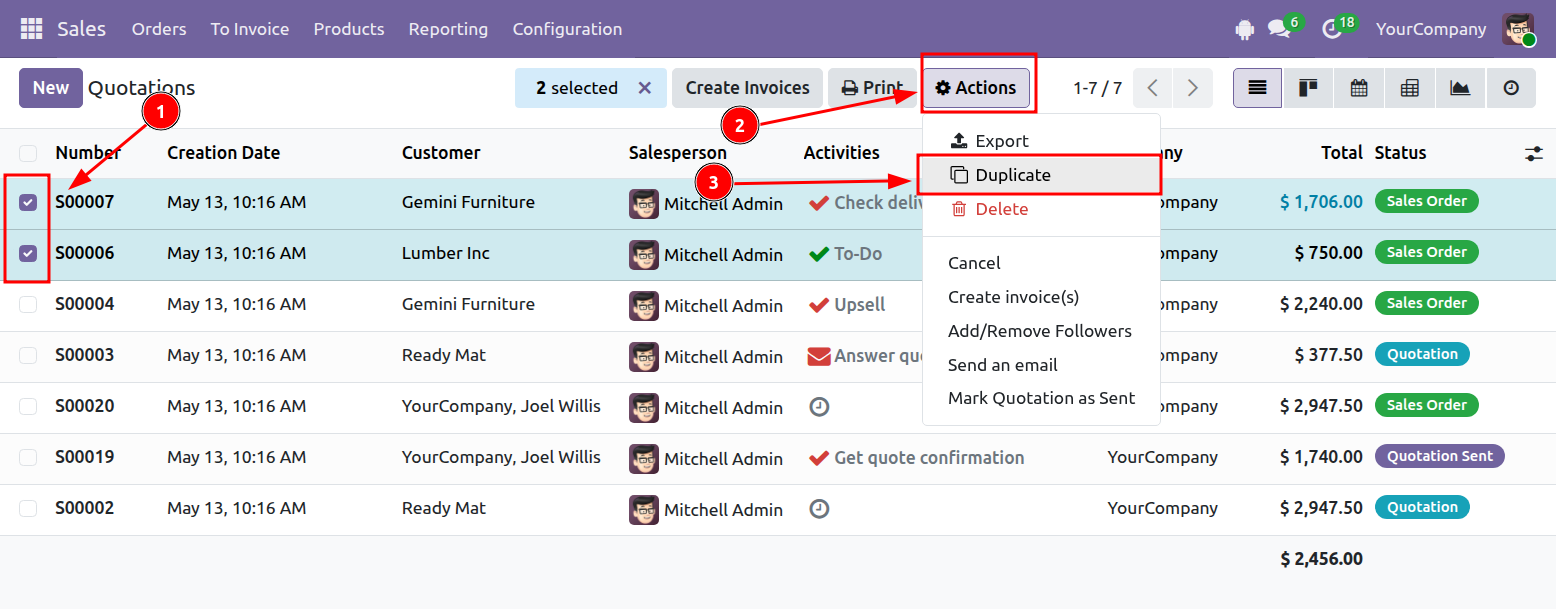
- Select the record or records you want to duplicate.
- Click Actions > Duplicate.
...
Edit a Record
Open the record you want to update and make the necessary changes.
Click Save to apply the changes, or Discard to cancel them.
...
Delete a Record
There are two ways to delete records.
...
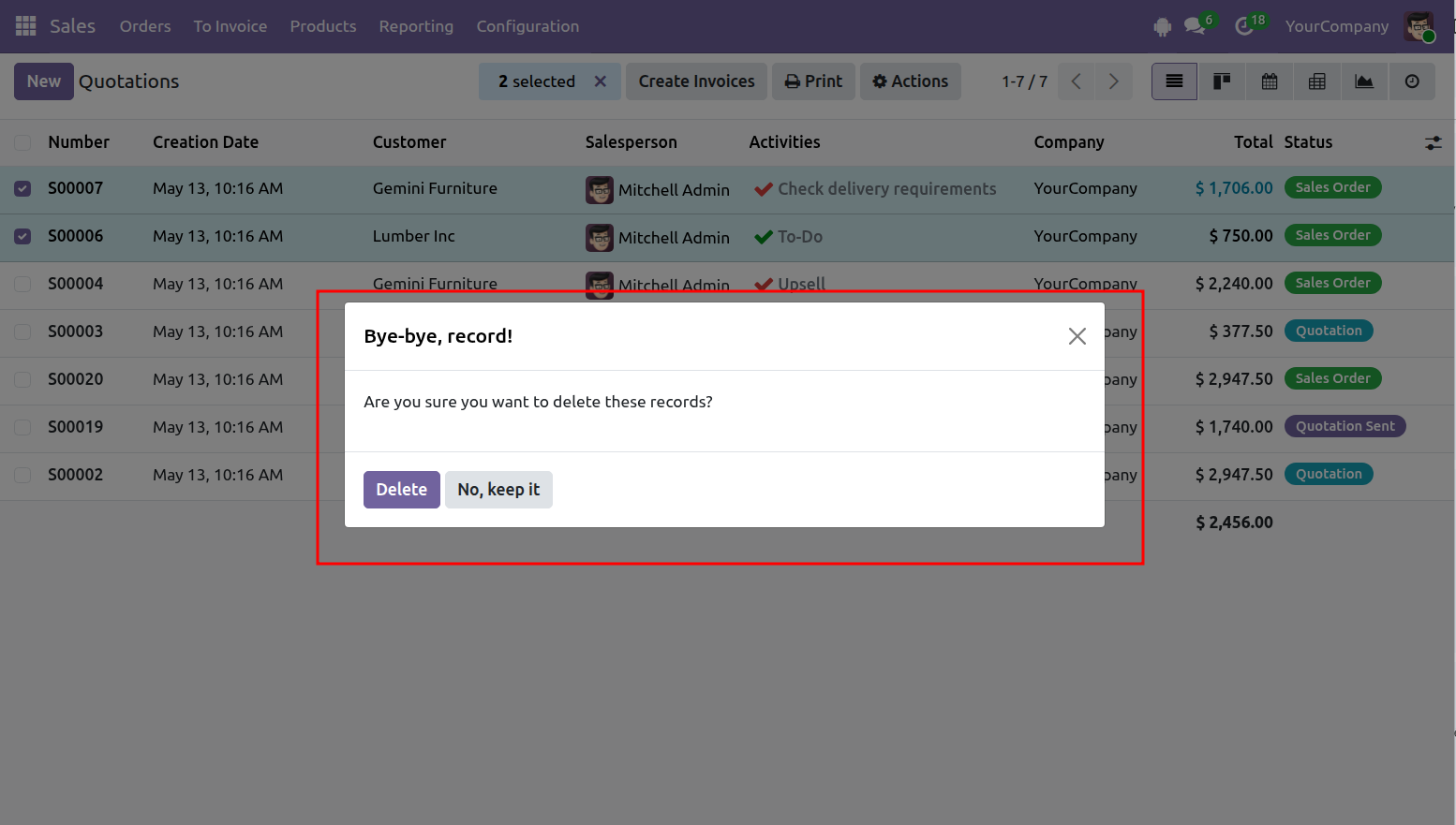
- Select Delete to confirm.
- Select No to cancel.
...
Create a User - Community Edition
Step 1: Open Settings.
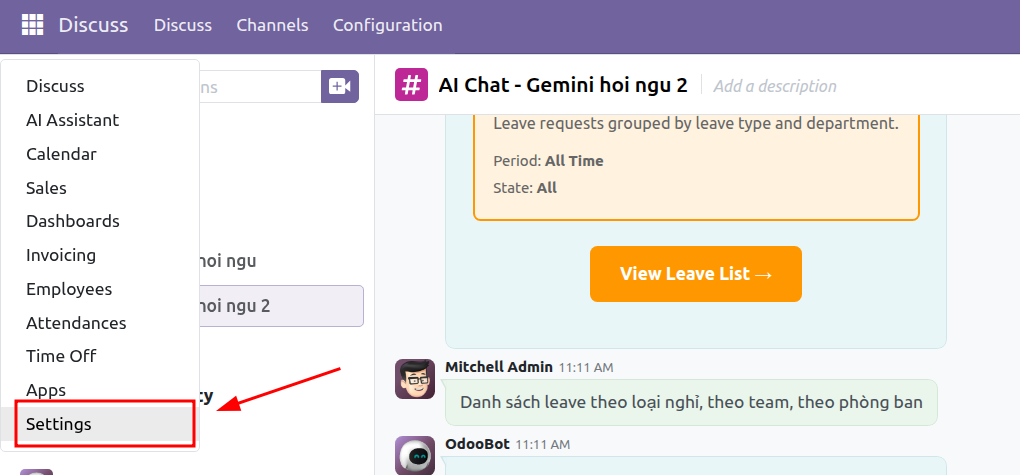
Step 2: Go to: Users & Companies > Users
...
The user account is automatically linked to the employee profile after the employee is created.
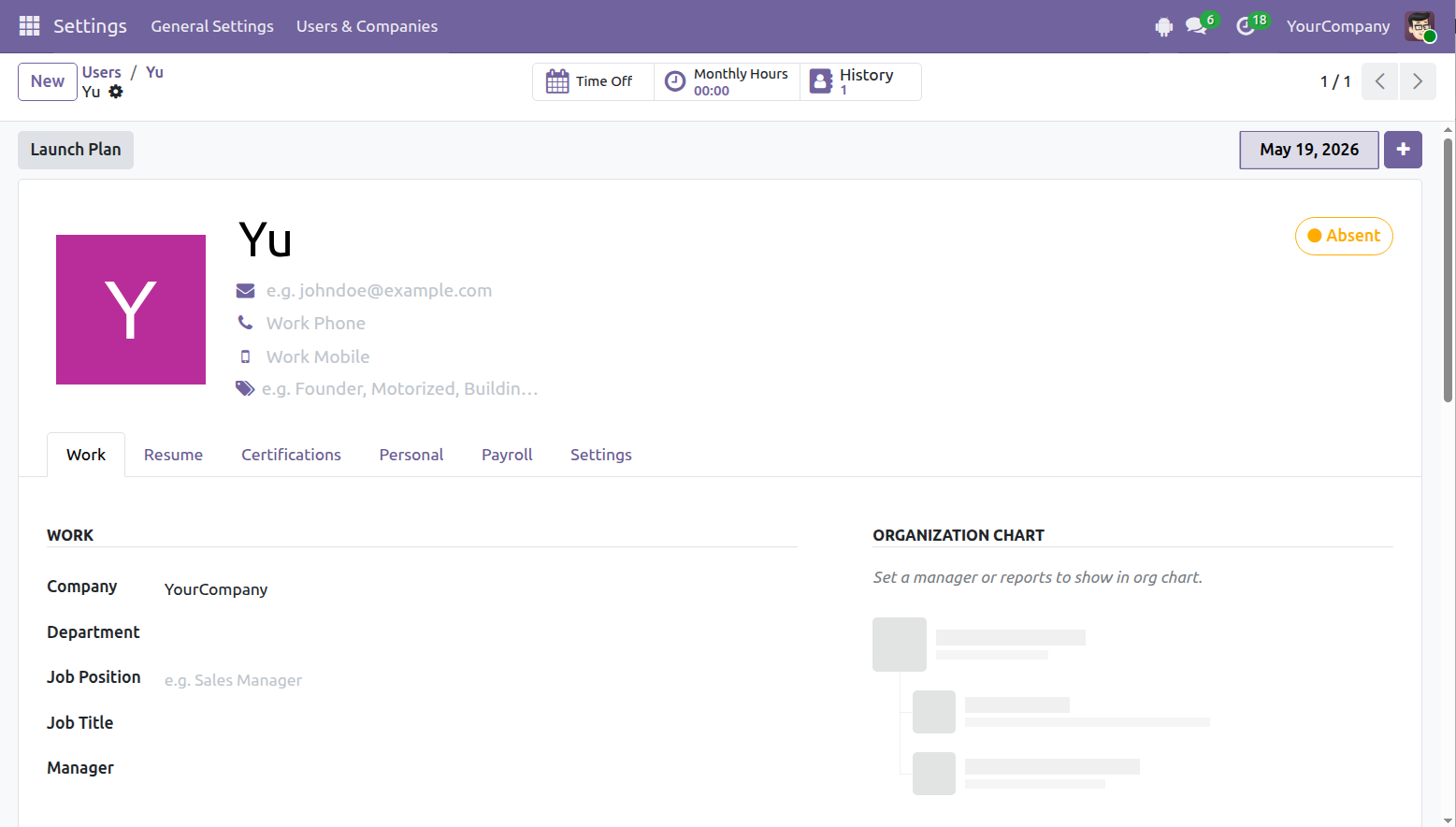
...
Activate the Required Modules
Step 1: Open Apps.
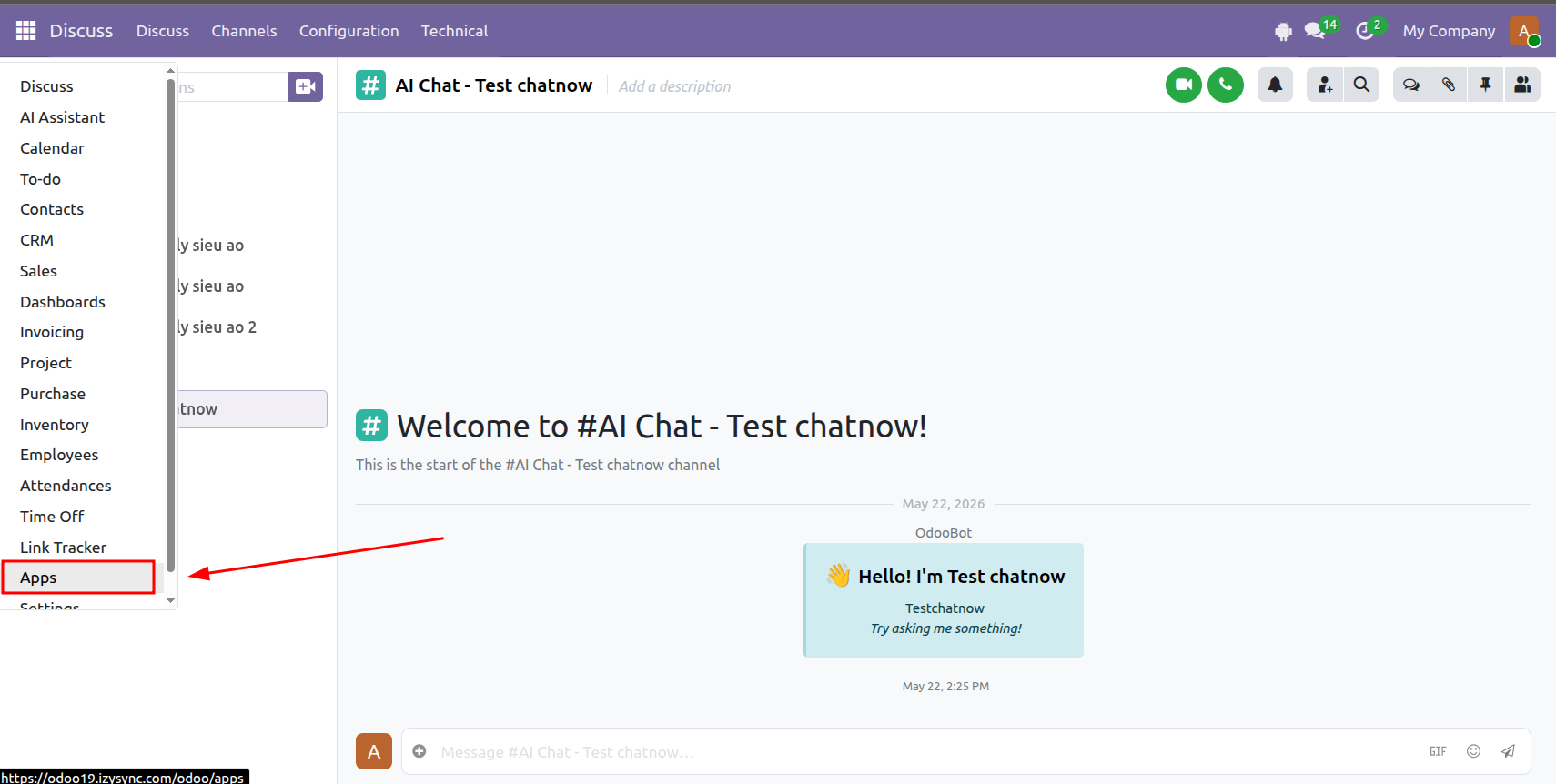
Step 2: Enter advanced_aiin the search bar.
...
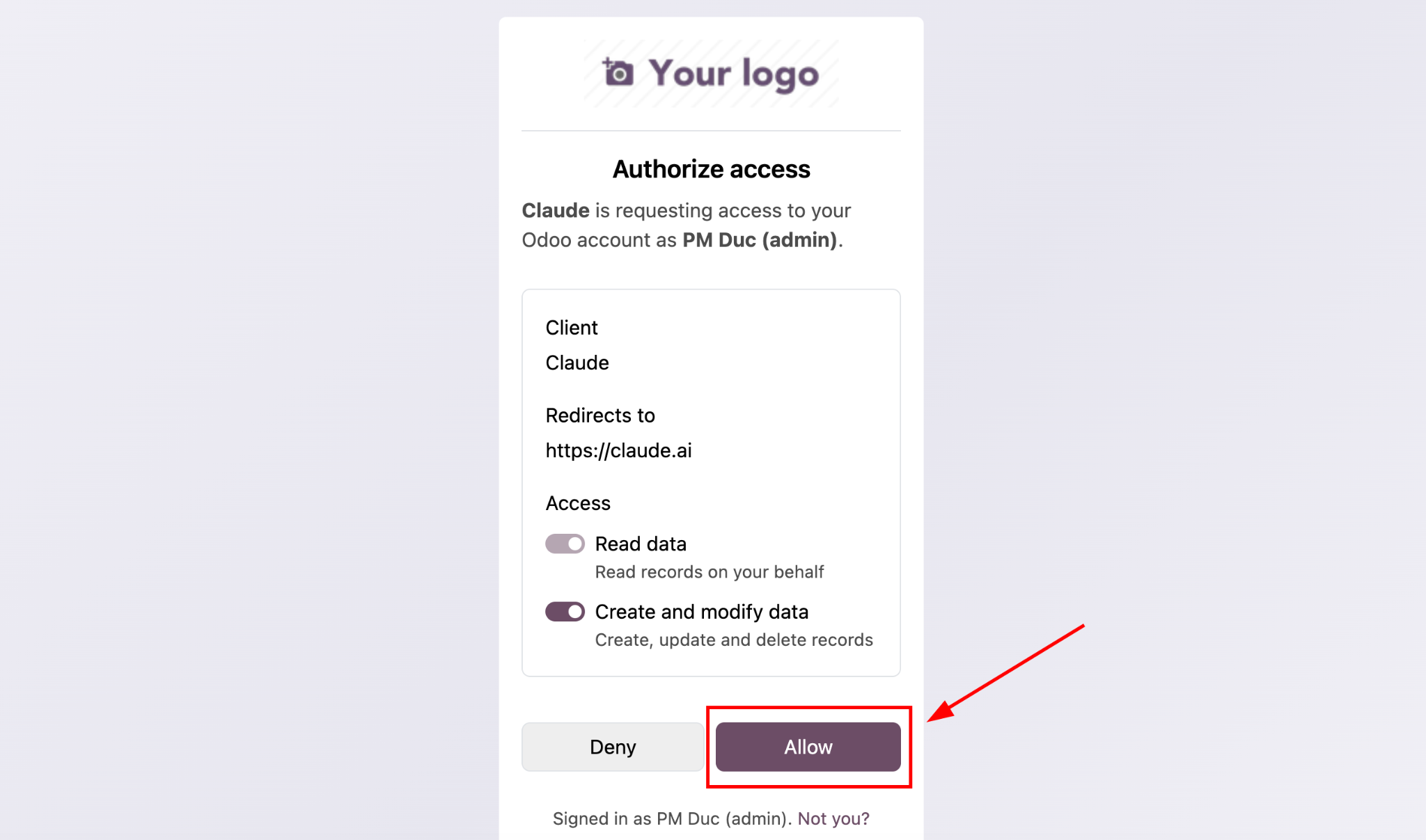
Step 4: After signing in successfully, click Allow.
II. Odoo Configuration
...
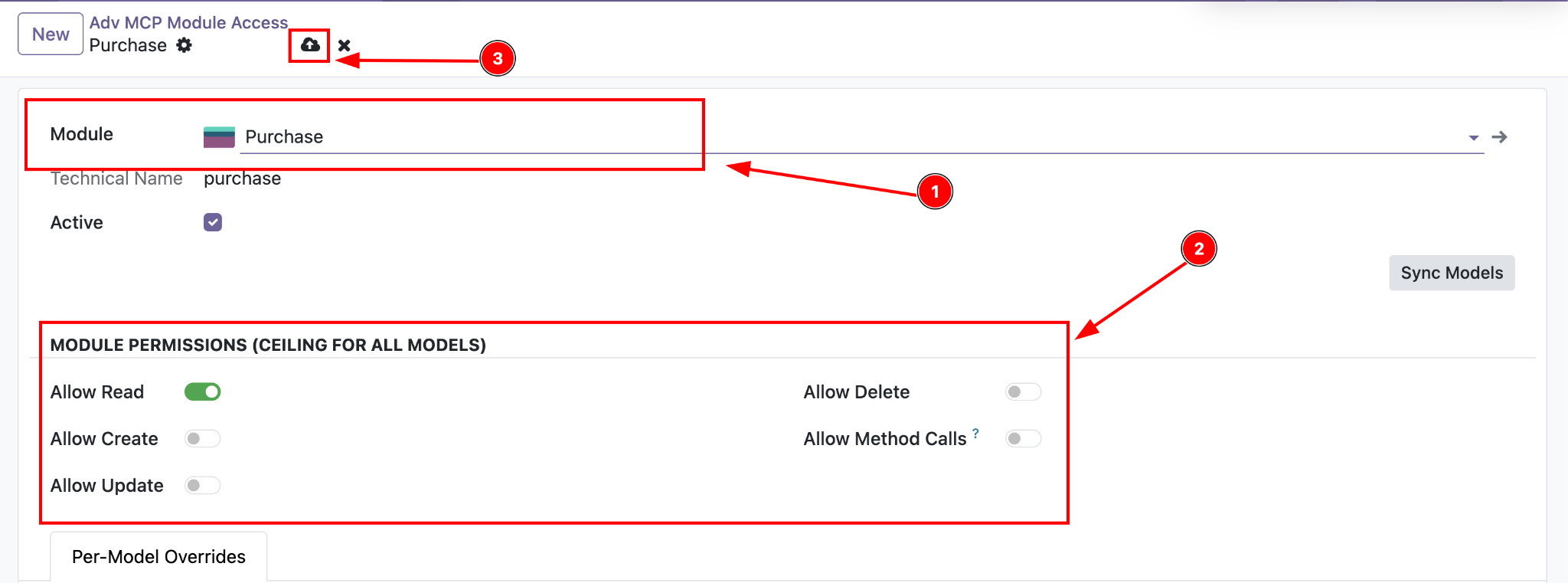
Model-Level Permissions
MCP access is controlled through two permission layers:
...
Step 4: Select the model you want to configure, then assign the required permissions:
- Read
- Write
- Create
- Delete
...
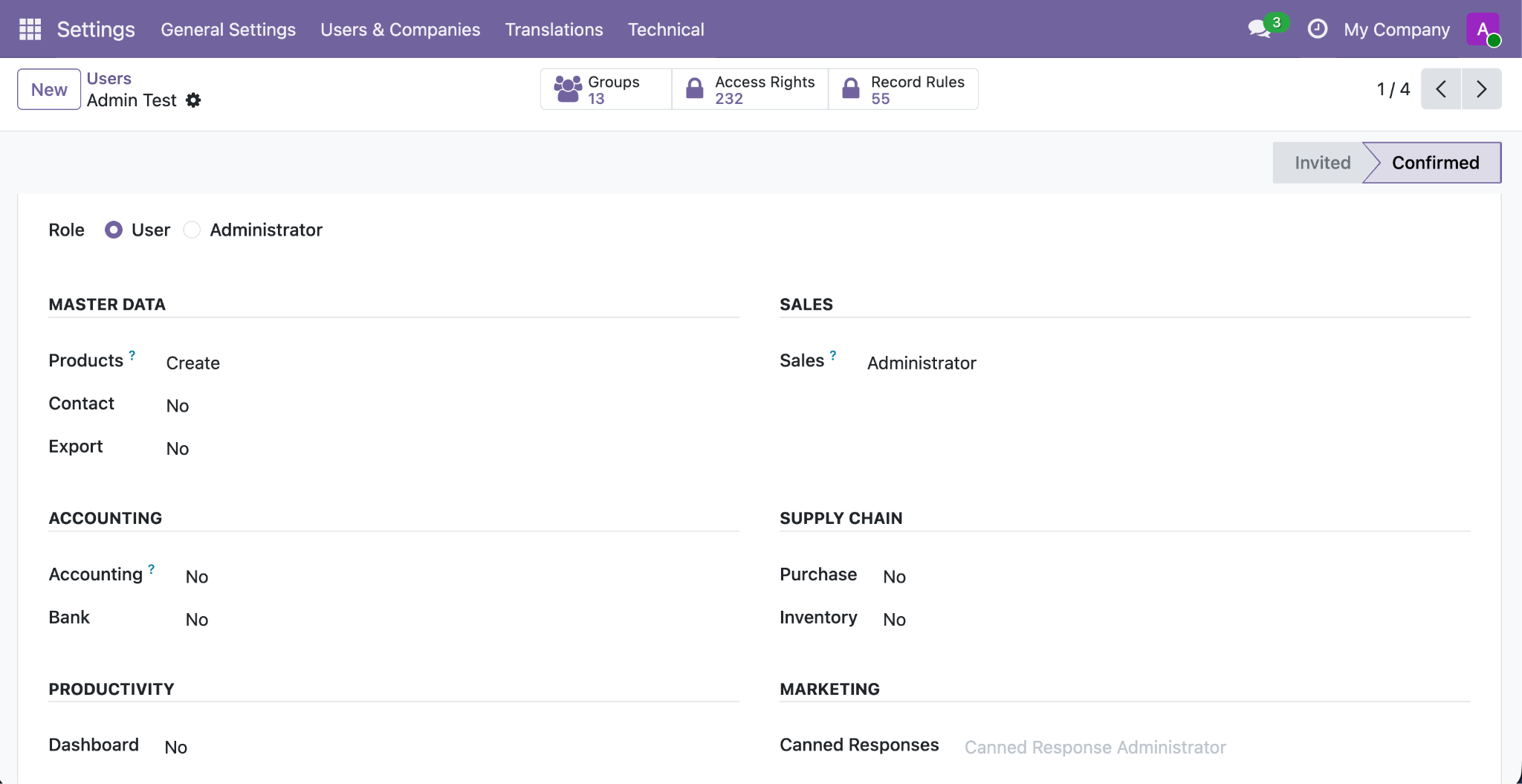
User-Level Permissions
Odoo also controls access for each user based on modules and business roles.
...
Step 4: Assign the required access rights using Odoo's standard permission settings.
III. Chat with AI
...
Start a Chat in Claude
Step 1: Open Claude.
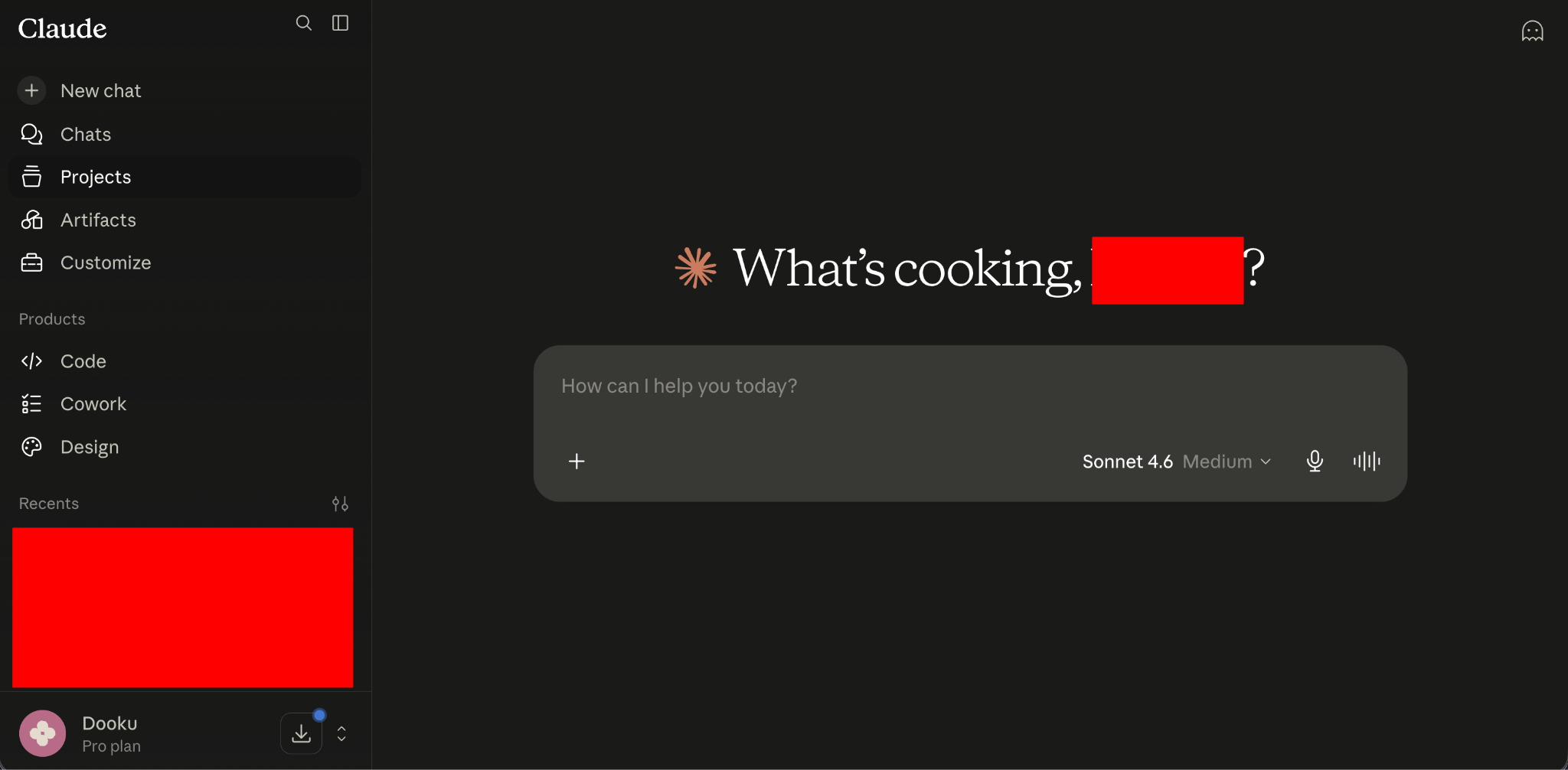
Step 2: Click the + icon shown in the chat interface and select Odoo MCP, or the connector name you created earlier.
...