Thank you for purchasing our extension. If you have any questions that are beyond the scope of this document, please feel free to contact us via [email protected]
By: Magenest |
Introduction
AI Stock Fulfillment helps small and mid-sized eCommerce merchants calculate and maintain the right Safety Stock level for each SKU automatically.
The system uses real product, inventory, and order data from Magento 2, together with AI-powered recommendations, so merchants no longer need to set inventory thresholds manually.
Highlight Features
- Automatically sync product, inventory, and order data from Magento 2.
- Calculate Safety Stock and Reorder Point using standard inventory formulas.
- Classify every SKU as Critical, Warning, or Stable.
- Provide AI-powered Safety Stock recommendations with clear explanations.
- Alert users when a product moves into Critical status.
- Export a CSV report of SKUs that need to be reordered.
System Requirements
Before using AI Stock Fulfillment, make sure you have:
- Access to the AI Stock Fulfillment web application.
- A valid account provided by the system administrator.
- A supported web browser.
- An active Magento 2 connection for syncing product, inventory, and order data.
- Access to the email address linked to your account for OTP verification and password recovery.
Log In
Open AI Stock Fulfillment in a web browser. On the login screen, enter the email address and password provided by your administrator.
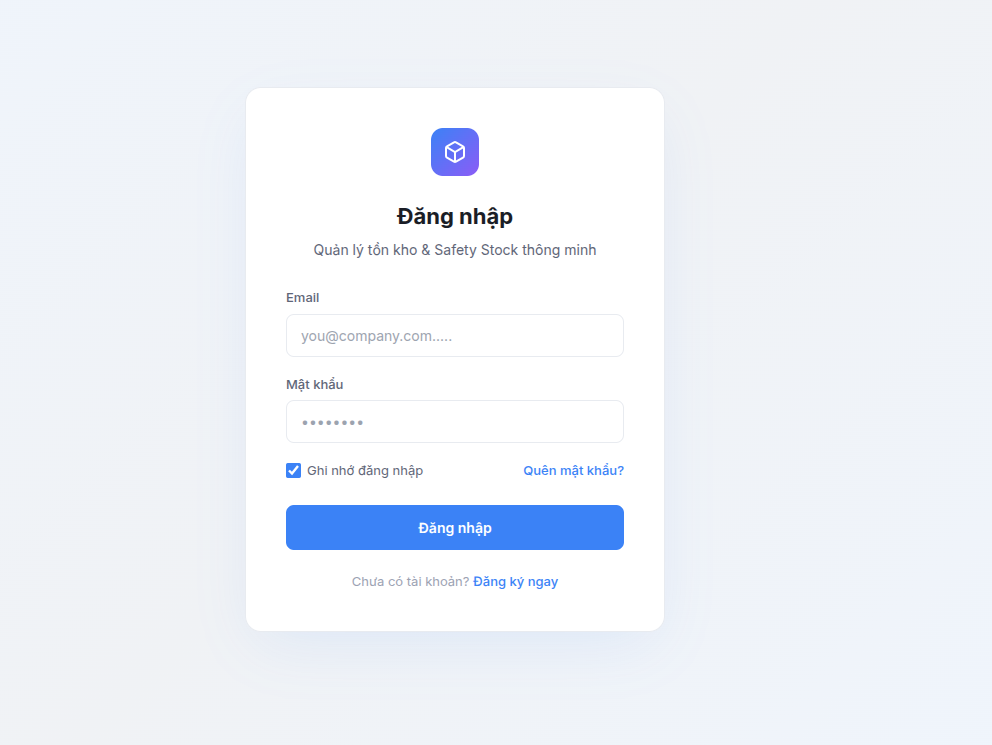
Login Steps
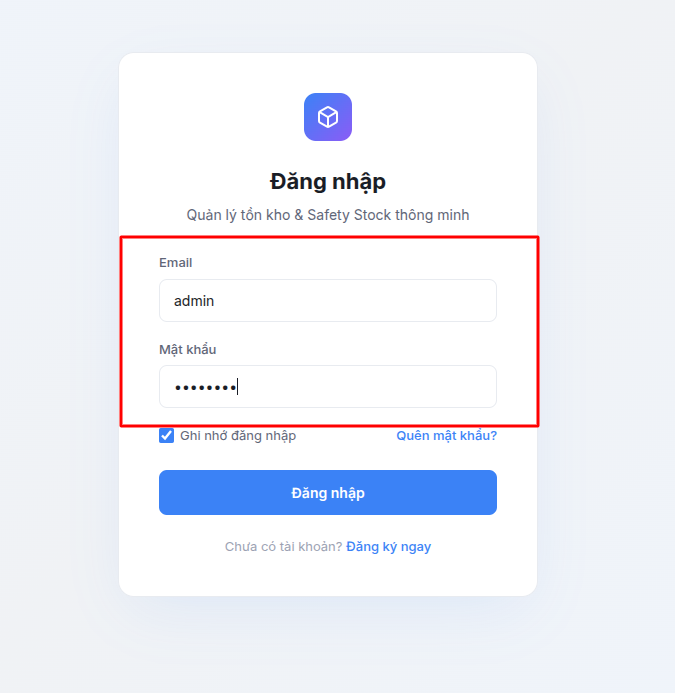
- Open your browser and go to the system URL.
- Enter your Email and Password.
- Click Log In.
Reset a Forgotten Password
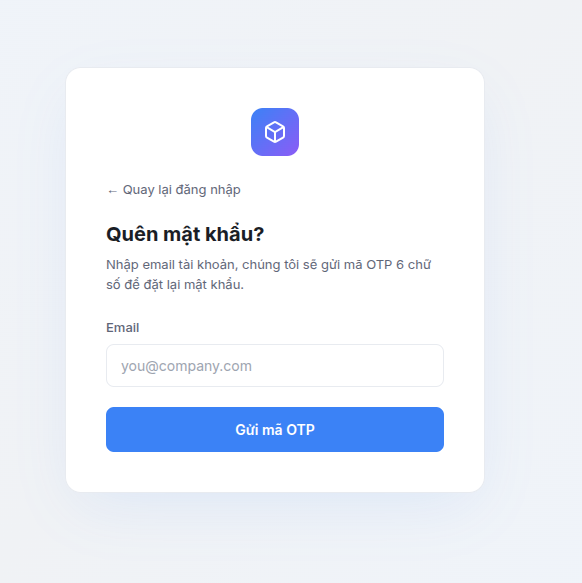
You can reset your password without contacting the system administrator.
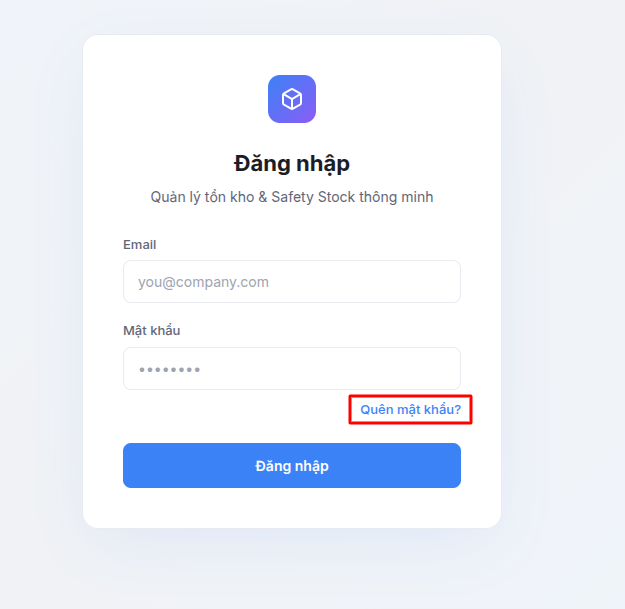
- Click Forgot password? below the password field.
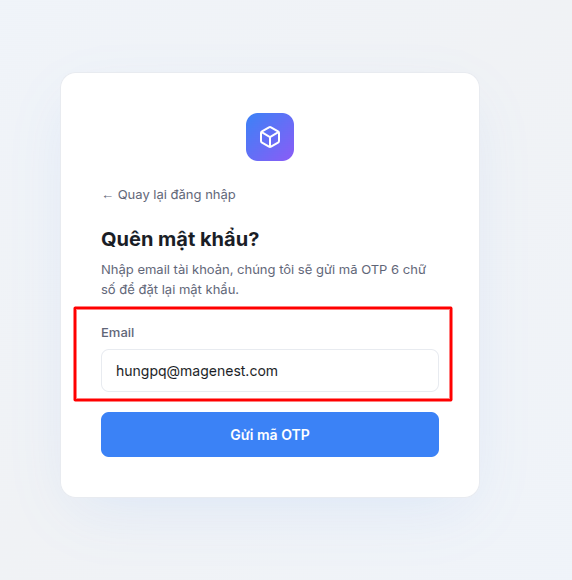
2. Enter the email address linked to your account, then click Send OTP.
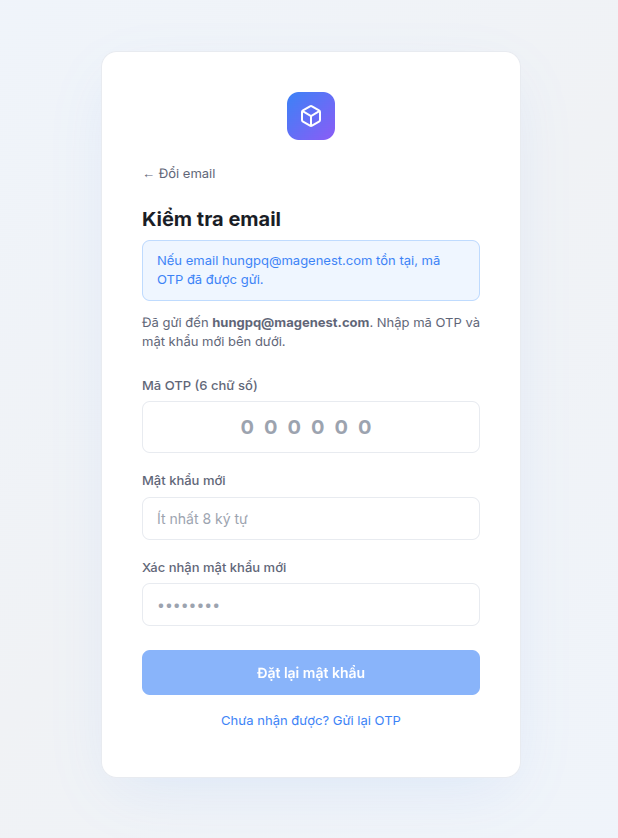
3. Enter the OTP sent to your email address and create a new password.
4. Log in with your new password.
Dashboard
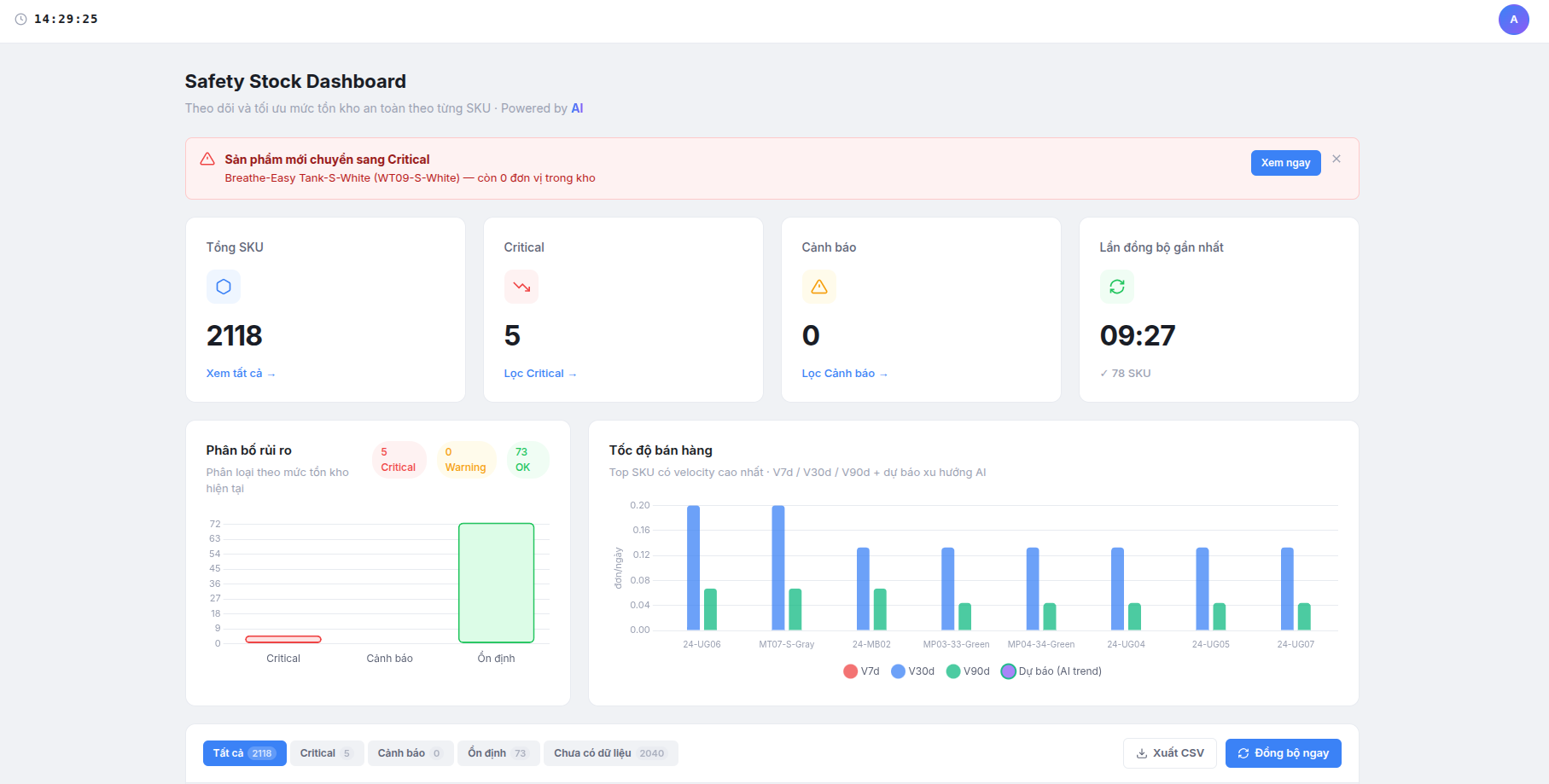
After you log in, the main Dashboard provides an overview of your inventory status and AI recommendations.
The Dashboard is divided into the following areas.
Top Navigation
The top section of the screen includes:
- Clock: Displays the current time in Vietnam time in HH:MM:SS format.
- User avatar: Click the avatar to open the following options:
- User Management
- Change Password
- Sync History
- Log Out
Summary Cards

Four summary cards provide a quick view of the current inventory status:
Card | What it shows | What happens when clicked |
Total SKUs | Total number of products being monitored | Shows the complete SKU list |
Critical | Number of SKUs with inventory below Safety Stock and requiring immediate replenishment | Filters the list to Critical SKUs |
Warning | Number of SKUs with inventory below the Reorder Point and likely to require replenishment soon | Filters the list to Warning SKUs |
Last Sync | Time and status of the most recent data update | - |
Sales Velocity Chart
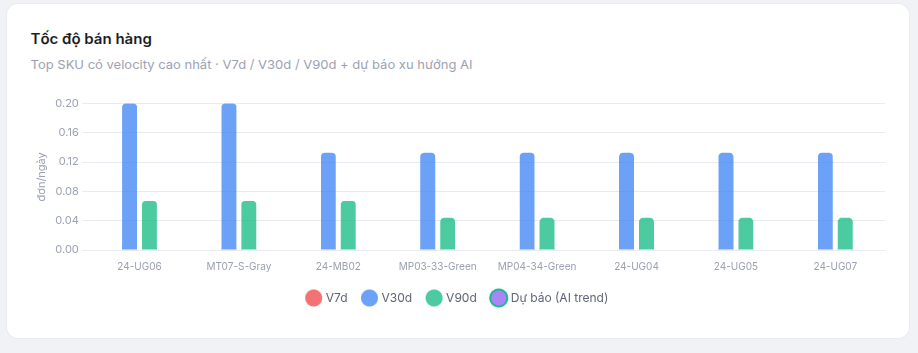
The column chart shows the eight SKUs with the highest sales velocity. Each SKU is represented by four values:
- Red - V7d: Average daily sales over the last 7 days.
- Blue - V30d: Average daily sales over the last 30 days.
- Green - V90d: Average daily sales over the last 90 days.
- Purple - AI Trend Forecast: Forecast sales velocity based on the detected demand trend:
- Higher when the trend is SPIKE
- Lower when the trend is DROP
- Equal to V30d when demand is stable
SKU List
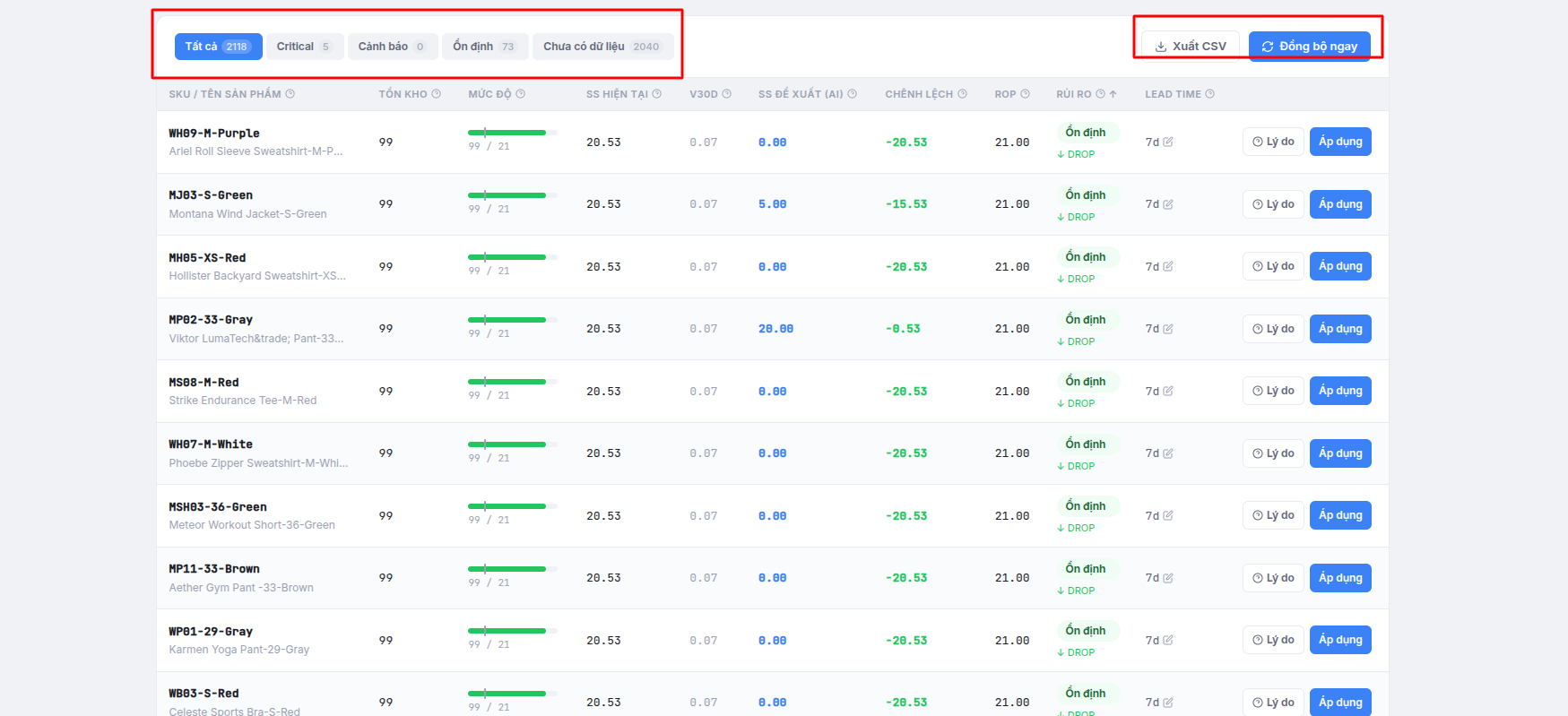
The main section of the Dashboard contains a table of all monitored SKUs, together with their inventory metrics and recommendations.
By default, SKUs are sorted from highest to lowest risk, with Critical products shown first.
Table Columns
Column | Description |
SKU / Product Name | Product SKU and name |
Inventory | Current inventory quantity synced from Magento |
Status | Color-coded risk status: Critical in red, Warning in yellow, and Stable in green |
Current SS | Safety Stock calculated using the formula in Section 6 |
V30d | Average daily sales over the last 30 days |
AI Suggested SS | Safety Stock level recommended by AI |
Difference | AI Suggested SS minus Current SS; shown in red when the result is negative |
ROP | Reorder Point at which replenishment should begin |
Trend | SPIKE, DROP, or STABLE based on the comparison between V7d and V90d |
Lead Time | Supplier lead time in days; this value can be edited |
Actions | Includes the Why? and Apply buttons |
Filter and Search
Use the available filters and search tools to find the SKUs you need.
- Quick Filters: All - Critical - Warning - Stable - No Data
- Search: Enter an SKU or product name in the search field to filter the list by keyword.
- Pagination: The table displays 50 SKUs per page. Use Previous and Next to move between pages.
Update Lead Time
Lead Time directly affects both Safety Stock and Reorder Point.
To update it:
- Click the current Lead Time value, such as 7d, on the relevant SKU row.
- Enter the new number of days.
- Press Enter or click the checkmark to save.
- The system automatically recalculates Safety Stock and Reorder Point using the new Lead Time.
Apply an AI Recommendation
When the AI-recommended Safety Stock differs from the current value, an Apply button appears. To apply the recommendation:
- Click Apply on the relevant SKU row.
- The system records the applied Safety Stock level and the date and time it was applied.
- Once the update is complete, the row displays an Applied label.
View the AI Explanation
Click Why? to open a window explaining the AI recommendation. The window includes:
- The recommended Safety Stock level.
- The confidence level (High - Medium - Low)
- An explanation of up to three sentences.
- A language switch between Tiếng Việt and English.
Data Synchronization
The system automatically syncs data from Magento 2 twice a day (2:00 AM and 2:00 PM). You can also start a manual sync at any time.
Run a Manual Sync
- Click Sync Now in the upper-right corner of the SKU table.
- The button changes to Syncing... while the process is running.
- Once the sync is complete, the Dashboard refreshes automatically with the latest data.
Synchronization Process
Each sync runs through the following steps:
- Retrieve the product list from the Magento feed.
- Update current inventory quantities.
- Retrieve order history from the last 90 days.
- Calculate sales velocity (V7d / V30d / V90d)
- Calculate Safety Stock and Reorder Point.
- Assign a risk level to each SKU.
- Request AI Safety Stock recommendations in batches.
- Create notifications for SKUs that have newly moved into Critical status.
Calculation Formulas
AI Stock Fulfillment uses standard inventory management formulas.
Sales Velocity
Sales velocity over N days = Total quantity delivered over N days ÷ N
- V7d: Average daily sales over the last 7 days.
- V30d: Average daily sales over the last 30 days.
- V90d: Average daily sales over the last 90 days.
Safety Stock
SS = (Highest daily sales × Lead Time × 1.5) − (V30d × Lead Time)
Example: Highest daily sales: 18 units, V30d = 10 units per day, Lead Time = 7 days
→ SS = (18 × 7 × 1.5) − (10 × 7) = 189 − 70 = 119 units
Reorder Point
ROP = (V30d × Lead Time) + SS
Example: ROP = 10 × 7 + 119 = 189 units
6.4 Risk Classification
Risk Level | Condition | Recommended Action |
🔴 Critical | Inventory < Safety Stock | Reorder immediately |
🟡 Warning | Safety Stock ≤ Inventory < ROP | Plan replenishment soon |
🟢 Stable | Inventory ≥ ROP | Continue regular monitoring |
Demand Trend
Label | Condition | Meaning |
SPIKE | V7d > V90d × 1.30 | Demand has increased by more than 30% |
DROP | V7d < V90d × 0.70 | Demand has decreased by more than 30% |
STABLE | All other cases | Demand remains stable |
Notifications

The system automatically creates a notification whenever an SKU moves into Critical status after a data sync.
The notification appears as an alert banner near the top of the Dashboard.
When the system detects a newly Critical SKU, the notification displays the product name and its current inventory quantity.
Available actions:
- Click View Now to go to the relevant page and highlight the SKU in the table.
- Click ✕ to close the notification and mark it as read.
Export a CSV Report
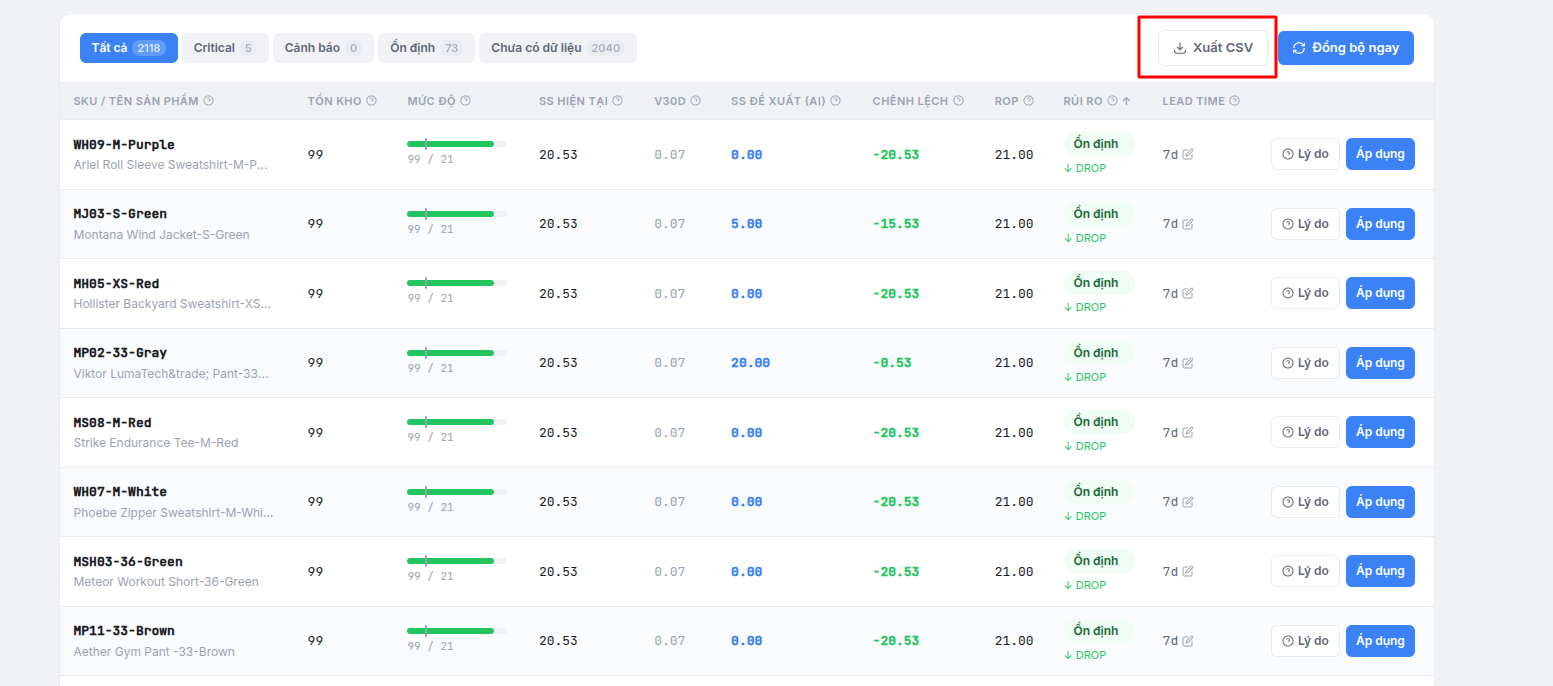
The CSV report includes SKUs with either Critical or Warning status. You can send the report to the purchasing team or import it into an existing replenishment system.
Export the Report
- Click Export CSV in the upper-right corner of the SKU table, next to Sync Now.
- The file downloads automatically with the export date included in the filename.
Example: Safety-stock-2026-06-24.csv
CSV Columns
Column | Description |
Product Code | SKU |
Name | Product name |
Current Inventory | Current inventory quantity |
ROP | Reorder Point |
Suggested SS | AI-recommended Safety Stock |
Quantity to Reorder | max(0, ROP − Current Inventory) |