Thank you for purchasing our extension. If you have any questions that are beyond the scope of this document, please feel free to contact us via [email protected]
By: Magenest |
AI Chathot is an omnichannel conversation management platform that brings customer messages from connected channels into a single interface, allowing support teams to monitor and handle conversations in one place. It also supports conversation management, internal collaboration, work assignment, and AI-assisted customer support.
AI Chathot is designed for two main user groups: Support Agents, who handle customer conversations on a day-to-day basis, and Administrators, who configure the system, connect channels, and manage operations.
AI Chathot helps businesses centralize customer support across multiple channels in one workspace, while supporting work assignment, internal collaboration, service quality monitoring, and AI-assisted conversation handling.
This guide explains how to operate Chathot and is intended for two user groups:
Support Agent - handles customer conversations on a daily basis. Read Part A and Part B.
Administrator - configures the system, connects channels, and manages users. Also read Part C.
All content in this guide has been checked against the live system. Features that are not currently working are clearly identified where they appear, together with available workarounds, so you do not waste time trying unsupported functions.
If you are an Administrator setting up the system for the first time, start with Part 14 - Initial Setup Roadmap.
If you are a new Agent with only 15 minutes, read Part 3 - Availability Status, Part 4 - Conversation Workspace, Part 6 - Replying to Customers, and Part 12.3 - Enable Notifications.
What’s new in version 1.3 (24/09/2026)
Seven new channels: TikTok Shop, Lazada, Shopee, Telegram, LINE, WhatsApp, and Google Business Profile. See Sections 15.6 to 15.13.
Browser push notifications are now fully supported. See Section 12.5.
Individual Agent shifts are now available under Settings > Shifts. See Section 17.13.
You can now delete messages (Section 6.8), review previous conversations with the same customer (Section 4.4), and resize the message composer (Section 6.7).
Zalo can now request customer information automatically (Section 19.2); custom branding and IP display controls are available in Audit Logs (Section 22.1); and the Website chat identity verification key can be rotated (Section 16.6).
Chathot brings customer messages from multiple channels into one workspace, so the support team can respond from a single place instead of switching between five or six different applications. The system also includes an AI assistant that can automatically reply when no Agent is available.
Supported Channels
Channel | Where customers message from |
Website | Embedded chat widget on the company website |
Facebook Messenger | Messages sent to the Facebook Page |
Direct messages sent to the Instagram account | |
Zalo OA | Messages sent to the Zalo Official Account |
Email sent to the support mailbox | |
TikTok | Direct messages through TikTok Business Messaging |
TikTok Shop | Buyer messages related to orders on TikTok Shop |
Lazada | Buyer messages sent to the Lazada store |
Shopee | Buyer messages sent to the Shopee store (Shopee approval required; see Section 15.9) |
Telegram | Messages sent to the company Telegram bot |
LINE | Messages sent to the LINE Official Account |
Messages sent to the WhatsApp Business number | |
Google Business Profile | Customer reviews on Google. This is not a chat channel; each review becomes a separate conversation. |
Two User Roles
Support Agents respond to customers, receive and transfer conversations, apply labels, and view or update contacts. Agents do not see the full Settings menu.
Administrators have all Agent permissions, plus the ability to connect channels, manage users and teams, create labels, configure the AI assistant, and view satisfaction reports.
The system also supports Custom Roles, which let you grant selected administrative permissions to an Agent without promoting them to Administrator. At present, the only delegable permission is Inbox management.
Three Concepts to Understand Before You Start
An Inbox is a connected channel. For example, “Company Fanpage” can be one Inbox and “Website Chat” another. Each Inbox has its own list of Collaborators, and an Agent can only see conversations from Inboxes where they are a Collaborator. This is the most common reason behind the question, “Why can’t I see anything after logging in?”
A Conversation is a message thread between the system and a customer within a specific Inbox.
A Contact is the customer profile. If the same person messages you on Facebook and on the website, the system creates two separate Contacts because it does not automatically know they are the same person. Use Merge Contacts to combine them.
Conversation Lifecycle
![][image1]
Conversation lifecycle, from the customer’s first message to closure
Status | What happens at this stage |
OPEN | The system can auto-assign an Agent if enabled. The AI Customer Assistant can reply automatically if enabled and no Agent has joined the conversation. |
PENDING | Waiting for the customer to reply or for another department to provide information. |
SNOOZED | Returns to OPEN automatically at the scheduled time. A new customer message also reopens it immediately. |
RESOLVED | Sends a CSAT survey if enabled. If the customer messages again, Website reopens the same conversation, while other channels (Facebook, Instagram, Zalo, TikTok, marketplace channels, Telegram, LINE, WhatsApp) create a new conversation. |
Open your company’s Chathot URL, for example https://chat.company.com/app.
Your account is created by an Administrator, who sends you an email invitation. Self-registration is not available, so you must wait for an invitation.
Account activation has three steps:
If you forget your password, click Forgot password? on the login screen and follow the instructions in the email you receive.
Some companies also enable Sign in with Google. This option only works for accounts that already exist in Chathot; it does not create a new account automatically.
Your login session remains active for two months, so you do not need to sign in again every day.
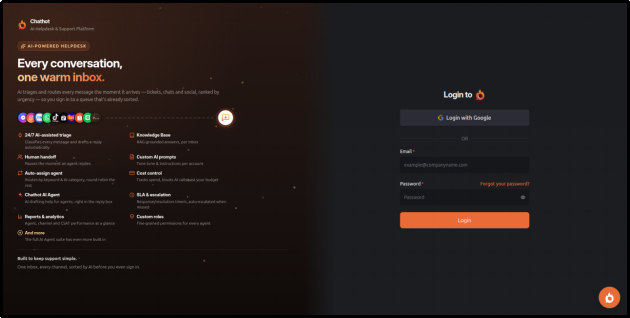
Login screen
The left-hand column is the main navigation sidebar. Click the icon at the top of the sidebar, or press Alt + O, to collapse or expand it.
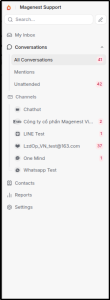
Expanded left navigation sidebar
Menu item (English) | Vietnamese label | Description |
Inbox | My Inbox | Your personal notification list |
Conversations | Cuộc trò chuyện | Main working area |
- All | Tất cả cuộc trò chuyện | All conversations you are authorized to view |
- Mentions | Nhắn đến | Conversations where someone mentioned you |
- Unattended | Không giám sát | Customer has sent a message but no one has replied yet |
- Folders | Thư mục | Saved conversation filters |
- Teams | Nhóm | Filter conversations by Team |
- Channels | Hộp thư đến | Filter conversations by channel/Inbox |
- Labels | Nhãn | Filter conversations by Label |
Contacts | Liên hệ | Customer directory |
Settings | Cài Đặt | Agents only see Canned Responses; Administrators see the full Settings menu |
The top bar contains the search field, notification bell, and your profile avatar.
Click your avatar in the upper-right corner, select Profile Settings, open Interface, choose Vietnamese, and click Save.
The interface supports 40 languages. The Vietnamese translation is approximately 97% complete, so some less common labels may still appear in English. This is expected and does not indicate an error.
A few machine-translated labels can sound unusual. For example, Agents may appear as “Đại lý” in Vietnamese, although it refers to support staff, and Mentions may appear as “Nhắn đến,” meaning conversations where someone mentioned you.
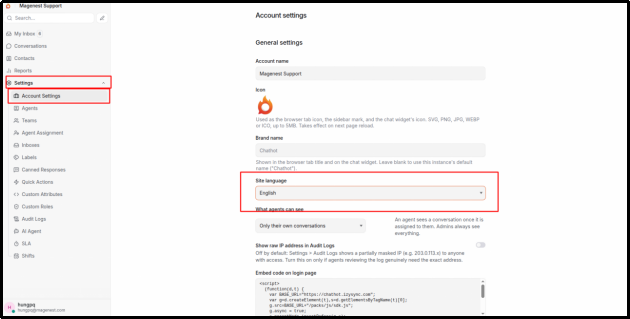
Administrators can set the company-wide default language under Settings > Account Settings. This default applies to users who have not selected their own preferred language.
Interface settings in Profile Settings, where you can change the language and font size
Click your avatar to select your working status.
Status | Meaning |
Online | Available for work. Only Agents with this status can receive new conversations through Auto Assignment. |
Busy | Still signed in, but not eligible for automatic conversation assignment. |
Offline | Not available and not eligible for automatic conversation assignment. |
You can also enable Auto offline, which automatically changes your status to Offline after a period of inactivity.
This setting can cause operational issues if it is overlooked. If Auto Assignment is enabled but every Agent is Offline, new conversations will not be assigned and will remain in the Unassigned tab. The system does not display a warning. For this reason, the first thing you should do at the start of every shift is set your status to Online.
If you use Auto offline and tend to leave Chathot open while away from your computer, check your status whenever you return.
The Conversation workspace is divided into three columns.
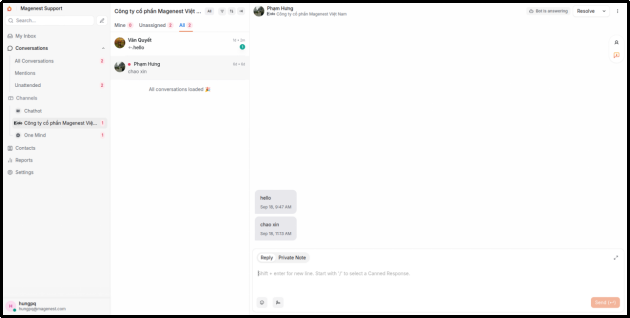
The three columns in the Conversation workspace and what each one contains
Column | Contents |
Left column | Conversation list with three filter tabs: Mine, Unassigned, and All |
Middle column | Conversation content. Customer messages appear on the left, your messages on the right, and Private Notes on a yellow background. The message composer at the bottom has Reply and Private Note tabs. |
Right column | Contact information, conversation actions, Participants, Custom Attributes, Previous Conversations, and customer Notes |
![][image6]
Conversation list with the Mine, Unassigned, and All tabs. Each row shows the customer name, latest message, labels, and unread count.
Three tabs filter conversations by assignee:
Tab | Contents | When to use it |
Mine | Conversations assigned to you | Default view when you open the application; these are your active cases |
Unassigned | Conversations with no Assignee | Monitor this regularly because these conversations are waiting for someone to take ownership |
All | All conversations you can access | Use when you need an overall view |
Each row shows the customer’s avatar and name, a preview of the latest message, the Inbox name with its channel icon, unread message count, Priority indicator when applicable, assigned Labels, and the time of the most recent activity.
If the customer has not provided a name, the system assigns a simple random name so you can distinguish them from other contacts.
The list updates in real time. New messages appear immediately without requiring a page refresh. Conversations load in batches of 25; scroll down to load more.
Customer messages appear on the left and your messages appear on the right. Private Notes are highlighted with a yellow background and are never visible to the customer.
Messages sent by the AI assistant appear like normal outgoing messages and do not have a separate label.
Each outgoing message shows a delivery status underneath it. See Section 6.5 for details.
See Section 11.
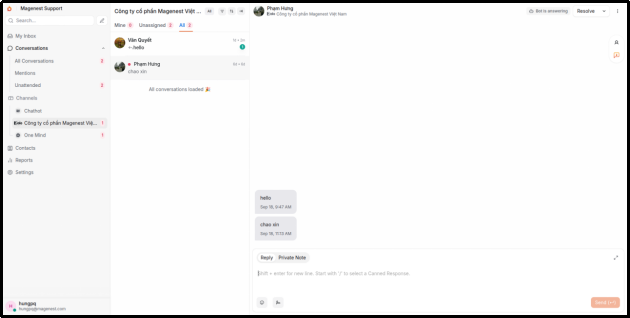
Full Conversation workspace: conversation list on the left, message thread in the center, and customer details on the right
When a customer has multiple conversations—for example, each time you mark a conversation Resolved and the customer later messages again, a new conversation is created—Previous Conversation and Next Conversation buttons appear above and below the message thread. Each button shows the latest message and the start date of that conversation. Use them to move directly between adjacent conversations from the same customer without returning to the list or opening Contacts.
When you are viewing an older conversation rather than the customer’s latest conversation, the message composer is collapsed to help prevent accidental replies to an old thread. A bar appears instead with two options: Reply to this previous conversation, which reopens the composer, or Go to the latest conversation.
These are the filters most commonly used in day-to-day work. All filters query the server directly, so results are complete and accurate.
Purpose | Action |
Filter by status | Use the dropdown at the top of the left column: Open, Pending, Resolved, Snoozed, or All. Default: Open |
Filter by Assignee | Use the Mine, Unassigned, and All tabs |
Find conversations no one has replied to | Select Unattended in the sidebar |
Find conversations where you were mentioned | Select Mentions in the sidebar |
Filter by channel | Select Channels in the sidebar, then choose an Inbox |
Filter by Label | Select Labels in the sidebar, then choose a Label |
Filter by Team | Select Teams in the sidebar, then choose a Team |
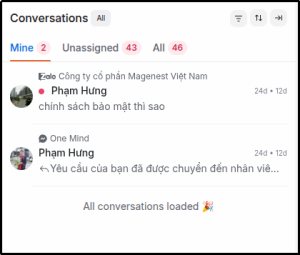
Top of the list: status chip, three filter tabs with counts, and advanced filter and sort controls
Use the search field in the top bar. Results are divided into four tabs: All, Contacts (customer name, email, and phone number), Conversations, and Messages (message content).
Search is case-insensitive and supports partial matches. For example, searching for “hoan” can return both “Hoàng” and “hoàn tiền.”
The system remembers your recent search terms so you can reuse them quickly.
The search page also supports advanced filters by date range, Inbox, and Agent, but these are commercial-edition features and are not available in this version.
For more complex conditions, click the Filter button (funnel icon) above the conversation list.
You can filter by the following criteria:
Filter field | Available operators |
Status, Priority | equals, not equal to |
Assignee, Inbox, Team | equals, not equal to, assigned, unassigned |
Label | equals, not equal to, has label, has no label |
Conversation ID | equals, not equal to, contains, does not contain |
Created date, Last activity | before date, after date, N days ago |
Browser language, Referrer page, Email subject | equals, not equal to, contains, does not contain |
Company Custom Attributes | depends on the data type |
Combine multiple conditions with AND or OR. Note that conditions are evaluated from top to bottom rather than using mathematical precedence. In other words, A AND B OR C is interpreted as (A AND B) OR C. If a filter becomes too complex, split it into two separate Folders to make it easier to manage.
Save as a Folder. After configuring the filter, save it and give it a name. The Folder appears under Conversations > Folders in the sidebar; selecting it reruns the same filter. Folders are private to each user within the company, so colleagues cannot see yours.
Segments provide the equivalent feature for Contacts. You can filter customers by name, email, phone number, identifier, country, city, company, label, creation date, blocked status, or Custom Attribute, then save the result for repeated use.
Practical example: create a Folder named “Urgent - Unassigned” with Priority = Urgent AND Assignee = Unassigned, then review it several times a day.
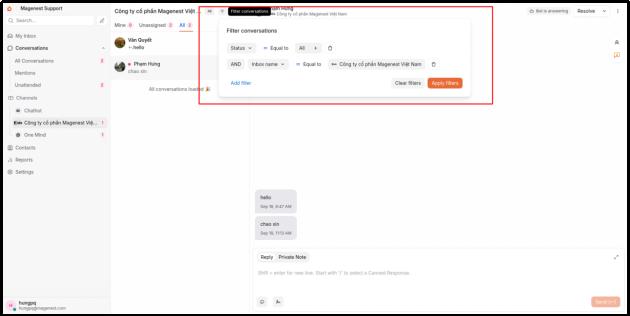
Advanced filters: choose the criterion, operator, and value, then combine conditions with AND or OR
The Sort by menu sorts the full server-side list, not just the conversations currently visible on screen.
Option | Meaning |
Last activity | Default. Conversations with the most recent activity appear first. |
Created date | Show the oldest or newest conversations first. |
Priority | Show the highest-priority conversations first. |
Waiting time | Show customers who have waited the longest first, which is useful for preventing conversations from being overlooked. |
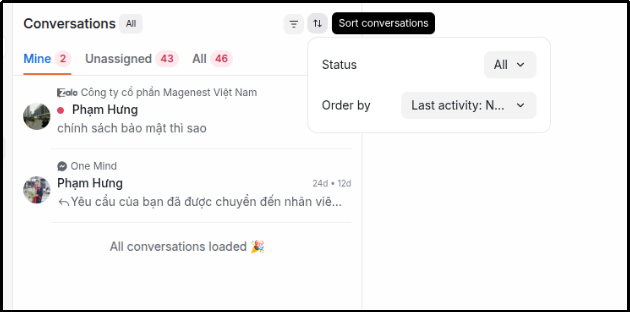
Sort by menu
The message composer appears below the middle column and has two tabs:
Reply - content the customer can see
Private Note - internal-only content that the customer cannot see
Always check that you are on the correct tab before typing.
Button | Purpose |
Emoji icon | Insert an emoji |
Paperclip icon | Attach a file. See channel-specific limits in Section 6.4. |
Microphone icon | Record and send a voice message on supported channels |
Signature icon | Enable or disable your personal signature for this message |
Create your personal signature under Profile Settings > Message Signature. When the signature button is enabled, the signature is appended automatically to each message you send. The system does not add it again if you have already typed the same signature in the composer.
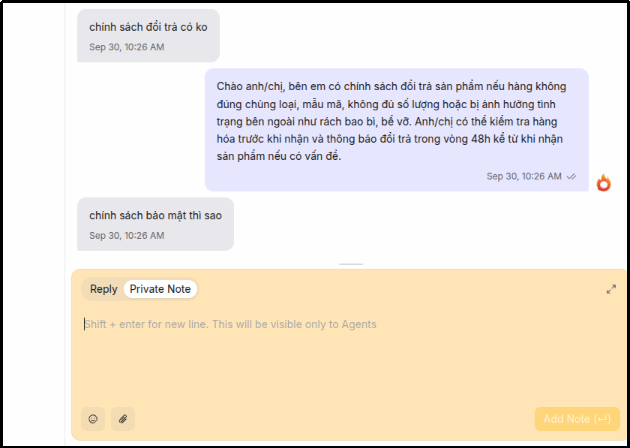
Message composer with Reply and Private Note tabs, plus emoji, attachment, voice recording, and signature controls
Key | Action |
Enter | Send message |
Shift + Enter | Insert a new line without sending |
Alt + L | Switch to the Reply tab |
Alt + P | Switch to the Private Note tab |
Ctrl + Alt + A (Mac: Cmd + Alt + A) | Open the file attachment dialog |
/ | Insert a Canned Response; see Section 7 |
See Section 24 for the full list of keyboard shortcuts.
If you start typing and switch to another conversation, your draft is still there when you return. The system saves separate drafts for the Reply and Private Note tabs.
Important: drafts are stored in your browser, not on the server. If you switch devices or clear browser data, your drafts will be lost.
This is one of the easiest areas to misunderstand, so make sure you know the channel limitations before promising a customer that you can send a file.
Channel | Customer can send files to you | You can send files to the customer |
Yes | Yes | |
Facebook Messenger | Yes | Yes, but text and files are sent as separate messages: the text first, followed by each file as its own message. |
Yes; content can be viewed | No. Outbound messages support text only. | |
Zalo OA | Yes; images and files can be viewed | No. Outbound messages support text only. |
Website | Yes | Yes |
TikTok, TikTok Shop | Yes: text and images. TikTok Shop also displays product cards and order cards. | No. Outbound messages support text only. |
Lazada | Yes: text, images, emoji, and video (preview image only; video playback is not supported). | No. Outbound messages support text only. |
Shopee | Yes: text, images, and video (preview image only). | No. Outbound messages support text only. |
Telegram | Yes: images, video, voice messages, files, stickers, locations, and contact cards. | No. Outbound file messages are not supported; text supports bold, italic, strikethrough, code, and links. |
LINE | Yes: images, video, audio, files, and stickers. | Images and video are supported. Other file types are not. |
Yes: images, video, audio, and documents. | No. Outbound messages support text only. | |
Google Business Profile | Customer review content (star rating and text); no files. | Text only, posted as the public reply beneath the review. |
The maximum file size is 25 MB per file.
For channels that currently support text-only outbound messages (Zalo, Instagram, TikTok, marketplace channels, Telegram, and WhatsApp), upload the document to a file-sharing service and send the download link instead of attaching the file directly.
Each outgoing message shows one of the following statuses underneath it: Sending, Sent, Delivered, Read, or Failed.
Common reasons for a Failed status include:
Channel | Common cause |
Facebook, Instagram, Zalo | More than 24 hours have passed since the customer’s last message. This is a platform policy, not a Chathot error. |
Facebook, Instagram, Zalo | The channel connection has expired and must be reconnected by an Administrator. |
More than 24 hours have passed since the customer’s last message (WhatsApp policy, and Chathot does not yet support template messages for reopening the window), or the temporary Meta access token has expired. See Section 15.12. | |
TikTok Shop, Lazada, Shopee | The store connection has expired or the seller revoked authorization. Reconnect the channel. |
Telegram, LINE | The token was revoked or changed on Telegram/LINE. Paste the new token into the Inbox configuration. |
The Inbox does not have an outgoing mail server configured, or the Contact does not have an email address. |
The system does not automatically retry failed messages. You must compose and send the message again manually.
Chathot Agent is different from the AI assistant described in Section 19. The assistant in Section 19 can reply directly to customers, while Chathot Agent is a private assistant visible only to you and is intended to help while you are preparing a response.
Open it by clicking the AI button in the pair of floating circular buttons at the upper-right of the Conversation workspace. The adjacent person icon opens the Contact Information panel described in Section 11. Only one of the two panels can be open at a time.
You can ask Chathot Agent to look up previous conversations, find information about a Contact, or search the company Knowledge Base. It only uses data that you are personally authorized to access, so it does not expose conversations or Contacts outside your permissions.
Your chat with Chathot Agent is not tied permanently to a specific conversation. If you move to another conversation, your chat history with the assistant remains available; only the “currently viewing” context changes so the assistant can respond more accurately.
Click Show steps on any response to see which lookups the assistant performed before answering.
Everything you ask and everything Chathot Agent returns is visible only to you. Nothing is sent to the customer, and you do not need Administrator permissions to use it.
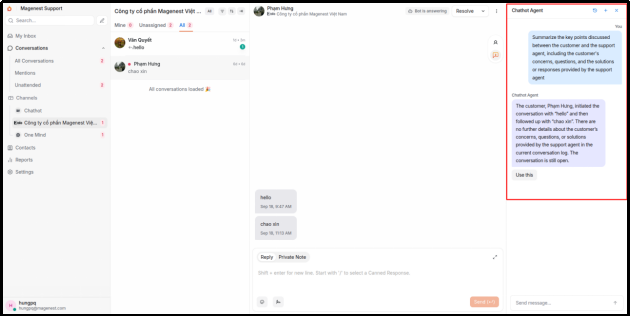
Chathot Agent answering a question about the conversation currently being viewed
Drag the top edge of the composer to make it taller or shorter, or use the expand button when writing a longer message. The height you choose is retained across conversations. For Email, the composer and quoted-message area share the available height.
Right-click the message, choose Delete, and confirm in the dialog. Keep the following points in mind before using this action:
Any Agent who can see the conversation can delete any message in it, including messages from colleagues and Private Notes. Administrator access is not required.
The message content is replaced with “This message was deleted,” and any attachment is removed. The message remains in its original position in the thread rather than disappearing completely.
Deletion cannot be undone and only removes the copy stored in Chathot. Messages already delivered to customers on Facebook, Zalo, Telegram, and other channels are not recalled and remain visible to the customer.
Administrators can review the original deleted content under Settings > Audit Logs. See Section 17.12.
Canned Responses are prewritten message templates for recurring replies, such as greetings, return instructions, apologies for delayed responses, or requests for order information.
In the composer, type / and begin entering the Canned Response short code. A suggestion list appears; select the response you want and its content is inserted directly into the composer.
You can edit the inserted content before sending it, for example to add the customer’s name or order number.
Example: type /chao to insert “Hello, I’m a support agent from Company ABC. How can I help you today?”
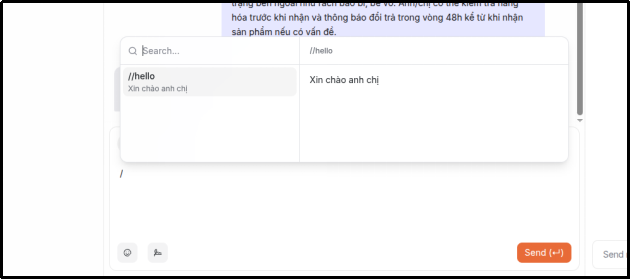
Type / in the composer to open the Canned Response list, then select a template to insert its content
Go to Settings > Canned Responses. Unlike most Settings pages, every Agent can create and edit Canned Responses; this is not restricted to Administrators.
Each Canned Response contains two fields:
Short code - the code you type after /. Keep it short, simple, and easy to remember, for example chao, doitra, xinloi, or madon. Short codes must be unique within the company.
Content - the text that will be inserted into the composer.
Canned Responses are shared company-wide. Once one user creates a response, everyone can use it.
Use the search field on this page to find a response quickly when the list becomes long.
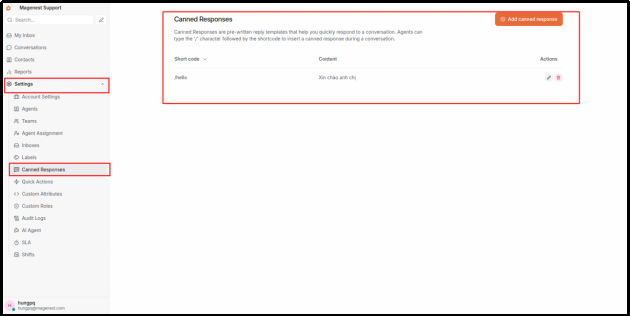
Canned Response management page under Settings > Canned Responses
Short code | Use case |
chao | Opening greeting |
madon | Ask for the order number |
doitra | Summarize the return/exchange policy |
xinloi | Apologize for a delayed response |
chuyenkt | Tell the customer the case is being transferred to Technical Support |
camon | Closing thank-you message |
A Quick Action is a predefined sequence of actions—such as assigning an Agent, assigning a Team, changing status, applying a Label, sending a message, or adding a Private Note—that runs with a single click instead of requiring each step to be completed manually.
Open the Quick Actions accordion in the right-hand panel of the Conversation workspace and click the run button for the action you want to use. The system immediately performs the configured actions on the open conversation.
Quick Actions can only run on conversations you already have permission to view, just like any other action in the system.
A few action types can be selected when building a Quick Action but currently do nothing when executed: sending an attachment, calling an external webhook, and emailing a conversation transcript. The system only records a warning in the log and does not show an error to the user. If a Quick Action appears to do nothing, check whether it contains one of these three action types.
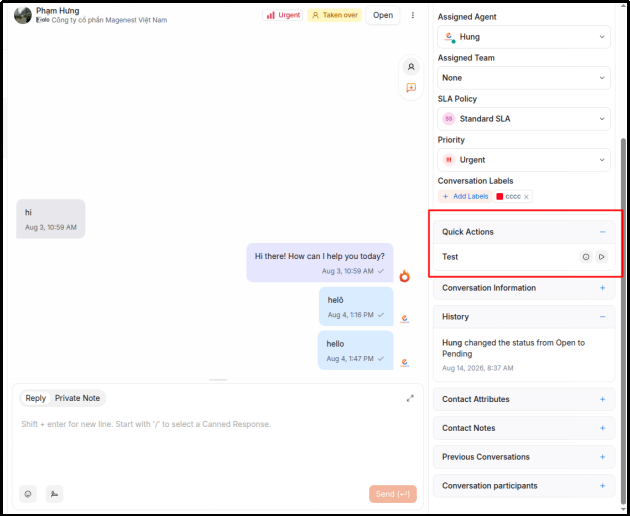
Quick Actions accordion in a conversation, ready to run
Select the Private Note tab, or press Alt + P, before typing. Private Notes use a yellow background and are never visible to the customer.
Use Private Notes to record information confirmed with another department, leave handover instructions for the next shift, or explain why a case was handled in a particular way.
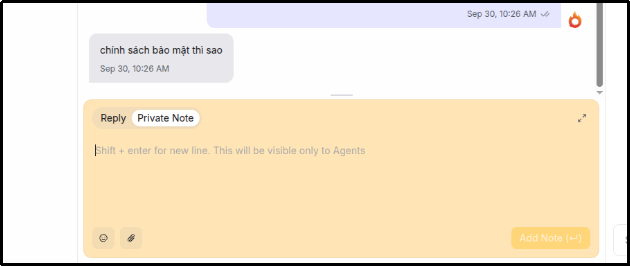
Private Note tab in the composer. Content entered here is not visible to the customer.
In a Private Note, type @ followed by the name of the person or Team you want to mention. If you mention a Team, all members of that Team are notified.
The mentioned user receives an immediate notification and an audio alert if enabled, sees the conversation under Mentions, and is added to the conversation’s Participants list. From that point onward, they receive notifications whenever the conversation has a new message.
Important limitation: you can only mention someone who is a Collaborator on that Inbox or an Administrator. If you mention someone outside that list, the system silently ignores the mention and they receive nothing. If a colleague says, “I didn’t get the notification,” first check whether they have been added as a Collaborator on the Inbox.
When an automatic Assignment Rule routes a conversation to you or your Team, the system creates a Private Note explaining why: which rule matched, which keyword or topic triggered it, which Team it was routed to, and who was assigned.
This note gives you immediate context on why the conversation was routed to you instead of leaving you to infer the reason.
Users are added to the Participants list automatically in two situations: they are @mentioned in a Private Note, or they are assigned to the conversation.
You can also add or remove Participants manually from the right-hand panel. As with mentions, you can only select users who are Collaborators on the Inbox or Administrators.
Status | When to use it |
Open | The conversation is being handled. |
Pending | Waiting for the customer or another department to respond. |
Resolved | The work is complete. If CSAT is enabled for the Inbox, the survey is sent at this point. |
Snoozed | Temporarily hide the conversation until a scheduled time. |
The system handles this automatically; you do not need to monitor it manually. Behavior varies by channel:
Website: the new message reopens the same conversation. Its status automatically returns to Open and the conversation reappears in the active work list.
Facebook, Instagram, Zalo, TikTok, TikTok Shop, Lazada, Shopee, Telegram, LINE, and WhatsApp: the resolved conversation remains closed and the new message creates a new conversation. For Facebook, Telegram, and WhatsApp, you can enable Lock to single conversation in the Inbox Settings tab to keep all messages in one conversation.
Google Business Profile: each review is always a separate conversation, so there is no concept of a customer “replying” to the same conversation.
Email: replies are added to the existing conversation and reopen it; a new email that is not a reply creates a new conversation.
If your company wants all messages from the same customer to remain in a single conversation, an Administrator can enable Lock to single conversation in the Inbox Settings tab. The system will then reuse and reopen the existing conversation instead of creating a new one.
The only exception is a conversation that has been Muted. See Section 9.7.
Click Snooze, or press Alt + M, then choose one of the available options: in 1 hour, tomorrow, next week, next month, or a custom date and time.
At the scheduled time, the system automatically returns the conversation to Open. The scheduler runs every minute, so reopening may occur up to one minute later than the selected time. If the customer sends a message before the snooze expires, the conversation reopens immediately.
Snooze is useful when you have told the customer, for example, “I’ll update you tomorrow,” and you do not want the conversation taking up space in today’s active work list.
Use the Assignee menu at the top of the conversation. The list only includes Collaborators from that Inbox. Select None to remove the assignment.
You can also assign the conversation to a Team instead of a specific person. This is useful when the case belongs to a department and any available Team member can take it.
There are four levels: Low, Medium, High, and Urgent.
The AI assistant can also set the Priority when classifying a customer message. AI can raise the Priority but never lower it. For example, if you have manually set a conversation to Urgent, AI will not reduce it to Low.
The Priority indicator appears directly on the conversation row, making urgent cases easy to identify at a glance.
You can apply multiple Labels to a conversation. Labels must first be created by an Administrator under Settings > Labels.
Labels can also be used as conditions for CSAT surveys. For example, the company can configure a rule that prevents surveys from being sent for conversations labeled spam.
Mute conversation in the three-dot menu closes the conversation and prevents it from reopening automatically for 6 days, even if the customer continues to send messages. Use this for spam or repeated meaningless messages. Click Unmute to remove the mute state.
Send transcript, which is intended to email the conversation transcript to the customer, is not currently working.
For Inboxes with the AI assistant enabled, a control at the top of each conversation shows who is currently responsible for replying to the customer.

The control showing who is currently handling the conversation appears next to Resolve.
Control shown | Meaning | When clicked |
Bot is answering | The AI Customer Assistant is allowed to reply to the customer in this conversation. | Take over; the AI stops replying immediately. |
You have taken over | The AI is silent and the conversation is waiting for a human Agent. | Hand the conversation back to the bot. |
Keep three things in mind when using this control.
First, replying to the customer automatically takes over the conversation; you do not need to click anything else. Use this control when you want to stop the bot before you have time to type a reply—for example, if you open the conversation and can immediately see that the customer is upset.
Second, takeover remains in effect until someone explicitly hands the conversation back to the bot. There is no automatic timer that allows the bot to resume, so it is safe to leave the conversation in Pending while waiting for the customer to reply.
Third, when the AI assistant hands a conversation over on its own, a reason appears directly below the control—for example, “the bot could not find sufficiently relevant documentation” or “the customer repeated the same question.” Read this message before replying because it tells you where the AI got stuck.
If a Resolved conversation is reopened because the customer comes back with a new request, it automatically returns to Bot is answering because this is treated as a new support interaction.
Right-click a conversation in the list to access common actions quickly:
Action | Notes |
Mark as read | Mark the conversation as read. |
Mark as unread | Mark it as unread; useful when you have reviewed it briefly but are not ready to handle it. |
Change status | Open, Pending, or Resolved |
Snooze | Temporarily hide until a scheduled time |
Set Priority |
|
Assign Label |
|
Assign Agent |
|
Assign Team |
|
Open in new tab |
|
Copy conversation link | Paste the link into an internal chat so a colleague can open the exact conversation. |
Delete conversation | Cannot be undone. |
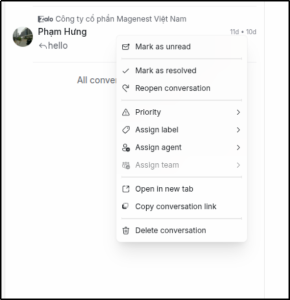
Right-click menu on a conversation row
Hover over a conversation row to reveal its checkbox. Select multiple conversations, then use the toolbar that appears above the list.
Available bulk actions include changing status, assigning an Agent, assigning a Team, adding or removing Labels, and snoozing conversations.
Typical use case: at the end of the week, filter for Open conversations, select older conversations that have already been handled, and Resolve them in one action.
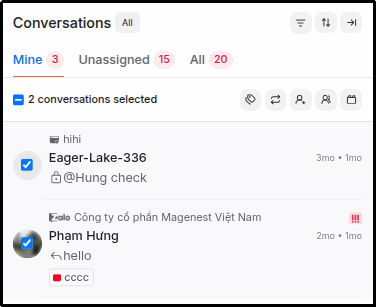
When multiple conversations are selected, the toolbar provides actions for Labels, status, Agent assignment, and Team assignment.
This panel contains several collapsible sections. You can drag and reorder them to match your preferred workflow.
Section | Contents |
Contact Information | Name, email, phone number, and avatar. Edit directly here and save immediately. |
Conversation Actions | Status, Assignee, Team, Priority, Labels, and SLA Policy |
Participants | Users following the conversation. Add or remove them manually. |
Conversation Info | Channel, creation time, and—for Website—customer browser and operating system. |
Custom Attributes | Company-specific fields defined by an Administrator, for example order number. |
Previous Conversations | Earlier conversations with the same customer. |
Notes | Customer-level notes, including author and timestamp. |
SLA | Response and resolution targets. When an SLA Policy is assigned, countdown timers appear at the top of the conversation and turn red when overdue. |
Two sections are especially useful in day-to-day work:
Check Previous Conversations before replying. If the customer has asked about the same issue before, you can avoid making them explain everything again.
Notes differ from Private Notes in a conversation because Notes are attached to the Contact and therefore appear across all conversations for that customer. Use them for long-term information such as “customer prefers phone calls over messaging” or “company is currently negotiating a contract.”
History records every conversation status change—who changed it, what it changed to, and when—including automatic changes made by the system, such as reopening a conversation when the customer replies. This section is read-only.
The bell in the top bar shows the number of unread notifications and updates in real time.
My Inbox is the first item in the sidebar and contains your complete notification list. From here, you can mark individual notifications as read or unread, mark all as read, delete one or all notifications, and snooze a notification.
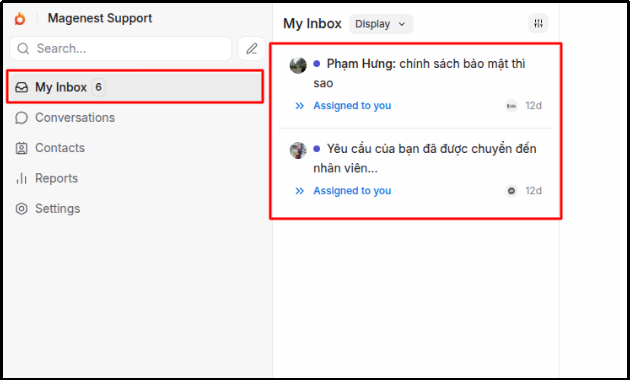
My Inbox screen
Go to Profile Settings > Notifications. The system provides five notification types:
Notification type | Default |
New conversation | Off |
Conversation assigned to me | On |
New message in a conversation assigned to me | Off |
Someone mentioned me | Off |
New message in a conversation I participate in | Off |
For new Agents, only the second notification type is enabled by default. As a result, when a new customer message arrives before anyone has been assigned, nobody receives a notification; the conversation simply remains in Unassigned until someone checks it manually.
It is recommended that every Agent enable notification types 1, 3, and 4 as soon as they receive their account.
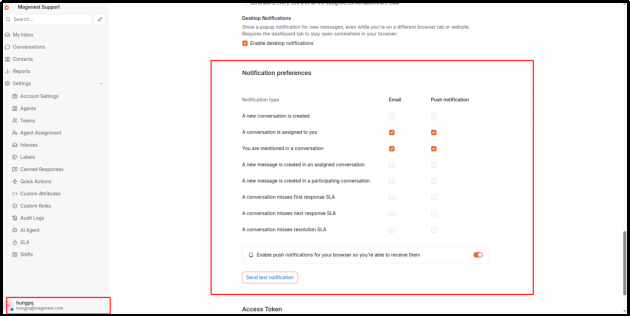
Notification preferences in Profile Settings
Note the last two columns. Push now sends real browser or desktop notifications; see Section 12.5. Email does not yet send actual notification emails. Enabling it currently only affects the in-app bell and notification list.
Go to Profile Settings > Audio Notifications to enable sound alerts, choose a sound, and select when it should play—for all messages or only messages in conversations assigned to you.
Audio alerts work while Chathot is open. If you often step away from the screen, also enable Push Notifications in Section 12.5 so you can still be alerted after closing the tab.
Unlike the notification bell and audio alerts, Push Notifications appear as operating-system notifications even when the Chathot tab is closed, as long as the browser is still running in the background and permission has been granted.
To enable Push Notifications:
Important notes:
Each browser or device is registered separately. Enabling Push on one device does not enable it on another; each device must be configured individually.
If Chathot is already open on that device, the system does not send a duplicate push notification because the browser is already displaying in-app activity. Push Notifications begin once there are no Chathot tabs open on that device.
Notifications include the sender’s avatar when available. Clicking a notification opens the relevant conversation directly.
Which events generate Push Notifications depends on the options you selected in Section 12.3—for example, when a conversation is assigned to you, when there is a new message in one of your conversations, or when someone mentions you.
If selecting Push does not trigger a browser permission request, or the test notification fails, ask an Administrator to check whether the push notification key has been configured. The site must run over HTTPS.
Open Contacts from the sidebar.
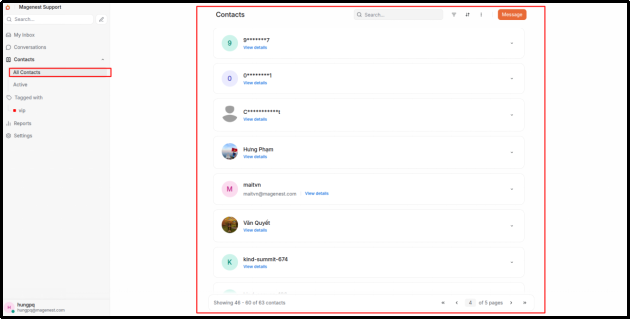
Contacts list
You can browse the customer list by page, search by name, email, or phone number, open a Contact to view its details, Custom Attributes, and full conversation history, create a Contact manually, and edit existing information.
A Contact profile also shows which Inboxes can be used to message that customer, and lets you start a new conversation from one of those Inboxes.
Feature | How to use it |
Apply a Label to a Contact | From the Contact profile. Unlike a conversation Label, this Label is attached to the customer rather than a specific interaction. |
Filter by Label | In the sidebar, open Contacts and select Tagged with. |
Customer Notes | Use Notes in the right-hand Conversation panel. See Section 11. |
Active list | In the sidebar, open Contacts > Active to show customers with activity in the last 24 hours. |
Sort | By name, email, phone number, creation date, or most recent activity. |
Delete Contact | Deletes the customer and all related conversations and messages. This cannot be undone. |
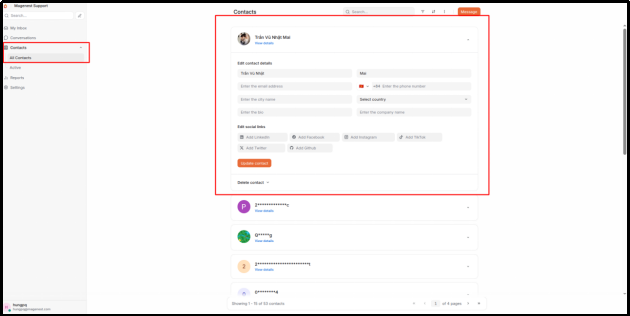
Contact detail page
If the same person messages you through Facebook and the website, the system creates two separate Contacts. To combine them:
Result: all conversations, messages, Labels, and Notes are moved to the primary Contact. Profile data is merged, and if both Contacts contain the same field, the value from the primary Contact is retained. The secondary Contact is then deleted.
This action cannot be undone, so review the Contacts carefully before confirming.
Importing Contacts from CSV, exporting Contacts to CSV, and calling a Contact are not currently available. The calling feature is only available in the commercial edition of the upstream system.
If you are starting with an empty system, the following setup order is recommended.
Step | Task | Location |
1 | Change the company name and set the default language | Settings > Account Settings |
2 | Create the shared Label set | Settings > Labels |
3 | Create Custom Attributes if needed, for example order number | Settings > Custom Attributes |
4 | Invite Agents and confirm they receive the invitation email | Settings > Agents |
5 | Create Teams by department | Settings > Teams |
6 | Connect the first channel; Website is recommended because it is the simplest | Settings > Inboxes > Add Inbox |
7 | Add Collaborators to the Inbox | Inbox > Collaborators tab |
8 | Configure Business Hours | Inbox > Business Hours tab |
9 | Enable and configure Auto Assignment | Inbox > Settings tab and Settings > Agent Assignment |
10 | Create an initial Canned Response set | Settings > Canned Responses |
11 | Enable CSAT if you want to measure support quality | Inbox > CSAT tab |
12 | Configure the AI Customer Assistant | Settings > AI Agent, then the Inbox > AI Agent tab |
13 | Ask Agents to enable notifications and audio alerts | Profile Settings > Notifications |
Step 7 is commonly missed. If you skip it, Agents can log in and see an empty screen, which may make the system appear broken.
Go to Settings > Inboxes > Add Inbox.
The Add Inbox screen displays multiple channel tiles. Chathot currently supports 13 channels: Website, Facebook, Instagram, Zalo, Email, TikTok, TikTok Shop, Lazada, Shopee, Telegram, LINE, WhatsApp, and Google Business Profile. Other tiles such as SMS, API, Voice, and Twilio are disabled because they are not supported. Facebook, Instagram, TikTok, TikTok Shop, Lazada, Shopee, and Google can only be selected after the server Administrator has configured the relevant platform app; this is a one-time setup for the company. If a tile is still disabled, contact the server Administrator. Telegram and LINE require no server-side app setup; you only need to enter credentials from those platforms. WhatsApp requires a Meta App with a webhook configured once by the server Administrator. See Section 15.12.
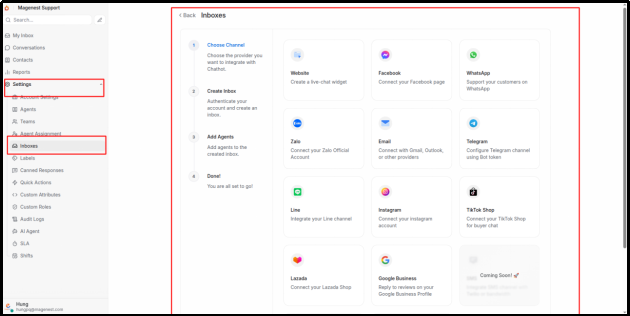
Channel selection screen when adding a new Inbox. Disabled tiles indicate unsupported or unconfigured channels.
The TikTok tile can only be selected after an Administrator has configured a TikTok Developer App, which requires prior TikTok approval and cannot be created instantly. Contact the Administrator if the tile remains disabled. This channel currently supports two-way text messaging and receiving images from customers, but cannot send images, which is the same outbound limitation as Zalo and Instagram.
The Website channel requires no platform-side preparation, so it is the recommended first channel to set up.
Setup steps:
2. Enter the following information:
Website Name: the Inbox name shown in Chathot, for example “Website Chat”
Website Domain: your company website address
Widget Color: the primary color of the chat widget
Welcome Heading: the heading customers see, for example “Hello”
Welcome Tagline: supporting text, for example “We usually reply within a few minutes”
3. Create the Inbox, then select the Collaborators who will handle this channel.
4. The final step displays the embed code.
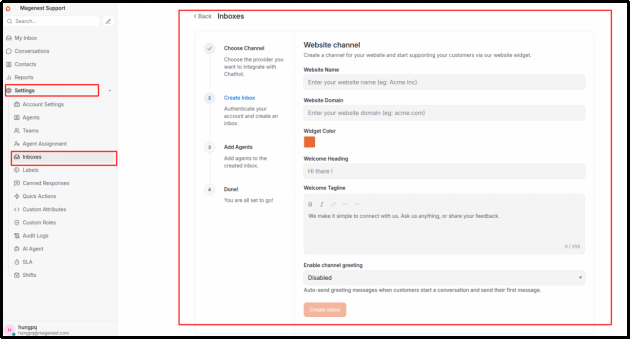
Website Inbox setup form
Embed on your website: copy the code and paste it into your website source immediately before the closing </body> tag. You can retrieve the embed code at any time from the Inbox Configuration tab.
Test after embedding: open the website in an incognito/private window. The chat widget should appear in the lower-right corner. Send a test message; the conversation should appear in Chathot within a few seconds.
Two additional settings are recommended:
In the Configuration tab, enter a comma-separated list of domains where the widget is allowed to load. This prevents other websites from embedding your chat widget. Leaving the list empty allows the widget to load anywhere.
Use the Pre Chat Form tab if you want to collect the customer’s name and email before the chat starts.
Prerequisite: the server Administrator must configure a Facebook App and point its webhook to Chathot. This is a one-time setup for the company. If it has not been completed, the Facebook tile can still be selected but the connection will fail.
Setup steps:
Test: use a different Facebook account to message the Fanpage. The conversation should appear in Chathot.
Ongoing maintenance: the connection may expire after several months. If inbound messages stop or outgoing messages show Failed, open the Inbox; the system will display a reconnect option.
Facebook policy: after 24 hours from the customer’s last message, Facebook blocks further free-form replies.
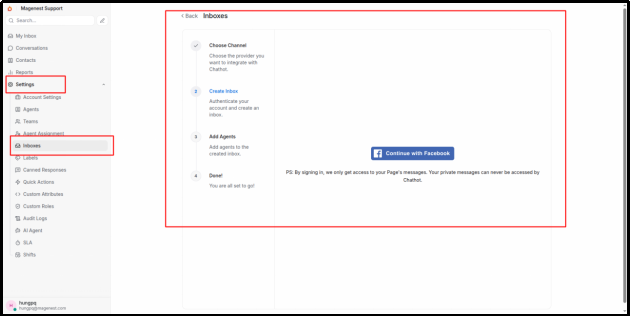
Facebook Messenger connection screen
Account requirement: the Instagram account must be a Business or Creator account, and third-party messaging access must be enabled under Instagram Settings > Privacy > Messages.
Setup steps:
If the Instagram tile is disabled, the system has not yet been configured with an Instagram App. Contact the server Administrator.
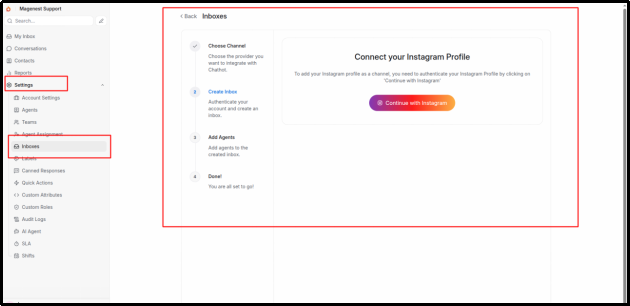
Instagram connection screen
Important: you can receive images and files sent by customers, but outbound messages currently support text only.
Setup steps:
Step 4 is mandatory and is frequently missed. Until the Webhook Secret is added, the system rejects all incoming Zalo messages. This is the most common cause of the issue “Zalo is connected, but no messages are coming in.”
You can find the Webhook Secret in the Zalo OA administration portal under Webhook. Each OA has its own secret; secrets cannot be shared between OAs.
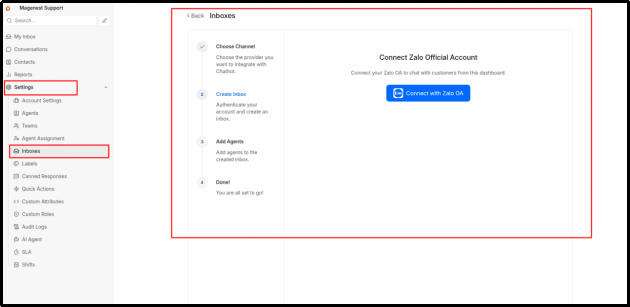
Zalo Official Account connection screen
Important: you can receive images and files sent by customers, but outbound messages currently support text only.
Email setup has two separate steps, which is a common source of confusion.
Step 1 - Create the Inbox:
At this point the Inbox exists, but it cannot yet receive or send email. Many users stop here and then wonder why no messages appear.
Step 2 - Configure the mail servers. Open Settings for the Inbox you just created.
Use the IMAP Settings tab to receive email:
Field | Gmail example |
IMAP Address | |
Port | 993 |
Login | |
Password | App Password, not your normal account password |
Enable SSL | On |
IMAP switch | On |
Use the SMTP Settings tab to send email:
Field | Gmail example |
SMTP Address | |
Port | 587 |
Login and Password | Same as above |
STARTTLS | On |
SMTP switch | On |
Gmail and Google Workspace require an App Password. Google will reject the account’s normal sign-in password.
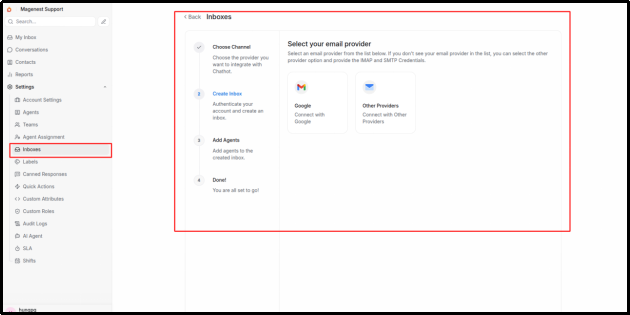
IMAP Settings tab for an Email Inbox
How the Email channel works: Chathot checks the mailbox once per minute, so new mail can take up to one minute to appear. A new email creates a new conversation. Replies are matched back to the correct existing conversation using email metadata, even when the messages are several days apart. When an Agent replies in Chathot, the customer receives a real email.
Four important points:
Each message an Agent sends becomes a separate email. If the Agent sends three short messages, the customer receives three emails.
Quoted content from previous emails is displayed directly in the message body and cannot be collapsed.
Disabling IMAP automatically disables SMTP as well.
The Email channel does not support the AI Customer Assistant.
The seven channels below were added after version 1.2. Conversation handling—Agent assignment, Labels, Resolved status, SLA, CSAT surveys, Business Hours, and automated greetings—works the same way as on other channels. See Sections 15.7 to 15.13 for channel-specific details.
Channel | How to connect | Customer can send | You can send | AI Customer Assistant |
TikTok Shop | Sign in with a seller account | Text, images, product cards, order cards | Text | Yes |
Lazada | Sign in with a seller account | Text, images, emoji, video previews | Text | Yes |
Shopee | Sign in with a seller account; Shopee approval required | Text, images, video previews | Text | Yes |
Telegram | Paste the bot token from @BotFather | Text, images, video, voice messages, files, location | Text | Yes |
LINE | Enter Channel ID, Secret, and Token | Text, stickers, images, video, audio, files | Text, images, video | Yes |
Enter credentials from Meta (Cloud API) | Text, images, video, audio, documents | Text | Yes | |
Google Business Profile | Sign in with the Google account that manages the profile | Reviews with star ratings | Text (public review reply) | No |
This channel handles chat between buyers and a TikTok Shop store and is linked to order activity. It is different from the TikTok channel introduced earlier in Section 15, which handles direct messages for a TikTok for Business account. The two channels use separate apps and connection methods.
Setup steps:
Channel-specific behavior:
Buyer messages display the buyer’s actual name and avatar. If the buyer starts a conversation from a product or order, the conversation shows a product card or order card directly in the message thread.
The right-hand panel includes a TikTok Shop Orders section listing that buyer’s orders, including order ID with copy button, status (Unpaid, Ready to Ship, In Transit, Delivered, Completed, Cancelled, and so on), item count, total value, and tracking number. This lets Agents check order information without opening Seller Center.
When the AI assistant is enabled for this Inbox, it can answer questions such as “Where is my order?” using live order data and can include the relevant order card in its response.
If inbound messages stop or outgoing messages show Failed, open the Inbox. When authorization has expired, the system displays a reconnect option.
This channel handles chat between buyers and a Lazada store in Vietnam.
Setup steps:
Important notes:
If a seller account covers multiple countries, only the first country is connected. Each Inbox can be linked to only one store.
After the first connection, the system waits about 12 minutes before importing previous chat history once. This delay is intentional because Lazada needs time to synchronize on its side. New messages arrive immediately and do not wait for this initial sync.
Inbound content can include text, images, emoji, system messages, and video (preview image only). For other Lazada message types, the system shows an unsupported-message notice instead of leaving the content blank.
Outbound messages support text only. The AI Customer Assistant is supported.
This channel integrates Shopee Seller Chat. Important: since 18/11/2024, Shopee has stopped granting Chat API access to new third-party applications. Only sellers that already have access through a Shopee Account Manager can use the integration. The channel has been implemented according to Shopee documentation but has not yet been verified with a live Shopee account, so test it thoroughly before relying on it in production.
Setup is the same as Lazada: select Add Inbox > Shopee, click Connect with Shopee, sign in with the seller account, and grant access.
Inbound messages support text, images, and video previews. Shopee product cards and FAQ messages display an unsupported-content notice. Outbound messages support text only. The AI Customer Assistant is supported.
Telegram is one of the easiest channels to connect because it does not require app approval or third-party sign-in.
Setup steps:
Important notes:
Only 1-to-1 private chats are accepted. Messages posted in Telegram groups are ignored.
A Telegram bot can be linked to only one Inbox across the entire system because Telegram allows each bot to use only one webhook URL. To reuse the bot elsewhere, remove the existing Inbox first.
Telegram bot tokens do not expire. If many outgoing messages suddenly show Failed, the token has usually been revoked or regenerated in @BotFather. Paste the new token into the Inbox configuration.
Outbound text supports bold, italic, strikethrough, code, and links. If a customer edits a previously sent Telegram message, the message is updated in Chathot as well.
CSAT survey links are sent as plain text rather than buttons.
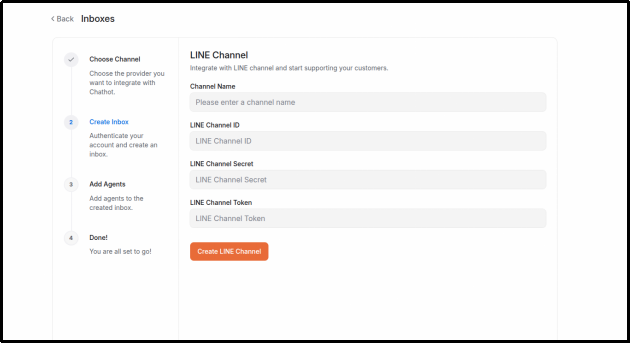
Prerequisite: a LINE Official Account with Messaging API enabled. From the LINE Developers Console, obtain the Channel ID, Channel Secret, and a long-lived Channel Access Token.
Setup steps:
Important notes:
LINE requires webhook URLs to use HTTPS with a certificate issued by a trusted authority. Self-signed certificates are rejected.
Chathot verifies the signature on every incoming LINE message and rejects messages with an invalid signature.
Outgoing messages always use LINE Push rather than Reply. This means they can be sent at any time, but they count toward the monthly message quota of your LINE Official Account plan.
Customers can send text, stickers, images, video, audio, and files. Agents can send text, images, and video. Group messages are received only if the sender has also added the OA in a 1-to-1 relationship. Other message types, such as location, display an unsupported-content notice.
WhatsApp connects through Meta’s WhatsApp Cloud API and is configured manually. The other options shown on the setup screen—Twilio, 360dialog, and Meta embedded sign-up—are not currently working.
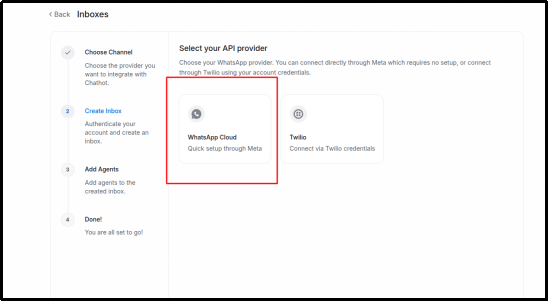
Prerequisite (one-time server setup for the company): a Meta App with the WhatsApp product enabled. In the App webhook settings, configure a Callback URL in the form https://your-chathot-domain/webhooks/whatsapp, use the Verify Token defined in the server configuration, and subscribe to the messages field. For each phone number, you then need the WhatsApp Business phone number, Phone Number ID, Business Account ID (WABA), and an access token from Meta for Developers.
Setup steps:
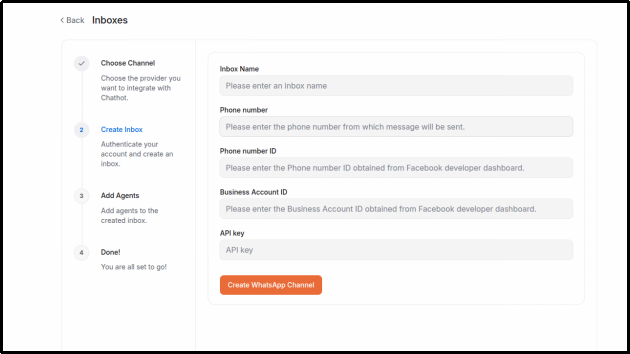
Important notes:
Temporary access tokens expire after approximately 24 hours. The token provided by Meta’s free “Try it out” flow is intended for testing only. Once it expires, outgoing messages show Failed. To fix this, create a long-lived System User token in Meta Business Settings and paste it into the API key field in the Inbox Configuration tab. For production use, start with a long-lived token.
Each phone number can be connected to only one Inbox.
WhatsApp allows free-form replies only within 24 hours of the customer’s last message. After 24 hours, Meta requires an approved template message. Chathot does not currently support WhatsApp templates, so outbound messages will show Failed.
Sent, Delivered, and Read statuses are updated based on delivery reports from Meta.
Enable Lock to single conversation if you want all messages from the same phone number to remain in one conversation.
This channel brings customer reviews from Google into Chathot so your team can reply from within the application. It is not a chat channel.
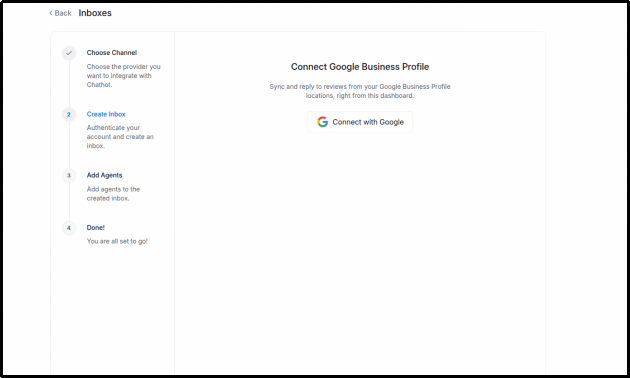
Setup steps:
How this channel works:
The system checks for new reviews approximately every 2 minutes rather than in real time.
Each review becomes a separate conversation. The customer name comes from their Google display name; anonymous reviewers appear as Google User. The message content is the review text. A star-only review with no written comment appears as “[5★ - no written review].” The star rating and location are stored on the Contact profile. Because Google does not expose a stable customer identity, two reviews from the same person become two separate, unrelated conversations and Contacts.
If the customer edits the review on Google, the content in Chathot is updated as well.
The message you compose and send becomes a public reply beneath the Google review. Each review supports only one public reply: sending another reply overwrites the previous one on Google, although Chathot keeps both messages in the conversation thread. Write carefully because the customer and the public can see the reply.
If the review was already answered directly on Google, that existing reply is synchronized into Chathot and appears as an outgoing message.
This channel does not support the AI Customer Assistant, automatic greetings, or after-hours auto-replies because a public review is not a private conversation. Auto Assignment, Labels, and Notifications continue to work normally.
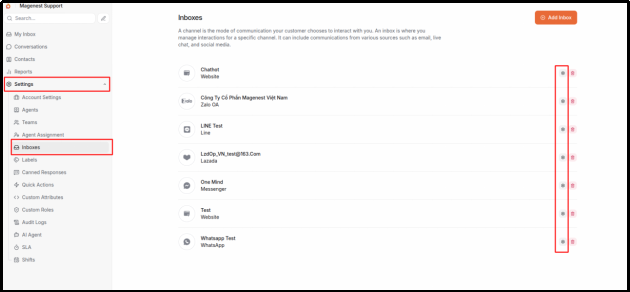
Go to Settings > Inboxes, select an Inbox, and click Settings. The tabs shown depend on the channel type.
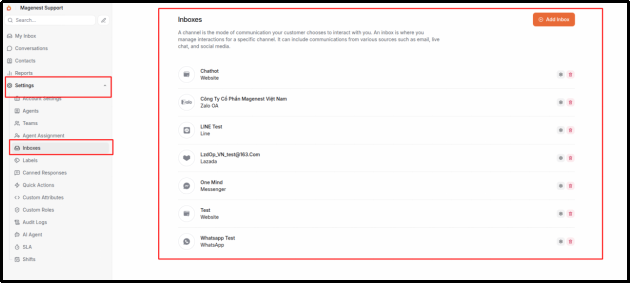
List of connected Inboxes
Tab | Available for |
Settings | All channels |
Collaborators | All channels |
Business Hours | All channels |
CSAT | All channels |
Pre Chat Form | Website |
Widget Builder | Website |
Configuration | Website, Zalo, Email, LINE, WhatsApp |
AI Agent | Website, Facebook, Instagram, Zalo, TikTok, TikTok Shop, Lazada, Shopee, Telegram, LINE, WhatsApp |
Field | Purpose |
Inbox Name | Name displayed in Chathot |
Avatar | Inbox avatar |
Enable auto assignment | Enables Auto Assignment for this Inbox. This must be turned on if you want the system to distribute work automatically. |
Enable greeting message | Sends an automatic greeting when the customer sends the first message. Works on all channels. |
Enable email collect box | Asks for the customer’s email inside the chat widget when the Contact does not already have one. Website only; asked once per conversation. |
Allow messages after resolved | Allows the customer to continue messaging after the conversation is marked Resolved. This affects only the Website chat widget UI. |
Lock to single conversation | Keeps all messages from the same customer in one conversation instead of creating a new one after each Resolve. Off by default; see Section 9.2. |
Enable CSAT | Enables the customer satisfaction survey. |
Sender name | Display name used when sending messages to customers. Currently has no effect. |
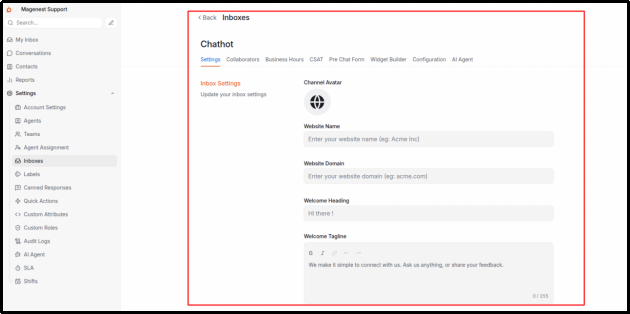
Settings tab for an Inbox
Select the Agents who are allowed to handle this Inbox.
This is the most important Inbox setting operationally. An Agent who is not listed as a Collaborator cannot see any conversation from that channel, cannot be mentioned in a Private Note, and cannot receive Auto Assignment. Whenever you add a new channel, remember to update its Collaborator list.
Collaborators tab: select the Agents who can handle this Inbox
Configure each day of the week as closed all day, open all day, or open during a specific time range. Also select the timezone and write the message shown outside business hours.
Business Hours affect three separate behaviors that should be understood clearly.
First, customer-facing availability. This applies only to the Website chat widget. Outside business hours, the widget displays an away state together with the message configured here.
Second, Auto Assignment. Outside Business Hours, Chathot does not automatically assign conversations on any channel. Conversations still arrive normally and remain in Unassigned until business hours resume or someone takes them manually. This applies to both Assignment Rules and Assignment Policies.
Third, after-hours auto-replies on other channels. Customers who message outside Business Hours through Facebook, Instagram, Zalo, Email, and the newer channels—except Google Business Profile—receive the after-hours message configured in this tab. Each conversation receives it only once within 24 hours, so a customer who sends five messages at midnight does not receive five identical replies. Website chat does not receive this message because the availability notice is already displayed in the widget.
Enabling Business Hours changes work distribution, not just what customers see. If the schedule or timezone is configured incorrectly, no one may receive automatic assignments for an entire day and the system will not warn you. After setup, send a test message during working hours to confirm. Conversations received outside Business Hours are not lost; they remain in Unassigned and are distributed when the Inbox opens again. See Section 18.5.
The AI Customer Assistant runs 24/7 and is not blocked by Business Hours. If you want customers to receive a real answer outside working hours rather than only an away message, enable the AI Customer Assistant. See Section 19.
Business Hours tab: configure opening hours for each day of the week
Enable a form that collects customer information before the chat begins.
Column | Meaning |
Row checkbox | Show or hide this field. |
Key | Technical field name; cannot be changed for default fields. |
Type | Data type |
Required | Whether the customer must complete the field |
Label | Text shown to the customer. Editable; for example, change “Full name” to a localized label. |
Placeholder | Faint helper text shown inside the input field |
The three default fields are Email Id, Full name, and Phone number. All three are disabled initially and must be enabled manually. You can also add Custom Attributes created under Settings > Custom Attributes.
There are two ways to collect a customer’s email on the Website channel: the Pre Chat Form, which asks before the conversation begins, and the email collection box, which asks inside the widget after the first message. Using either one is usually enough. Consider the trade-off carefully: requiring too many fields can reduce the number of customers willing to start a chat.
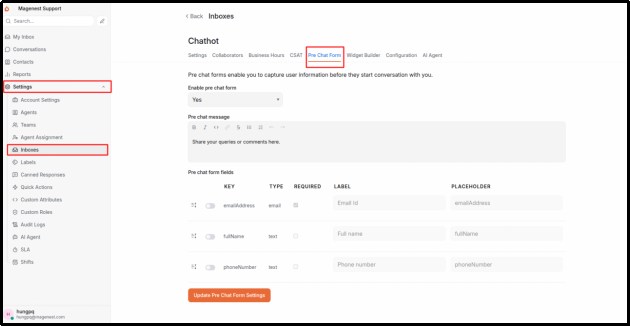
Pre Chat Form tab
Enable or disable features in the website chat widget, including customer file attachments, the emoji picker, the option for customers to end a conversation, and using the Inbox avatar as the bot avatar.
You can also customize the widget color and position and preview the result directly on the configuration screen.
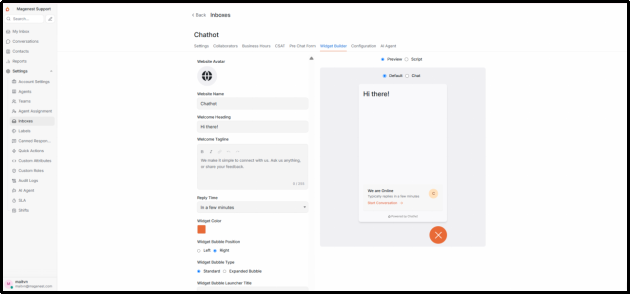
Widget Builder tab with live preview
For Website Inboxes, this tab includes the embed code, widget color, heading and greeting text, estimated response time shown to customers (within a few minutes, within a few hours, or within a day), and the list of domains allowed to embed the widget.
Website Inboxes also include User Identity Verification (HMAC): a secret key your company website uses to sign the identity of logged-in customers and prevent impersonation. You can enable Require identity verification and use Rotate key to generate a new key. Rotating the key revokes the old key immediately; there is no overlap period and the change cannot be undone. Your website backend must start signing with the new key immediately or logged-in customers will be rejected. Only Administrators—not users with a Custom Role—can rotate the key.
For Zalo, this tab contains the mandatory Webhook Secret field. See Section 15.4.
For LINE, this tab shows the Callback URL that must be added in LINE Developers Console. See Section 15.11.
For WhatsApp, this tab contains the API key. When the access token expires, paste the new token here. See Section 15.12.
For Email, this tab contains the IMAP and SMTP configuration. See Section 15.5.
Website Configuration tab showing the embed code
Add a new Agent:
If outgoing email has not been configured, the account is still created but no invitation is sent and the new user cannot sign in. Test this by inviting one of your own email addresses before inviting the full team. Temporary workaround: ask the user to select Forgot password? on the login screen so they can set a password themselves.
After creating an Agent, remember to add them to the Collaborators list for each relevant Inbox. Otherwise, they will sign in and see an empty workspace.
To invite multiple users at once, click Bulk Invite at the top of the page. Paste the email list into the field, one address per line or separated by commas, then send the invitations. Each address is invited with the Agent role by default. Existing or invalid email addresses are skipped automatically without causing the entire batch to fail.
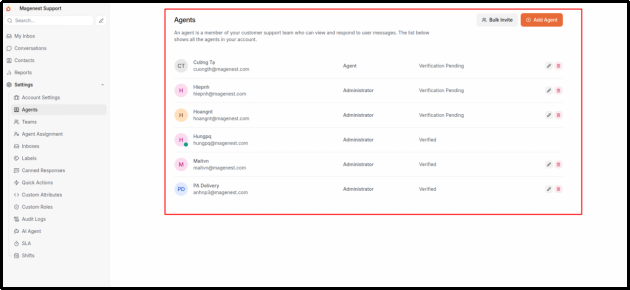
Agent management page
Create Teams based on departments, for example Technical Support, Accounting, or VIP Customer Care. Each Team has a name, description, member list, and an Auto Assignment option.
The Team Auto Assignment option determines what happens when a conversation is routed to the Team. When enabled, Chathot continues by selecting a specific Agent within the Team. When disabled, the conversation is assigned only to the Team and waits for a member to claim it manually.
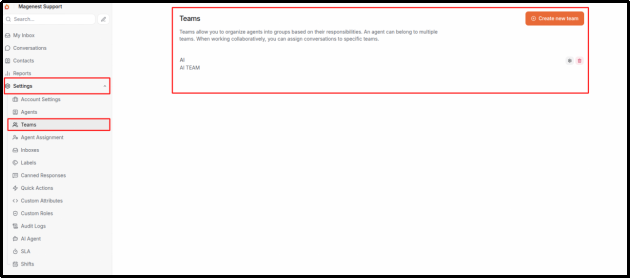
Team management page
Create Labels with a name, description, color, and an option to show them in the sidebar.
Label names are automatically converted to lowercase and must be unique. For example, VIP and vip are treated as the same Label.
Only Administrators can create, edit, or delete Labels. Agents can apply existing Labels to conversations as normal.
Suggested starter Labels: complaint, technical, quotation, escalated-to-technical, spam, vip.
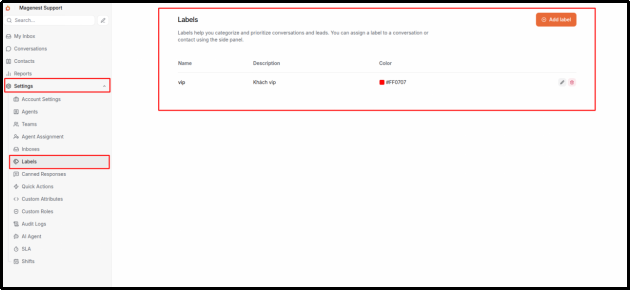
Label management page
Create company-specific data fields that apply either to Conversations or Contacts.
Supported data types include text, number, currency, percentage, URL, date, select list, and checkbox.
Common examples:
Applies to | Field name | Type |
Conversation | Order number | Text |
Conversation | Purchase channel | Select list |
Contact | Service package | Select list |
Contact | Contract expiry date | Date |
Once created, Custom Attributes appear in the right-hand Conversation panel and in Contact profiles. They can also be added to the Website Pre Chat Form and used as conditions in advanced filters.
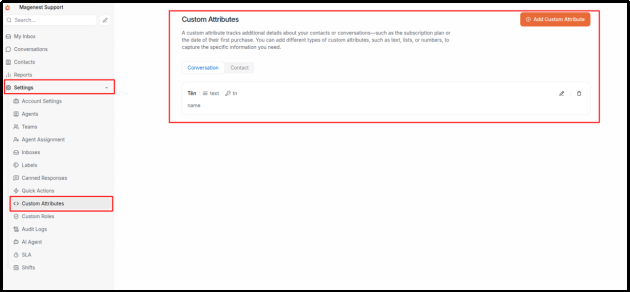
Custom Attributes page
See Section 7. Unlike most Settings pages, all Agents can create and edit Canned Responses; this is not restricted to Administrators.
Create a Custom Role to grant selected additional permissions to an Agent, then assign that role when editing the Agent profile.
At present, only one permission can be delegated: Manage inboxes, which allows an Agent to create, edit, and delete Inboxes without being promoted to Administrator.
User-management permissions are intentionally not delegable because a user with that permission could promote themselves to Administrator.
Area | Agent | Agent with Manage inboxes permission | Administrator |
Conversations in Inboxes where the user is a Collaborator | Yes | Yes | Yes |
Conversations from all Inboxes | No | No | Yes |
Contacts | Yes | Yes | Yes |
Settings > Canned Responses | Yes | Yes | Yes |
Settings > Inboxes | No | Yes | Yes |
Settings > Agents, Teams, Labels, Custom Attributes | No | No | Yes |
Settings > AI Agent | No | No | Yes |
Reports, including CSAT | No | No | Yes |
Settings > SLA | View only | View only | Yes |
The table above explains that an Agent can only see conversations from Inboxes where they are a Collaborator. Within that boundary, a second visibility setting applies company-wide under Settings > Account Settings > “What conversations can Agents see?”
Option | What the Agent can see |
Only my conversations | Only conversations assigned directly to that Agent |
My Team conversations | Conversations routed to the Agent’s Team, plus conversations assigned directly to the Agent |
All conversations in my Inboxes | All conversations from Inboxes where the Agent is a Collaborator, including conversations assigned to colleagues |
All three options remain within the Collaborator boundary. Even the broadest setting does not expose an Inbox the Agent does not belong to. Administrators can always see all conversations.
Existing companies are set to the broadest scope when this update is applied so conversations do not suddenly disappear from Agents’ views. Newly created companies default to “Only conversations assigned to me.” You can change the setting at any time and the change takes effect immediately.
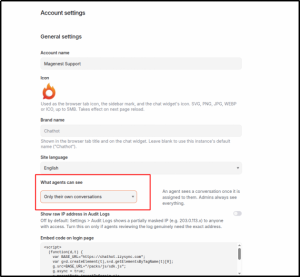
Settings > Account Settings: What conversations can Agents see?
An SLA Policy defines time targets for a conversation and sends alerts when a target is breached. Each policy can track up to three milestones; only the milestones you configure are measured:
Milestone | What it measures |
First Response | Time from the customer’s message until the first Agent reply |
Next Response | Time from each later customer message until the next Agent reply |
Resolution Time | Time from when the conversation opens until it moves to Resolved |
Two additional options are important. Count only during business hours pauses the SLA timer outside Business Hours, so “resolve within 4 hours” means 4 working hours rather than 4 clock hours; Inboxes without Business Hours configured continue to use real elapsed time. Alert recipients defines who is notified when an SLA is breached, in addition to the Assignee and conversation Participants.
After creating an SLA Policy, assign it to conversations from Conversation Actions in the right-hand panel. Once applied, the conversation shows a countdown timer at the top, which turns red when the SLA is overdue.
Two things to know before you start: new companies do not have a default SLA Policy, so you must create one; and when an SLA is breached, the system only sends notifications—it does not automatically reassign the conversation or raise its Priority.
Settings > SLA: list of configured SLA Policies
Settings > Agent Bots opens, but the page is currently empty.
Settings > Security is intended for Single Sign-On (SSO/SAML), which is not currently available. Multi-Factor Authentication (MFA) is also not available.
This is where you create the Quick Actions used in Section 7.4. Like Canned Responses in Section 17.5, Quick Actions can be created and edited by all Agents, not only Administrators.
Each Quick Action includes a name, description, visibility setting (public or visible only to its creator), and an ordered list of actions. Each action has its own input fields depending on the type—for example, selecting an Agent or Team to assign, choosing a Label, or entering the message or Private Note to send.
See the note in Section 7.4 about three action types that can be configured but are not currently executed: sending attachments, calling webhooks, and emailing conversation transcripts. They can still be added to a Quick Action, but they have no effect when the action runs.
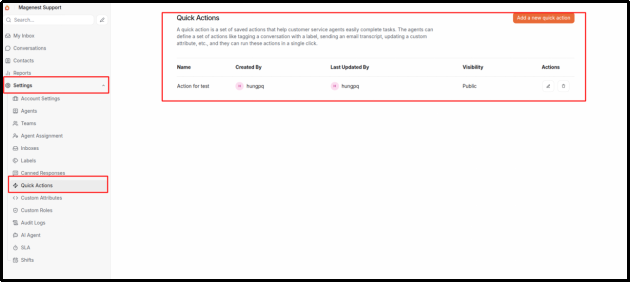
Settings > Quick Actions page
This page is available only to Administrators and records administrative changes across the account, including creating, editing, or deleting Agents, Teams, Labels, Inboxes, Quick Actions, AI prompts, Knowledge Base documents, Gemini API Keys, AI budgets, and more. Each entry shows the user who performed the action, their role, the action, timestamp, and details of what changed.
You can filter Audit Logs by object type (Agent, Team, Inbox, and so on) and by date range.
Deleting a message (Section 6.8) is also recorded, including the original content before deletion. IP addresses are masked by default, for example 203.0.113.x; Administrators can enable full IP display under Section 22.1 if genuinely required. The system does not record login or logout events and never stores the actual values of sensitive fields such as API Keys—it only records which field changed. Audit Logs are separate from the status History of an individual conversation described in Section 11.
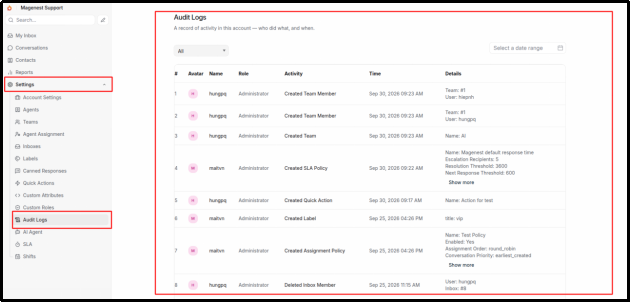
Settings > Audit Logs page
Shifts answer the question, “Is this Agent currently on shift?” Unlike Business Hours in Section 16.3, which define when an Inbox is open, Shifts are configured per Agent. Only Administrators can create or edit them.
Each Shift includes a name, the days of the week it applies to, start and end times in 15-minute increments (overnight shifts such as 22:00 to 06:00 are supported), a Shift timezone (Vietnam time by default, but configurable for teams serving other regions), and the list of Agents assigned to that Shift. An Agent can belong to multiple Shifts, and each Shift can include multiple Agents.
How Shifts affect Auto Assignment:
Shifts are optional. If your company has no active Shift, Auto Assignment works exactly as before.
Once at least one Shift is active, Auto Assignment only considers Agents who are currently on shift. Agents who have not been added to any Shift are also excluded from Auto Assignment, although they can still claim work manually.
This applies to every Auto Assignment path described in Section 18, including the recurring queue reassignment scan.
If a conversation arrives when no Agent is on shift, it remains in Unassigned and is assigned when the next Shift starts. The reassignment scan runs once per minute.
Shifts do not change conversation visibility, Online status, or AI behavior. Agents must still be Online and meet the other conditions in Section 18.1.
Common mistake: creating a Shift for only a few Agents and forgetting to add everyone else. Those omitted users will never receive Auto Assignment. After enabling your first Shift, review the member list carefully.
Auto Assignment routes new conversations directly to a specific Agent instead of leaving them in Unassigned until someone notices them.
If any of the five conditions below is not met, the conversation remains in Unassigned and the system does not display a warning:
Condition 3 is the most common reason users think Auto Assignment is “not working.” Condition 4 means that outside Business Hours, Chathot intentionally does not assign conversations. All five conditions are temporary: once the missing condition becomes valid again, the system automatically redistributes the waiting queue. See Section 18.5.
If your company uses Shifts (Section 17.13), there is one additional condition: the Agent must currently be on shift.
Chathot has two different assignment mechanisms, configured in two different places.
Mechanism A - Assignment Policy, under Settings > Agent Assignment.
This is the default way an Inbox distributes work and applies to conversations that do not match a more specific rule.
Distribution method | How it works |
Round robin | Assigns work in rotation; the eligible Agent who has waited longest since their last assignment receives the next conversation. |
Balanced | Prioritizes the eligible Agent with the fewest currently Open conversations. |
Fair distribution limit lets you cap the rate at which an Agent receives new work—for example, “no more than N conversations within X minutes”—to prevent one person from being overloaded during traffic spikes.
Workload Limit sits beside this setting but controls something different. Fair distribution limit controls assignment speed, for example no more than 5 conversations in 30 minutes. Workload Limit controls how many Open conversations an Agent can hold at the same time. For example, an Agent already handling 5 Open conversations will not receive more work even if they have not been assigned anything for several hours.
The default Workload Limit is 5 conversations per Agent. Set it to 0 to remove the limit. The count is company-wide rather than per Inbox because an Agent who is overloaded in one Inbox is still overloaded when another Inbox needs help.
When no Agent meets the conditions, the conversation waits in Unassigned instead of being forced onto someone who is already at capacity. As soon as an Agent resolves enough work to fall below the limit, the queue can continue to be distributed.
Conversation Priority Order determines which waiting conversation is assigned first: Oldest first uses the conversation creation time, while Longest waiting first uses the time of the most recent activity.
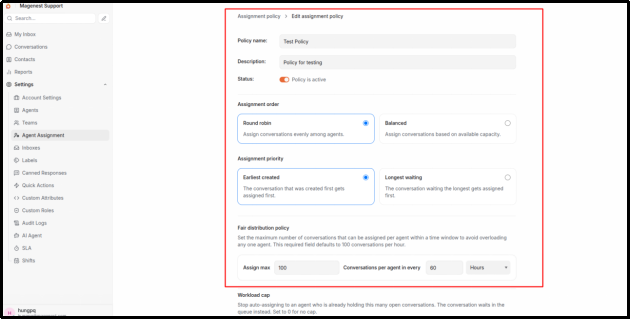
Assignment Policy form: Workload Limit and Conversation Priority Order
After creating an Assignment Policy, assign it to each Inbox that should use it.
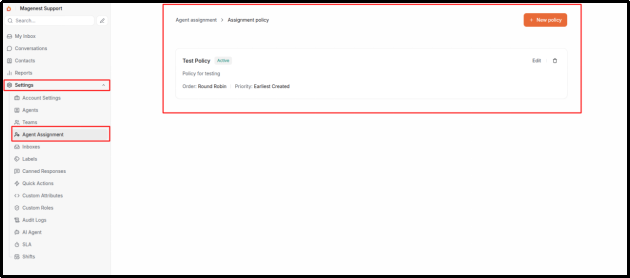
Auto Assignment Policy page
Mechanism B - Assignment Rules, under Settings > AI Agent > Assignment Rules.
Assignment Rules route conversations based on the content of the customer’s first message.
Rule type | How it works |
Keyword | Define keywords such as refund, complaint, legal action, or lawyer. Matching any one keyword triggers the rule. Matching is case-insensitive and works even when the keyword appears in the middle of a sentence. |
Topic (AI Category) | Define topic names such as “complaint,” “technical,” or “quotation.” The AI identifies the topic and routes the conversation accordingly. This works only for Inboxes with AI enabled and does not consume an additional AI call. |
A rule can route directly to a Team rather than choosing any Agent from the Inbox. For example, a “quotation” rule can route to Sales and a “technical issue” rule to Technical Support. Once a conversation is routed to a Team, Chathot only considers Agents in that Team who are also Collaborators on the Inbox and currently Online.
If the destination Team has Auto Assignment disabled, the conversation is assigned only to the Team and waits for a Team member to claim it manually.
Rules can be reordered by drag-and-drop, and each rule has its own enable/disable switch.
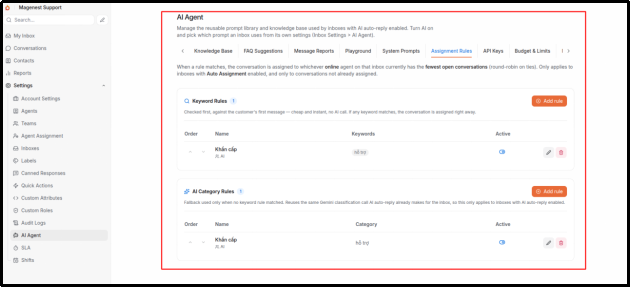
Assignment Rules tab in the AI Agent center
When a keyword-based rule matches, three things happen at the same time:
The system also adds a Private Note to the conversation explaining which rule matched, which keyword triggered it, which Team received the case, and which Agent was assigned. This gives the receiving Agent immediate context.
Priority | Mechanism | When it is used |
1 | Keyword Assignment Rule | Highest priority; evaluated before everything else. |
2 | Assignment Policy | Used when no keyword rule matches. |
3 | AI Category Assignment Rule | Used only if the first two stages do not successfully assign anyone. |
Operational need | Recommended configuration |
Distribute work evenly across the Team | Use a Round robin Assignment Policy. |
Let Agents with more capacity receive more work | Use a Balanced Assignment Policy. |
Prevent one Agent from receiving 20 conversations during a traffic spike | Add a Fair distribution limit, for example 5 conversations every 30 minutes. |
Ensure urgent cases reach the correct owner | Use keyword Assignment Rules for sensitive topics. |
Route specialist work to the right department | Use keyword or AI Category rules and route to the relevant Team. |
Let AI handle easy questions and humans handle difficult ones | Enable AI and combine it with keyword rules for sensitive topics. |
Prevent anyone from holding more than 5 conversations at once | Set the Workload Limit to 5. |
Auto Assignment first runs when the customer sends a message. At that moment, assignment can fail for three temporary reasons: the message arrived outside Business Hours, no Agent is Online, or all eligible Agents have reached their Workload Limit.
To handle this, the system runs a reassignment scan every minute. If an Inbox has waiting conversations and the required conditions are now satisfied, those conversations are assigned immediately.
In practice, this means:
If a customer messages at 22:00 and the Inbox opens at 09:00, the waiting queue is distributed automatically at 09:00 the next morning without anyone assigning cases manually.
If an Agent resolves several conversations and drops below the Workload Limit, they can receive waiting work within one minute.
If the whole Team is Offline, the queue begins moving as soon as the first eligible Agent switches to Online.
Three additional points about the reassignment scan: if a conversation has already been routed to a Team, it is assigned only within that Team and never to outsiders; Teams with Auto Assignment disabled are ignored so members can claim work manually; conversations with no activity for more than 7 days are skipped so old forgotten work is not suddenly assigned. The scan also runs only for Inboxes with an Assignment Policy. If an Inbox has no policy, its queue remains unchanged.
The AI Customer Assistant reads customer messages, assesses severity, raises the conversation Priority when needed, and can reply automatically when no Agent has joined the conversation.
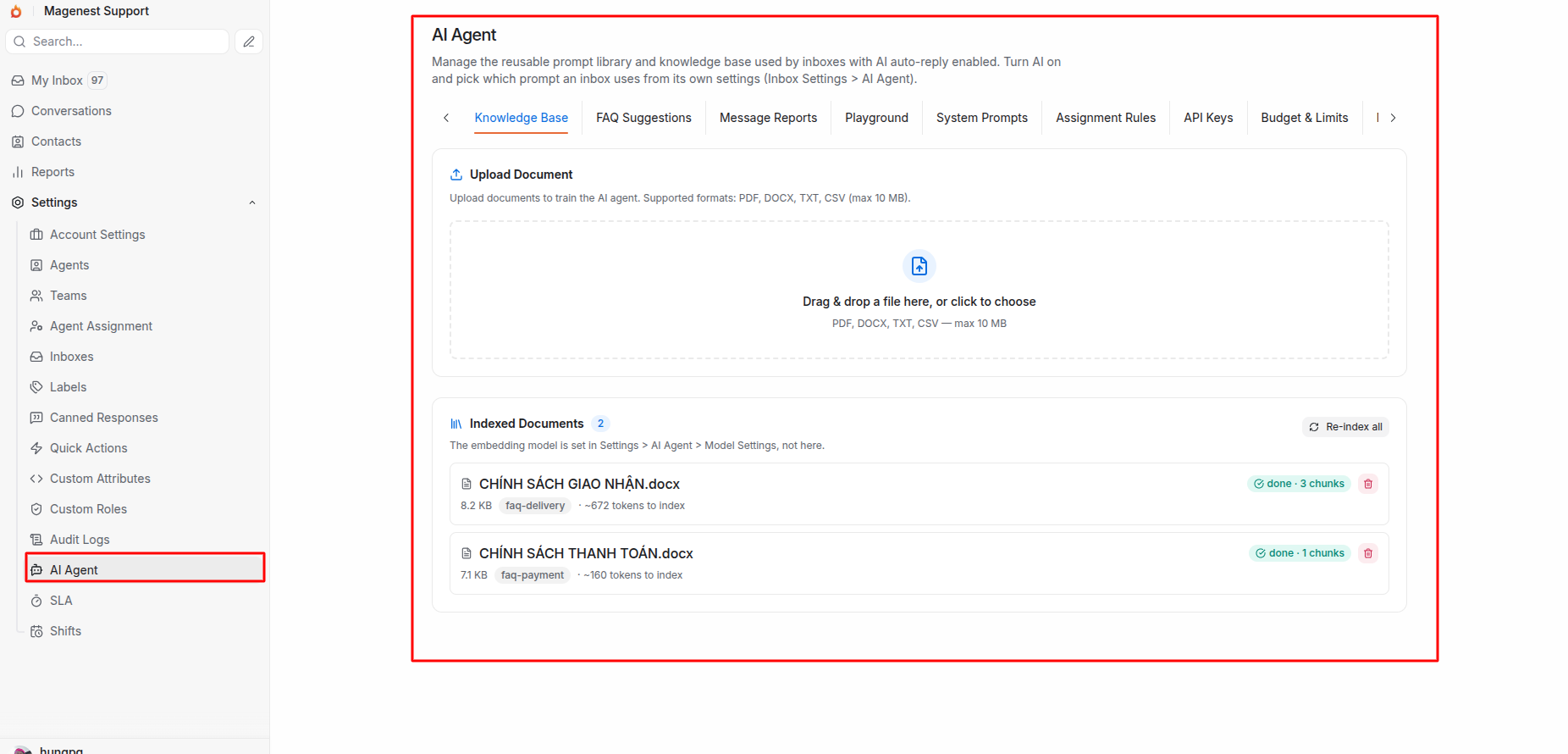
The AI Customer Assistant works on eleven channels: Website, Facebook, Instagram, Zalo, TikTok, TikTok Shop, Lazada, Shopee, Telegram, LINE, and WhatsApp. It is not available for Email or Google Business Profile.
This is a common source of confusion for new Administrators:
Configuration location | Purpose |
Settings > AI Agent (company level) | Create AI instructions, upload documents, manage API Keys, set budgets, and create Assignment Rules. |
Settings > Inboxes > select Inbox > AI Agent tab | Enable or disable AI for that Inbox and choose which prompts it should use. |
The company-level AI Agent center contains eight tabs: Knowledge Base, System Prompt, Assignment Rules, API Key, Budget & Limits, FAQ Suggestions, Message Reports, and Playground.
AI Agent center with eight configuration tabs
Step 1 - Add an API Key.
Go to Settings > AI Agent > API Key, click Add API key, paste the Gemini key, enter a recognizable name such as “Primary key - company account,” and click Test. If the test fails, the key is not saved.
It is recommended to add multiple keys. The system rotates between them and automatically switches to another key when one hits a rate limit. Use the up and down arrows to change the priority order.
Key status values—active, disabled, limited, and dead—are maintained manually; the system does not change them automatically. To stop using a key, set it to disabled.
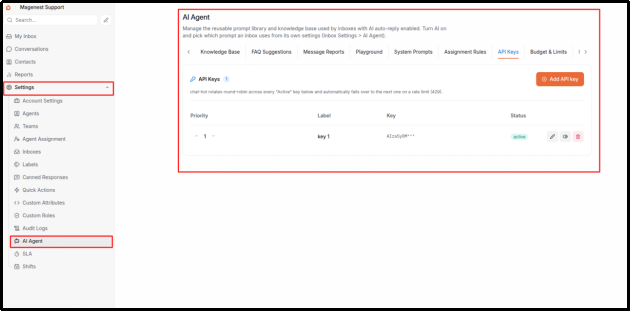
API Key tab: Gemini keys, rotation priority, and Test button
Step 2 - Create AI instructions.
Go to Settings > AI Agent > System Prompt and click Add prompt.
Field | Notes |
Name | For example: “Replies - customer care tone” |
Type | Choose Classification or Reply |
Content | Instructions for the AI |
Model, Temperature, Thinking budget | Leave blank unless you have a specific reason to change them; the system uses tuned default values. |
Important: unless you know exactly what you are doing, do not create a custom Classification prompt. Classification prompts must return a specific technical data format; if that format is changed incorrectly, severity classification can stop working without showing an error. Leave it blank to use the built-in default.
Reply prompts are more flexible. Use them to define the AI tone of voice, form of address, and the scope of questions it is allowed to answer.
Example Reply prompt:
You are a support agent for Company ABC. Keep replies concise, 2 to 3 sentences, and polite. In Vietnamese, refer to yourself as “em” and address the customer as “anh/chị.” Only answer questions about ABC products and services. If the customer asks for a specific price, refund policy, or raises a complaint, say that you will transfer the request to the appropriate Agent instead of answering directly. Do not invent information that is not supported by the documentation. If you are unsure, say: “Let me verify that information and get back to you as soon as possible.”
If no prompt is selected, the system uses its built-in default and continues to work normally.
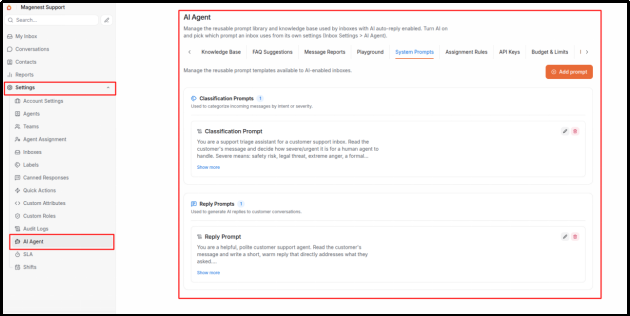
System Prompt tab: shared prompt library
Step 3 - Upload documents (optional).
Go to Settings > AI Agent > Knowledge Base and upload PDF, DOCX, TXT, or CSV files up to 10 MB each.
Assign a tag to each document. Uploading a new file with an existing tag replaces the previous file with that tag. This is useful for updating items such as price lists or policies without manually deleting the old document first.
Processing moves through three statuses: pending, processing, and done. If a document remains stuck in pending, click Reprocess.
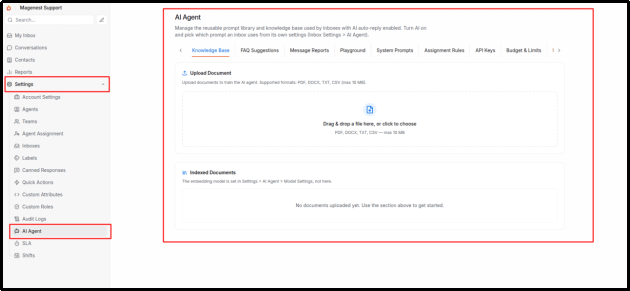
Knowledge Base tab: upload documents for AI retrieval
Step 4 - Enable AI for the Inbox.
Go to Settings > Inboxes, select the Inbox, open the AI Agent tab, and enable automatic AI replies. If you want the AI to use uploaded documents, also enable the Knowledge Base. Finally, select the Classification prompt and Reply prompt.
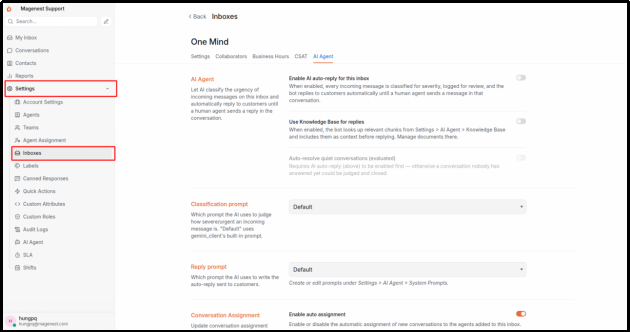
Inbox AI Agent tab: enable AI and select prompts
You can also set a Bot Name in this tab. The name appears on automated chat bubbles instead of the generic “Bot,” for example “Mai.” Leave it blank to keep anonymous bot replies.
You can also enable Auto-resolve quiet conversations (evaluated). This option is currently displayed in English only. When enabled, if the AI has replied and the customer remains silent for the configured period—60 minutes by default—the AI reevaluates the conversation. If it determines the issue is complete, it marks the conversation Resolved. If not, it hands the conversation over to a human instead of closing it blindly. Automatic AI replies must be enabled before this option can be turned on.
Zalo Inboxes include an additional option to automatically request customer information. When enabled, the first customer message in a new conversation triggers an information-sharing card asking whether the customer agrees to share their name, phone number, and address. The customer must actively approve the request; Zalo does not share the information automatically. You can customize the card title and description. Leave them blank to use the default Vietnamese text.
Step 5 - Test the setup.
Send a test message to the channel from another account. The AI should reply within a few seconds. If nothing happens, follow the troubleshooting checklist in Section 19.8.
This is the most important behavior to understand in day-to-day operations. Every conversation is always in one of two modes, shown at the top of the conversation. See Section 9.8.
Mode | Meaning |
Bot is answering | The AI Customer Assistant is allowed to reply to the customer in this conversation. |
You have taken over | The AI is silent and the conversation is waiting for a human Agent. |
A conversation moves to human takeover in four situations: an Agent replies to the customer, including replies sent directly from Messenger, Instagram, or Zalo OA Manager outside Chathot; an Agent clicks Take over; the conversation matches a keyword rule and is routed to a human; or the AI itself determines that it should not answer. See Section 19.4.
There are only two ways to return to “Bot is answering”: someone clicks Hand back to bot, or a Resolved conversation receives a new request from the customer. The second case is treated as a new support interaction, so the bot starts again from the beginning.
This behavior is different from earlier versions. Previously, the AI remained silent for only 2 hours and then resumed automatically. That meant a conversation left Pending while an Agent waited for the customer could suddenly receive a bot reply after 2 hours. That timer no longer exists: once a human takes over, the conversation remains in human mode until someone explicitly hands it back to the bot.
The AI stops and hands the conversation to a human in six situations. The specific reason appears at the top of the conversation so the receiving Agent immediately understands why the case was handed over.
Situation | Reason shown on the conversation |
Customer explicitly asks to speak with a person | Handed over at the customer’s request |
A high-priority keyword rule matches | Handed over because a priority keyword matched |
No sufficiently relevant document is found in the Knowledge Base | Bot could not find sufficiently relevant documentation to answer |
The AI determines it does not have enough evidence to answer | Bot does not have enough evidence to answer |
The AI drafts an answer that is not supported by any document | Bot answer is not supported by any document |
Customer repeats the same question three times or shows dissatisfaction | Customer repeated the same question |
The three middle conditions apply only to Inboxes with Knowledge Base enabled because there is no source material to validate against otherwise. An Inbox that uses only a System Prompt continues to reply as before. By contrast, the “customer repeated the same question three times” condition always applies, with or without Knowledge Base, because three repeated attempts are enough to justify human support.
The practical principle is simple: the AI would rather stop than guess. As a result, an Inbox with Knowledge Base enabled but limited documentation may hand over more cases than expected. That usually indicates the Knowledge Base needs more coverage rather than a system error.
The AI processes each customer message in the following sequence.
Read the flow vertically. Each checkpoint has a branch to the right that stops the AI. If any checkpoint fails, the conversation is handed to a human and the AI stays silent. Only after all three checkpoints are passed does the system generate and send a reply to the customer.
Additional points to note:
Every customer message is evaluated and logged, even when the AI does not reply. There is no separate “classify only without replying” mode; disabling the AI switch disables the entire AI workflow.
AI logs are not displayed in the customer conversation, keeping the visible chat history clean.
Simple social messages such as “hello” do not trigger Knowledge Base retrieval, which reduces unnecessary AI cost.
AI replies in the same language the customer is using. For messages classified as severe on Facebook, the reply also includes two buttons: call the hotline and open the website. The button labels follow the customer’s language, in Vietnamese or English. The phone number and URL are configured by the server Administrator.
Open the Budget & Limits tab to set a monthly budget in USD and an alert threshold as a percentage. The defaults are USD 2,000 and 80%.
The page shows the current month’s cost, a progress bar, and detailed token usage by model.
Important: this is a monitoring dashboard, not a hard spending cap. Exceeding the budget only displays a red warning; it does not stop AI requests automatically. To stop AI completely, disable all API Keys or turn off AI in each Inbox.
The cost dashboard is also a quick way to confirm whether AI is running. If cost does not increase, the AI has not been called.
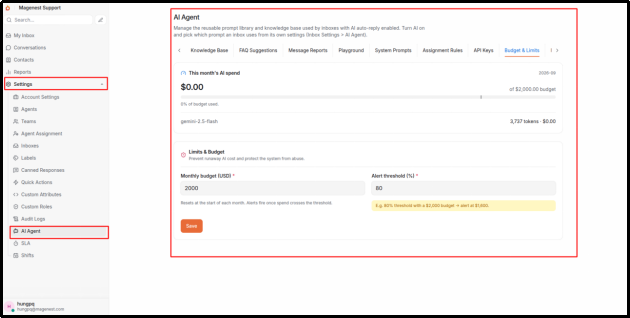
Budget & Limits tab
If you change the Embedding Model in the Knowledge Base tab, you must click Re-index all immediately afterward.
If you do not, existing document vectors become incompatible with the new model and AI answers may become inaccurate without any warning. Re-index all processes every document again in sequence and can take some time depending on the number of files.
Check the following items in order:
This tab automatically groups recurring customer questions that the AI could not answer confidently and suggests adding them as new Knowledge Base content. This means you do not have to guess which questions customers ask repeatedly.
Each suggestion shows the original question, how many times customers asked similar questions, and an AI-drafted answer. The draft is only a starting point and may not reflect actual company policy, so review and edit it before approval.
Each suggestion has three actions: Edit to revise the answer, Ignore to discard it, and Approve to add it directly to the Knowledge Base as a new document through the same processing flow used for manually uploaded files.
The system scans automatically on a schedule; there is no need to trigger a manual scan.
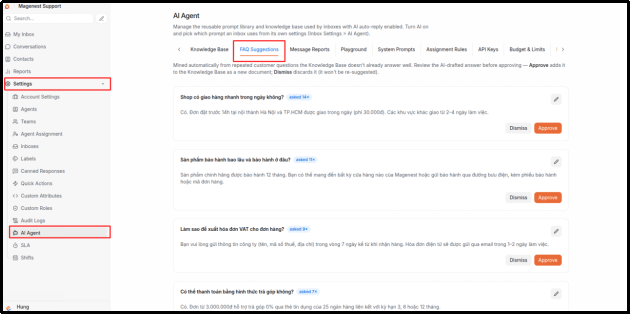
FAQ Suggestions tab with a suggestion awaiting review
When an Agent sees an incorrect AI reply, they can right-click that specific message—only messages generated automatically by AI, not messages typed by an Agent—select Report AI reply, choose a reason such as incorrect information, inappropriate response, incomplete answer, outdated information, or Other, and add a description.
Administrators review all reports in this tab and mark them Resolved after updating prompts, adding documentation, or confirming that no change is required.
This tab only records and tracks reports. It does not fix anything automatically; changes such as updating prompts or adding documents must still be made in the relevant configuration tabs.
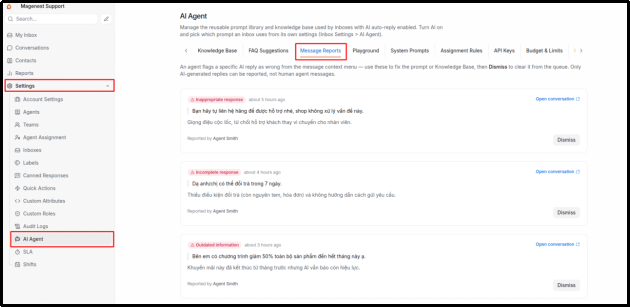
Message Reports tab with a report submitted by an Agent
Use Playground to test prompts and the Knowledge Base before exposing them to customers. Enter a sample question, choose the Reply prompt to test, toggle Knowledge Base on or off, and review how the AI responds before applying the configuration to a live Inbox.
If the AI would refuse to answer a real customer question because it cannot find relevant documentation or does not consider the evidence reliable enough, Playground shows the reason clearly. This helps you identify missing Knowledge Base content before a real customer encounters the same issue.
Testing in Playground does not affect live conversations or customer data. Nothing is sent to customers, and the test itself is not added to the Knowledge Base.
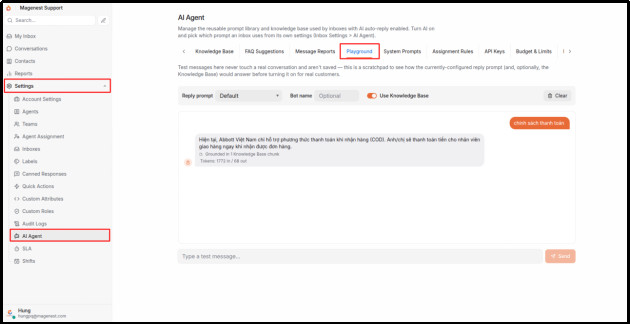
Playground tab testing a sample question
Go to Settings > Inboxes, select the Inbox, and open the CSAT tab.
Field | Description |
Enable CSAT | Main enable/disable switch |
Display type | Choose smiley-based or star-based rating |
Message | Question shown to the customer, for example “How would you rate this support experience?” |
Survey rules | Label-based conditions for sending the survey; see Section 20.3 |
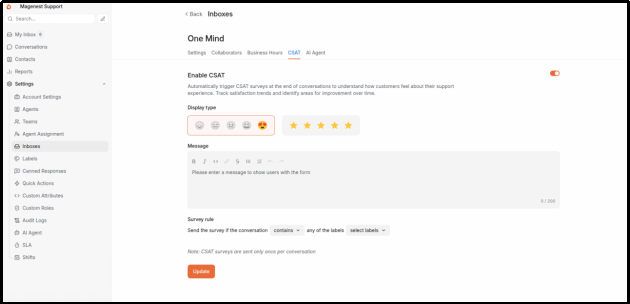
CSAT tab for an Inbox
When a conversation moves to Resolved, the customer receives a CSAT survey.
Channel | What the customer sees |
Website | A smiley or star selector displayed directly in the chat widget |
Facebook, Instagram, Zalo, TikTok, TikTok Shop, Lazada, Shopee, Telegram, LINE, WhatsApp | A message containing a link to a separate survey page |
A text message with a survey link |
Customers rate the interaction from 1 to 5 and can leave a comment. Responses are locked after 14 days.
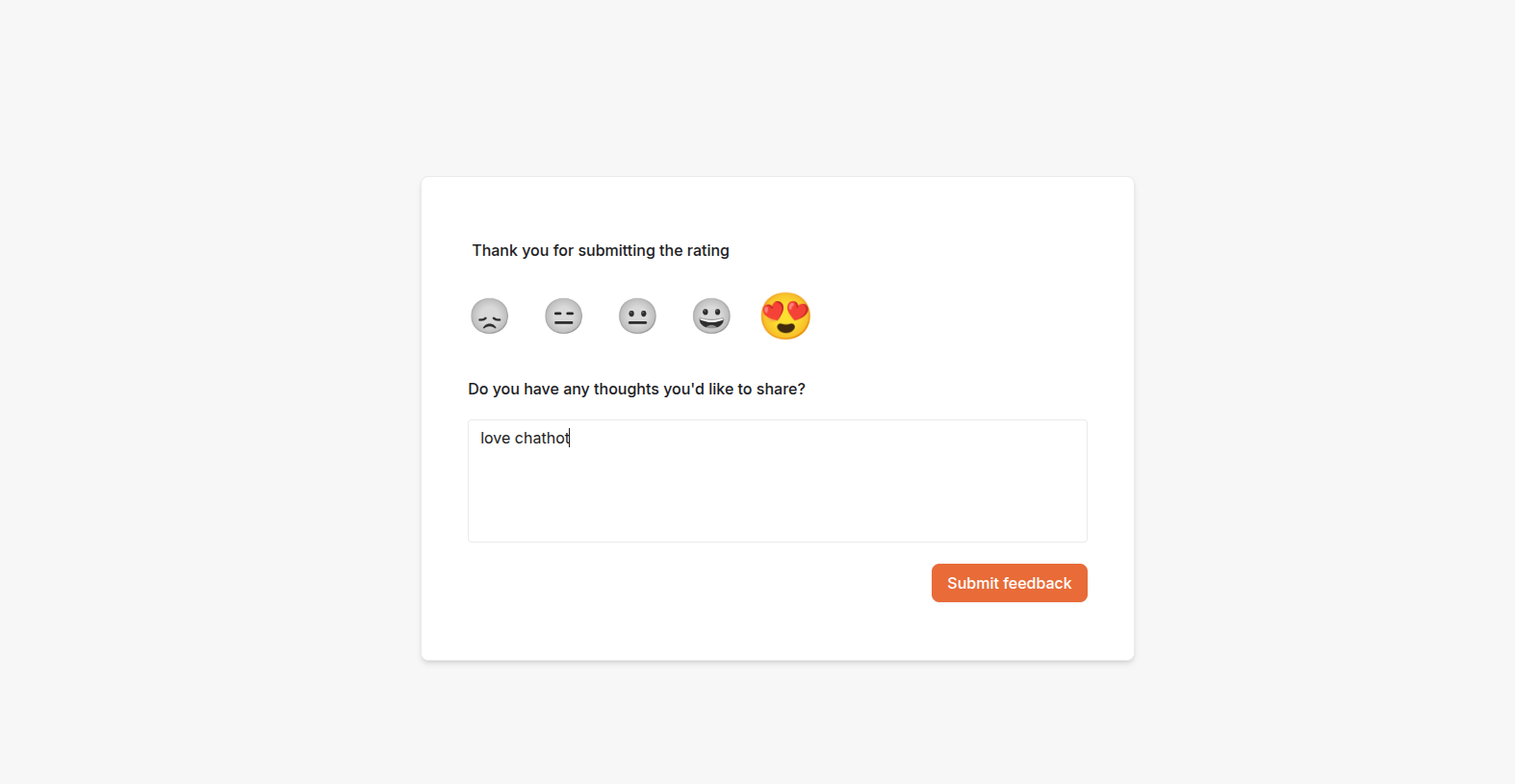
The survey is sent automatically as soon as the conversation is marked Resolved.
Each conversation receives the survey only once. If you Resolve a conversation, reopen it, and Resolve it again, the customer is not sent a second survey.
Survey rules provides two options:
Contains - send the survey only when the conversation has at least one of the selected Labels.
Does not contain - do not send the survey when the conversation has any of the selected Labels.
Practical example: choose Does not contain and add the spam and test Labels so surveys are not sent for junk or test conversations.
Leaving the Label list empty means the survey is sent for all conversations.
Results are available under Reports > CSAT and can only be viewed by Administrators. The page shows the average score, number of responses, response rate, and each individual response with the customer’s comment. See Section 21.
Exporting CSAT results to CSV is not currently available.
Because the survey is sent whenever a conversation moves to Resolved, only Resolve a conversation when the work is genuinely complete. Use Pending for unfinished work so the satisfaction metrics reflect completed support interactions accurately.
Reports is available from the left sidebar and can only be viewed by Administrators. The page contains six tabs that share the same date filter at the top.
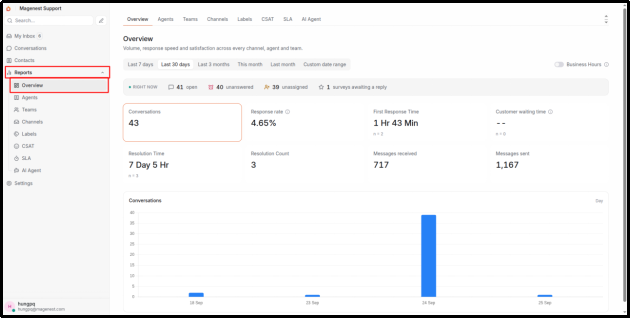
Overview tab: date filter, Current snapshot, KPI cards, and chart
Control | Notes |
Date range | 7, 30, or 90 days, or Custom to set a start and end date |
Count business hours only | Measure response and resolution times only during the Business Hours configured for each Inbox |
Inboxes without Business Hours configured continue to use real elapsed time rather than being treated as zero. This keeps the metrics meaningful even if a company has configured working hours for only some Inboxes.
The selected filter is preserved when you switch tabs. The system automatically chooses whether to group data by hour, day, or week based on the selected date range, so no manual adjustment is required.
Metric | Meaning |
Conversations | Number of conversations opened during the selected period |
Resolved | Number of times conversations moved to Resolved during the selected period |
Response Rate | Percentage of conversations that received at least one reply from an Agent |
First Response Time | Average time customers waited for the first Agent reply |
Response Time | Average time customers waited for later replies after the first response |
Resolution Time | Time from when a conversation opened until it moved to Resolved |
Response Time shows whether the team continues to follow up throughout the conversation, not just whether the first response was fast. A team that replies within one minute and then leaves the customer waiting half a day may have an excellent First Response Time but a poor Response Time.
AI assistant replies do not count as human responses. Only messages sent by an Agent are included in Response Rate and First Response Time. This is intentional: a bot replying in two seconds does not necessarily mean the customer has received human support.
Tab | What it answers |
Overview | Trends over time, plus a Current snapshot showing how many conversations are Open, unanswered, unassigned, and how many surveys have no response. |
Agents | How much work each Agent handled and how quickly they responded. |
Teams | Workload and response performance by Team. |
Channels | Where customers come from, either aggregated by channel or broken down by individual Inbox. |
Labels | Which types of work account for the largest share, based on the Labels your team uses. |
CSAT | Customer satisfaction scores and individual responses. |
The KPI cards at the top of the page also act as chart selectors. Click a card to plot that metric in the chart below. The system chooses a bar or line chart automatically based on the type of metric.
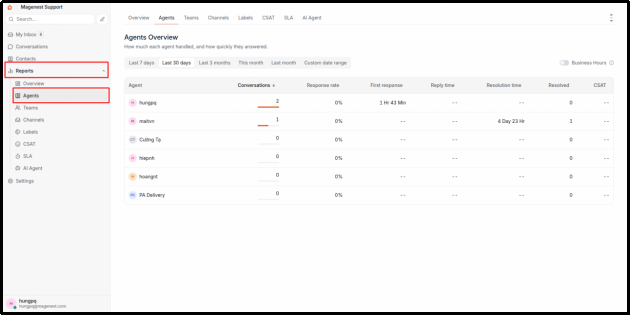
Agents tab: workload and response performance by Agent
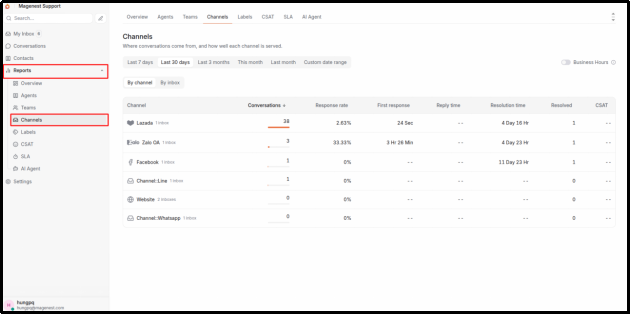
Channels tab: view aggregated channel performance or drill down by Inbox
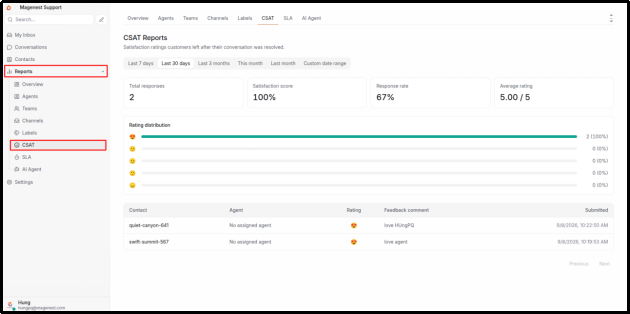
CSAT tab: satisfaction scores and individual customer responses
The Labels tab contains only three columns—Conversations, Share, and Response Rate—instead of the seven columns available in the other tabs. This is intentional. A conversation can have multiple Labels, so calculating average handling times per Label would count the same conversation under every Label it carries and produce misleading results. Simple volume counts do not have that problem.
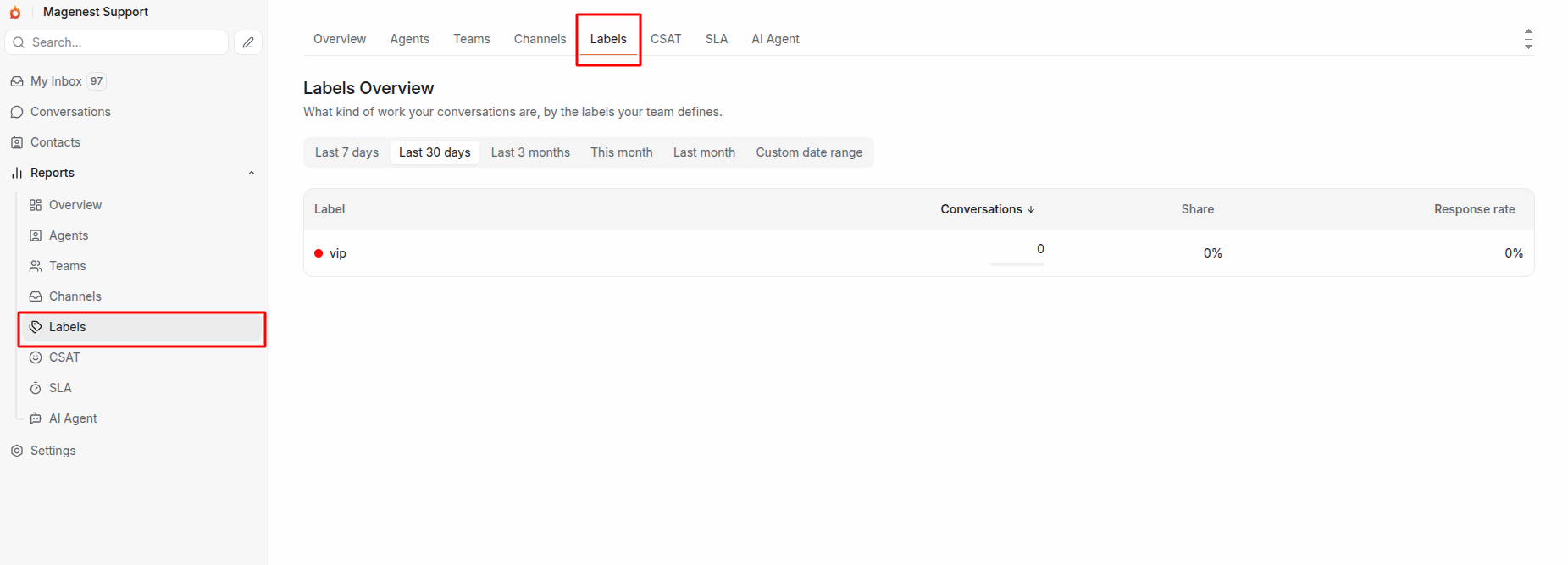
Labels tab: only three columns because a conversation can have multiple Labels at the same time
Item | Status |
Export reports to CSV or Excel | Not available |
Agents can view their own performance metrics | Not available; Reports are currently Administrator-only |
Data from before this version update | Conversation volume and Resolution Time are backfilled; Response Time is available only from the update date onward |
Field | Notes |
Company name | Displayed throughout the interface |
Default language | Applied to Agents who have not selected their own language |
Domain, Support email |
|
What conversations can Agents see? | Controls Agent conversation scope: only their own work, their Team’s work, or all conversations in Inboxes where they are a Collaborator. Changes take effect company-wide immediately. See Section 17.8. |
Branding (name and logo) | Replace the default branding on the interface, login page, and chat widget. Leave blank to use Chathot branding. |
Show full IP in Audit Logs | Off by default. Audit Logs normally show partially masked IP addresses. Enable only when reviewers genuinely need the exact IP address. |
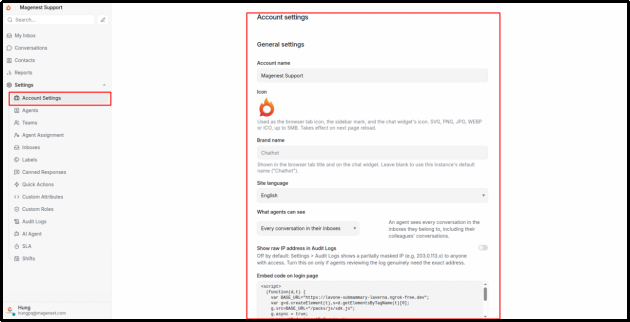
Company account settings
Setting | Description |
Personal information | Display name, avatar, and email address |
Change password |
|
Message Signature | Signature automatically appended to customer messages when the signature control is enabled |
Interface | Language and conversation list display preferences |
Audio Notifications | Sound alert for new messages; recommended |
Notifications | Choose which notification types you receive; see Section 12.3 |
Access Token | Token used to connect external systems; includes a regenerate option |
MFA | Not currently available |
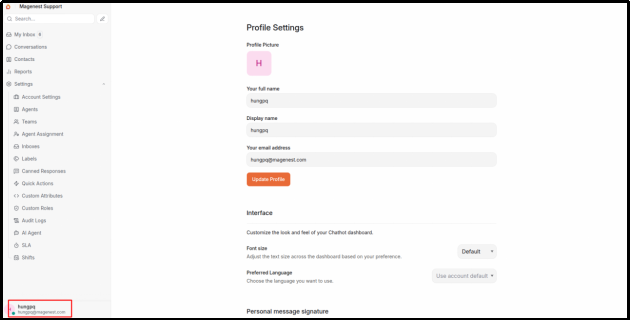
Personal Profile Settings page
Under Profile Settings > Active Sessions, you can see every device and browser currently signed in to your account, including browser type, operating system, most recent activity, and which session you are using right now.
If you see an unfamiliar session—for example, a login from a computer that is not yours—click Revoke to sign that session out immediately. You do not need to change your password first.
You cannot revoke the session you are currently using to view this page.
The system does not currently determine the geographic location (city/country) of each session, so the location column remains blank.
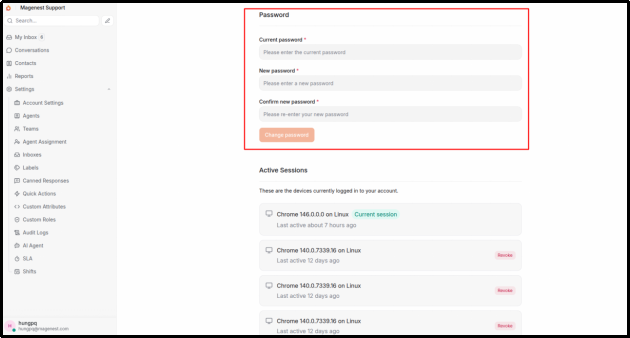
Active Sessions list in Profile Settings
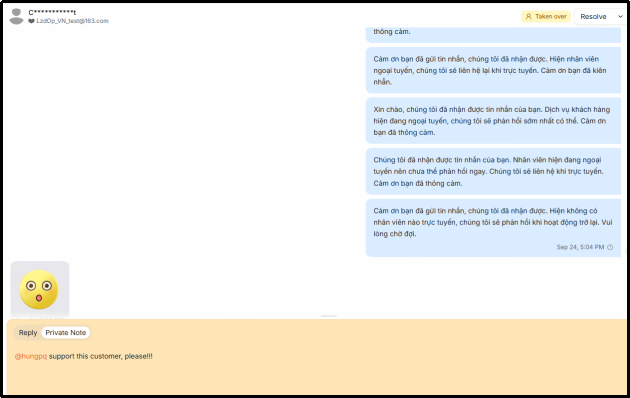
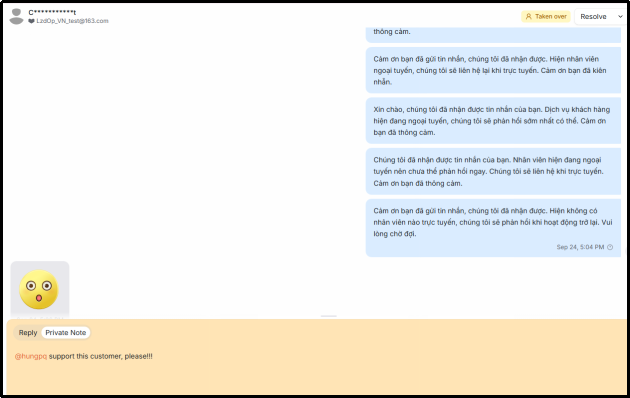
- Right-click the conversation you want to reassign to another Agent.
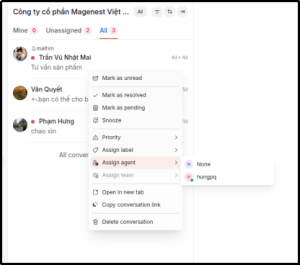
If the conversation already has an Assignee, that current Assignee is not shown as a reassignment option.
Press Ctrl + / (Mac: Cmd + /) at any time to open the keyboard shortcut reference.
Navigation
Key | Action |
Alt + J and Alt + K | Move to the previous or next conversation |
Alt + C | Go to Conversations |
Alt + V | Go to Contacts |
Alt + S | Go to Settings |
Alt + N | Move to the next list tab (Mine, Unassigned, All) |
Alt + O | Collapse or expand the sidebar |
Up/Down arrow keys | Move through dropdown lists |
Conversation Actions
Key | Action |
Alt + E | Mark the open conversation as Resolved |
Ctrl + Alt + E (Mac: Cmd + Alt + E) | Resolve the current conversation and move to the next one. This is especially useful when clearing a backlog. |
Alt + M | Open the Snooze menu |
Message Composer
Key | Action |
Enter | Send message |
Shift + Enter | Insert a new line |
Alt + L | Switch to Reply |
Alt + P | Switch to Private Note |
Ctrl + Alt + A (Mac: Cmd + Alt + A) | Attach a file |
/ | Insert a Canned Response |
Fully Supported
Core: Login, email invitations for Agents, 40-language interface, keyboard shortcuts, and Agent availability status.
Conversations: real-time conversation list; filters by status, Assignee, channel, Label, and Team; advanced filters; Folders; sorting; Unattended; Mentions; replies across all 13 channels; two-way file attachments on Website, Email, and Facebook; Canned Responses; Private Notes; @Mentions; Participants; Agent assignment; Team assignment; Priority; Labels; Snooze with automatic reopening; automatic reopening when the customer messages again; Mute and Unmute; mark as unread; right-click menu; bulk actions; delete conversations; delete messages; review previous conversations with the same customer; resize the composer; auto-saved drafts; signatures; and Chathot Agent, the private AI assistant for Agents while composing replies.
Search: search Contacts, Conversations, and Messages; recent search history.
Contacts: view, search, create, edit, delete, and merge Contacts; Contact Labels; customer Notes; Active list; Segments; sorting; and conversation history.
Administration: connect all 13 channels (Website, Facebook, Instagram, Zalo, Email, TikTok, TikTok Shop, Lazada, Shopee, Telegram, LINE, WhatsApp, and Google Business Profile); Shifts; rotate the Website identity verification key; custom branding; Collaborators; Business Hours with after-hours assignment blocking and auto-replies; automatic greetings; email collection; Lock to single conversation; Pre Chat Form; Widget Builder; Agents; Teams; Labels; Custom Attributes; Canned Responses; Custom Roles; Agent conversation scope; two Auto Assignment mechanisms with Team routing; Workload Limit; queue reassignment scan; SLA Policies with breach alerts; the full AI Customer Assistant feature set; per-conversation bot/human control; CSAT surveys; six-tab reporting; Quick Actions; Audit Logs; bulk Agent invitations; and FAQ Suggestions, Message Reports, and Playground under AI Agent.
Notifications: real-time notification bell, My Inbox, audio alerts, and browser Push Notifications.
Supported with Limitations
Feature | Limitation |
File attachments on Zalo, Instagram, TikTok, marketplace channels, Telegram, and WhatsApp | Files sent by customers can be received, but outbound messages currently support text only. |
Shopee channel | Implemented but not yet verified on a live Shopee account. Shopee is also not granting Chat API access to new applications; see Section 15.9. |
WhatsApp channel | Manual Cloud API setup only. Template messages are not supported, so free-form replies cannot be sent more than 24 hours after the customer’s last message. Temporary tokens expire after roughly 24 hours. |
Google Business Profile channel | Reviews only. Each review supports one public reply; sending another overwrites the previous reply on Google. New reviews are checked about every 2 minutes. AI Customer Assistant is not supported. |
Delete message | Deletes only the copy stored in Chathot; it does not recall a message already delivered to the customer. Cannot be undone. |
Shifts | Affect Auto Assignment only. They do not change conversation visibility or Online status. |
Notification settings | Push Notifications are fully supported in the browser (Section 12.5). The Email column does not yet send real notification emails. |
Business Hours | Customer-facing availability applies only to Website chat. Auto Assignment blocking and after-hours auto-replies apply across channels. |
Allow messages after resolved | Affects only the Website chat widget interface. |
AI Budget | Warning only; does not automatically stop AI requests. |
Snooze | Reopens automatically at the scheduled time, but the scheduler can be up to one minute late. |
Queue reassignment scan | Runs once per minute, so reassignment can be delayed by up to one minute. Conversations inactive for more than 7 days are skipped. |
SLA Policies | Provide targets, countdown timers, and breach alerts. A breach only triggers a notification; it does not reassign the conversation or increase Priority. New companies do not have a default SLA Policy and must create one. |
Reports | Administrator-only; CSV export is not available. Response Time data is available only from the date this version was deployed onward. |
Status change history | The system records who changed each status and when, but there is currently no dedicated screen for viewing the full history. |
Visible in the Interface but Not Currently Working
Conversations: Send transcript, which is intended to email a conversation transcript.
Contacts: CSV import, CSV export, and calling a Contact.
Administration: Agent Bots, Security and SAML, MFA, deleting the company account, and exporting CSAT results to CSV.
Not Available in the System
Automation, third-party integrations, billing, Help Center, campaigns, and the SMS, Twilio, and Voice channels.
Display and Access Issues
I can sign in, but I do not see any conversations.
You have not been added as a Collaborator on any Inbox. Ask an Administrator to go to Settings > Inboxes, select the Inbox, open Collaborators, and add you.
I could see a colleague’s conversations yesterday, but I cannot see them today.
An Administrator may have changed “What conversations can Agents see?” under Settings > Account Settings to a more restrictive scope. The data has not been deleted. See Section 17.8.
I can see Settings, but the only option inside it is Canned Responses.
This is expected. You are signed in as an Agent, so the system hides Administrator-only settings and shows only the options available to your role.
A colleague says they did not receive a notification when I mentioned them.
They are not a Collaborator on that Inbox. Chathot silently ignores mentions of users who are not eligible.
Missed Work and Notification Issues
A customer replied, but I cannot find the conversation in the list.
When a customer replies, Chathot automatically reopens a Resolved or Snoozed conversation, so it should return to the Open filter. If you still cannot find it, check whether the conversation is Muted, because Mute intentionally prevents automatic reopening. Click Unmute to restore normal behavior.
A new customer messaged us, but nobody received a notification.
The “new conversation” notification type is disabled by default. Each user must enable it under Profile Settings > Notifications. See Section 12.3.
New conversations are not being assigned automatically.
Check all five conditions in Section 18.1. The three most common causes are: everyone is Offline, the current time is outside configured Business Hours, or all eligible Agents have reached the Workload Limit. In all three cases, the conversation remains in Unassigned and is automatically reconsidered within one minute after the conditions become valid again. See Section 18.5.
I do not receive email or notifications after closing the tab.
The system does not currently send notification emails. Push Notifications are supported; see Section 12.5. Enable the Push column under Profile Settings > Notifications and allow notifications in the browser. If you still do not see alerts, enable Audio Notifications and keep a Chathot tab open while you work.
A Snoozed conversation did not reopen exactly on time.
The scheduler checks once per minute, so reopening can be delayed by up to one minute. If the delay is longer, ask an Administrator to check whether the server-side scheduler service is still running.
Channel Issues
Zalo is connected, but no messages are coming in.
The OA Webhook Secret has not been added to the Inbox Configuration tab. See Section 15.4.
LINE is connected, but no messages are coming in.
The Callback URL has not been added to the Webhook URL in LINE Developers Console, or Use webhook has not been enabled. See Section 15.11. The webhook URL must also use HTTPS with a valid certificate.
Telegram connection fails or the bot does not receive messages.
Check that the token is still valid—it may have been regenerated in @BotFather—and confirm that the bot is not already connected to another Inbox. The bot accepts only private chats, not group messages. See Section 15.10.
WhatsApp outgoing messages suddenly show Failed after working normally.
The two most common causes are: more than 24 hours have passed since the customer’s last message, or the temporary Meta access token has expired after roughly 24 hours. Add a new long-lived token to the Inbox. See Section 15.12.
A new Google review has not appeared in Chathot yet.
Chathot checks for new reviews approximately every 2 minutes, so wait briefly. If it still does not appear, open the Inbox and check whether reconnection is required.
New conversations stopped being auto-assigned after the company started using Shifts.
An Agent who has not been added to any Shift, or who is currently outside their Shift hours, will not receive Auto Assignment. Review Settings > Shifts. See Section 17.13.
Outgoing Messenger, Zalo, or Instagram messages show Failed.
The usual cause is that more than 24 hours have passed since the customer’s last message, which is a platform-level restriction. Another possibility is that the channel connection has expired; open the Inbox and check for a reconnect option. Chathot does not automatically retry Failed messages.
Email messages are not being received.
Check that IMAP is enabled and, for Gmail, that you are using an App Password. Chathot checks the mailbox once per minute, so there can be a delay of up to one minute.
I created an Email Inbox, but nothing happened.
This is expected—you have only completed Step 1. Open the Inbox Settings and configure IMAP and SMTP. See Section 15.5.
The automatic greeting is not being sent.
Check that Enable greeting message is turned on in the Inbox Settings tab and that a greeting has been entered. The greeting is sent only for the customer’s first message in a conversation.
Filter and Search Issues
A filter returns fewer results than expected.
Check how the conditions are combined: A AND B OR C is evaluated as (A AND B) OR C, in top-to-bottom order, with no mathematical operator precedence. If the logic becomes too complex, split it into two separate Folders.
Filtering by Label does not return older conversations.
Label filters run on the server and should return complete results. Check the Label name. Labels are converted to lowercase when created, so VIP and vip are treated as the same Label.
AI Customer Assistant Issues
The AI does not reply.
Follow the seven-step checklist in Section 19.8. Start by checking whether the conversation shows “You have taken over.”
The AI gives incorrect product information.
See Section 19.9.
The AI keeps replying even though an Agent is handling the conversation.
The Agent must actually send a message before Chathot automatically switches to human takeover; simply opening and reading the conversation does not count. To stop the bot immediately after opening a conversation, click Take over at the top. See Section 9.8. Once taken over, the AI stays silent and no longer resumes automatically after 2 hours as in older versions.
The AI answers sensitive topics that should be handled by a human.
Add keyword Assignment Rules for those topics under Settings > AI Agent > Assignment Rules. When a rule matches, the AI stops and the conversation is routed to a human.
The AI hands over too many conversations and rarely answers automatically.
Read the handover reason displayed beneath the control at the top of the conversation. If most reasons say that the bot could not find sufficiently relevant documentation or that the answer was not supported by any document, the Knowledge Base does not contain enough coverage. Add more documents, or disable Knowledge Base for that Inbox so the AI answers from the System Prompt as before. See Section 19.4.
User and Staffing Issues
A new Agent did not receive the invitation email.
Outgoing email may not be configured. As a temporary workaround, ask the user to select Forgot password on the login screen and set their password that way.
A new Agent can sign in, but the workspace is empty.
They have not been added as a Collaborator on any Inbox.
English term | Vietnamese UI label | Meaning |
Inbox / Channel | Hộp thư đến / Kênh | A connected communication channel |
Conversation | Cuộc trò chuyện | A message thread with a customer |
Contact | Liên hệ | Customer profile |
Agent | “Đại lý” (machine translation) | Support Agent |
Administrator | Quản trị viên | Administrator with full system configuration access |
Collaborators | Cộng tác viên | Agents allowed to work in a specific Inbox |
Assignee | Người được gán | The Agent responsible for a specific conversation |
Unassigned | Chưa gán | No Agent is currently assigned |
Unattended | Không giám sát | No one has replied to the customer yet |
Mentions | Nhắn đến | Conversations where someone mentioned you |
Private Note | Ghi chú riêng | Internal-only note that customers cannot see |
Canned Response | Thư mẫu phản hồi | Prewritten reply inserted by typing / |
Label | Nhãn | Tag used to categorize conversations or Contacts |
Team | Nhóm | Group of Agents, typically organized by department or function |
Folder | Thư mục | Saved conversation filter |
Segment | Phân khúc | Saved Contact filter |
Custom Attribute | Thuộc tính tùy chỉnh | Company-specific data field |
Business Hours | Giờ làm việc | Configured operating hours for an Inbox |
Pre Chat Form | Biểu mẫu trước khi trò chuyện | Form shown before a Website chat begins |
Widget | Khung chat trên website | Website chat interface shown to customers |
CSAT | CSAT | Customer satisfaction survey |
Snooze | Tạm ẩn | Temporarily hides a conversation until a scheduled time |
Resolve | Giải quyết | Marks a conversation as complete |
Mute | Tắt tiếng | Closes a conversation and prevents automatic reopening for 6 days |
Knowledge Base | Kho tri thức | Documents used by AI for retrieval and grounded answers |
System Prompt | System Prompt | Instructions that define how the AI should behave and respond |
Assignment Rules | Quy tắc Phân công | Routes conversations based on message content |
Assignment Policy | Chính sách phân công | Default method for distributing work |
SLA | Cam kết SLA | Response and resolution time commitment |
Bot mode | Bot đang trả lời / Bạn đã tiếp quản | Shows whether AI or a human Agent is currently responsible for customer replies |
Reports | Báo cáo | Operational analytics for volume, response performance, and satisfaction |
Macros / Quick Actions | Thao tác nhanh | Preconfigured sequence of actions that runs with one click |
Audit Log | Nhật ký hoạt động | Administrative change history showing who created, edited, or deleted items; Administrator-only |
Copilot / Chathot Agent | Chathot Agent | Private AI assistant for Agents; visible only to the Agent and never sent to customers |
FAQ Suggestions | Đề xuất FAQ | AI-generated suggestions based on recurring customer questions that may be added to the Knowledge Base |
Message Reports | Báo cáo tin nhắn | Agent-submitted reports flagging incorrect AI replies for Administrator review |
Playground | Playground | Test area for prompts and Knowledge Base behavior before enabling changes in live Inboxes |
Active Sessions | Phiên đăng nhập | List of devices currently signed in to your account; individual sessions can be revoked |
Shift | Ca làm việc | Per-Agent working schedule used to limit Auto Assignment to Agents currently on shift |
Push notification | Thông báo đẩy | Operating-system notification that can appear even after the Chathot tab is closed |
Review (Google) | Đánh giá | Google review containing customer text and star rating; replies are posted publicly from Chathot |
HMAC / Identity validation | Xác thực danh tính người dùng | Secret key used by the website to sign customer identity in the chat widget; the key can be rotated |