Thank you for purchasing our extension. If you have any questions that are beyond the scope of this document, please feel free to contact us via [email protected]
By: Magenest |

Introduction
Frequently Bought Together for Magento 2 is an AI-powered extension developed by Magenest to recommend complementary products based on historical purchase data.
Recommendations can be displayed on the Product Detail Page, Cart Page, and Mini Cart, helping shoppers discover relevant products and add more items to their orders.
Highlight Features
For Admin:
- Enable or disable Frequently Bought Together from Magento Admin.
- Configure the AI endpoint, timeout, data synchronization, and cron schedule.
- Set the recommendation limit and minimum support threshold.
- Control recommendations on the Product Detail Page, Cart Page, and Mini Cart.
- Configure separate product limits for desktop and mobile.
- Pin priority products and exclude products using blacklist rules.
- Use pinned products as fallback recommendations when AI data is unavailable.
For Customer:
- Receive relevant complementary product recommendations.
- Discover related products directly on the Product Detail Page, Cart Page, and Mini Cart.
- View recommendations across desktop and mobile devices.
- Continue receiving pinned recommendations when AI results are unavailable.
System Requirements
Before installing and configuring Frequently Bought Together, make sure the Magento environment meets the following requirements:
- A supported Magento 2 installation.
- Magento cron is enabled and running.
- The server can connect to the configured AI endpoint via HTTPS.
- Historical order and product data are available for synchronization.
- The admin account has permission to manage module configuration, pinned products, and blacklist rules.
Admin Configuration
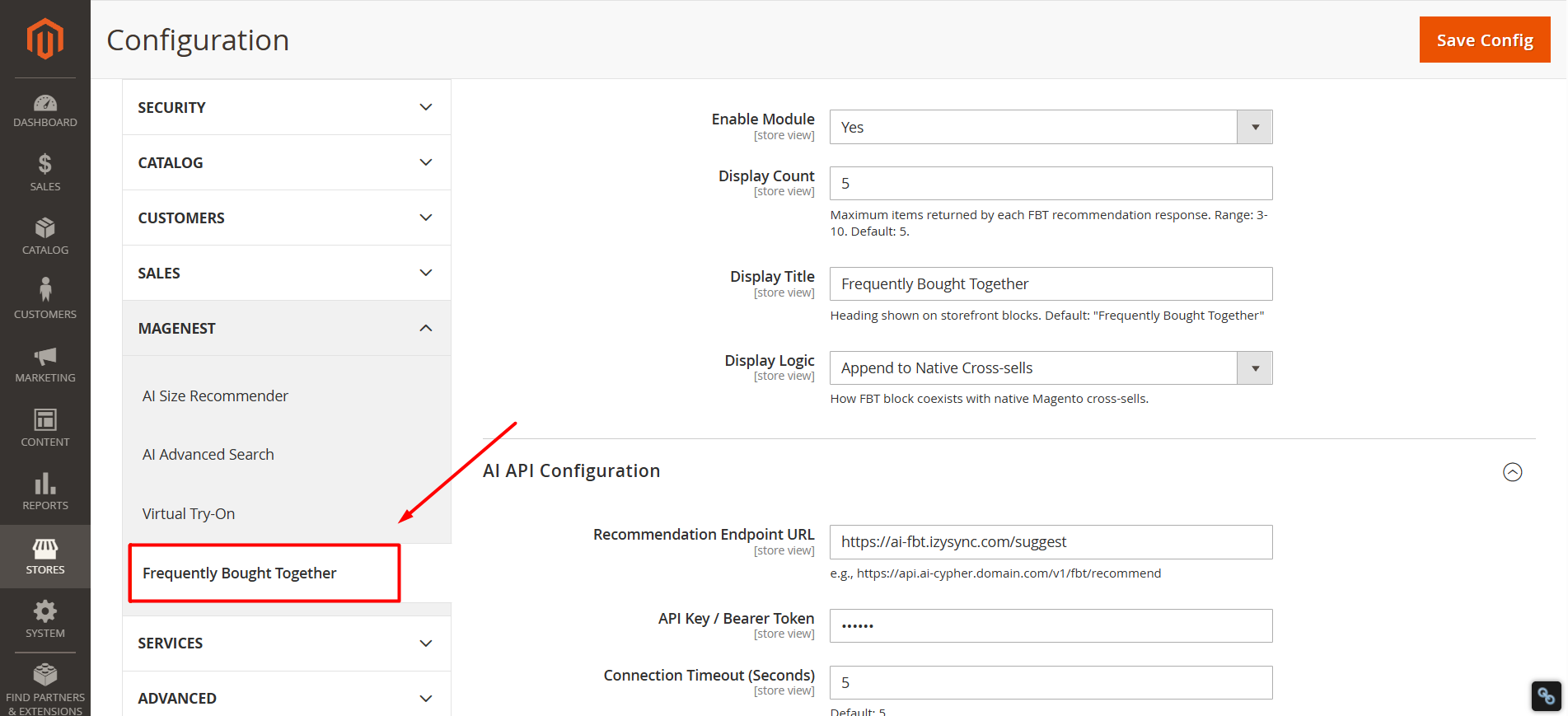
On the admin sidebar, go to:
Stores > Configuration > Magenest > Frequently Bought Together
 General Configuration
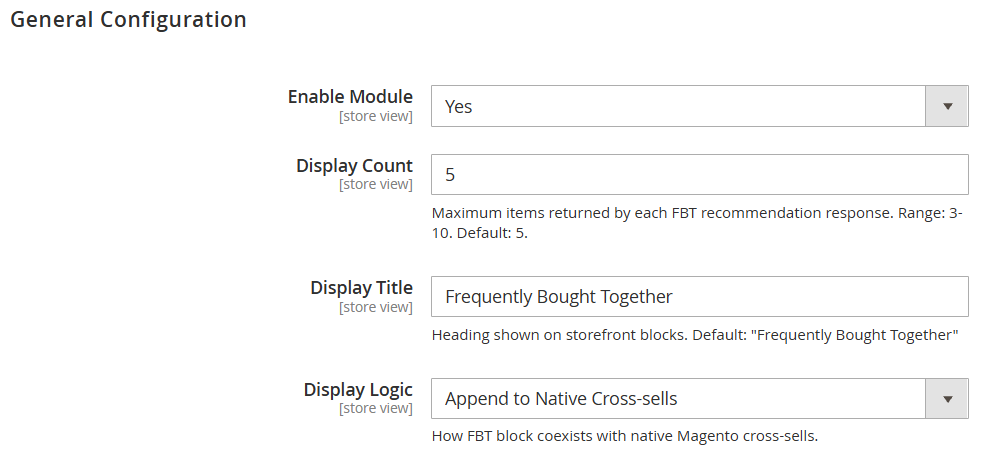 Enable Module:
Select Yes to enable Frequently Bought Together.
When set to No:
- FBT is hidden from the PDP, Cart Page, and Mini Cart.
- Magento stops sending recommendation requests to the AI service.
Display Count:
Defines the maximum number of items returned in each FBT recommendation response.
- Valid range: 3–10
- Default value: 5
Display Title:
Defines the title displayed above the recommendation block.
Default value: Frequently Bought Together
Display Logic:
Controls how the FBT block is displayed together with Magento’s native cross-sell product section.
After completing the configuration, click Save Config.
AI API Configuration
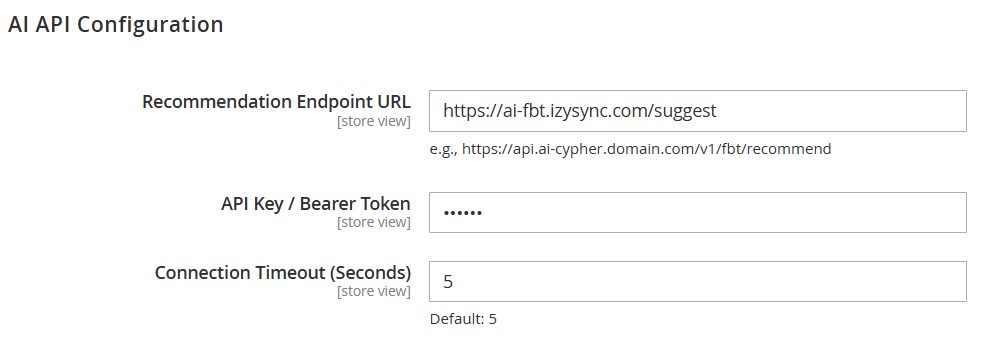
- Recommendation Endpoint URL:
Enter the AI endpoint used by Magento to request recommendations.
Example: https://ai-fbt.izysync.com/suggest
If the URL is incorrect or the AI service cannot be reached, Magento applies fallback behavior.
Enter the authentication token only when required by the AI service.
The token is sent in the following header: Authorization: Bearer
Magento encrypts the saved value and masks it on the Admin screen.
- Connection Timeout (Seconds):
Defines how long Magento waits for the AI response.
Default value: 5 seconds
When the request exceeds this time, it is treated as an error and Magento applies fallback behavior.
AI & Ranking Rules
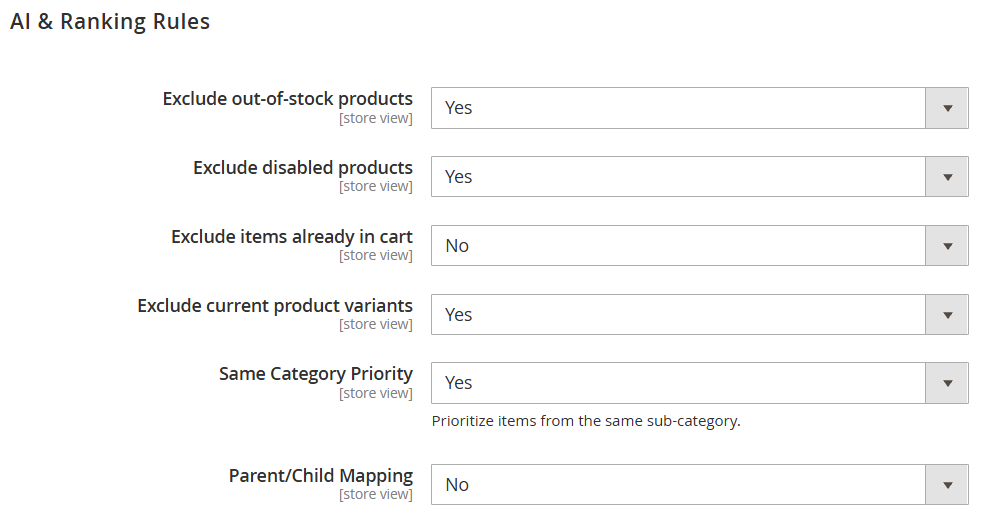
- Exclude Out-of-Stock Products:
- Select Yes to remove out-of-stock products from FBT results.
- Products can become eligible again after they are restocked.
- Exclude Disabled Products: Select Yes to remove products that are disabled in the Magento catalog.
- Exclude Items Already in Cart: Select Yes to prevent products already in the cart from being recommended again.
- Exclude Current Product Variants: Select Yes to exclude variants of the product currently being viewed.
- Same Category Priority: Select Yes to prioritize products from the same subcategory.
- Parent/Child Mapping: Enable this option to process relationships between configurable parent products and simple product variants.
Display Settings
By default, storefront display settings may be set to No. Change the required fields to Yes to show the FBT block.
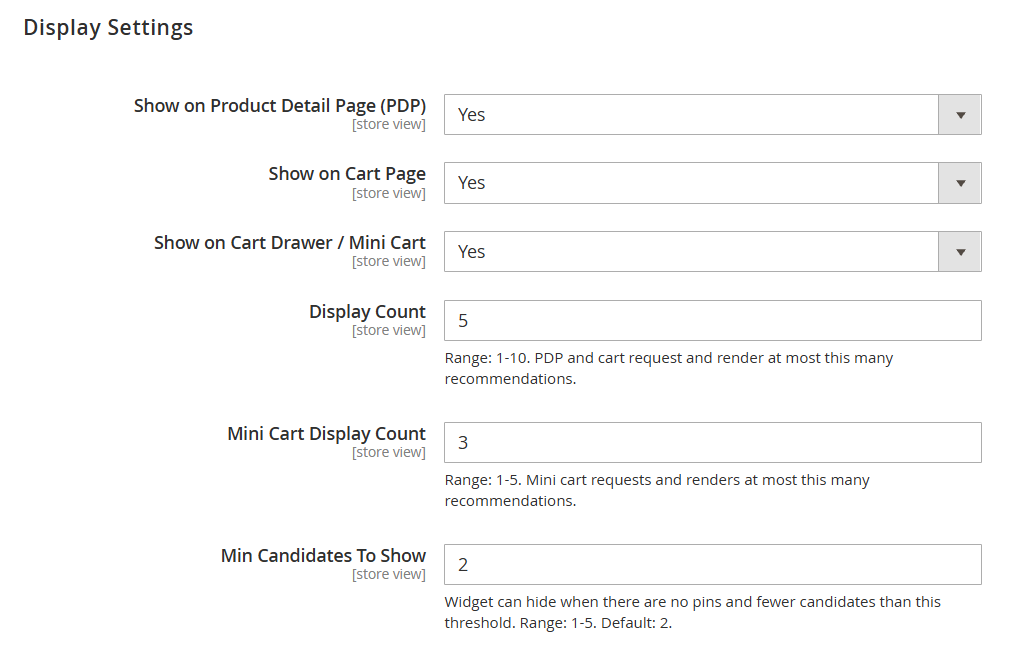
- Show on Product Detail Page (PDP): Controls whether FBT appears on product detail pages.
- Yes: The FBT block is displayed and the page requests recommendations from the AI service.
- No: The block is hidden and no recommendation request is sent from the PDP.
- Show on Cart Page: Controls whether FBT appears on the shopping cart page. This setting applies only to the Cart Page and does not affect the PDP or Mini Cart.
- Show on Cart Drawer / Mini Cart: Controls whether FBT appears in the Mini Cart or cart drawer. This setting applies only to the Mini Cart and does not affect the PDP or Cart Page.
- Display Count: Sets the maximum number of recommendations displayed on the PDP and Cart Page.
- Valid range: 1–10
- The displayed number cannot exceed the value configured in General Configuration > Display Count
For example, if the General Display Count is 5 and this field is set to 8, the system will display no more than 5 recommendations.
- Mini Cart Display Count: Sets the maximum number of recommendations displayed in the Mini Cart.
A lower value is recommended because the Mini Cart has limited display space.
- Min Candidates To Show: Sets the minimum number of valid AI recommendations required to display the FBT block when no pinned product is available.
- Valid range: 1–5
- Default value: 2
For example, if this field is set to 2 but the AI returns only one valid product, the FBT block may be hidden. If a valid pinned product is available, the block can still be displayed.
Block Item Limits
These settings define the maximum number of products displayed in each FBT block on mobile and desktop devices.
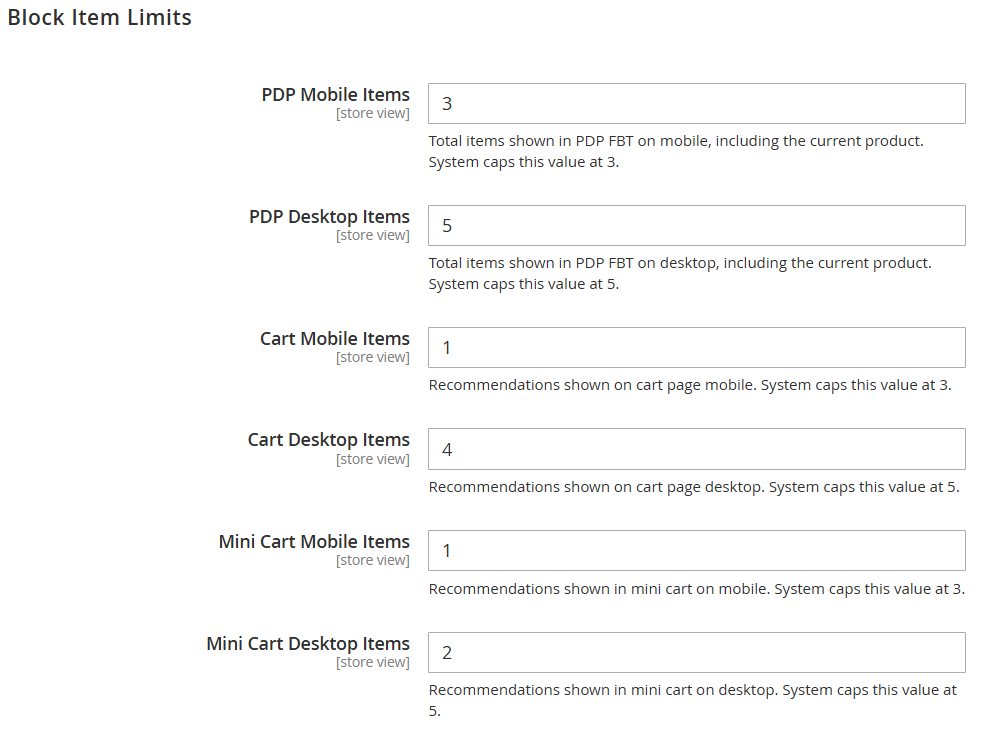
- PDP Mobile Items: Sets the total number of items shown in the FBT block on the Product Detail Page on mobile. This total includes the product currently being viewed.
- PDP Desktop Items: Sets the total number of items shown in the FBT block on the Product Detail Page on desktop. This total includes the product currently being viewed.
- Cart Mobile Items: Sets the maximum number of recommended products displayed on the Cart Page on mobile.
- Cart Desktop Items: Sets the maximum number of recommended products displayed on the Cart Page on desktop.
- Mini Cart Mobile Items: Sets the maximum number of recommended products displayed in the Mini Cart on mobile.
- Mini Cart Desktop Items: Sets the maximum number of recommended products displayed in the Mini Cart on desktop.
The actual number of displayed products may be lower if there are not enough valid recommendations after the system applies stock, product status, cart, variant, and blacklist rules.
Cron Job Configuration
These settings control when purchase data is synchronized with the AI service.
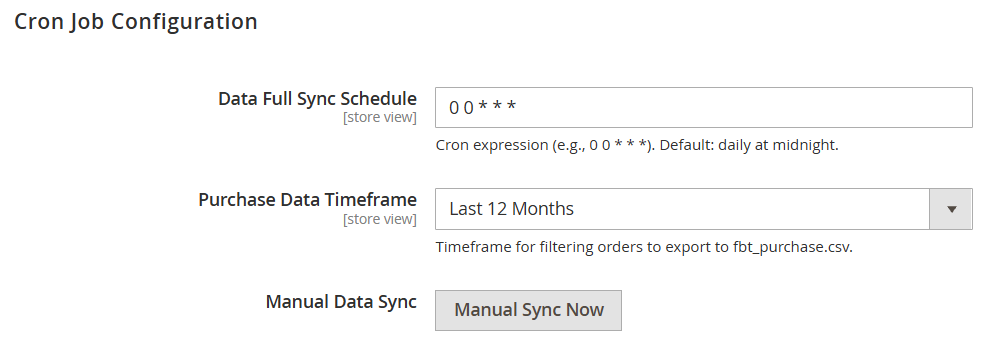
Enter a valid cron expression to define how often the FBT data feed is synchronized automatically.
Example: 0 0 * * *
This schedule runs synchronization once a day at 00:00. Magento cron must be installed and running correctly for automatic synchronization to work.
Select how much historical order data should be included in the purchase feed:
- Last 1 month
- Last 3 months
- Last 6 months
- Last 12 months
A longer timeframe provides the AI with more purchase data, while a shorter timeframe focuses on more recent buying patterns.
- Manual Data Sync: Click Manual Sync Now to export and synchronize the purchase feed immediately. This allows the admin to update the data without waiting for the next scheduled cron job.
- Initial Data Synchronization:
Before testing recommendations for the first time:
- Select the required purchase data timeframe.
- Click Manual Sync Now.
- Wait for the synchronization to complete.
- Check the FBT recommendations on the storefront.
AI Parameters
These settings control how the AI evaluates and selects product recommendations.
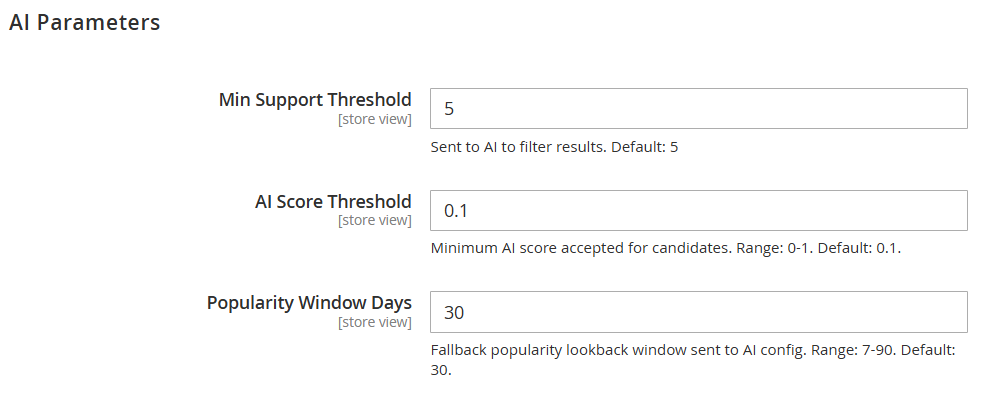
- Min Support Threshold: Sets the minimum number of historical orders in which two products must have been purchased together before they are treated as a frequently bought together pair.
For example, when this value is set to 5, both products must appear together in at least five previous orders.
- AI Score Threshold: Sets the minimum AI relevance score required for a product to be accepted as a recommendation.
- Valid range: 0–1
- Default value: 0.1
Products with a score below this value are excluded from the recommendation results.
- Popularity Window Days: Sets the number of recent days used to calculate popular products for fallback recommendations.
- Valid range: 7–90 days
- Default value: 30 days
For example, when this value is set to 30, the system uses product popularity data from the most recent 30 days.
Frontend Experience
Frequently Bought Together recommendations can appear in three storefront locations: the Product Detail Page, Cart Page, and Mini Cart.
Product Detail Page
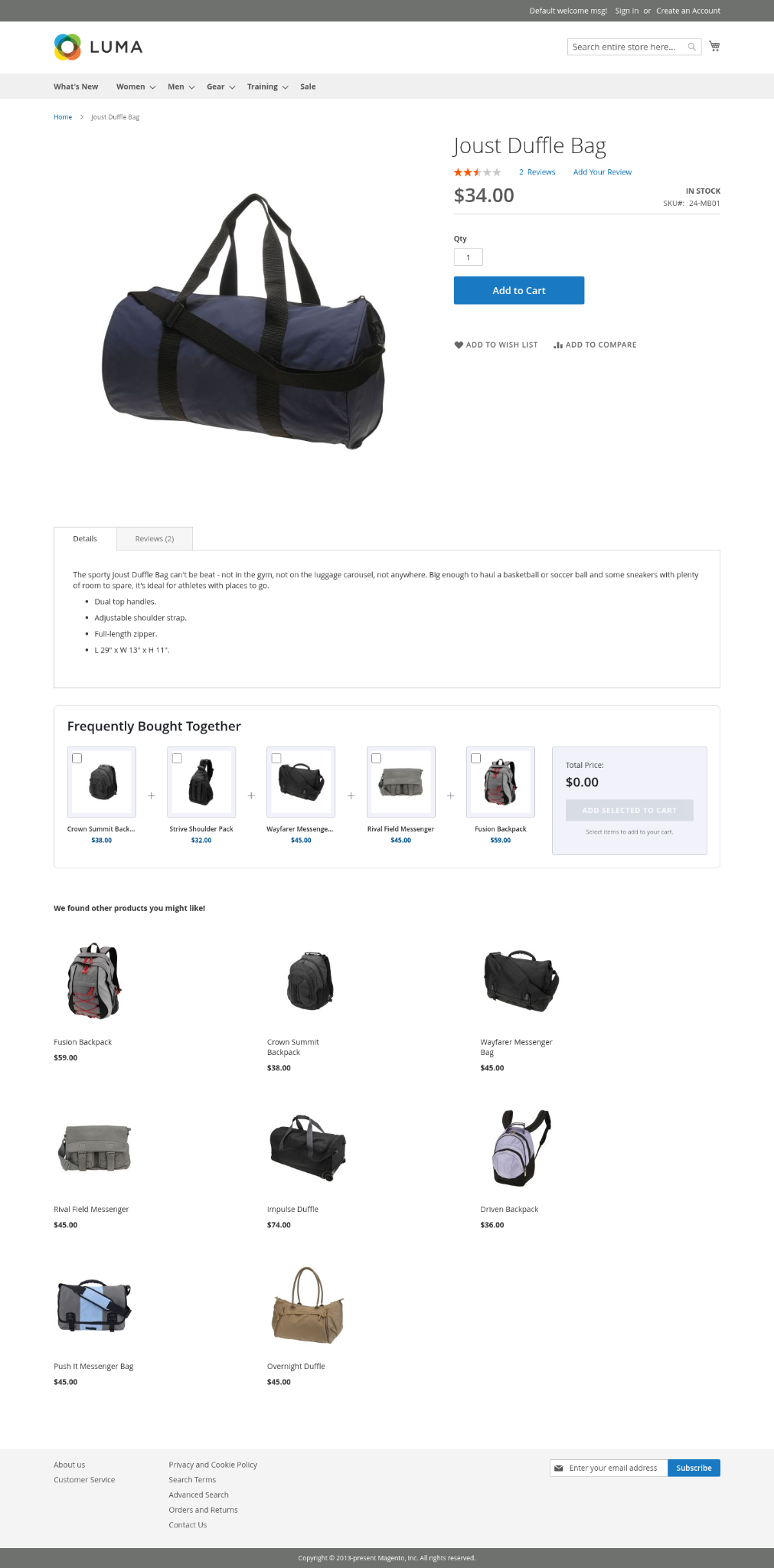
On the Product Detail Page, the FBT block shows the current product together with relevant complementary products.
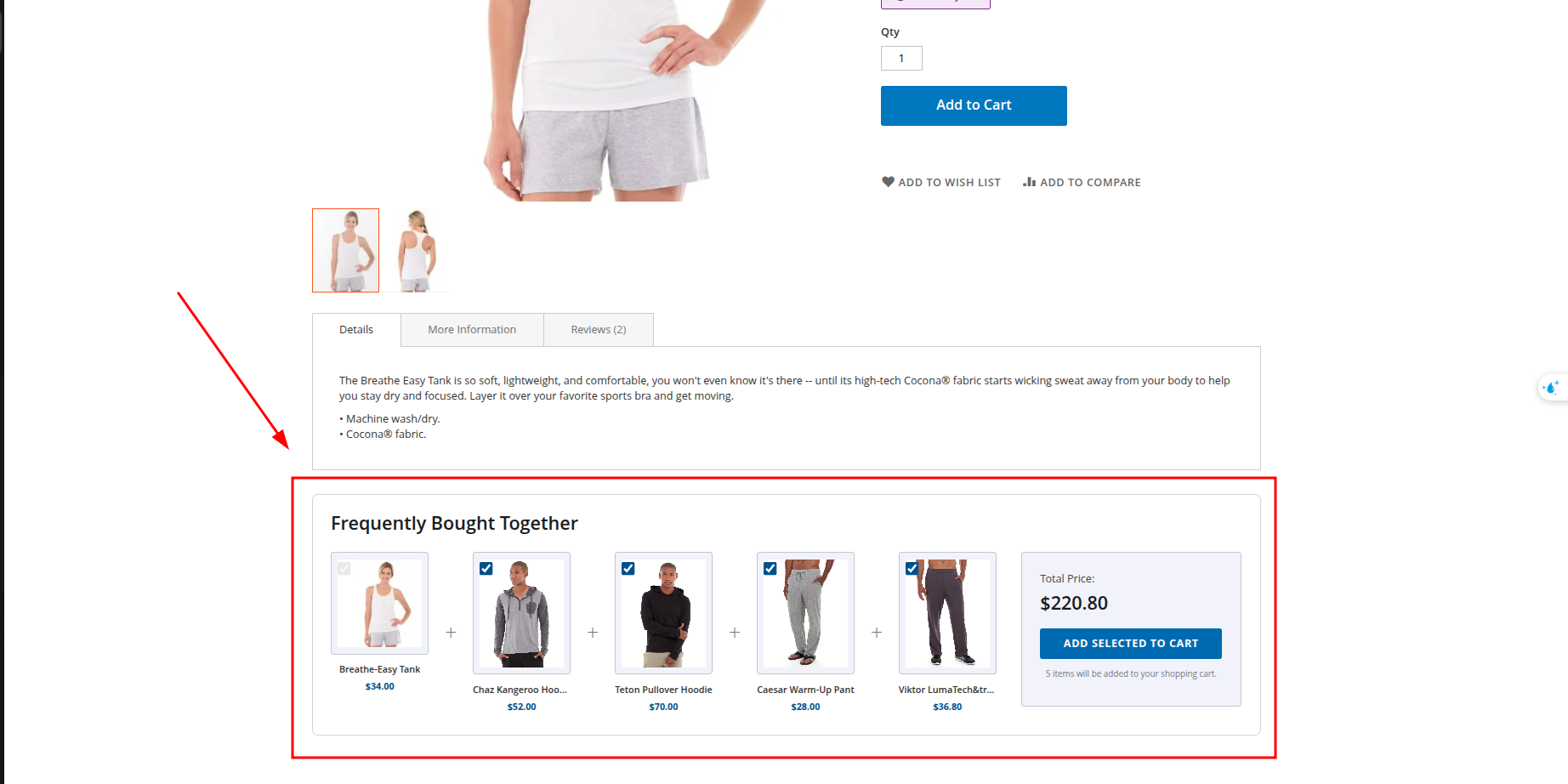
Customers can:
- Select or remove recommended products.
- View the price of each item and the combined total.
- Add all selected products to the cart in one action.
The number of displayed items depends on the PDP limit configured for mobile or desktop.
Cart Page
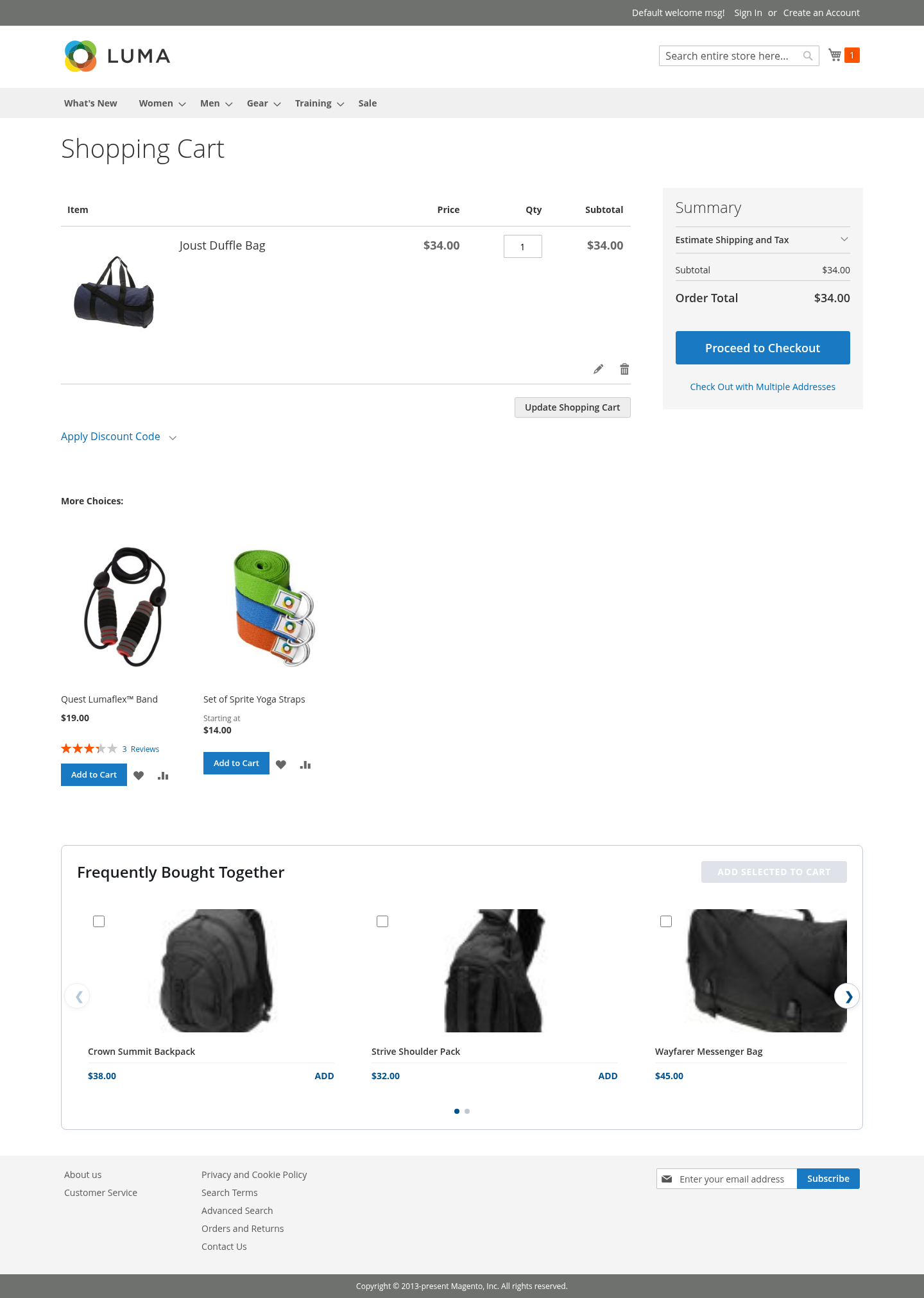
On the Cart Page, recommendations are generated based on the products currently in the shopping cart.
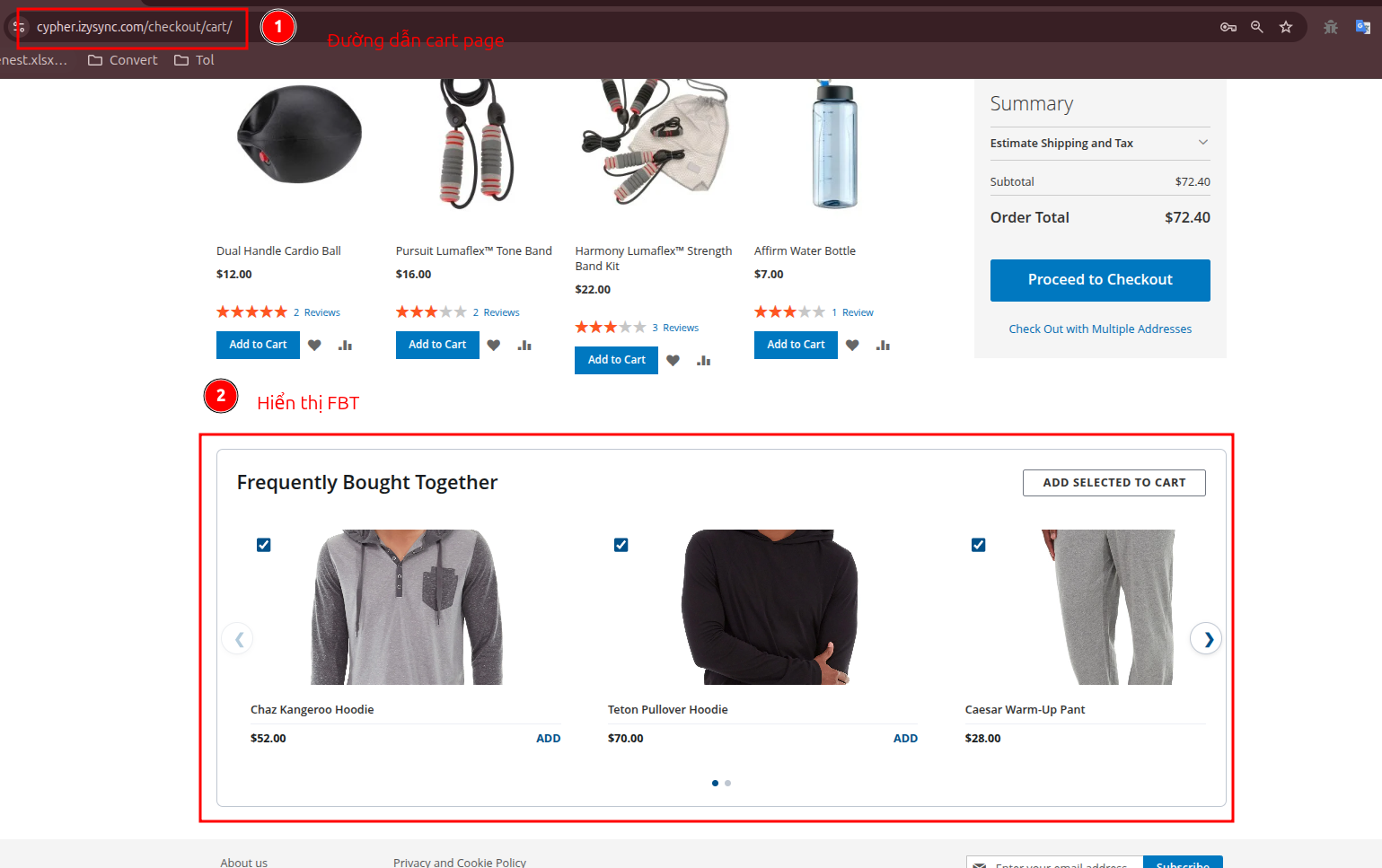
Customers can:
- Discover complementary products before checkout.
- Select the products they want to purchase.
- Add selected recommendations directly to the cart.
The recommendations may update when products are added to or removed from the cart.
Mini Cart
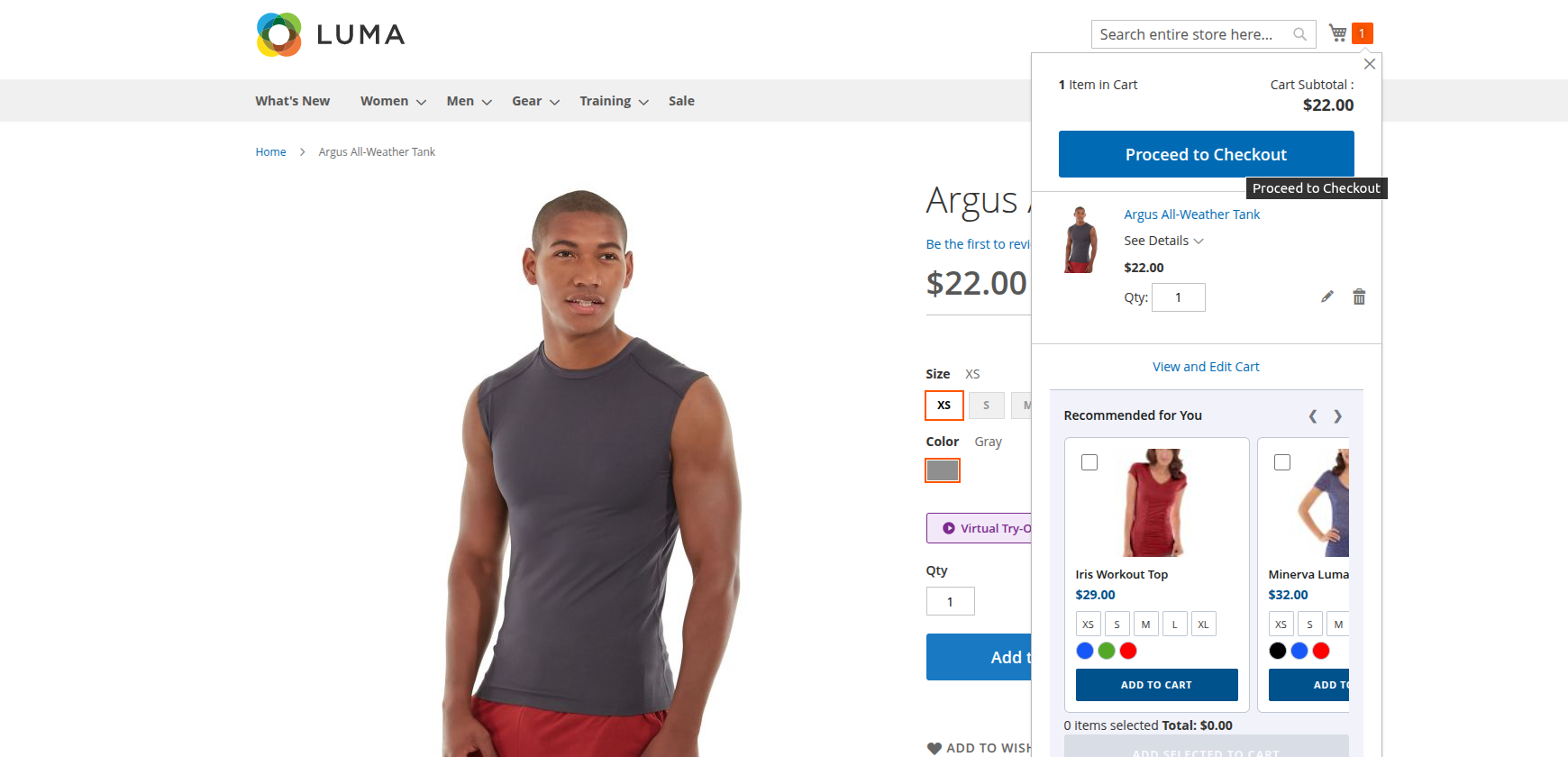
The Mini Cart displays a compact list of recommendations based on the current cart contents.
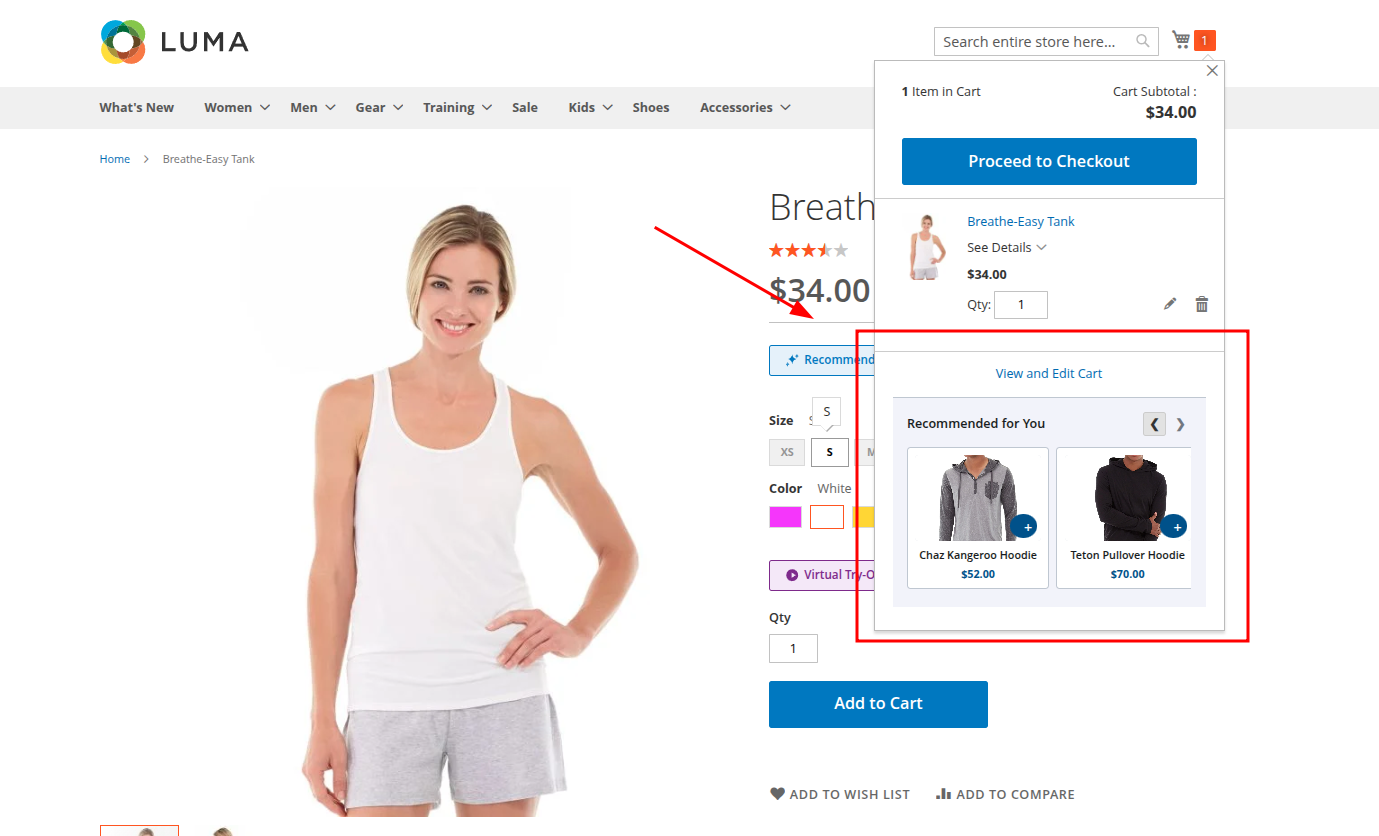
Customers can add a recommended product without leaving the page they are viewing.
The number of recommendations shown depends on the Mini Cart limit configured for mobile or desktop.
Pinned Product Management
Pinned products allow administrators to manually prioritize specific products in Frequently Bought Together recommendations.
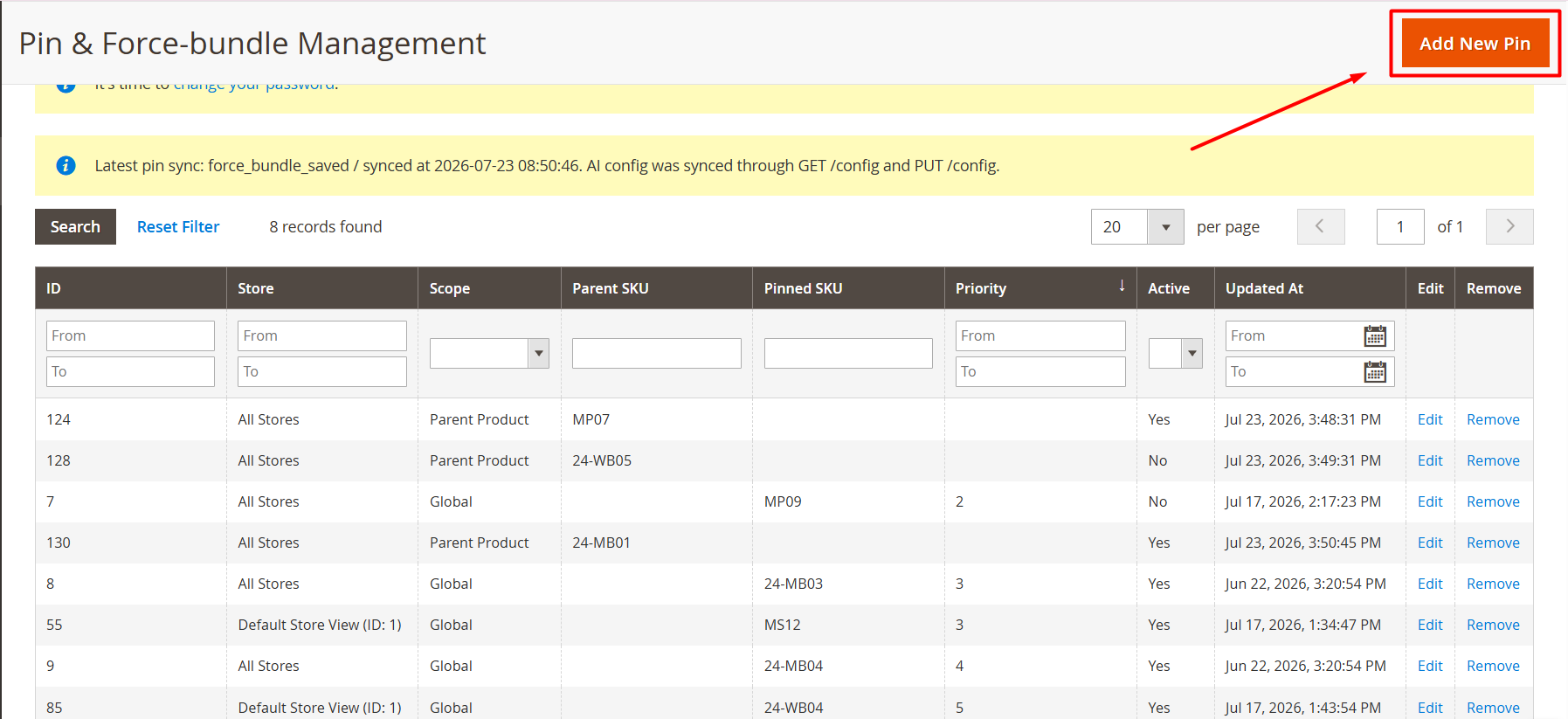
Go to: Catalog > Frequently Bought Together > Pin & Force-bundle
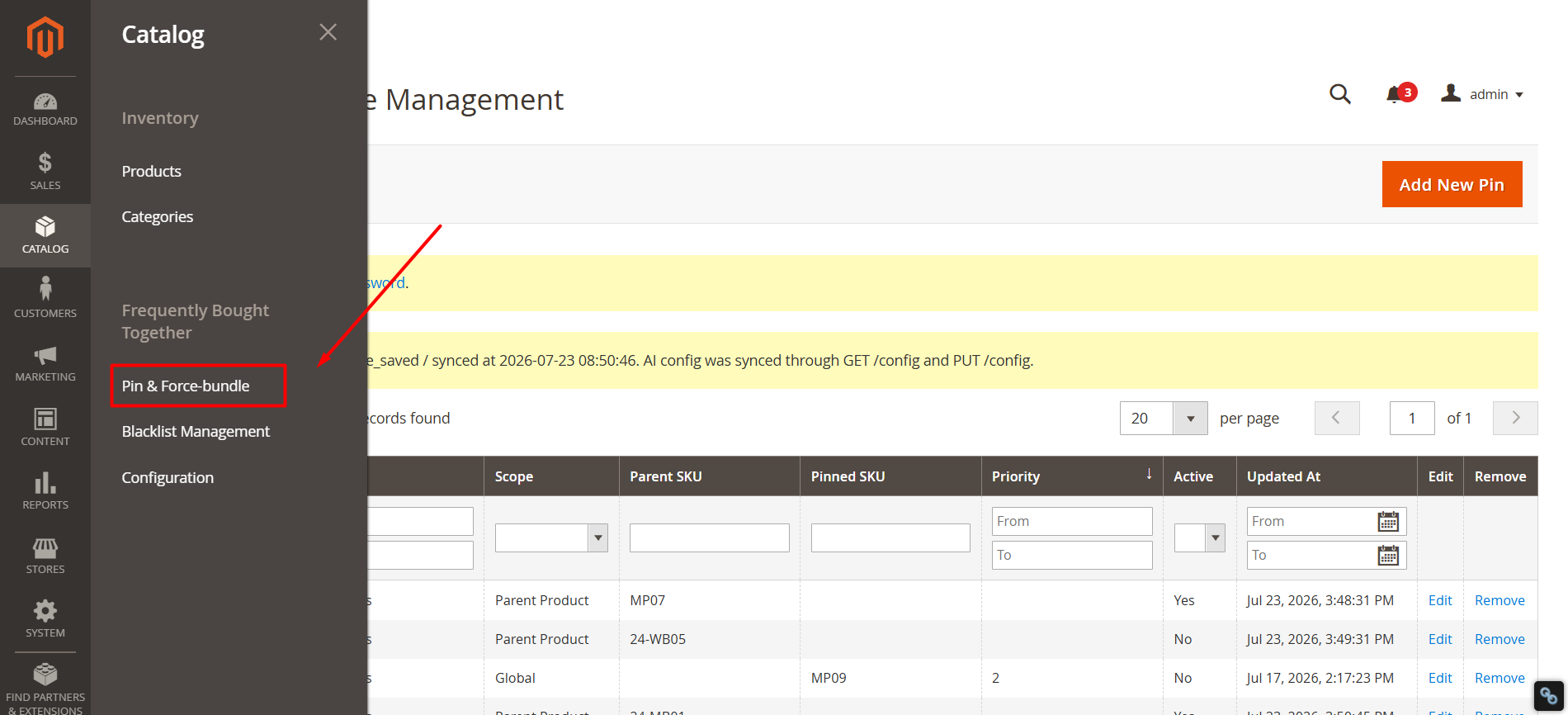
Pinned Product Fields
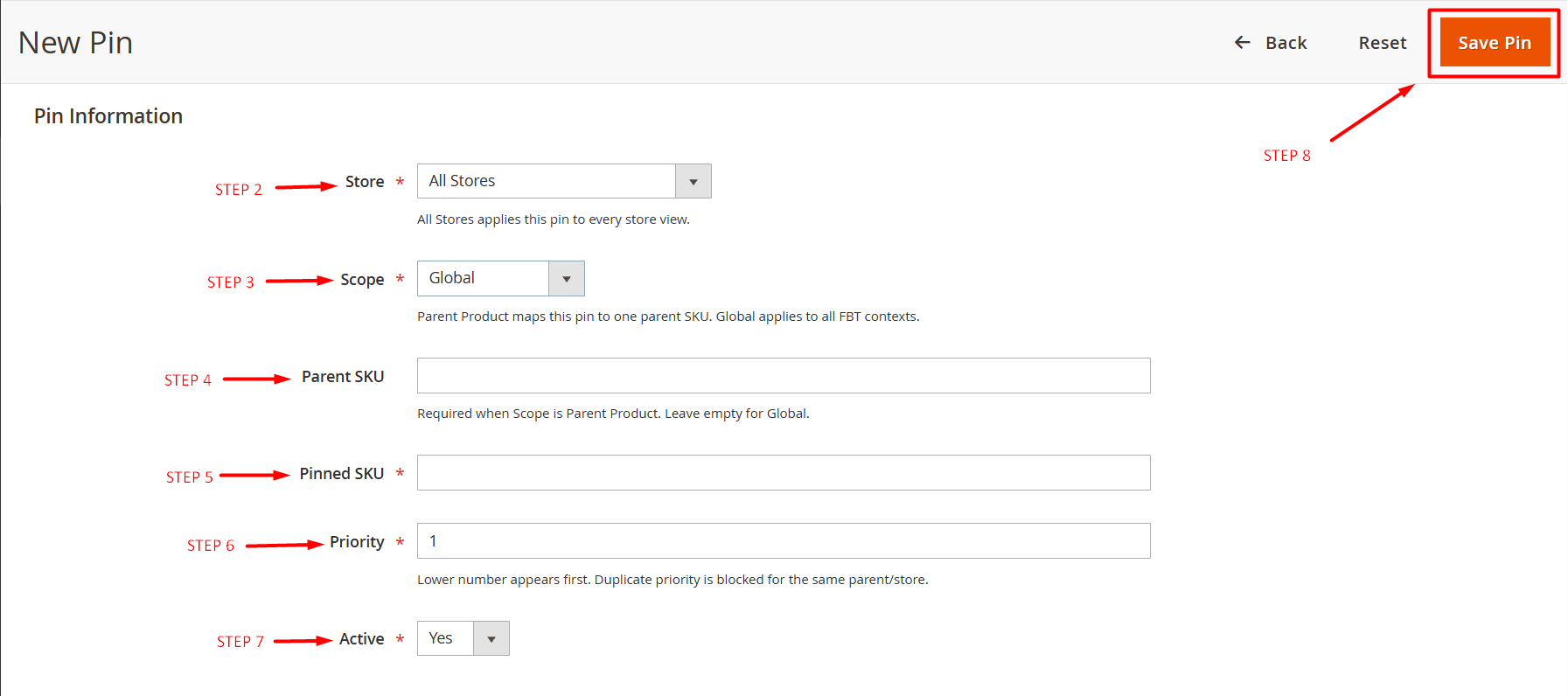
- Store: Select the store view where the pinned-product rule will apply.
- All Stores: Applies the rule to every store view.
- A specific store view: Applies the rule only to the selected store view.
- Scope: Defines where the pinned-product rule is applied.
- Global: Applies the pinned product across all FBT contexts. Leave the Parent SKU field empty.
- Parent Product: Links the pinned product to one specific parent SKU. The Parent SKU field is required.
- Parent SKU: Enter the SKU of the product that triggers the pinned recommendation. This field is required when Scope is set to Parent Product. Leave it empty when Scope is set to Global.
- Pinned SKU: Enter the SKU of the product that should be prioritized in the FBT recommendation block.
- Priority: Defines the display order of pinned products. A lower number has a higher priority and appears first. Duplicate priority values are not allowed for the same parent product and store view.
- Active: Controls whether the pinned-product rule is applied.
- Yes: Enables the rule.
- No: Disables the rule without deleting it.
Add a Pinned Product
1. Click Add New Pin.
2. Select the applicable Store.
3. Select the Scope:
- Choose Global to apply the pinned product across all FBT contexts.
- Choose Parent Product to apply it to a specific product.
4. Enter the Parent SKU when required
5. Enter or select the Pinned SKU.
6. Set the Priority.
7. Set Active to Yes.
8. Click Save Pin or Save Force-bundle.
When multiple products are pinned to the same parent product, the product with the lowest priority value is displayed first.
Fallback Behavior
Pinned products can be used when the AI service has insufficient data, returns an error, or exceeds the configured timeout.
Product Detail Page
Pinned products are matched with the product currently being viewed.
Cart Page
Pinned products are matched with products currently in the shopping cart.
Mini Cart
Pinned products are matched with products currently in the shopping cart. If only one valid pinned product is available, the FBT block can still display that product.
Blacklist Management
Blacklist rules prevent selected products from appearing in FBT recommendations.
Go to: Catalog > Frequently Bought Together > Blacklist Management
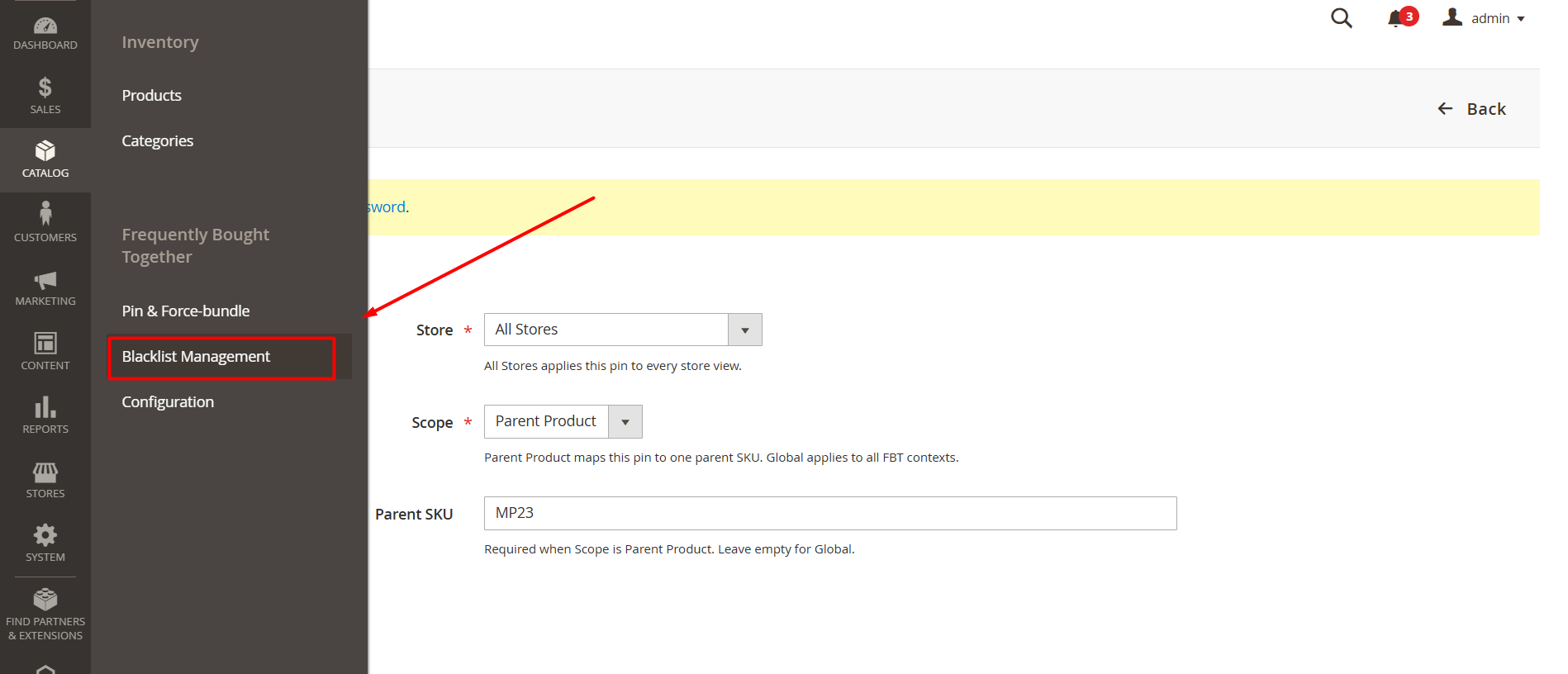
Products in the blacklist do not appear on: Product Detail Page, Cart Page and Mini Cart
When a product is both pinned and blacklisted, the blacklist rule takes priority and the product is not displayed.
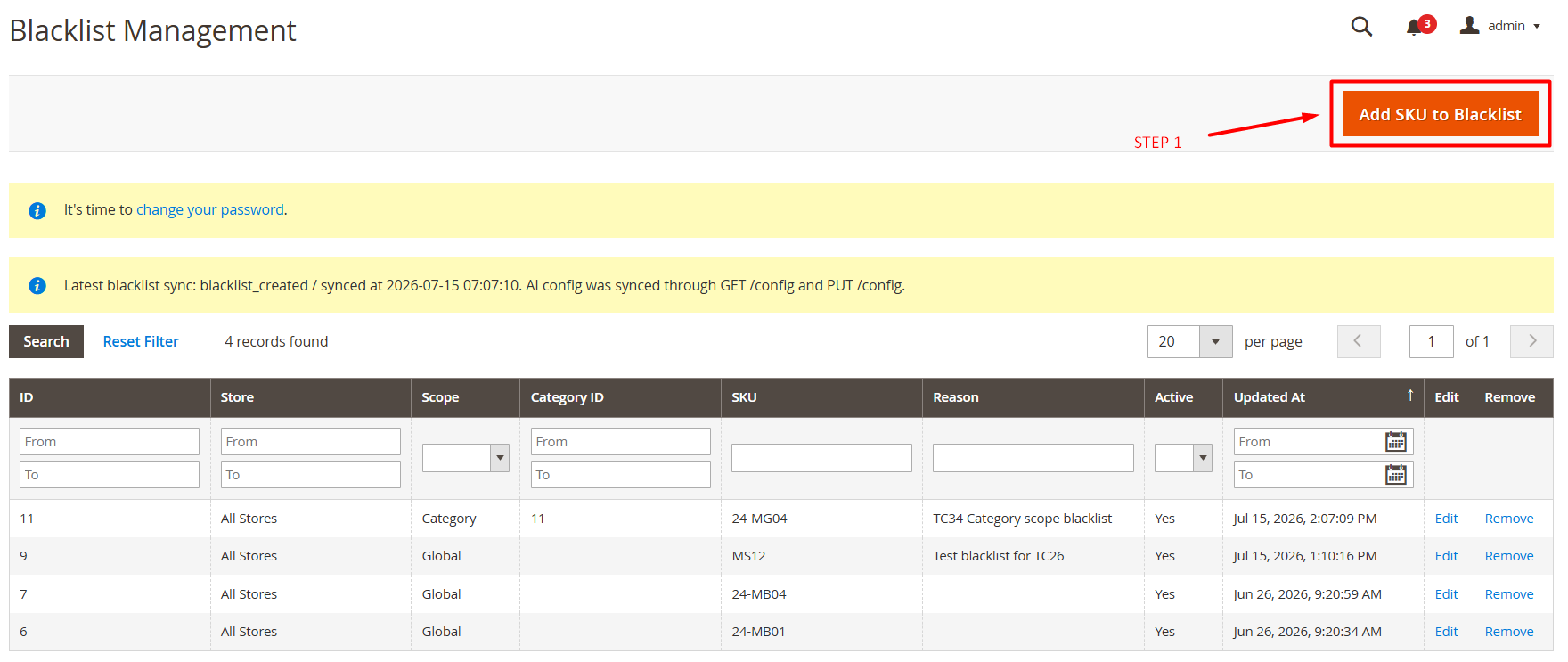
Add a Blacklist Rule:
- Click Add SKU to Blacklist.
- Select the applicable store.
- Select the rule scope.
- Select a category when required.
- Enter the product SKU.
- Enter an optional reason.
- Set Active to Yes.
- Click Save Blacklist Rule.
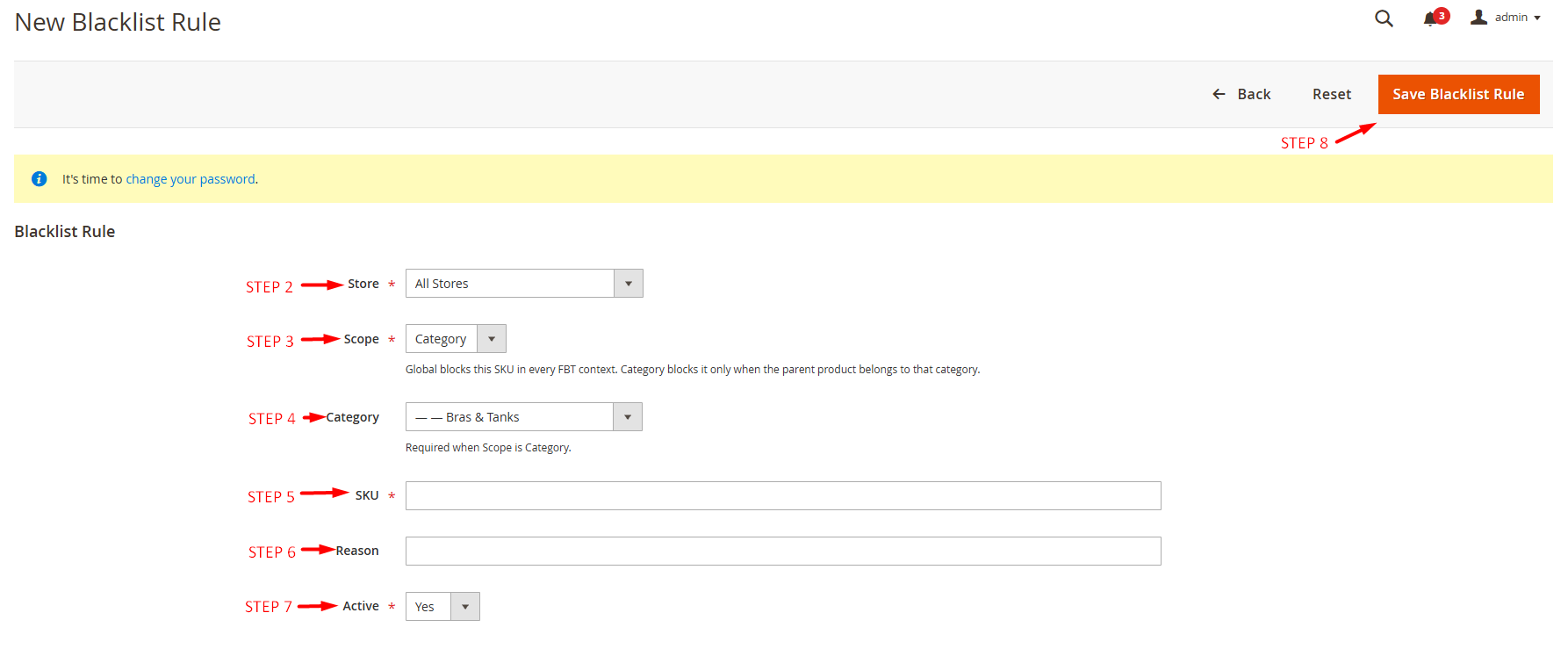
- Store: The All Stores function applies this pin to all store views.
- Scope: The Global block blocks this SKU in all FBT contexts. The Category block only blocks it when the parent product belongs to that category.
- Category: Required when Scope is Category.
- SKU: Product added to the blacklist.
- Reason: Reason for blacklisting.
- Active: Enable/Disable.
How AI Selects Recommendations
The AI uses several recommendation methods in priority order. It continues through the sequence until it finds enough valid products for the configured display limit.
- Frequently Purchased Together: The AI first checks historical order data to identify products that customers have purchased together. This is the primary and most evidence-based recommendation method.
- Similar Products: When purchase history is insufficient, the AI identifies products with similar:
- Names
- Descriptions
- Product types
- Product information
- Best Sellers in the Same Category: When additional candidates are required, the AI recommends popular products from the same category or subcategory.
- Store-Wide Best Sellers: If the previous methods still do not provide enough candidates, the AI uses popular products from across the store.
- Hide the Recommendation Block: When the AI cannot find enough valid candidates and no pinned product applies, the recommendation block is hidden. This prevents the storefront from displaying weak or incomplete recommendations.
Note:
- Stores with limited order history may initially receive more similarity-based or popularity-based recommendations.
- Frequently purchased together recommendations become more representative as the store collects more order data.
Understanding Min Support Threshold
Min Support Threshold is the minimum number of previous orders that must contain both products before the pair is considered frequently bought together.
For example, when: Min Support Threshold = 5
At least five historical orders must contain both products.
If the pair does not meet the threshold, the AI moves to other recommendation methods, such as similar products or popular products.
Lower Threshold
- Frequently purchased together results appear more easily.
- Recommendations may be based on fewer orders.
- Results may be less reliable.
Higher Threshold
- Recommendations require stronger historical evidence.
- Results may be more reliable.
- New or low-volume stores may reach the threshold less frequently.
When the Recommendation Block Is Hidden
The FBT block is hidden in the following situations:
- The module is disabled.
- The relevant storefront display location is disabled.
- The AI service is unavailable or times out, and no pinned product applies.
- The number of valid AI candidates is below Min Candidates To Show, and no pinned product applies.
- All candidates are removed by stock, product-status, cart-duplication, variant, or blacklist rules.
Hiding the block is an intentional behavior designed to prevent incomplete or irrelevant recommendations from appearing.
Configuration Notes
- Save the configuration after making any changes.
- Run a manual data sync when historical order or catalog information needs to be refreshed.
- Test the PDP, Cart Page, and Mini Cart separately because each location has its own display settings.
- Confirm advanced AI settings with the Magenest implementation team before publishing fixed store-specific values.
- Some advanced settings may depend on the current AI service version. If a configuration change does not affect the storefront results, confirm its implementation status with the AI technical team.
Update
When a bug fix or new feature is released, we will provide you with the module's new package.
All you need to do is repeating the above installing steps and uploading the package onto your store. The code will automatically override.
Flush the config cache. Your store and newly installed module should be working as expected.
Support
- We will reply to support requests within 2 business days.
- We will offer lifetime free update and 6 months of free support for all of our paid products. Support includes answering questions related to our products, bug/error fixing to make sure our products fit well in your site exactly like our demo.
- Support DOES NOT include other services such as customizing our products, installation, and uninstallation service.
Once again, thank you for purchasing our extension. If you have any questions relating to this extension, please do not hesitate to contact us for support.