...
The module supports AI-powered document extraction, manual or scheduled processing, bulk uploads, and document-specific workflows such as as splitting multiple purchase orders from a single file. After extraction, users can review and correct the captured data before creating the final Odoo record.
...
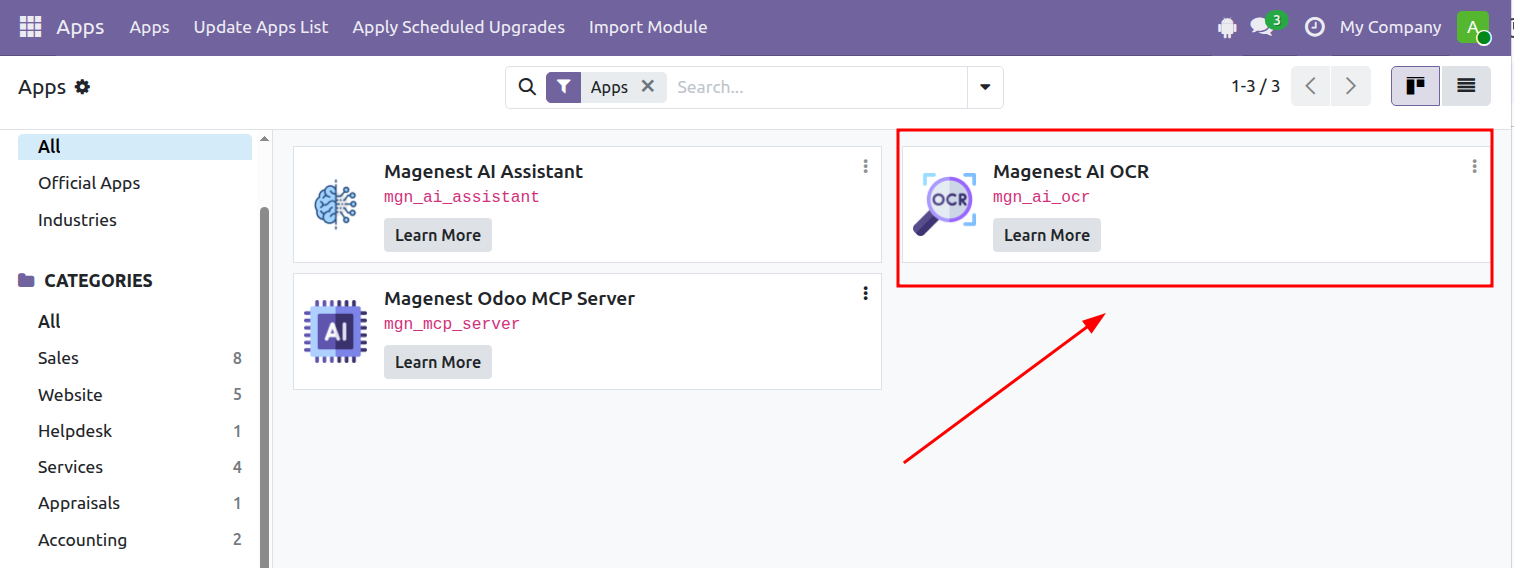
 Step 3: Activate Magenest AI OCR.
2. Connect to Gemini
...
Get a Gemini API Key
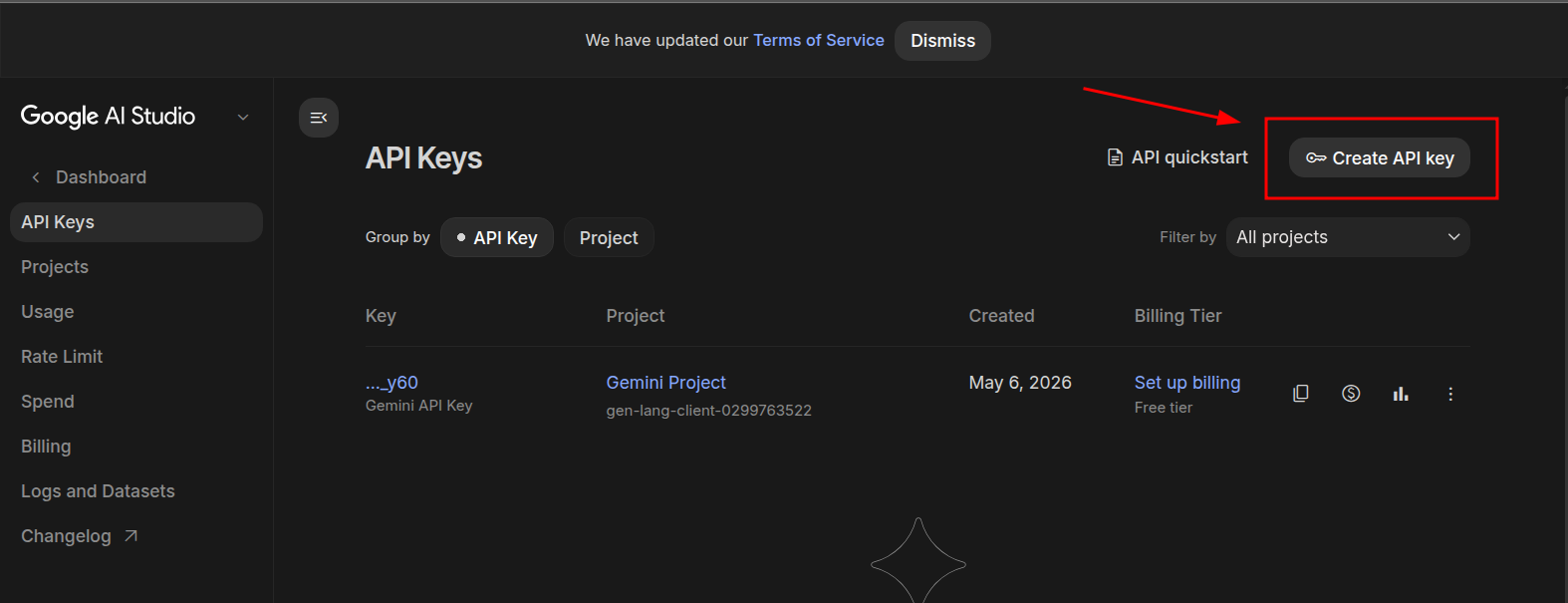
Step 1: Open Google AI Studio and create a new API key.
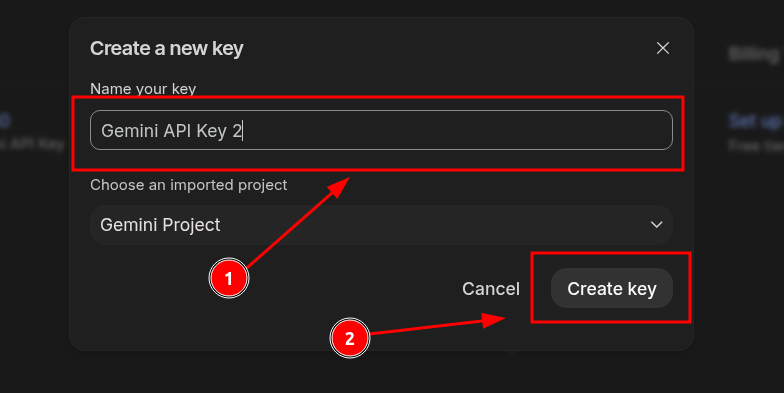
Step 2: Enter a name for the key, then click Create key.
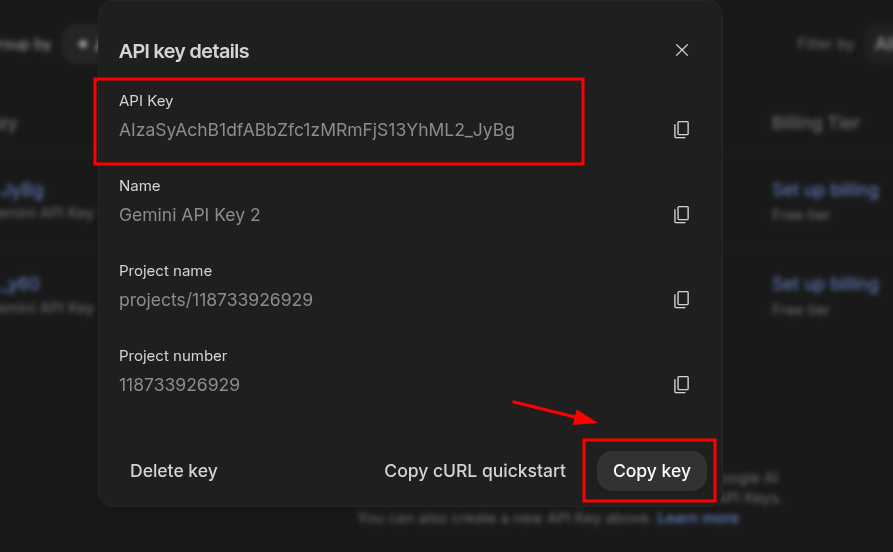
Step 3: Copy the generated key.
...
Add the API Key to Odoo
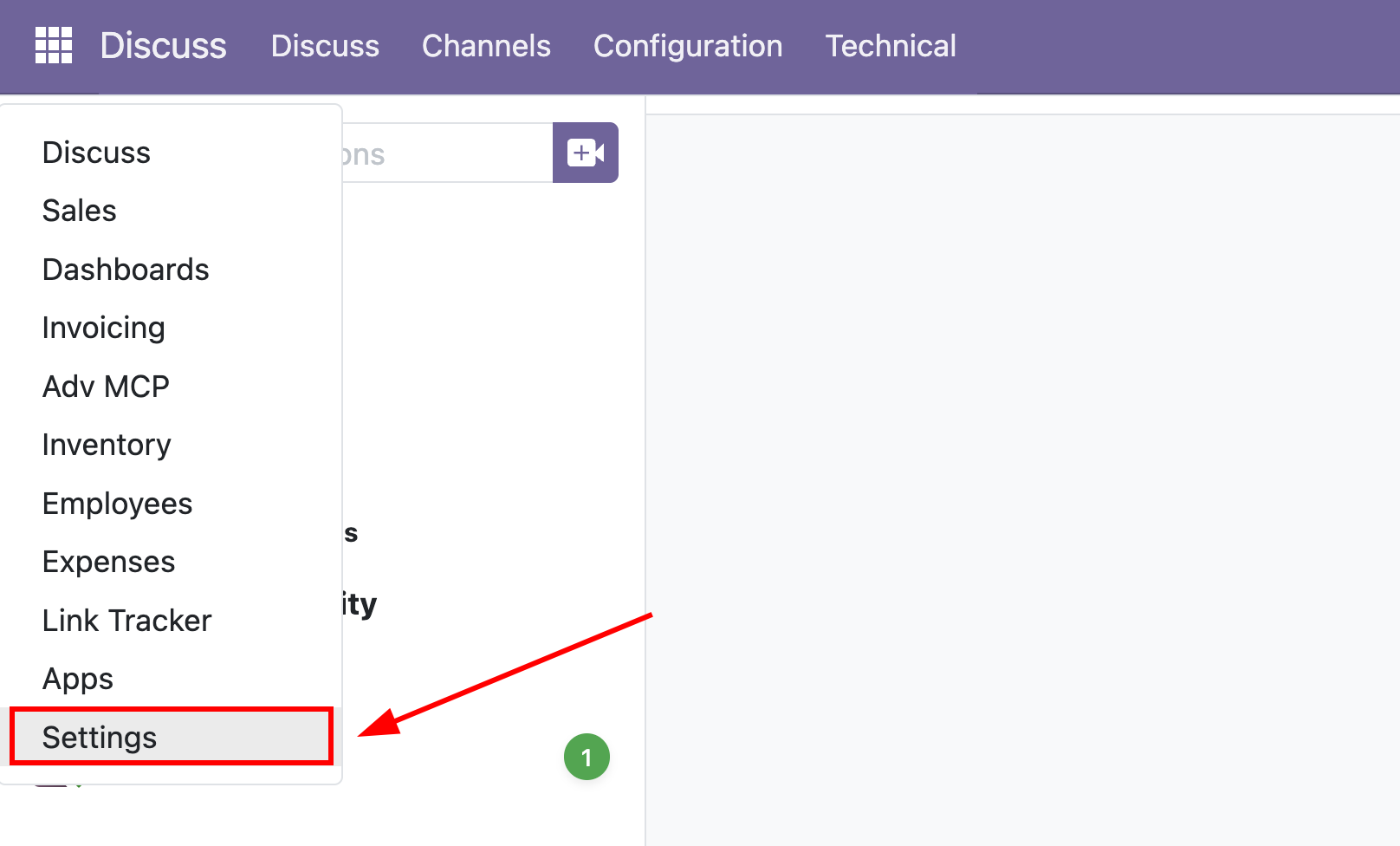
Step 1: Open Settings.
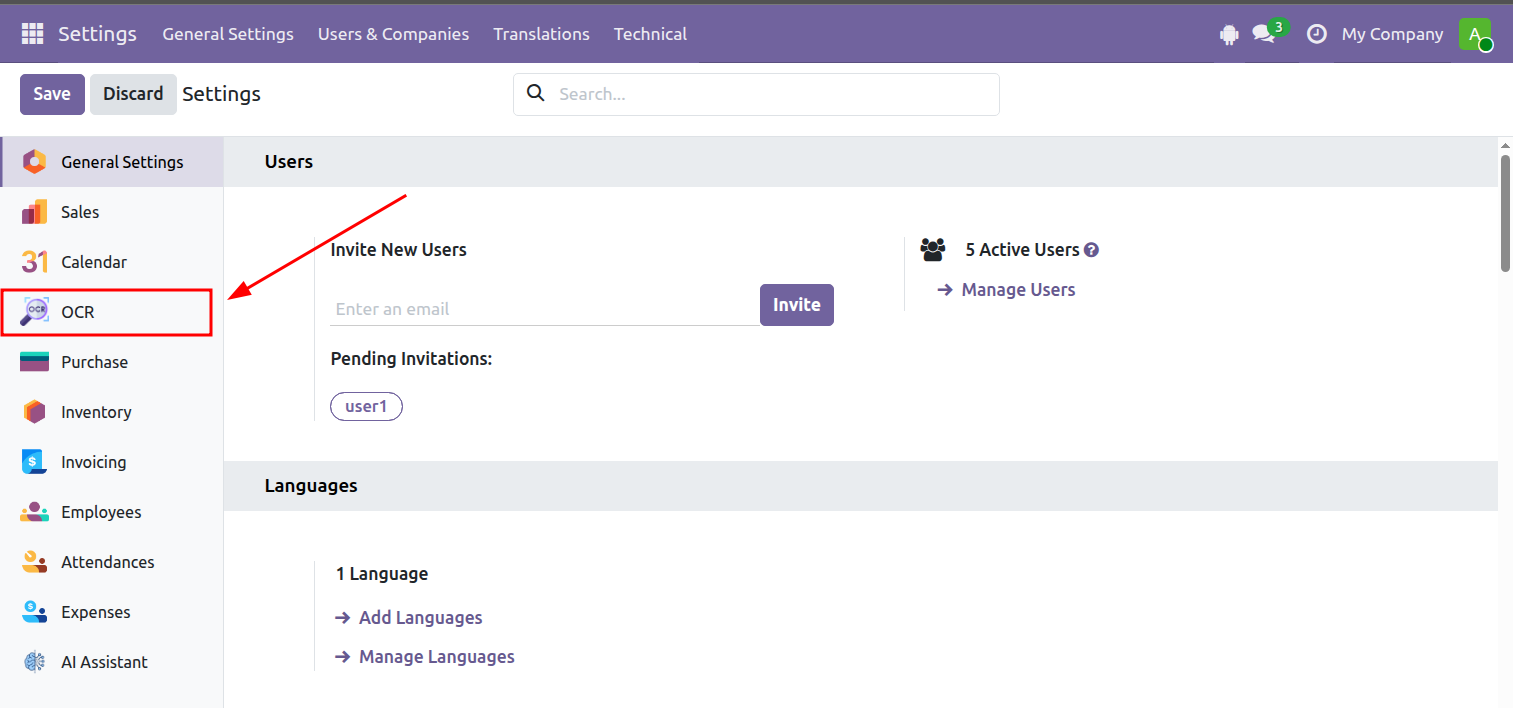
Step 2: Go to OCR.
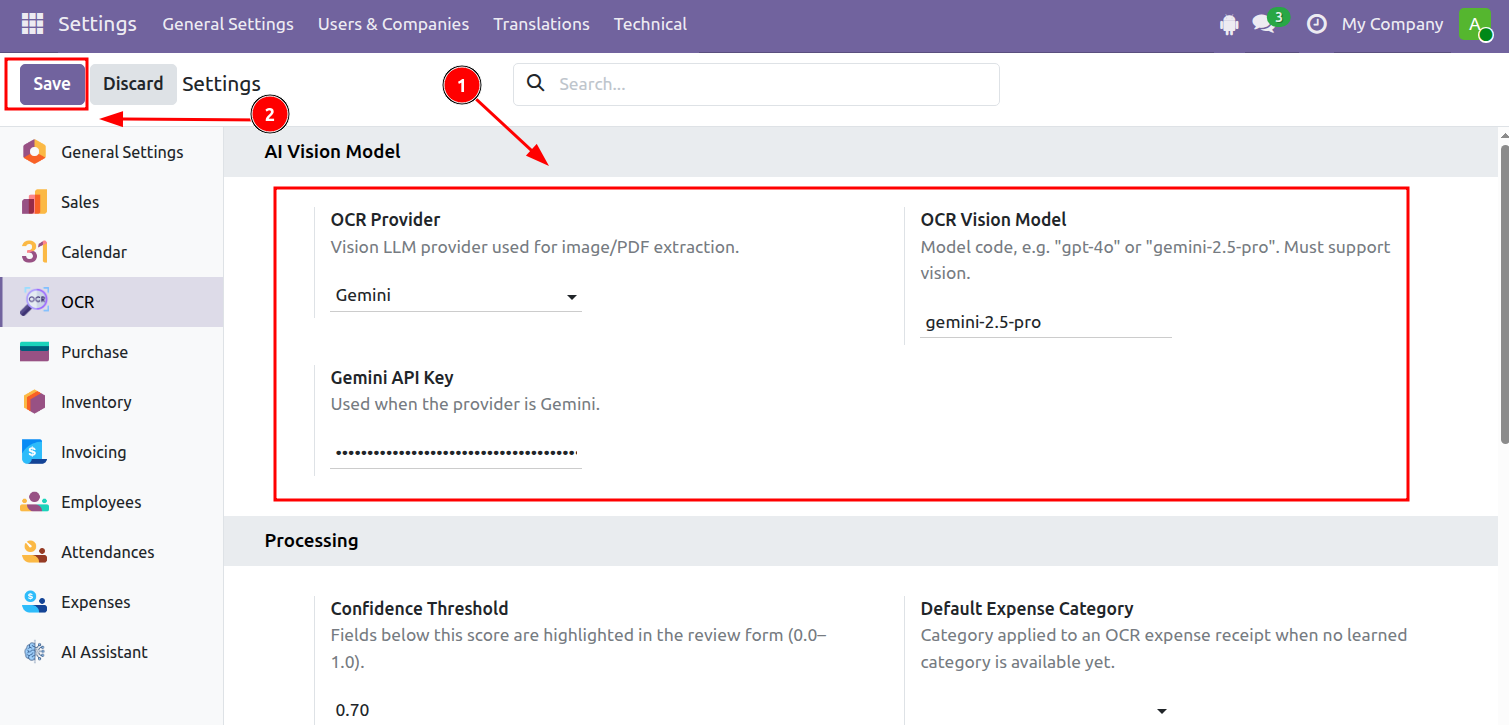
Step 3: Configure the following three fields:
...
Then click Save.
II. Using OCR
...
General OCR Workflow
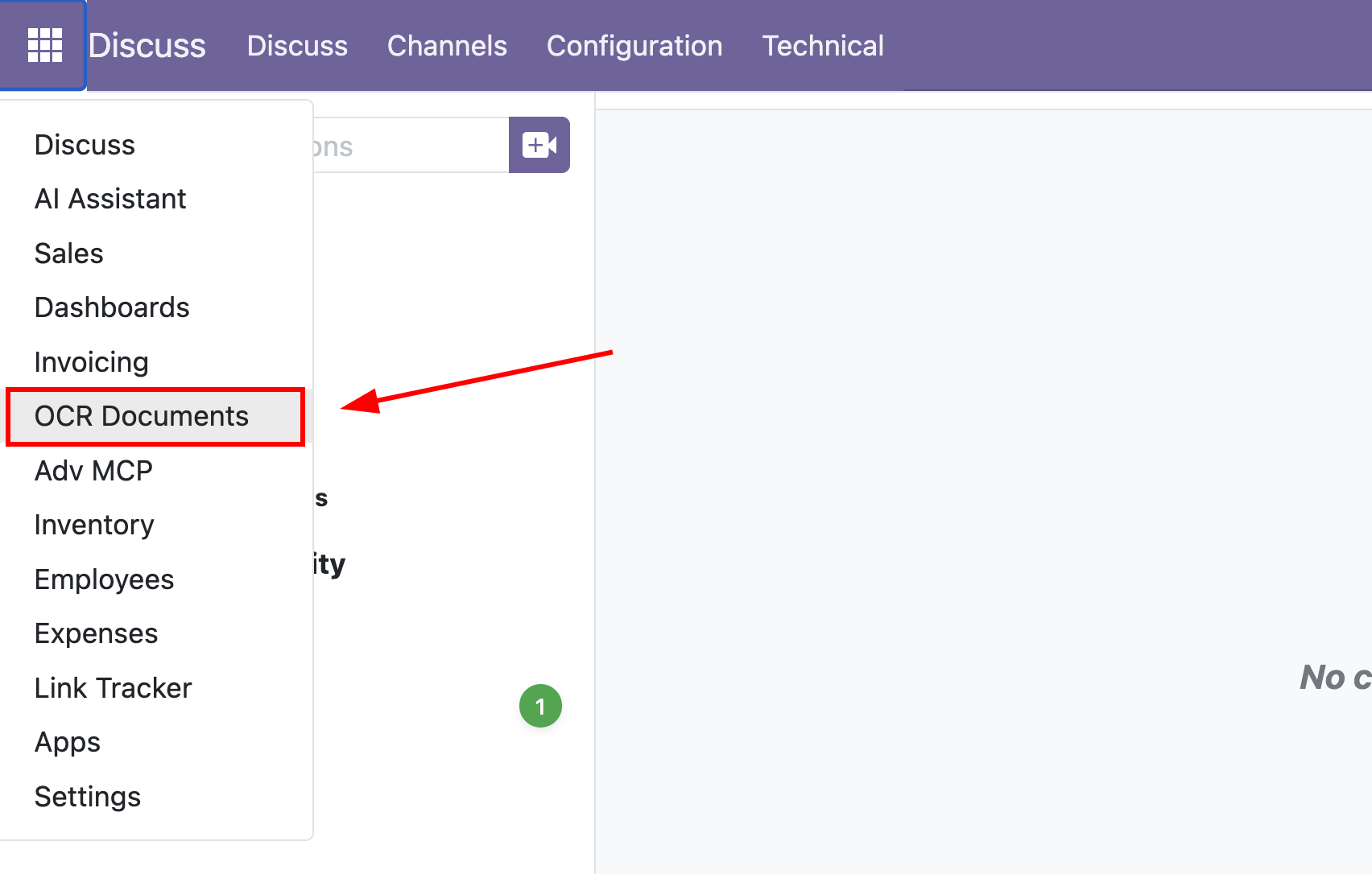
Step 1: Open OCR Documents.
Step 2: Click New.
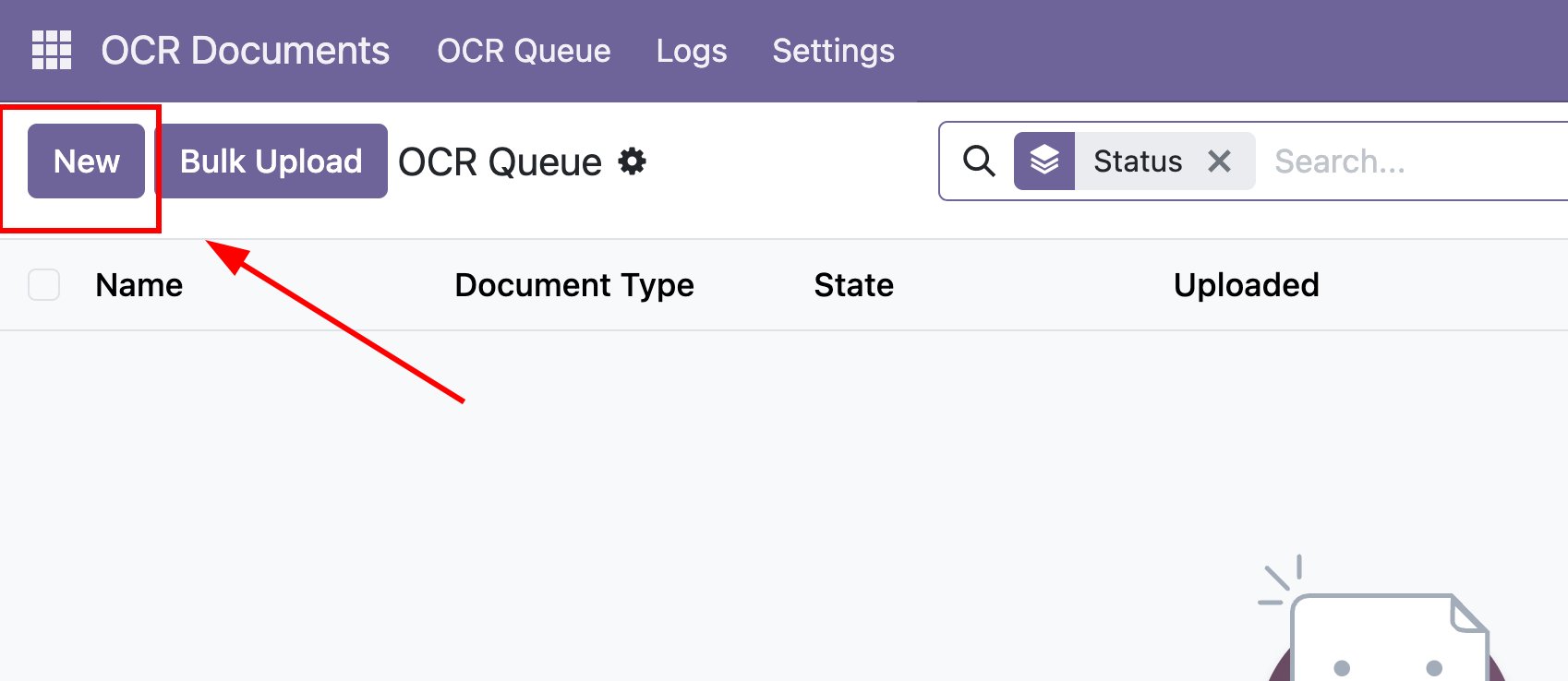
Step 3: Complete the document form, then save it.
- Name: Enter a name for the document.
- Document Type: Select the type of document. (Eg: Invoice)
- Upload Your File: Upload the document you want to process.
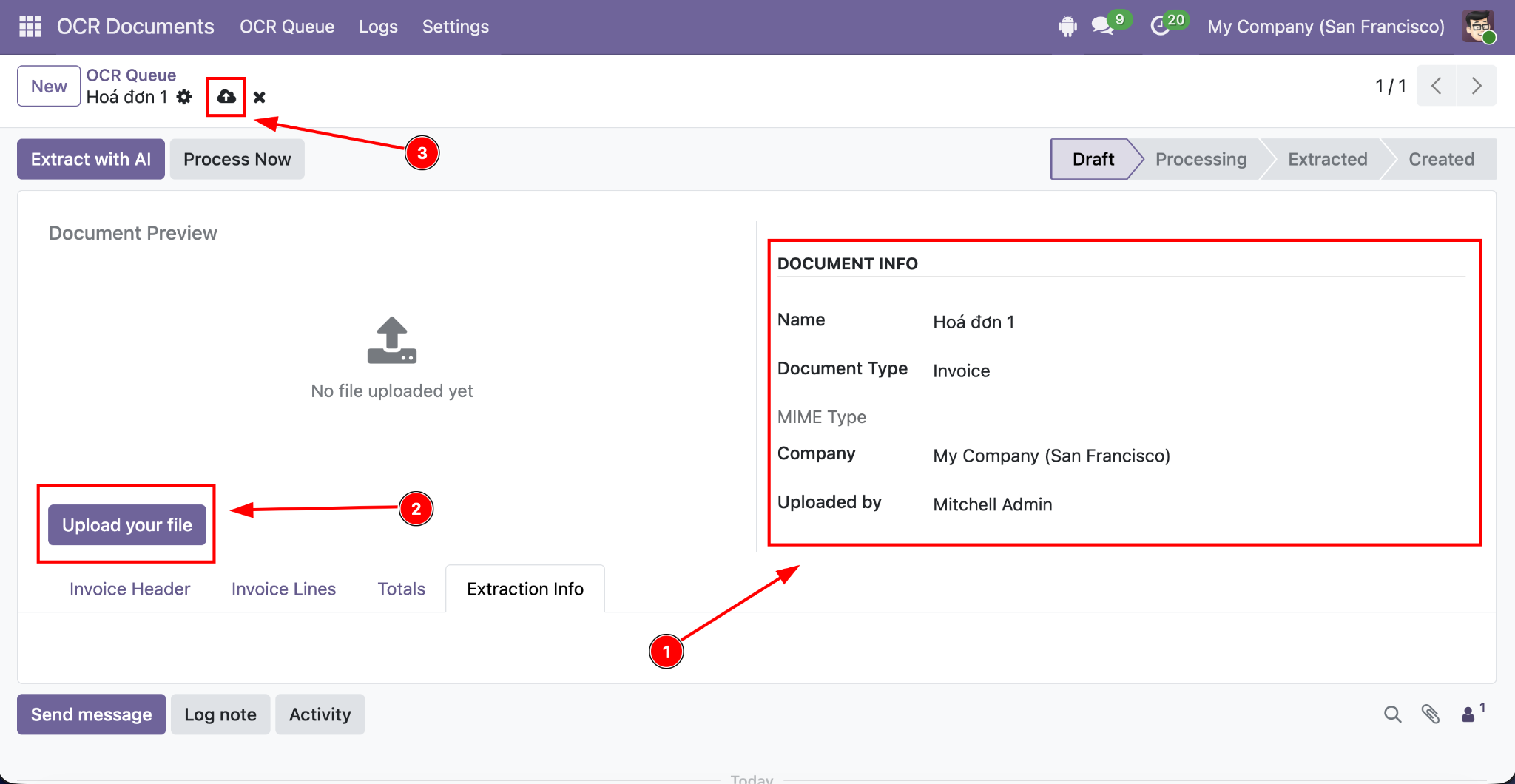
Step 4: Click Extract with AI.
...
Once processing is complete, the extracted information appears in the available tabs.
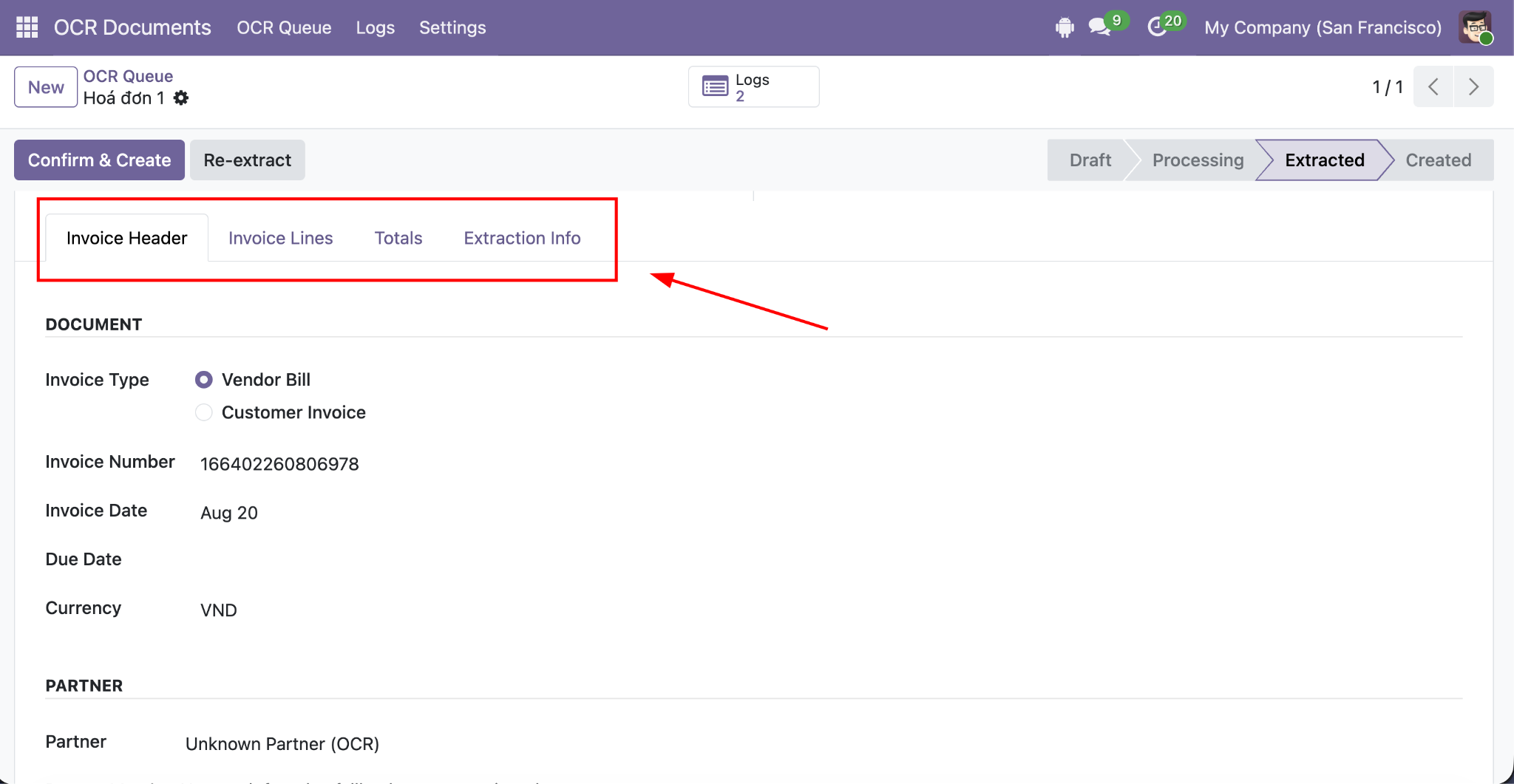
Step 5: Review the extracted information and make any necessary corrections.
...
This step can be skipped if the system is configured to create the record automatically when all extracted information is complete and valid.
Step 6: Once the record has been created successfully, click the Invoice smart button to open the newly created record.
...
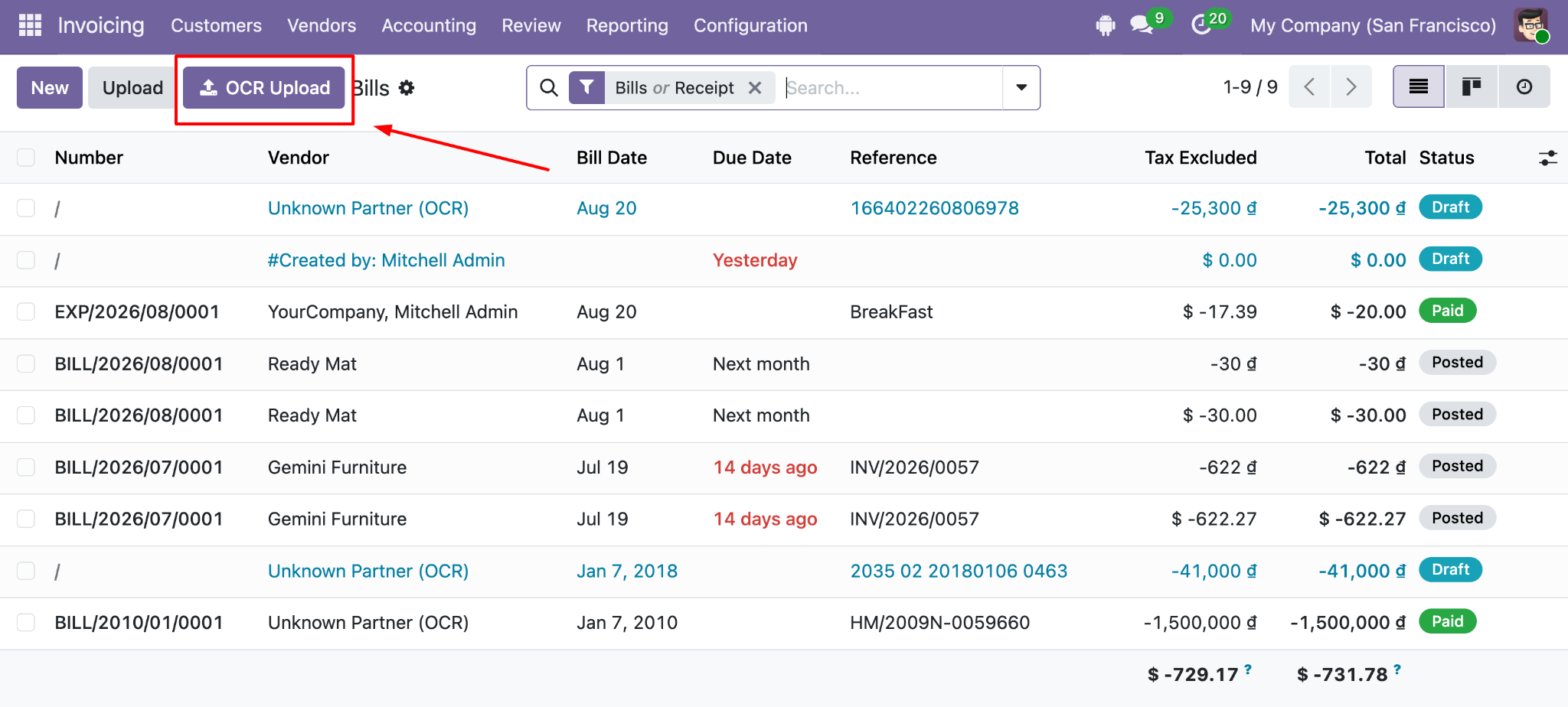
In addition to processing one document at a time, users can upload and process multiple documents in a single batch using Bulk Upload.
Step 1: Click Bulk Upload, for example from the Invoice section.
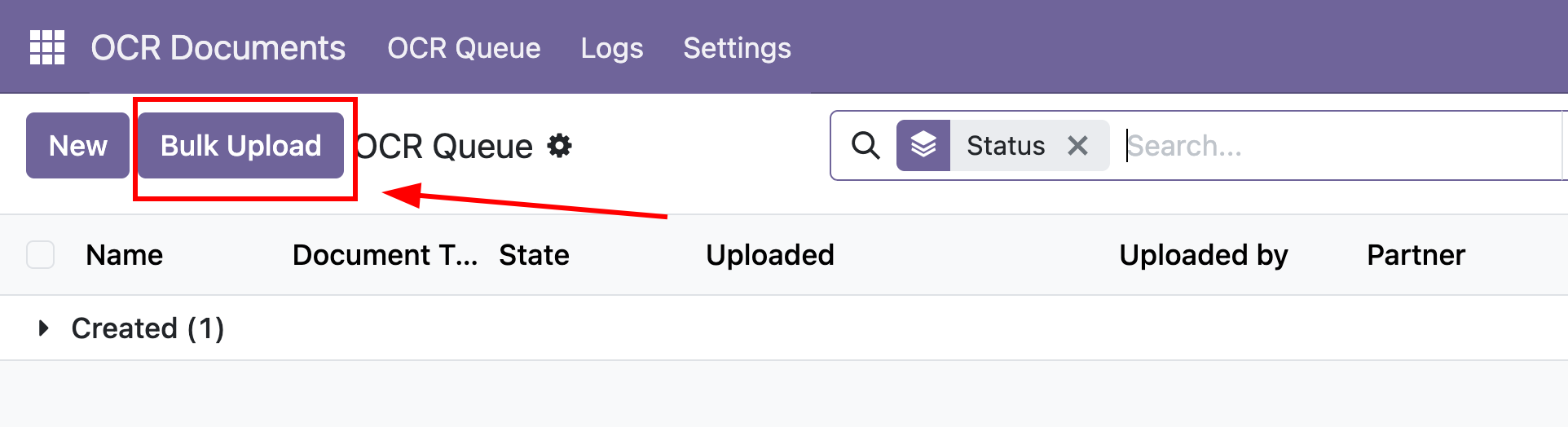
Step 2: Select the Document Type.
...
Invoicing > Vendors > Bills
...
Document-Specific Features
...
Split Multiple Purchase Orders from One File
The Purchase Order OCR workflow can split a single file when it contains multiple purchase orders.
Step 1: Upload a file containing multiple purchase orders and set:
Document Type = Purchase Order
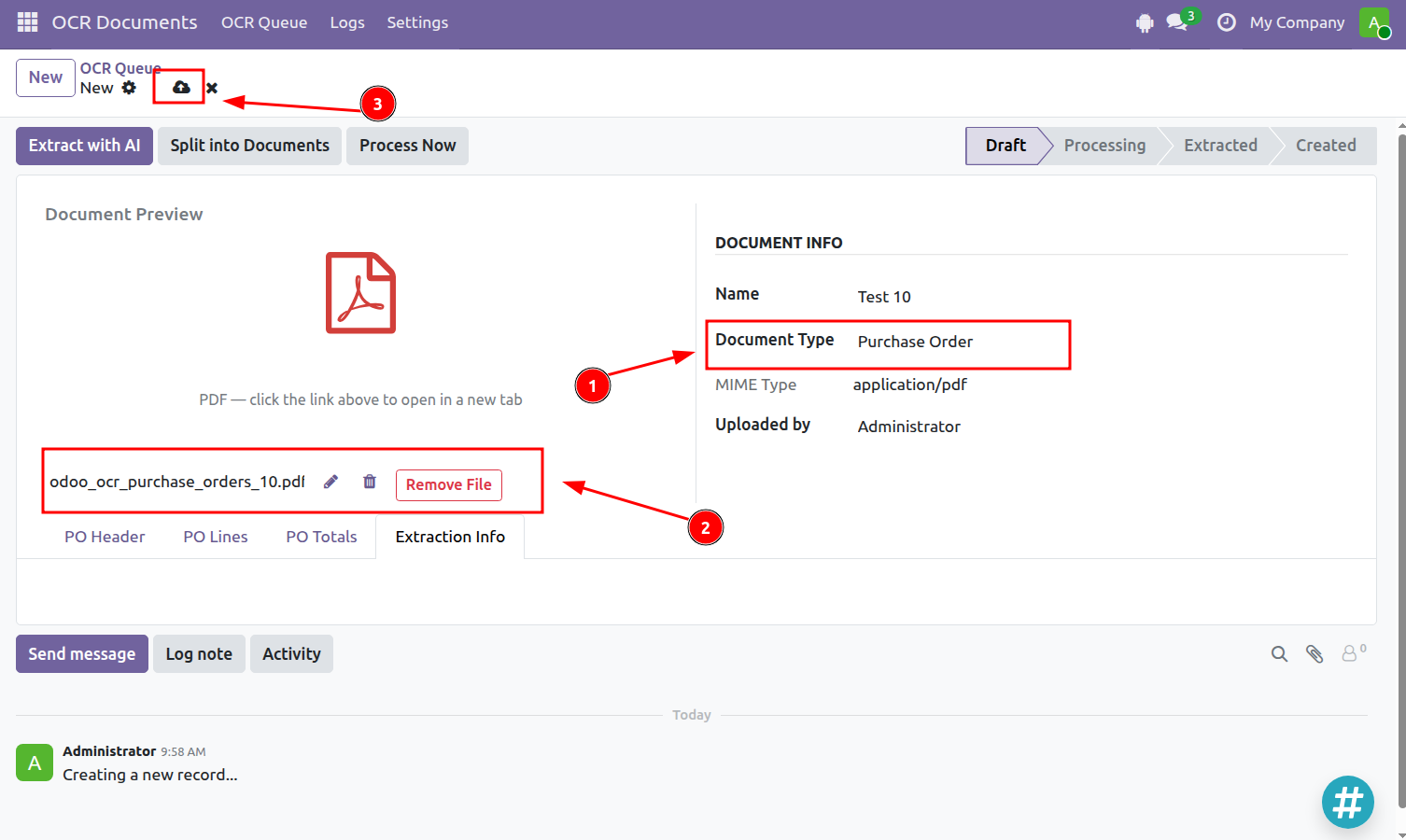
Step 2: Click Split into Documents to split the file automatically.
...
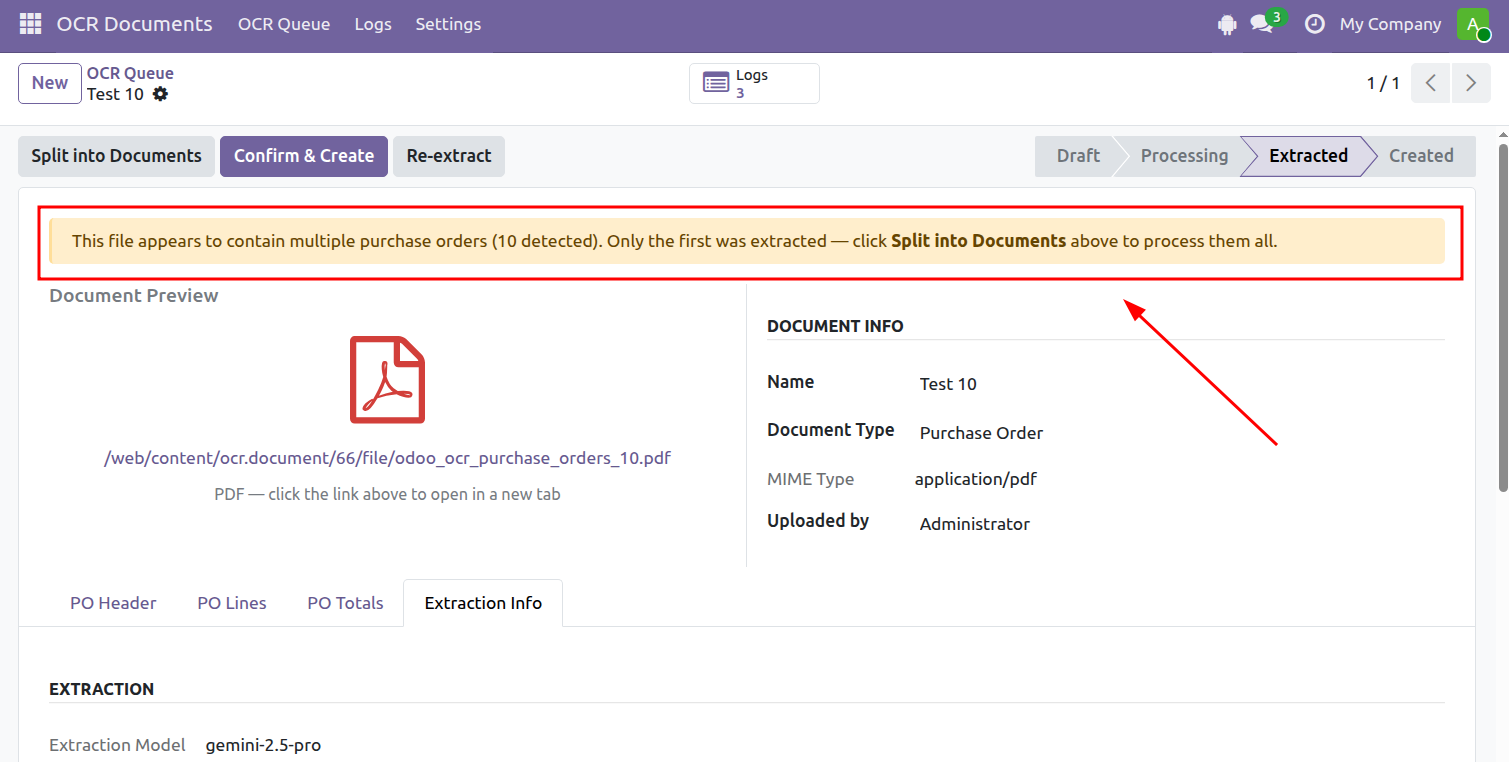
If you click Extract with AI or Process Now before splitting, the system will detect that the file contains multiple purchase orders and prompt you to use Split into Documents first.
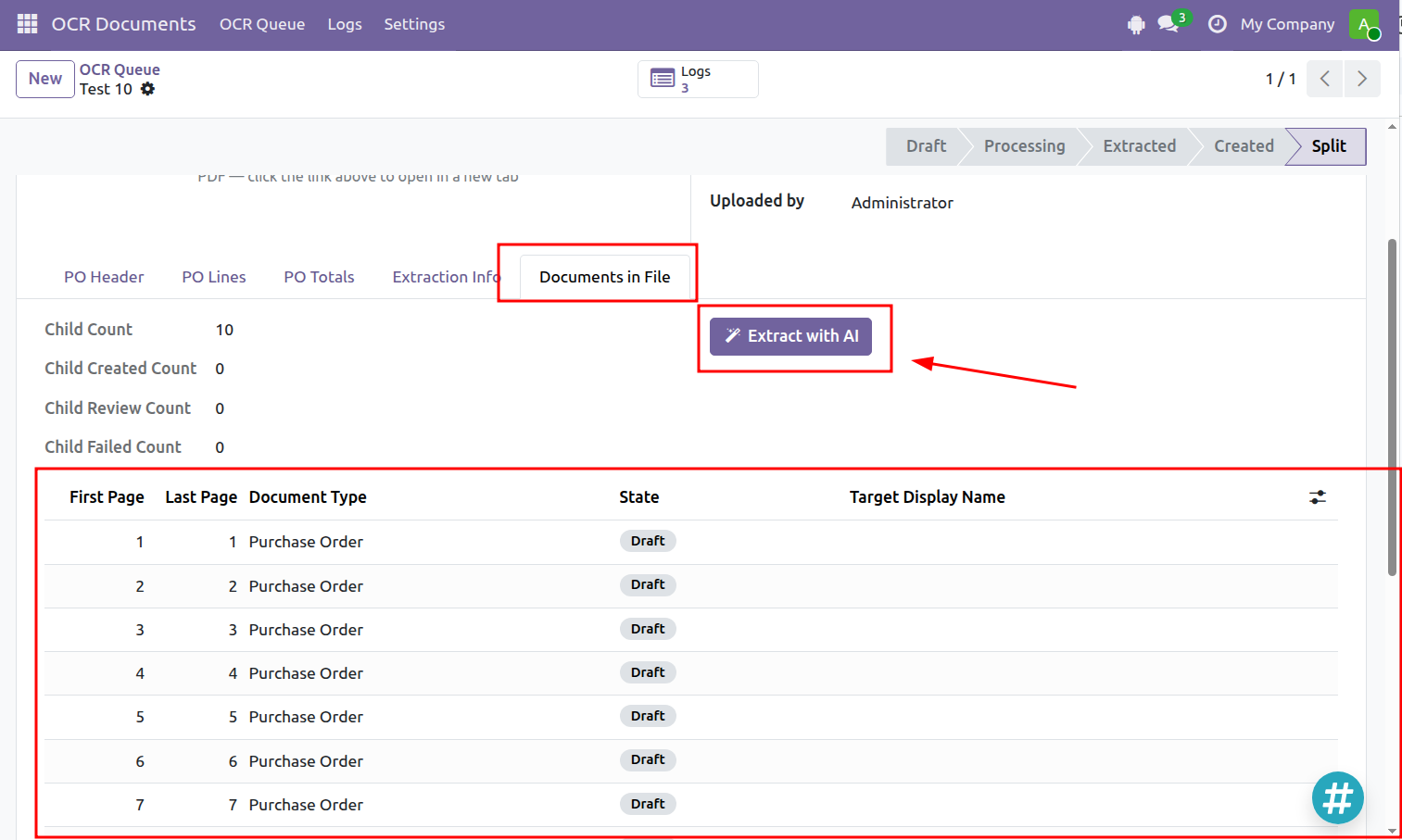
Step 3: Once the file has been split, the system displays the individual purchase orders.
Click Extract with AI to process the newly separated documents.
...
Automatically Match Invoices with Purchase Orders
When an invoice is processed with OCR, the system can automatically look for existing Purchase Orders with matching information. This helps users quickly find the relevant Purchase Order without searching for it manually.
Purchase Orders with an Order Date closer to the Invoice Date are ranked higher, especially when the dates are within 90 days. Purchase Orders outside this period can still appear as suggestions, but they are ranked lower.
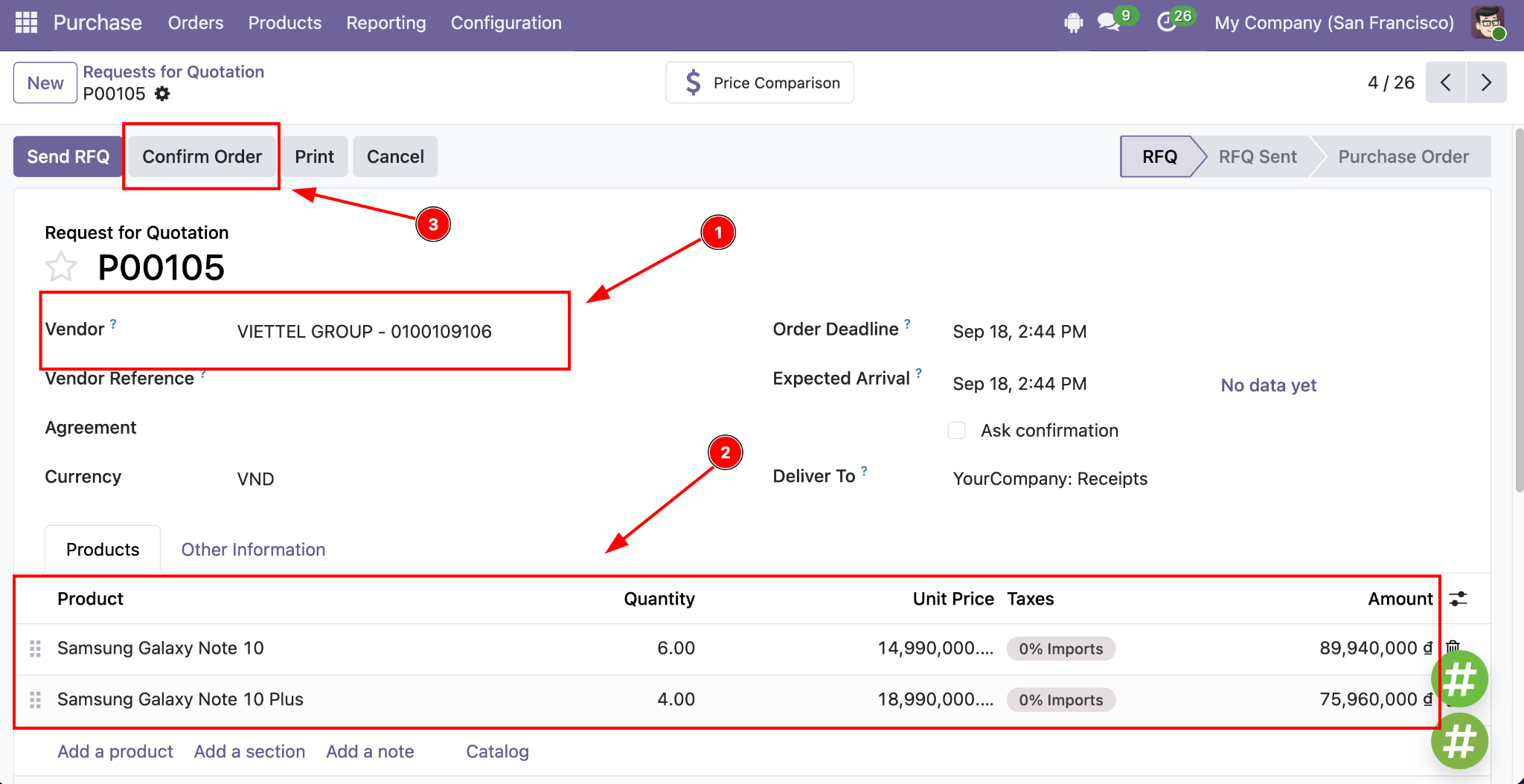
Step 1: Prepare the Purchase Order
...
Then click Confirm Order to confirm the Purchase Order.
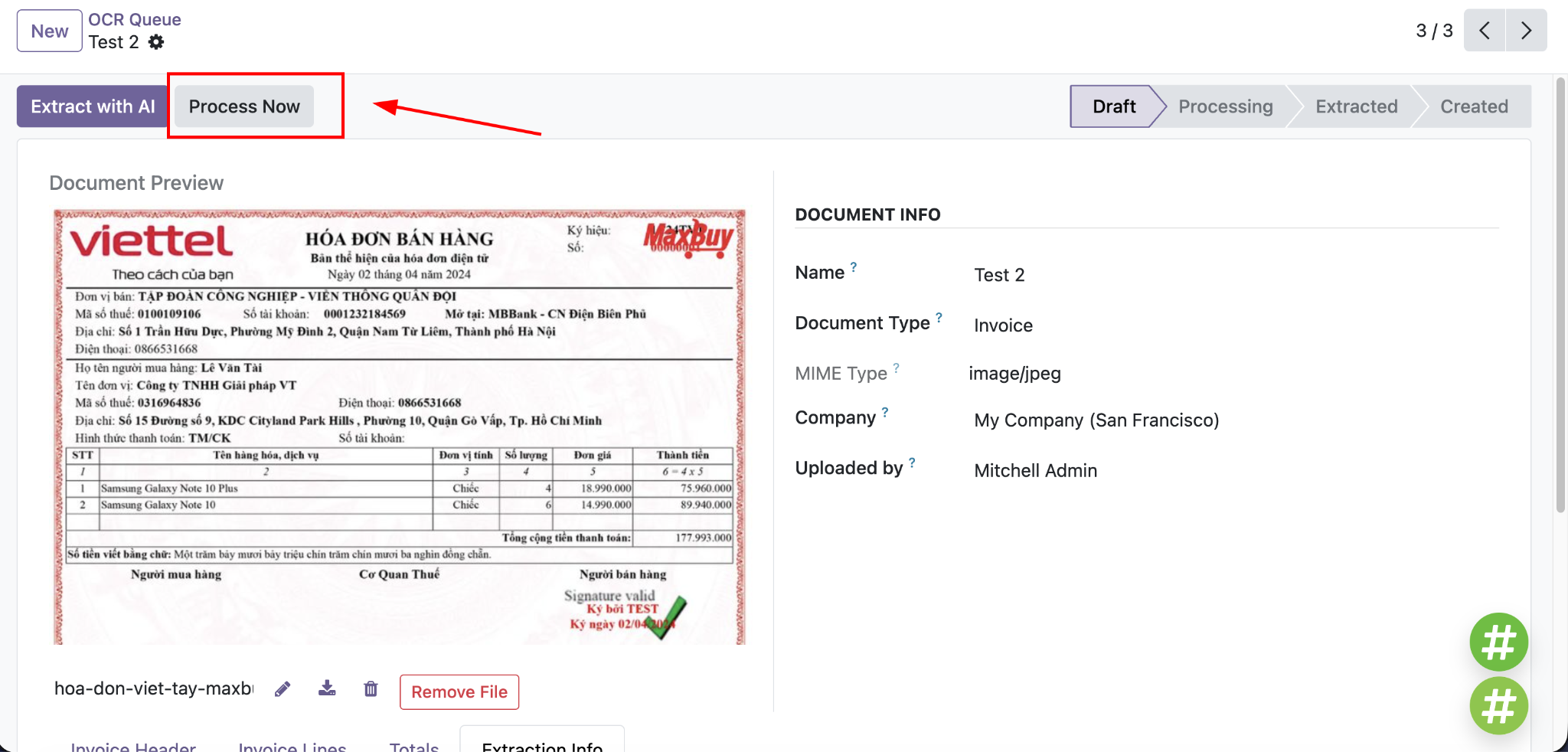
Step 2: Upload and Process the Invoice
...
Upload the invoice file, then click Process Now to run OCR.
Step 3: Review the Matching Results
...
Before continuing, review the suggested matches and make sure the Matched PO corresponds to the invoice.
Step 4: Create the Invoice
...
The system creates the Invoice and automatically links it to the selected Matched PO.
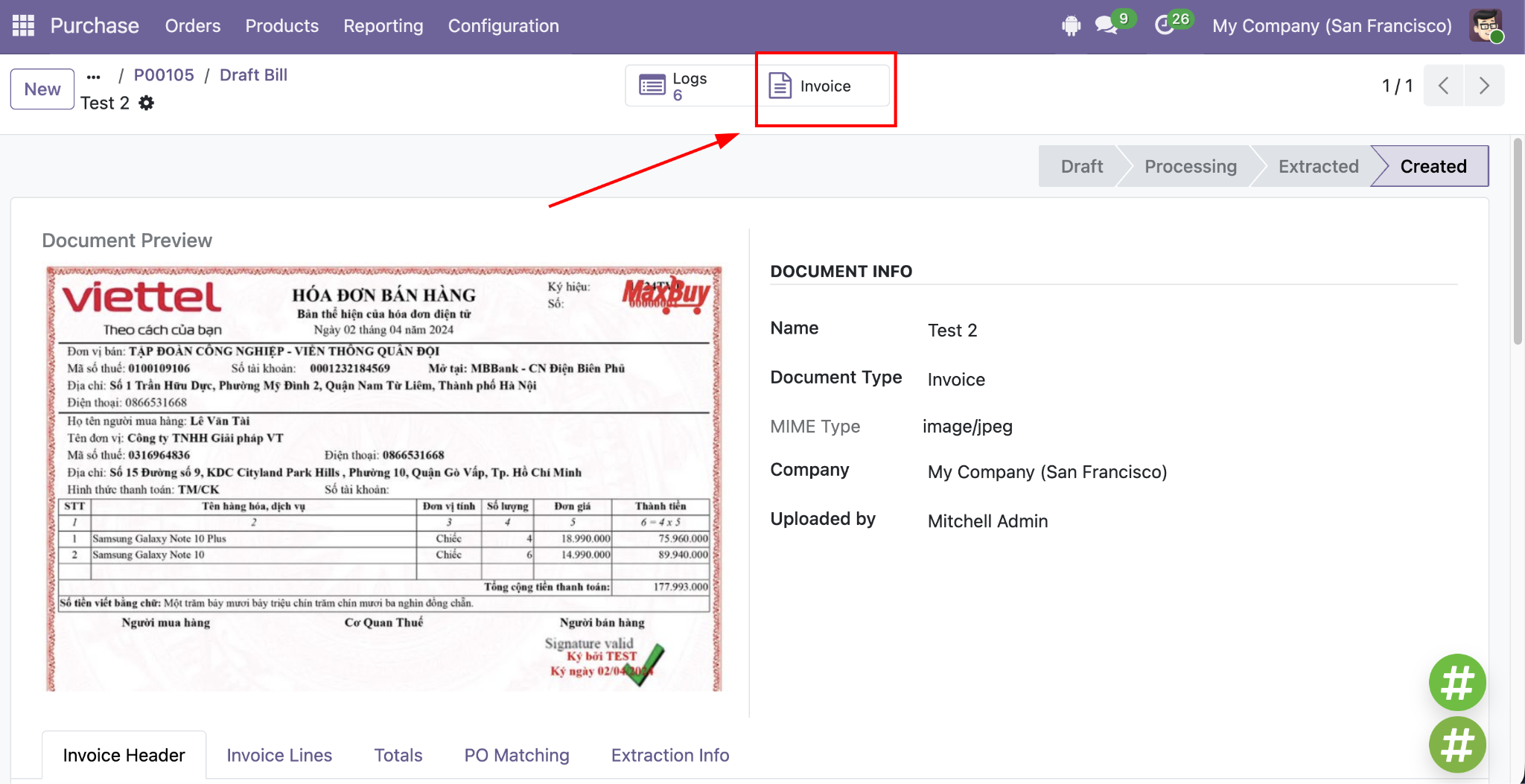
Step 5: View the Linked Records
...